Snapchat is famous for disappearing photos, chaotic Bitmojis, and the occasional filter that makes you look like a glamorous potato. But the app is also a genuinely useful calling tool. If you have ever opened Snapchat to send a quick message and then realized, “Wait, I could just call them,” you are exactly the kind of person this guide was written for.
Whether you want to make a quick voice call, hop on a face-to-face video chat, or start a group conversation that feels part hangout and part digital circus, Snapchat makes the process pretty simple. The trick is knowing where the buttons are, what features work during a call, and what to do when the app decides to act like it forgot what a microphone is.
In this guide, you will learn how to voice call on Snapchat, how to start a Snapchat video chat, how group calling works, how to use Snapchat on your computer for calls, and how to fix the most common calling issues without launching your phone into low Earth orbit.
What You Need Before You Call on Snapchat
Before you start your Snapchat voice call or video chat, make sure a few basics are covered. This saves time and prevents the classic “Can you hear me now?” opening act.
- A Snapchat account that is logged in and updated to the latest version.
- A friend or group chat already added in Snapchat.
- A stable internet connection, ideally Wi-Fi or strong mobile data.
- Camera and microphone permissions enabled on your phone.
- For desktop calling, access to Snapchat for Web through your browser.
If your app is outdated, your internet connection is weak, or your camera and mic permissions are off, Snapchat calling can get messy fast. Think frozen video, robotic audio, or the app staring back at you with the emotional warmth of a brick.
How to Make a Voice Call on Snapchat
If you want to talk without worrying about your hair, lighting, or the fact that you are currently wrapped in a blanket like a burrito, a Snapchat voice call is the way to go.
- Open Snapchat.
- Tap the Chat tab.
- Select the friend or group chat you want to call.
- Tap the phone icon at the top or inside the chat.
- Wait for the other person to answer.
That is it. No complicated setup, no searching through five menus, and no need to pretend you enjoy video calls if you really do not. Snapchat also lets you place voice calls in group chats, which is handy when texting has turned into 57 unread messages and nobody can agree on dinner plans.
One small but useful detail: during a Snapchat voice call, the app can shift to speakerphone if you hold the phone away from your face. Bring it closer again, and the audio can route back more like a standard phone call. That is a nice touch when you want privacy one second and hands-free convenience the next.
How to Start a Video Chat on Snapchat
If a voice call is good, a Snapchat video chat is basically the same idea with more facial expressions, accidental ceiling shots, and the possibility of using fun Lenses. It is a popular option for catching up with friends because it feels less formal than a work call and more playful than a traditional video meeting.
- Open Snapchat.
- Go to the Chat screen.
- Tap the friend or group chat you want to open.
- Tap the video camera icon.
- Wait for the other person or group members to join.
Snapchat lets you minimize a video chat by swiping down. That means you can keep the call going while moving around the app a bit, which is useful when you want to send something in the chat or quickly check another conversation. It is also worth knowing that your friend may be able to see your video before they fully answer, so maybe do a quick face check first. Your future self will appreciate the effort.
How Group Calls and Group Video Chats Work
Snapchat is not just for one-on-one calls. You can also use it for group voice and video conversations, which is great for friend groups, classmates, siblings, or anyone who prefers organized chaos.
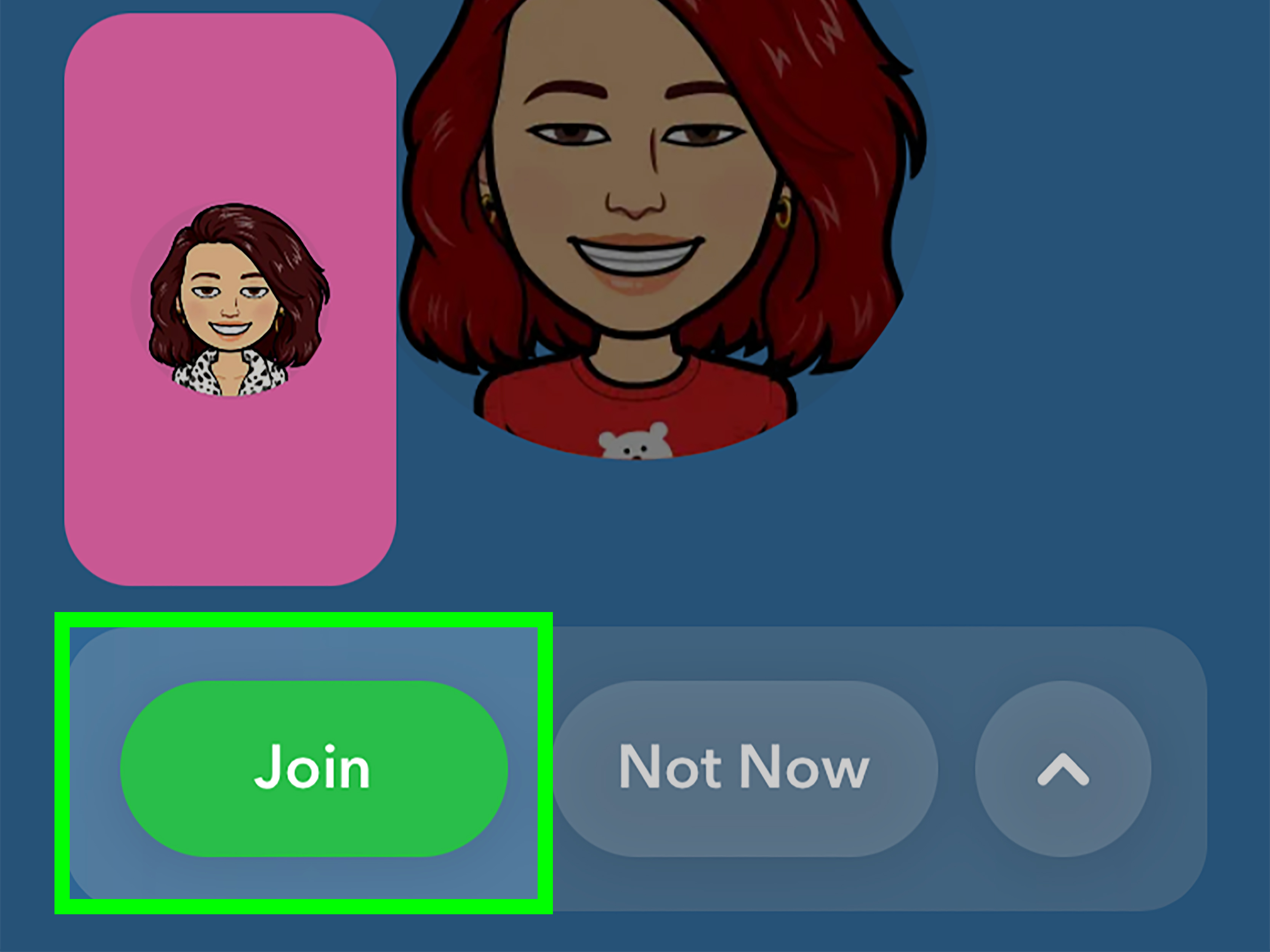
To start a group call, open an existing group chat and tap the phone or video icon. Group members will receive a notification inviting them to join. Once the call begins, Snapchat keeps the mood casual. People can join, speak, send messages, and in some cases use Lenses while chatting.
Voice calling supports larger groups than video calling, so if you are trying to gather a bigger crowd, audio may be the easier option. For video chats, Snapchat supports a mid-sized group experience rather than full-blown conference-call energy. In plain English: this is better for catching up with friends than hosting a digital town hall.
Group video chat on Snapchat feels especially fun because it is less stiff than traditional video platforms. You are not looking at a grid wondering whose turn it is to talk. It feels more spontaneous, which is part of Snapchat’s whole charm.
Can You Call on Snapchat From a Computer?
Yes, and honestly, this is one of the more underrated Snapchat features. If you prefer typing on a full keyboard or taking calls from your laptop while pretending to be productive, Snapchat for Web is worth knowing about.
To use it:
- Go to web.snapchat.com on your computer.
- Log in to your Snapchat account.
- Open a conversation from the Chat feed.
- Click the phone icon for a voice call or the camera icon for a video chat.
This is a nice option for longer conversations because a laptop screen gives you more room to breathe than a phone screen. It is also useful when your phone battery is hanging on by a thread and making dramatic farewell speeches.
Snapchat for Web is especially practical if you switch between desktop and mobile often. You can pick up where your chats left off and continue a conversation without constantly reaching for your phone.
What Happens When Someone Calls You on Snapchat?
When someone calls you, Snapchat sends an incoming call notification. On iPhone, Snapchat also supports CallKit, which means you may be able to answer a Snapchat call without first unlocking your phone or manually opening the app. That makes the experience feel closer to a regular phone call, just without the call appearing on your phone bill as a traditional carrier charge.
If you miss a call, you can usually jump back into the chat and call the person back from there. Some newer Snapchat calling features also make it easier to keep in touch when a live call does not connect right away, which is useful if your schedules never seem to line up.
Fun Features You Can Use During Snapchat Calls
This is where Snapchat separates itself from more serious calling apps. A Snapchat call is not just a call. It is a chance to be normal, weird, hilarious, or all three in under ten seconds.
1. Lenses and Filters
During video chats, you can use Face Lenses and other effects to change your look. This is perfect for days when you do not want to be perceived in standard human form.
2. Friendmoji and Bitmoji Energy
Snapchat leans hard into expressive communication. Between Bitmoji, Friendmoji, stickers, and chat reactions, even simple calls feel a little more animated.
3. Group Calling
You can bring several friends into one conversation, which is ideal for planning, catching up, or collectively overreacting to somebody’s life update.
4. Desktop Calling
Snapchat for Web gives you another way to stay connected when your laptop is closer than your phone.
5. Newer Calling Improvements
Snapchat has continued updating calling with features tied to better video quality, more expressive calling tools, and smarter ways to stay connected when a friend does not answer right away. In other words, the app is trying very hard to keep your conversations flowing instead of dying in awkward silence.
How to Fix Snapchat Voice Call or Video Chat Problems
If your Snapchat call is not working, do not panic. Most issues are pretty fixable. Usually the problem comes down to permissions, internet connection, or an app that needs a quick refresh.
Check Your Internet Connection
Weak Wi-Fi or unstable mobile data is one of the biggest reasons Snapchat calls fail. Switch between Wi-Fi and mobile data and see whether the call improves. Even the best app cannot perform miracles through a bad signal.
Update Snapchat
Open the App Store or Google Play and make sure Snapchat is fully updated. Old versions can create weird bugs, especially around camera, audio, and newer calling features.
Restart the App
Close Snapchat completely and reopen it. If that does not help, restart your phone. Yes, it is the oldest tech advice in the world, but it still works suspiciously often.
Check Camera and Microphone Permissions
If video or audio is not working, Snapchat may not have the access it needs.
On iPhone: Go to Settings > Privacy & Security, then check Camera and Microphone access for Snapchat.
On Android: Go to Settings > Apps > Snapchat > Permissions, then allow the camera and microphone.
If you blocked these permissions when installing the app, Snapchat will not be able to start a proper video chat or voice call. Which is fair, because apps tend to need microphones when the whole point is talking.
Make Sure the Other Person Is Your Friend
Some calling and contact behavior depends on your friendship status and privacy settings. If the person is not added, or your settings limit who can contact you, the call may not go through the way you expect.
Review Privacy Settings
If you are getting unwanted calls, or not receiving calls you expected, check who can contact you and who can send notifications. These settings matter more than many people realize.
Privacy and Safety Tips for Snapchat Calling
Snapchat feels casual, but your privacy settings still matter. Before you get too comfortable video chatting from the grocery store parking lot, take a minute to review a few basics.
- Only accept friend requests from people you actually know.
- Review who can contact you in your privacy settings.
- Be aware of what is visible behind you during video chats.
- Use headphones if you want more private audio.
- Remember that casual does not always mean private forever, so use common sense.
Snapchat is designed around friend-based communication, but it is still smart to treat video and voice calling the same way you would anywhere else online: with a little caution and a working sense of boundaries.
When Snapchat Calling Makes the Most Sense
Snapchat calling is not trying to replace every communication app on your phone. It shines most in a few specific situations:
- Quick catch-ups with friends you already message on Snapchat.
- Spontaneous group chats that do not need formal scheduling.
- Casual video calls where filters and Lenses make the mood lighter.
- Desktop-to-mobile conversations through Snapchat for Web.
- Moments when texting is taking too long and you just want to talk.
If you need a formal meeting platform, Snapchat is probably not the tool. If you want a fast, fun, familiar way to talk to friends, it absolutely makes sense.
Experiences Related to Using Snapchat Voice and Video Calls
One reason Snapchat calls stay popular is that they feel less intimidating than traditional calling. A normal phone call can feel oddly formal, almost like someone is about to ask you to refinance a mortgage. A Snapchat call feels lighter. You are already in the app, already chatting, already sharing photos, and then the conversation naturally turns into a voice call or video chat. It feels like a continuation rather than a separate event.
That matters more than it sounds. For younger users especially, calling can feel like a commitment. A Snapchat video chat lowers the pressure. You are not booking an appointment. You are not setting up a meeting. You are just tapping an icon and seeing if your friend is around. The atmosphere is more “Hey, look at this weird thing my cat is doing” and less “Please circle back on this agenda.”
The visual experience also changes how people use it. Some users treat Snapchat video chat like a mini hangout while walking around the house, getting ready, or winding down at night. Others use voice calls during errands or commutes when they do not want to type. Because the app is already tied to close-friend communication, people often feel more relaxed there than on broader social platforms.
Group calls on Snapchat can be especially entertaining. They are not always orderly, and honestly that is part of the appeal. Someone joins late, someone is using a ridiculous Lens, someone else is half-listening while making a sandwich, and somehow the conversation still works. It feels more like a real-life group hangout than a polished video conference. That easygoing tone is one of Snapchat’s biggest advantages.
There is also something nice about having voice, video, chat, Bitmoji, and photos in one place. You can start with a message, jump into a call, send a reaction, then go right back to chatting without switching apps. That flow makes Snapchat convenient in a way people sometimes overlook.
Of course, the experience is not perfect every time. Poor connections can still wreck a good conversation, and permission issues can make you feel like your phone has suddenly forgotten what sound is. But when everything is working correctly, Snapchat calling feels fast, expressive, and low-pressure. It fits naturally into the way many people already communicate with friends, which is probably why it keeps getting used for more than just sending disappearing selfies.
Final Thoughts
If you want a simple way to video chat or voice call on Snapchat, the process is refreshingly easy. Open a chat, tap the phone or camera icon, and you are off. For group conversations, desktop calling, and playful extras like Lenses, Snapchat offers more than many people expect from a messaging app.
The real secret is not learning some hidden trick. It is just knowing where the tools are and how to troubleshoot the basics when they misbehave. Once you know that, Snapchat calling becomes one of the easiest ways to connect with friends in a way that feels casual, visual, and actually fun.
So yes, Snapchat is still the land of streaks, filters, and beautifully unhinged selfies. But it is also a surprisingly solid calling app. And now you know how to use it without fumbling around like you are searching for a light switch in a haunted house.