If your Gmail inbox looks like a yard sale hosted by newsletters, receipts, calendar alerts, and that one coworker who replies all like it is an Olympic sport, Priority Inbox may be your new favorite button. This Gmail feature is designed to push the messages that actually matter closer to the top, while everything else politely waits its turn instead of body-checking your attention span.
That is the beauty of Gmail’s Priority Inbox: it is simple, flexible, and surprisingly good once you teach it a little about your habits. It does not require a fancy workflow, a color-coded spreadsheet, or a life coach whispering “be more organized” from behind a ficus plant. You turn it on, customize a few sections, and train Gmail to spot the messages you care about most.
In this guide, you will learn exactly how to use Gmail’s Priority Inbox in five easy steps, plus how to customize it, avoid common mistakes, and make it work in real life rather than in some mythical world where people only get seven emails a day.
What Is Gmail’s Priority Inbox?
Priority Inbox is a Gmail inbox layout that separates your inbox into multiple sections so important mail is easier to see first. Instead of showing one long stream of everything ever sent to your address, Gmail can break your inbox into categories like Important and unread, Starred, and Everything else.
In plain English, it is Gmail saying, “Here are the emails you probably care about, here are the ones you flagged, and here is the rest of the digital confetti.”
This layout is different from the standard tabbed inbox with Primary, Promotions, Social, and Updates. It is also different from Gmail’s newer AI-driven features. Priority Inbox is the classic, practical, built-in sorting system that many users still prefer because it is fast, familiar, and easy to control.
How Gmail Decides What Is Important
Gmail does not pick important emails by throwing darts at your screen. It looks at your behavior. Over time, Gmail pays attention to patterns such as who you email most often, which messages you open, which ones you reply to, the kinds of emails you star, archive, or delete, and even common keywords in messages you usually read.
That means Priority Inbox gets smarter the more you use Gmail. If you always open emails from your boss, your clients, your school, or your family, Gmail starts catching on. If you constantly ignore the “flash sale ends in 4 minutes” crowd, Gmail usually learns that too. Not immediately. Not perfectly. But well enough to save you time.
The best part is that you can manually correct Gmail. When you mark a message as important or not important, you are not just organizing one email. You are also helping Gmail improve future sorting. Think of it as inbox training, minus the whistle.
Why Use Priority Inbox Instead of the Default Gmail Layout?
The default Gmail inbox works well for many people, especially if they like tabs. But Priority Inbox is better for users who want a stronger sense of triage. It helps you answer one question fast: What deserves my attention right now?
That makes it especially useful for busy professionals, freelancers, managers, students juggling multiple roles, customer support teams, and anyone whose inbox contains both genuinely important messages and a suspicious amount of “friendly reminders.”
Priority Inbox is also useful because it is customizable. You are not stuck with one rigid layout. You can reorder sections, add a label-based section, and combine it with stars, labels, and notifications. In other words, it can be as basic or as nerdy as you want.
How to Use Gmail’s Priority Inbox: 5 Easy Steps
Step 1: Turn On Priority Inbox
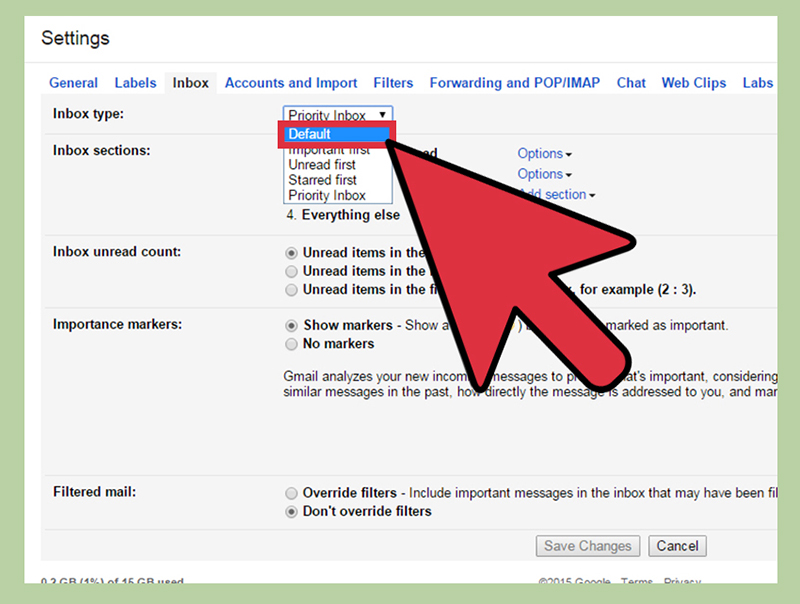
Start on the Gmail website in a browser. Click the gear icon in the top-right corner, then look for Inbox type. Select Priority Inbox. In many versions of Gmail, you can do this quickly from the side settings panel. If you want more control, click See all settings and open the Inbox tab.
This is the switch that changes your inbox from one giant hallway into a few organized rooms. Once enabled, Gmail can split your inbox into sections such as Important and unread, Starred, Everything else, or even a label you create yourself.
One practical tip: make this change on desktop first. Gmail’s browser settings give you the clearest view of your options, and those settings generally carry over to your app experience more smoothly than trying to figure everything out on mobile while standing in line for coffee.
Step 2: Choose the Sections That Fit Your Life
Priority Inbox is not a one-size-fits-all sweater. You can customize the sections to match how you actually work. Most people start with this setup:
- Important and unread at the top
- Starred in the middle
- Everything else at the bottom
That default arrangement is solid because it separates urgent attention, saved-for-later items, and general background noise. But you are free to tweak it. You may want Unread instead of Starred. You may want to replace a section with a custom label like Clients, Invoices, Admissions, or From My Manager.
If you click Customize or open the Inbox settings page, Gmail lets you change the order and type of sections. This is where Priority Inbox becomes useful instead of merely cute. A custom section turns your inbox into a dashboard instead of a pile.
For example:
- A freelancer might use Important and unread, Starred, and a label for Client Revisions.
- A student might use Important and unread, a label for Assignments, and Everything else.
- A manager might use a label like Team or Direct Reports to keep leadership emails visible.
The goal is not to create the most impressive inbox on the planet. The goal is to make your next important email easier to spot in under five seconds.
Step 3: Train Gmail to Recognize What Matters
This step is where Priority Inbox stops being a feature and starts becoming useful. Gmail learns from your actions, but only if you give it clear signals.
Whenever Gmail marks something important and you agree, great. Leave it. When it gets it wrong, click the importance marker and correct it. If a message should not be important, tell Gmail. If an email from a client, teacher, recruiter, or family member belongs in the important pile, mark it accordingly.
You can also search for important messages using Gmail search operators. For example, searching is:important shows emails Gmail currently considers important. That is handy when you want to see whether Gmail’s internal little sorting brain is doing its job or needs a polite intervention.
This training period matters. The first few days with Priority Inbox may feel decent. After a couple of weeks of consistent corrections, it usually feels much better. Gmail begins reflecting your habits rather than guessing from outer space.
If Gmail becomes too enthusiastic and marks half the internet as important, you can change the importance marker settings in Gmail. There is even an option to stop using your past actions to predict importance if you want a less automated setup.
Step 4: Add Labels to Build a Smarter Workflow
If you really want Priority Inbox to earn its paycheck, combine it with labels. Gmail allows you to create an additional section based on a label, which is incredibly useful for people managing projects, clients, departments, or personal categories.
Let’s say you create labels called Action, Follow-Up, and Later. Suddenly your inbox is not just showing what is important; it is showing what kind of action belongs next.
Here is one easy workflow:
- If an email can be handled in under five minutes, reply and archive it.
- If it needs work today, apply the Action label.
- If you need input from someone else, use Follow-Up.
- If it matters but not today, mark it Later.
Then make one of those labels a Priority Inbox section. Now your inbox is helping you make decisions instead of simply showing you a digital avalanche.
This approach is especially good for people who live in email for work. Instead of repeatedly rereading the same message and feeling vaguely stressed, you give each email a purpose and a lane. That is not just organized. That is civilized.
Step 5: Turn On Important Mail Notifications and Protect Your Focus
Once your Priority Inbox is working, do not ruin the magic by letting every random message ping your brain all day. Gmail allows important-mail notifications on the web, which can pair nicely with Priority Inbox.
If you spend too much time reacting instead of working, this is a smart final step. You are basically telling Gmail, “Only interrupt me when it counts.” That is not laziness. That is boundaries.
You can also strengthen this system with a few habits:
- Star emails you must revisit today.
- Archive messages after action instead of letting them linger like uninvited party guests.
- Use snooze for messages you do not need to handle yet.
- Check your Everything else section at set times instead of every seven minutes.
The result is a calmer workflow. Important messages rise. Background clutter stays visible without becoming the main event. And your attention stops getting hijacked by shipping updates and coupon codes pretending to be emergencies.
Common Mistakes People Make With Priority Inbox
Using It Once and Expecting Instant Perfection
Priority Inbox improves with feedback. If you turn it on, do nothing, and expect Gmail to know your emotional relationship with every sender, you may be disappointed. Give it signals.
Keeping Too Many Sections
If your inbox starts looking like a shopping mall directory, you have gone too far. Keep your setup lean. Three sections work well for most users. Four can work if one is label-based and actually useful.
Confusing Important With Urgent
Not every important email needs an immediate reply. Priority Inbox helps surface relevance, but you still need judgment. Your electric bill reminder and a client emergency are not the same species.
Ignoring Labels, Stars, and Archive
Priority Inbox works best when it teams up with other Gmail tools. If you never star, label, archive, or correct importance markers, you are leaving efficiency on the table.
Who Should Use Gmail Priority Inbox?
Priority Inbox is a strong fit for:
- People with high email volume
- Professionals who need a quick triage system
- Freelancers managing multiple clients
- Students balancing school, work, and personal communication
- Anyone who hates digging through clutter to find one useful message
If your inbox is already pristine and you naturally answer only important messages without any system, congratulations. You may be a wizard. For everyone else, Priority Inbox is worth trying.
Experience: What Using Gmail’s Priority Inbox Feels Like in Real Life
Here is the part that most how-to guides skip: what Priority Inbox is actually like after the settings screen closes and real life barges in with receipts, meeting links, shipping notices, school forms, and five newsletters you swear you never subscribed to.
At first, using Gmail’s Priority Inbox feels a bit like moving into a cleaner apartment without changing your personality. The inbox still contains the same messages, but the room suddenly makes more sense. Instead of staring at one giant wall of email, you see a top section that says, in effect, “These are probably the things you should care about first.” That alone can reduce the weird guilt that comes from opening Gmail and instantly forgetting why you went there.
For many people, the biggest improvement is mental. You stop scanning every message with equal urgency. A calendar update does not feel identical to a client reply. A shipping confirmation no longer sits shoulder-to-shoulder with a message from your boss like they are equally dramatic. Priority Inbox restores a little common sense to your screen.
There is also a trust-building period. In week one, Gmail may make a few odd calls. It might decide a store coupon is very important because you once opened three emails from that brand while trying to track a package. That is annoying, but fixable. The more you correct those calls, the more useful the system becomes. After a while, many users find that the top section starts resembling their actual priorities instead of Gmail’s best guess after one too many espressos.
Another real-world advantage is speed. People who handle lots of email often say the inbox feels lighter, not because there are fewer messages, but because there is less decision fatigue. You are no longer asking, “What even is this inbox?” every time you log in. You can move through email in layers: urgent first, flagged second, background later.
It is especially practical for workdays with fragmented attention. If you are bouncing between meetings, assignments, customer messages, and personal life, Priority Inbox acts like a decent front-desk assistant. Not a genius assistant. Not a psychic. Just a competent one that points toward the items most likely to matter. And honestly, that is already more helpful than many inboxes manage to be.
The people who benefit most are usually not the people chasing a picture-perfect inbox. They are the ones chasing clarity. Priority Inbox does not promise inbox zero by lunchtime or enlightenment through folder management. What it offers is simpler: less noise, better visibility, and fewer moments of opening Gmail only to get swallowed by nonsense. That is not magic, but on a busy Tuesday, it feels close enough.
Final Thoughts
If Gmail often feels like a crowded subway car at rush hour, Priority Inbox is one of the easiest ways to bring back order without overhauling your entire workflow. Turn it on, pick sections that match your life, train Gmail with importance markers, add a useful label or two, and let important notifications do the rest.
That is the whole game. No complicated system. No productivity cosplay. Just a smarter inbox that makes it easier to find what matters and ignore what does not.