Getting locked out of an Apple device can feel like a tiny digital apocalypse. One minute you are checking a grocery list, and the next minute your iPhone is glaring at you like a nightclub bouncer who has decided your passcode is deeply suspicious. The good news is that there are legitimate ways to unlock an iPhone, iPad, or iPod touch. The less-fun news is that the right method depends on what kind of “locked” situation you are actually facing.
That distinction matters. A screen locked by Face ID, Touch ID, or a passcode is one thing. A device disabled after too many wrong guesses is another. A carrier lock that prevents switching networks is different again. Then there is Activation Lock, which is Apple’s anti-theft feature and not something you can simply charm your way around with a clever trick from the internet. This complete guide breaks down each type of lock, the safest way to handle it, and what to expect before, during, and after the process.
What “Unlock” Means on an Apple Device
Before jumping into steps, let’s clear up a common source of confusion: the word unlock can mean several different things.
1. Unlocking the screen
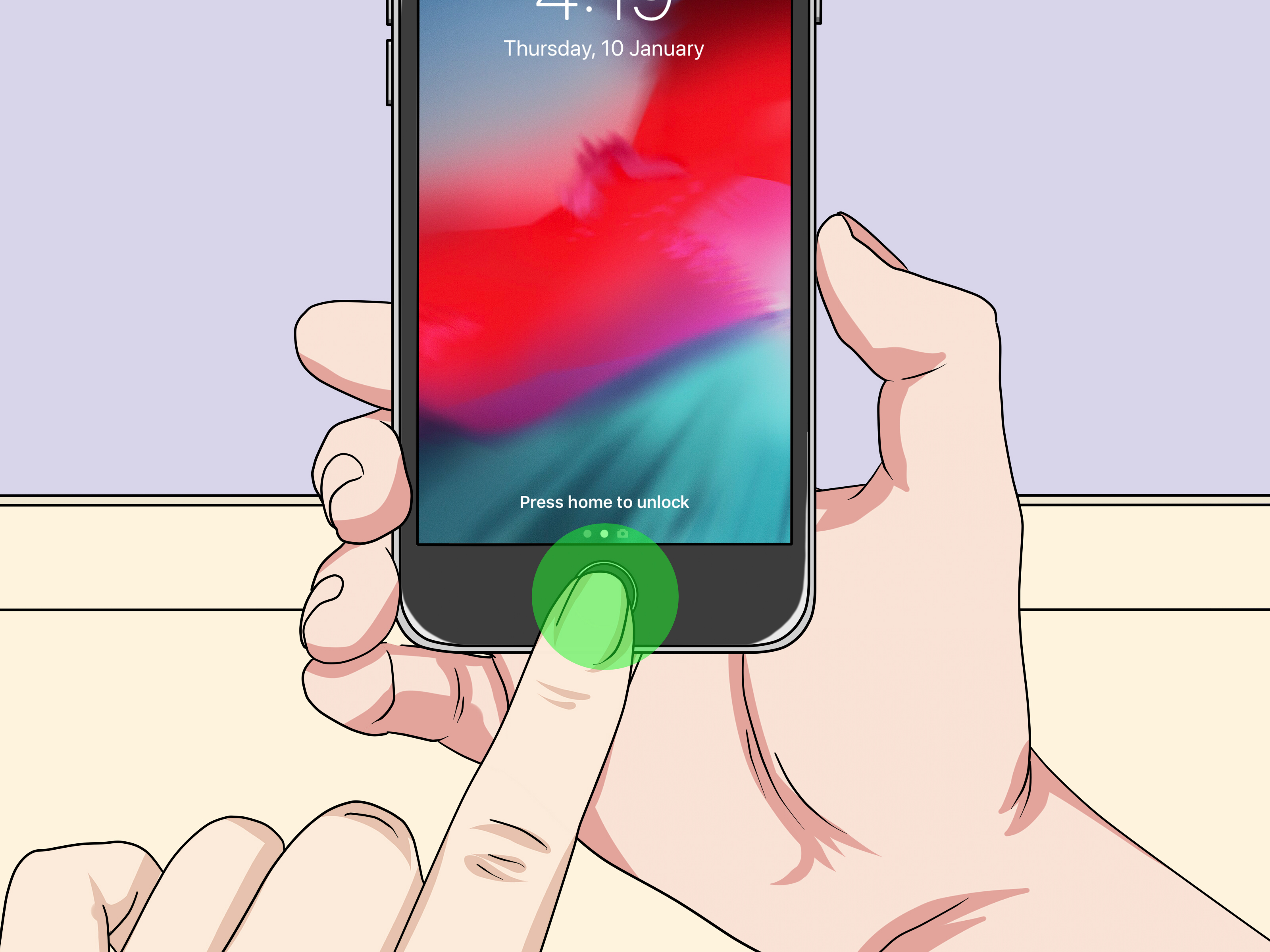
This is the everyday version. You wake the device, use Face ID or Touch ID, or enter the passcode, and you are in. Easy. Civilized. No drama.
2. Unlocking a disabled device after a forgotten passcode
If you enter the wrong passcode too many times, the device may show iPhone Unavailable, Security Lockout, or a disabled message. At that point, Apple’s official path is usually to erase the device and set it up again. If you have a backup, you can restore your data afterward.
3. Unlocking a carrier-locked phone
This applies mostly to iPhones and some cellular iPads. A carrier lock restricts the device to one mobile network. Unlocking it lets you use another compatible carrier, which is especially helpful when switching providers or traveling.
4. Removing Activation Lock
This is the serious one. Activation Lock is tied to Find My and the original owner’s Apple Account. If a used iPhone says iPhone Locked to Owner, you are dealing with an anti-theft safeguard, not a normal passcode problem. Only the rightful owner or Apple, with valid proof of purchase in eligible cases, can help remove it.
How to Unlock an iPhone or iPad If You Still Know the Passcode
If you still remember the correct passcode, congratulations: you are in the easy lane.
- Wake the device.
- Use Face ID or Touch ID if enabled.
- If biometric unlock fails, enter the current passcode manually.
If you recently changed your passcode and immediately forgot the new one, newer versions of iOS and iPadOS may let you use your previous passcode within a limited window to regain access and set a new passcode. This feature is a lifesaver for people who confidently create a “memorable” new code and then forget it 14 minutes later.
Once you are back in, go straight to your security settings and update the passcode to something strong but actually memorable. Also make sure your Apple Account password and trusted phone number are current. Future You will be grateful.
How to Unlock an iPhone or iPad After You Forgot the Passcode
If you cannot remember the passcode and the device is unavailable or disabled, the solution is no longer “keep trying.” In fact, that is the exact opposite of the solution. Repeated failed attempts only extend the lockout.
Apple’s official recovery path is built around erasing the device and then restoring from a backup if you have one. Think of it less as unlocking a door and more as rebuilding the room behind it.
Before You Start
- Make sure the device belongs to you or you are authorized to manage it.
- Know your Apple Account credentials, because you may need them after erasing.
- Check whether you have an iCloud backup or a computer backup.
- If the device uses eSIM or a carrier plan, be ready to reconnect service if needed during setup.
Option 1: Erase and Unlock Without a Computer
On supported software versions, some iPhones and iPads let you erase the device directly from the lock screen after repeated passcode failures. You typically need the Apple Account and password associated with the device.
This method is convenient because it does not require a Mac or Windows PC. After the erase is complete, you can set the device up again, sign in with your Apple Account, and restore from a backup if available.
This is often the cleanest option for people who have forgotten the passcode but still control the Apple Account. If that is you, this route is usually faster than digging around for a cable you definitely saw last week and absolutely did not lose.
Option 2: Use Recovery Mode on a Mac or Windows PC
If the on-device erase option is unavailable, or if it does not work, Apple recommends using Recovery Mode. The steps vary a little by model, but the overall process is the same:
- Turn off the device.
- Connect it to a Mac or Windows PC with a cable.
- Put the device into Recovery Mode using the correct button combination.
- On a Mac, open Finder. On Windows, use the Apple Devices app. On older systems, iTunes may be used.
- Choose Restore when prompted.
The computer downloads the software and reinstalls the operating system. If the download takes too long and the device exits Recovery Mode, you usually need to let the download finish, then repeat the Recovery Mode step and try again.
After the restore completes, the device returns to the Hello screen, where you can set it up as new or restore from backup.
What About iPod Touch?
An iPod touch follows the same general idea for forgotten passcodes: you erase it and set it up again. There is no carrier lock angle here because an iPod touch is not a cellular phone. In other words, your iPod touch can certainly lock you out, but it is not staying loyal to AT&T or Verizon.
How to Restore Data After You Unlock the Device
Erasing gets you back into the hardware. Restoring gets you back into your digital life.
Restore From iCloud Backup
During setup, choose the option to restore from iCloud backup, sign in to your Apple Account, and select the most relevant backup. This is usually the best option if you back up automatically over Wi-Fi and power.
An iCloud restore can bring back apps, photos, settings, messages, and more, though some content may continue downloading in the background after the device becomes usable.
Restore From a Mac or PC Backup
If you previously backed up the device to your computer, you can restore from that backup during setup or through Finder, Apple Devices, or iTunes, depending on your system. This option is especially useful for people who prefer local backups or have limited cloud storage.
If You Do Not Have a Backup
This is the painful branch of the decision tree. If no backup exists, you can still unlock the device by erasing it, but your old data may be gone. That is why enabling automatic backups is one of those boring recommendations that becomes wildly exciting the first time you forget a passcode.
Activation Lock: The Lock You Cannot Ignore
A lot of online articles blur the difference between a forgotten passcode and Activation Lock. That is a mistake. These are not the same thing.
What Activation Lock Does
Activation Lock turns on automatically when Find My is enabled. Its purpose is to prevent someone else from setting up and using a lost or stolen device. Even if the device is erased, Activation Lock can remain in place.
That means erasing a device does not magically free it from the original owner’s Apple Account. If anything, it creates a very expensive paperweight with a beautiful screen.
How to Remove Activation Lock the Right Way
- If you are the original owner and still have access, sign in with the Apple Account used on the device.
- If you sold or gave away the device but forgot to remove it, use Find My or iCloud tools to remove the device from your account.
- If you need Apple’s help, be prepared to provide valid proof of purchase.
If you are buying a used iPhone or iPad, never take ownership of a device that still shows signs of being linked to someone else’s account. A low price is not a bargain if what you are really purchasing is a beautifully engineered problem.
How to Unlock a Carrier-Locked iPhone or Cellular iPad
Now let’s switch from passcodes to mobile networks.
What a Carrier Unlock Means
A carrier unlock lets your iPhone or cellular iPad work with another compatible carrier. This is different from unlocking the screen. You might be able to access the phone perfectly and still be unable to use another SIM or eSIM because the device is tied to its original provider.
Typical Requirements for Carrier Unlocking
Requirements vary by carrier, but the common themes are pretty consistent:
- The device usually must be paid off.
- It generally cannot be reported lost, stolen, or associated with fraud.
- The account often must be in good standing.
- Some carriers unlock automatically once eligibility is met, while others require a request.
In the United States, carrier policies differ, and they do change. That is why the smartest move is to check your provider’s current unlock page before making travel plans or switching networks. A carrier unlock is not something you want to discover you forgot about while standing in an airport buying a local SIM and pretending to be calm.
Examples of How This Works in Real Life
One carrier may unlock eligible devices automatically after its waiting period. Another may require you to submit an online request. A third may email instructions once the device qualifies. The process is legitimate, but it is not one-size-fits-all.
If your iPad is Wi-Fi only, none of this applies. If your device is an iPod touch, this section definitely does not apply, because there is no carrier lock to remove in the first place.
Common Unlock Problems and How to Handle Them
You Forgot the Apple Account Password Too
This is inconvenient, but not the end of the road. Apple provides account recovery and password reset options through trusted devices, the Apple Support app, or the web. Handle that step first if Activation Lock or setup requires your Apple Account credentials.
The Device Will Not Stay in Recovery Mode
Try again carefully, using the correct button combination for your model. Make sure the cable and computer connection are stable. If a software download takes longer than expected and the device exits Recovery Mode, repeat the steps after the download finishes.
Your Computer Does Not Recognize the Device
Update Finder, Apple Devices, or iTunes as needed. Try another cable, another USB port, or another computer if possible. Sometimes the “unlock” problem turns out to be a “this cable has seen things” problem.
You Bought a Used Device That Is Still Locked
Contact the seller and ask them to remove the device from their Apple Account properly. If they cannot or will not, return the device if possible. If the device shows Activation Lock, there is no legitimate shortcut that replaces the original owner’s credentials or proof of purchase.
Best Practices to Avoid Getting Locked Out Again
- Use a passcode you can remember without making it weak.
- Enable Face ID or Touch ID for easier daily access.
- Keep automatic iCloud backups turned on.
- Maintain a current trusted phone number for your Apple Account.
- Store purchase records in a safe place.
- Before selling a device, sign out, erase it properly, and remove it from Find My.
- Before buying used, confirm the device is erased and no longer linked to another owner.
Real-World Experiences With Unlocking Apple Devices
One of the most common real-world scenarios involves a parent handing a child an older iPad for a flight, only to discover at the gate that the passcode has been forgotten. The iPad is not broken, the child is not impressed, and the parent suddenly regrets every time they said, “We’ll deal with that later.” In cases like this, the official solution is not glamorous, but it works: erase the device, sign back in, and restore from backup if one exists. Families who keep automatic backups turned on usually bounce back quickly. Families who do not often learn a very memorable lesson at 32,000 feet.
Another common experience comes from people who change their passcode in a burst of security enthusiasm and then forget the new code by dinner. Apple’s temporary previous-passcode feature on supported iPhone and iPad models can be a quiet hero here. It is not flashy, but it saves users from a full erase when the problem is simply “I was too confident at lunch.” For many people, that feature is the difference between a mild inconvenience and a full evening of restoration, password resets, and muttering.
Travelers run into a different version of the unlocking problem. Their iPhone works perfectly at home, but when they arrive in another country and try to install a local SIM or eSIM, they discover the phone is still carrier locked. Technically, the phone is not locked to them; it is locked to the network. This catches a surprising number of people because they assume paying monthly for service automatically means the phone is ready to roam free. In practice, carrier eligibility rules matter. Travelers who check unlock status a week or two before departure usually save themselves stress. Travelers who check after landing usually become experts in airport Wi-Fi.
Used-device buyers also have stories, and many of them begin with optimism and end with the words Locked to Owner. The device may look pristine, the battery may be decent, and the price may seem suspiciously great in a fun way rather than a terrifying way. Then setup begins, and suddenly the device wants credentials from the previous owner. This is why reputable used-device shopping requires patience. A proper sale means the device is erased, removed from Find My, and ready for a new Apple Account. Anything less is not a deal; it is a project.
Then there are the people who restore successfully and are shocked by how much comes back. Photos reappear, notes return, apps trickle in, and the device slowly starts looking like home again. That moment is the upside of following Apple’s official process instead of chasing sketchy “instant unlock” tools that promise magic and often deliver malware, disappointment, or both. Real unlocking is less dramatic than internet myths suggest. It is mostly about credentials, backups, patience, and using the correct method for the type of lock you are facing.
The overall experience, for most legitimate users, is reassuring once they understand the system. Apple devices are designed to be recoverable for rightful owners and frustrating for thieves. That can feel annoying when you are the owner and simply forgot a passcode. But in the big picture, it is a good trade-off. The same protections that make recovery slightly more involved are the protections that help keep your personal data safe when your device is lost, stolen, or sold.
Conclusion
If you need to unlock an iPhone, iPad, or iPod touch, the first step is identifying the kind of lock you are dealing with. A normal screen lock is easy. A forgotten passcode usually means erasing and restoring. A carrier lock requires your mobile provider’s official process. Activation Lock is tied to the original Apple Account and is intentionally hard to remove without proper authorization.
The best path is always the legitimate one: use Apple’s recovery tools, keep backups current, and confirm ownership details before buying or selling a used device. It may not sound as exciting as the internet’s more questionable shortcuts, but it is accurate, safer, and much more likely to end with your data, your device, and your sanity still intact.