Trying to get someone’s attention in a busy Discord server can feel like whispering in the middle of a marching band. Messages fly by, memes arrive at dangerous speeds, and someone is always asking, “Wait, who are you talking to?” That is where tagging people comes in. When you tag someone in a Discord chat on Android, you create a direct mention that highlights the person’s name and, depending on their notification settings, may send them an alert.
The good news: tagging someone on Discord mobile is simple once you know where to tap, what to type, and how Discord handles usernames, nicknames, roles, and replies. The slightly chaotic news: Discord has several kinds of mentions, and not every tag behaves the same way. A user mention is different from a role mention. A reply ping is different from casually typing someone’s name. And yes, accidentally tagging the entire server with @everyone is still the social equivalent of dropping a cymbal in a library.
This guide explains how to tag people in a Discord chat on Android using six easy steps, plus troubleshooting tips, etiquette advice, practical examples, and real-world experience from using Discord on mobile. Whether you are coordinating a game night, asking a moderator for help, replying to a friend, or keeping a community conversation organized, this tutorial will help you mention people clearly without becoming “that person” who pings everyone for a sandwich update.
What Does Tagging Someone on Discord Mean?
Tagging someone on Discord means mentioning a user in a message so their name appears as a clickable mention. In most cases, you do this by typing the @ symbol followed by their username, display name, or server nickname, then selecting the correct person from the suggestion list.
For example, if your friend’s display name is “PixelWizard,” you can type:
@PixelWizard are you joining the voice chat?
Once you select the user from Discord’s mention list, the tag becomes an official mention. This is important because simply typing someone’s name as plain text may not notify them. A proper Discord mention is usually highlighted, clickable, and connected to that user’s account.
How to Tag People in a Discord Chat on Android: 6 Easy Steps
Step 1: Open the Discord App on Your Android Device
Start by opening the Discord app on your Android phone or tablet. Make sure you are signed in to the correct account. If you manage multiple accounts or share a device, double-check before sending messages. Nothing says “Monday morning chaos” like tagging your gaming buddy from your professional community account.
Once Discord opens, you will see your server list on the left side of the mobile interface. Tap the server where you want to send the message. If you are tagging someone in a direct message or group chat, go to your direct messages instead.
Step 2: Choose the Right Server, Channel, DM, or Group Chat
Next, navigate to the conversation where you want to mention someone. On Discord, people can be tagged in text channels, direct messages, group messages, and certain text chats connected to voice channels. In a server, tap the correct channel from the channel list. In a DM, open the conversation from your message inbox.
This step matters because Discord mention suggestions usually depend on the space where you are typing. In a server channel, Discord can suggest users who have access to that channel. In a private DM, the mention options are much narrower. If the person you want to tag does not appear, they may not be in that server, may not have permission to view the channel, or Discord may not have loaded the user list properly on your device.
Step 3: Tap the Message Box
At the bottom of the chat screen, tap the message box. Your Android keyboard should appear. This is where you will type your message and create the mention.
Before tagging someone, think about why you are pinging them. Are you asking a direct question? Assigning a task? Responding to their earlier message? Calling a moderator? A useful mention saves time. A random mention creates notification confetti, and not the fun kind.
Step 4: Type @ and Start Entering the Person’s Name
Type the @ symbol, then begin typing the person’s username, display name, or server nickname. Discord should show a list of matching users. For example:
@alex
You might see several people named Alex, AlexTheGreat, AlexBot, or “alex but sleepy.” Look carefully before tapping. Many Discord communities have users with similar names, matching avatars, or joke nicknames. Selecting the wrong person is easy, especially on a small Android screen.
Discord may recognize usernames, display names, server nicknames, and other available name variations depending on where you are typing. If the person has a nickname in that server, searching for the nickname may work better than searching for their global username.
Step 5: Tap the Correct User From the Suggestion List
When the right person appears in the suggestion list, tap their name. Discord will insert the mention into your message. It may appear as a highlighted name rather than plain text. That means you have created a real tag, not just typed decorative letters with an @ symbol in front.
Now finish your message. A good tagged message gives context, so the person knows why they were mentioned. Instead of sending:
@Maya
Try:
@Maya can you confirm whether the event starts at 7 PM or 8 PM?
The second version is more helpful because Maya can answer without scrolling through twenty messages of detective work.
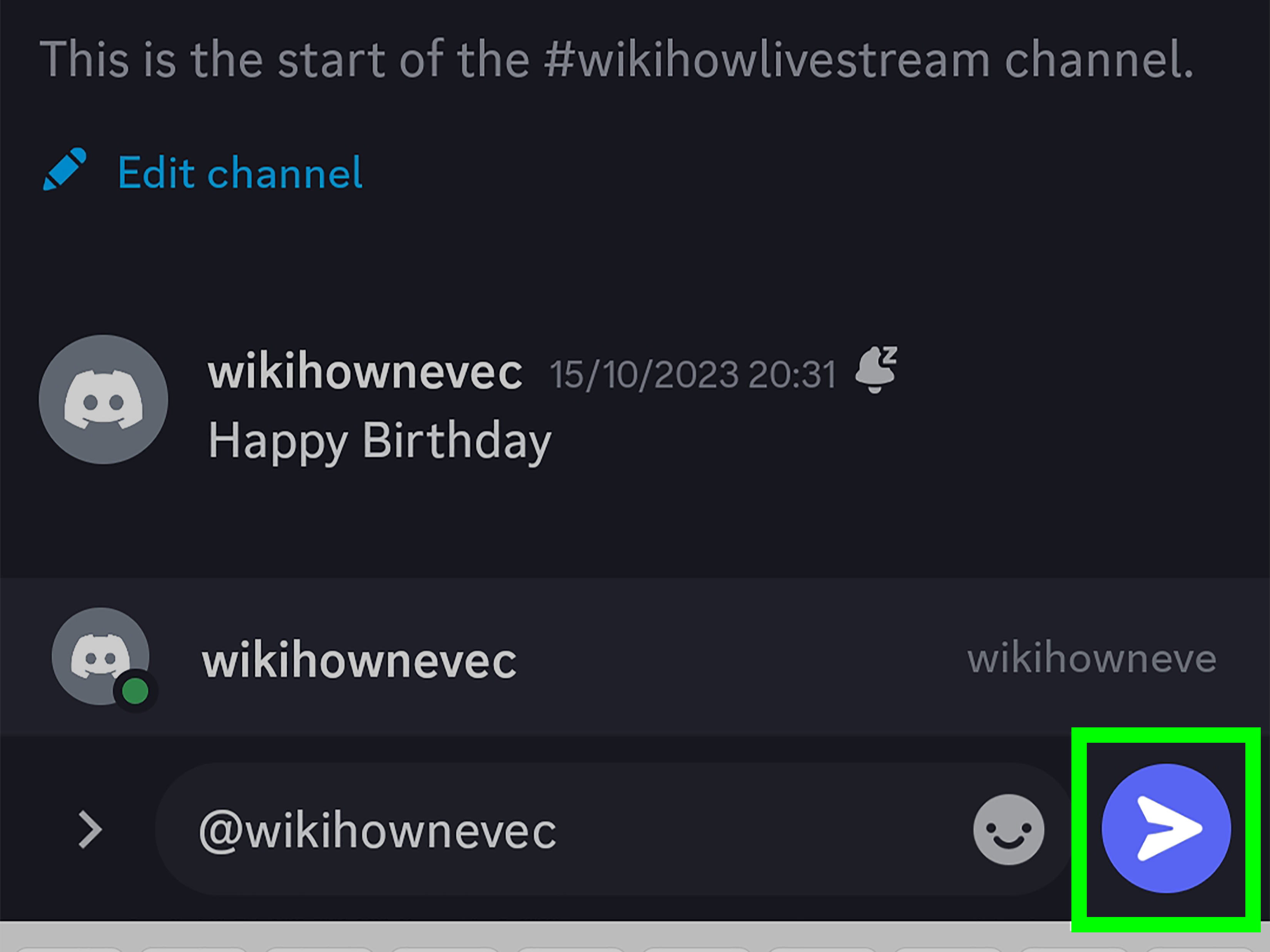
Step 6: Review the Mention and Tap Send
Before tapping send, review the message. Make sure you tagged the right person, wrote the message clearly, and did not accidentally mention a role or the whole server. Then tap the send button.
After the message is sent, the tagged user may receive a notification depending on their personal settings, server notification settings, muted channels, and mobile push notification preferences. In other words, tagging improves the odds that someone sees your message, but it is not a magical summoning spell. If they have notifications muted, they may still see it later.
Another Fast Way: Tap a Username in Chat
On Discord for Android, you may also be able to mention someone by tapping their username in the chat. This can insert their mention into the message box, making it convenient when the person recently posted in the conversation.
This method is useful when someone has a complicated username with symbols, unusual characters, or decorative text. Instead of trying to type their name like you are solving a keyboard puzzle, tap their name and let Discord do the work.
However, mobile behavior can change across app versions, and tapping avatars or names may open profiles, insert mentions, or show menus depending on the current interface. If tapping the name does not insert a mention, use the reliable method: type @, start the name, and select the user from the list.
How to Tag Someone When Replying on Discord Android
Discord replies are another common way to mention people. To reply on Android, long-press the message you want to respond to, then tap the reply option. Discord will create a reply connected to that message.
Depending on your settings and the reply interface, the reply may include a ping to the original sender. If you do not want to notify them, look for the mention or ping toggle before sending. This is especially helpful in busy servers where replying without pinging keeps the conversation tidy.
Use reply mentions when the person genuinely needs to see your response. Turn off the ping when you are simply adding a casual comment, reacting to an old message, or continuing a conversation that does not require immediate attention.
User Mentions vs. Role Mentions vs. @everyone
User Mentions
A user mention tags one specific person. This is the best option when your message is meant for an individual. Example:
@Jordan can you upload the file when you have a chance?
Role Mentions
A role mention tags everyone assigned to a specific role, such as @Moderators, @Raid Team, or @Design Crew. Whether you can mention a role depends on server permissions. Some roles are mentionable by everyone; others can only be pinged by admins, moderators, or selected members.
Use role mentions carefully. A role ping can notify many people at once, which is helpful for urgent updates but annoying for casual chatter.
@everyone and @here
The @everyone mention can notify all members who can see the channel, while @here typically targets currently online members with access. These mentions are powerful and often restricted. In many servers, only admins or moderators can use them.
Before using either one, ask yourself: “Does the whole server truly need this?” If the answer is “I found a funny frog GIF,” please step away from the ping button.
Why Can’t I Tag Someone on Discord Android?
If tagging does not work, do not panic. Discord mentions can fail for several ordinary reasons.
The Person Is Not in the Server or Channel
If the user is not a member of the server, you usually cannot tag them in that server. If they do not have permission to view the channel, they may not appear in mention suggestions either.
You Typed the Wrong Name
Discord users can have usernames, display names, and server nicknames. If one does not work, try another. For example, someone’s username might be rivercat42, but their server nickname might be Sam.
The App Has Not Loaded Everyone Yet
On mobile, Discord may need a moment to load server members and suggestions. Try waiting a few seconds, reopening the channel, or refreshing the app.
Your Internet Connection Is Weak
If your connection is unstable, mention suggestions may lag or fail to appear. Switch from mobile data to Wi-Fi, or move to a stronger signal area.
You Do Not Have Permission to Mention a Role
If you are trying to tag a role and it does not work, server permissions may prevent it. This is common in large communities where role pings are controlled to prevent spam.
Your App Needs an Update
Discord updates frequently. If your Android app behaves strangely, check the Google Play Store for updates. Updating the app can fix bugs, improve mobile behavior, and make mention features work more smoothly.
Best Practices for Tagging People on Discord
Tag With Purpose
A mention should have a reason. Tag someone when you need their answer, attention, approval, or action. Avoid tagging people just to say “look” unless it is actually relevant to them.
Add Context in the Same Message
Do not send a lonely mention and make the person ask, “What?” Include the question or request right away. For example:
@Nina could you check the pinned message and confirm the schedule?
Respect Time Zones
Discord communities often include people from different countries. If you tag someone at 3 AM their time, they may not answer immediately. If it is not urgent, consider waiting or sending a message without a ping.
Do Not Overuse Role Pings
Role mentions are useful for announcements, team coordination, and urgent updates. They are not ideal for casual thoughts like “I made soup.” Unless you run a soup appreciation server, in which case, carry on responsibly.
Use Replies for Clarity
If you are responding to a specific message, use the reply feature. It keeps the conversation connected and helps everyone understand what you are answering.
Examples of Good Discord Tags on Android
Here are some clear, natural examples you can use or adapt:
@Chris are you available for the dungeon run at 9 PM?
@Taylor I updated the document. Can you review the intro?
@Moderators can someone check this report when possible?
@Sam thanks for explaining that. One quick question: does this apply to mobile too?
@Design Team the new banner draft is ready in the feedback channel.
Each example gives the tagged person a reason to respond. That is the secret to good Discord etiquette: do not just ping; communicate.
How to Avoid Accidental Pings
Accidental tags happen, especially on Android where fingers, keyboards, and tiny screens form an alliance against your dignity. To avoid unwanted pings, slow down before sending messages with @ symbols. Check whether Discord turned your text into a highlighted mention. If you are talking about the concept of @everyone without wanting to ping the server, avoid selecting the actual mention.
You can also rewrite the message. Instead of typing a live mention, say “everyone” without the @ symbol. If you need to discuss a username without notifying the person, type the name without selecting it from the suggestion list.
Experience Notes: What It Is Really Like Tagging People on Discord Android
Using Discord on Android is convenient, but it has its own rhythm. On desktop, you have a bigger screen, a physical keyboard, and more room to see suggestions. On Android, everything is compressed into a smaller interface. That means tagging people is easy, but it also requires a little more attention.
One practical experience is that typing the first few letters after @ usually works better than typing the whole name immediately. If you type too quickly, especially on a slow connection, the suggestion list may lag behind. A smoother approach is to type @, enter two or three letters, pause briefly, and then choose the correct person from the list. It feels slower for half a second, but it prevents mistakes.
Another useful habit is checking avatars before selecting a mention. In active servers, several users may have similar display names. You may think you are tagging “Mike” from your gaming squad, but there might be three Mikes, one M1ke, and someone named “Definitely Not Mike.” The avatar can help you choose the right account faster.
Tagging people in busy channels also works best when your message is specific. If you mention someone in a channel moving at high speed, your message can still get buried visually, even if the person receives a notification. A strong message like “@Ari can you approve the final image before I post it?” is much better than “@Ari hey.” The first message gives Ari the whole mission. The second message forces Ari to ask for the mission briefing.
In gaming communities, tagging on Android is especially useful for quick coordination. You might be away from your computer but still need to tell someone the match is starting, ask who has the server invite, or remind a teammate about a scheduled event. A quick mention can save several minutes of confusion. Just avoid tagging the same person repeatedly if they do not answer right away. They may be driving, working, sleeping, or heroically ignoring their phone for inner peace.
For community managers and moderators, Android mentions are helpful but should be used with discipline. If you moderate a server from your phone, tagging a user directly can clarify warnings, answer support questions, or move conversations forward. However, role pings should be reserved for moments that genuinely require group attention. Overusing role mentions trains people to ignore them, which defeats the point of having them.
A final real-world tip: if Discord mentions are not working correctly on Android, do not immediately assume you are doing something wrong. Mobile apps can have temporary bugs, server lists can load slowly, and permissions can be confusing. Try typing the user’s nickname, checking the channel permissions, updating Discord, and restarting the app. Most mention problems are solved with one of those steps. If all else fails, ask the person to send a message in the channel, then tap or search their visible name from there.
Conclusion
Learning how to tag people in a Discord chat on Android is one of those small skills that makes the entire app easier to use. The basic process is simple: open Discord, choose the right conversation, tap the message box, type @, select the correct person, write a clear message, and send it. Once you understand the difference between user mentions, reply pings, role mentions, and server-wide alerts, you can communicate faster without overwhelming everyone’s notifications.
The best Discord tags are clear, useful, and respectful. Mention someone when you need their attention, include context in the same message, and be careful with large pings like roles, @here, and @everyone. Whether you are organizing a raid, managing a community, chatting with classmates, or asking a friend to check a meme of questionable artistic value, tagging helps your message land in the right place.