Facebook text messages can be helpful when they are warning you about a login, a password reset, or an important account change. But when every like, comment, friend suggestion, birthday reminder, group post, Marketplace ping, and “someone you may know” alert starts arriving as an SMS, your phone can feel less like a communication tool and more like a tiny notification confetti cannon.
The good news is simple: you can stop text messages from Facebook on both iPhone and Android. You can turn off Facebook SMS notifications inside the Facebook app, reply “STOP” to Facebook texts, remove your phone number from your account, block or report suspicious messages, and adjust your phone’s own message-filtering tools. The best method depends on whether the texts are legitimate Facebook SMS alerts, login verification codes, scam messages pretending to be Facebook, or old notifications tied to a phone number you no longer want connected.
This guide explains how to stop Facebook text messages without accidentally locking yourself out of your account. Because yes, there is a difference between silencing annoying Facebook updates and blocking the one security code you may need at the worst possible moment. Let’s fix the noise without cutting the emergency wire.
Why Am I Getting Text Messages From Facebook?
Facebook text messages usually happen because your mobile number is connected to your Facebook account and SMS notifications are enabled. These messages may include alerts about comments, tags, friend requests, account activity, birthdays, groups, Marketplace activity, or login codes. In older Facebook setups, people often added their phone number for account recovery, then unknowingly left text alerts turned on.
There are also a few different categories of Facebook-related texts. First, there are real Facebook SMS notifications. Second, there are two-factor authentication or login verification codes. Third, there are promotional or engagement alerts. Fourth, there are fake “Facebook” messages sent by scammers who want you to click a link. The solution changes depending on which one you are dealing with.
If the message says something like “Your Facebook code is…” and you are currently trying to log in, it may be legitimate. If it says your account will be deleted unless you click a strange link, treat it like a suspicious message. Real security work starts with not panic-tapping links that look like they were assembled in a dark alley by a keyboard with trust issues.
The Fastest Way to Stop Facebook SMS Notifications
The fastest official method is to change your Facebook notification settings. This tells Facebook to stop sending selected alerts by text message instead of relying only on your phone to block them afterward.
On the Facebook App for iPhone or Android
- Open the Facebook app.
- Tap the Menu icon. On iPhone, it is usually at the bottom right. On Android, it may appear at the top or bottom depending on your app version.
- Tap Settings & privacy, then tap Settings.
- Find the Preferences section and tap Notifications.
- Look for Where you receive notifications.
- Tap SMS.
- Turn off SMS notifications or adjust the specific categories you no longer want by text.
This is the cleanest fix because it stops Facebook at the source. Instead of your phone playing bouncer for every text after it arrives, Facebook simply stops sending most of them. You can still keep push notifications or email notifications if you want updates without using SMS.
On Facebook in a Web Browser
- Go to Facebook and sign in.
- Click your profile picture or account menu.
- Choose Settings & privacy, then Settings.
- Select Notifications.
- Find text message or SMS notification options.
- Turn off the SMS categories you do not want.
Desktop Facebook can be easier if you dislike hunting through mobile menus. It is also useful when your phone is too busy buzzing like an anxious refrigerator.
Reply STOP to Facebook Text Messages
Another direct way to stop text messages from Facebook is to reply STOP to the Facebook SMS thread. This tells Facebook that you want to opt out of text messages. In the United States, Facebook texts have commonly used short codes such as 32665, but sender numbers can vary by region, carrier, and message type.
Use this method carefully. Reply only to a text you are confident came from Facebook. If the message contains suspicious links, threatening language, misspellings, or a weird sender address, do not click anything. For legitimate Facebook notification messages, replying STOP can stop SMS notifications quickly.
When STOP Is a Good Option
- You no longer want Facebook updates by SMS.
- You keep getting texts for an old account.
- You cannot find the SMS menu in the Facebook app.
- You want a fast opt-out without changing every notification category manually.
When STOP Might Cause Trouble
Be careful if you use SMS for Facebook two-factor authentication. If you stop Facebook texts entirely, you might also interfere with login codes. Before aggressively blocking all Facebook SMS, set up another login method, such as an authentication app, trusted device, backup codes, or another recovery option. Annoying messages are bad; locking yourself out of your account is the deluxe version of bad.
Turn Off Only Certain Facebook Text Alerts
You may not want to stop every Facebook text. Maybe you still want login alerts but do not need a text every time someone reacts to a photo from 2016. In that case, customize categories instead of using a total shutdown.
In Facebook’s notification settings, review categories such as comments, tags, reminders, friend requests, groups, pages, Marketplace, video, events, fundraising, and updates from friends. Open each category and choose where you receive that alert. If SMS is enabled for a category, turn it off while leaving push or email active if desired.
This is a smart middle path. You reduce message overload without losing every useful alert. It is like cleaning the garage without accidentally throwing away the lawn mower.
Remove Your Phone Number From Facebook
If you want a stronger fix, remove your mobile number from your Facebook account. This can help if Facebook keeps texting a number you do not want associated with the profile anymore. However, do this only after checking your login and recovery settings.
How to Remove Your Phone Number
- Open the Facebook app.
- Tap Menu.
- Go to Settings & privacy, then Settings.
- Open Accounts Center.
- Tap Personal details.
- Tap Contact info.
- Select the mobile number you want to remove.
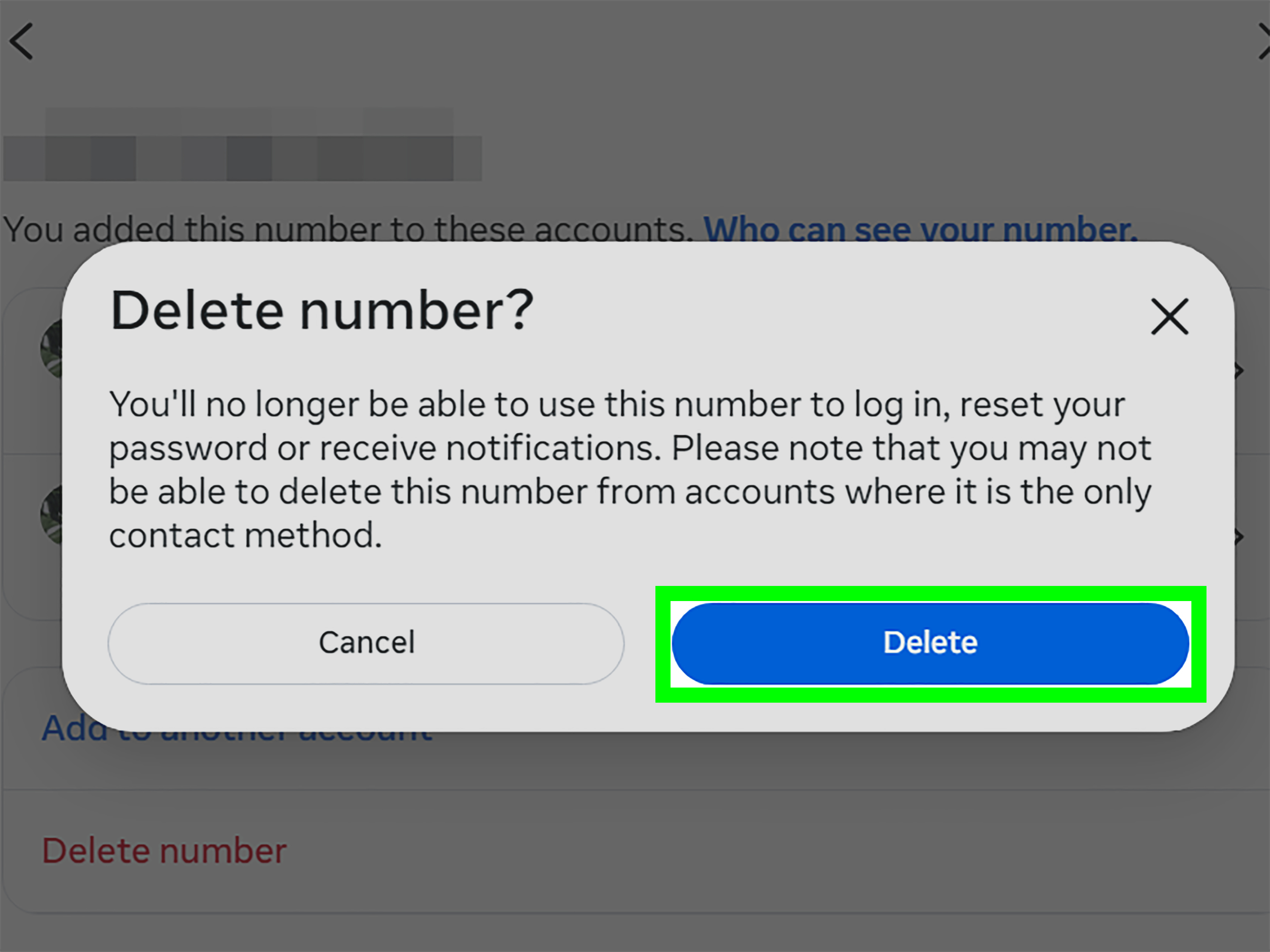
- Tap Delete number or Remove, then confirm.
Before removing the number, make sure your email address is current and verified. Also check your two-factor authentication settings. If your phone number is your only recovery method, removing it may make account recovery harder.
How to Stop Facebook Text Messages on iPhone
iPhone users have several tools: Facebook settings, STOP replies, message filtering, blocking, and spam reporting. The best approach is to first stop SMS inside Facebook, then use iPhone tools for anything that still gets through.
Block a Facebook Text Sender on iPhone
- Open the Messages app.
- Open the Facebook text conversation.
- Tap the sender name or number at the top.
- Tap Info.
- Choose Block this Caller.
- Confirm the block.
Blocking can stop messages from that sender, but it is not always the perfect fix for short codes or changing sender numbers. If Facebook uses a different number later, a new message may still appear. That is why changing Facebook’s SMS settings is usually better than blocking alone.
Filter Unknown Senders on iPhone
iPhone can separate messages from unknown senders so they do not clutter your main inbox. To turn this on, open Settings, tap Messages, and enable Filter Unknown Senders. After that, the Messages app can show separate lists for known and unknown senders.
This does not necessarily stop Facebook texts at the source, but it helps organize them. It is especially useful if the texts are suspicious or coming from numbers not saved in your contacts.
Report Junk or Spam on iPhone
If a message looks like spam, use the iPhone option to report junk when available. Reporting helps Apple and carriers identify unwanted messages. If the message claims to be from Facebook but asks for your password, payment details, or a login through an odd link, report it and delete it.
How to Stop Facebook Text Messages on Android
Android steps vary depending on whether your phone uses Google Messages, Samsung Messages, or another default messaging app. Most newer Android phones rely on Google Messages, while some Samsung Galaxy models may still have Samsung Messages or offer a switch to Google Messages.
Block and Report Spam in Google Messages
- Open Google Messages.
- Open the Facebook text conversation.
- Tap the three-dot menu.
- Tap Details.
- Choose Block & report spam.
- Confirm your choice.
Google Messages can move reported messages into the spam and blocked folder. It may also warn you about suspicious messages. If the text is truly from Facebook but simply annoying, adjust Facebook settings first. If it is pretending to be Facebook, block and report it.
Block Texts in Samsung Messages
- Open the Samsung Messages app.
- Tap the three-dot menu.
- Tap Settings.
- Choose Block numbers and spam.
- Tap Block numbers.
- Add the sender you want to block, if available.
Some Samsung phones are moving toward Google Messages as the preferred default messaging app. If your Samsung menus look different, search your phone settings for “default SMS app,” “spam protection,” or “blocked numbers.”
Report Suspicious Facebook Texts to 7726
If the message is unwanted, suspicious, or clearly not a legitimate Facebook notification, you can report it to your wireless provider by forwarding it to 7726, which spells “SPAM” on a phone keypad. Major U.S. carriers support this reporting method. After you forward the text, your carrier may ask you to send the original sender’s number.
This is useful because it helps carriers detect and block similar spam campaigns. Blocking a single number helps you; reporting helps the network learn. Think of it as taking out your own trash and also warning the neighborhood raccoon patrol.
How to Forward a Suspicious Text to 7726
- Press and hold the suspicious message.
- Choose More, Forward, or the forwarding icon, depending on your phone.
- Enter 7726 as the recipient.
- Send the message.
- If your carrier replies asking for the sender’s number, copy and send that number.
Do not include personal comments when forwarding the spam text unless your carrier asks for them. The original message is what they need for analysis.
Do Not Click Suspicious Facebook SMS Links
Some texts pretend to be from Facebook and claim your page will be deleted, your account is suspended, your password expired, or your ad account violated a rule. These messages often include links that lead to fake login pages. The goal is to steal your Facebook username, password, two-factor code, or business account access.
A safe rule: if a Facebook text creates panic and asks you to click a link, pause. Open the Facebook app or type facebook.com directly into your browser instead. Check your notifications, Account Center, Support Inbox, and security settings from there. Do not trust a random SMS link simply because it uses the word “Facebook” and sounds official.
Will Blocking Facebook Texts Stop Login Codes?
It might. That is why this guide keeps separating normal SMS notifications from security codes. If you block the sender or reply STOP to all Facebook texts, you may stop unwanted alerts, but you may also stop verification codes. If you use Facebook for business pages, advertising, groups, or Marketplace, losing access can be a serious headache.
Before blocking everything, open Facebook security settings and set up a backup method. An authentication app is usually a better long-term option than SMS because it does not depend on your carrier inbox. Save backup codes somewhere private and secure. Confirm your email address. Then reduce or disable SMS notifications.
Troubleshooting: Facebook Text Messages Still Will Not Stop
Check for Multiple Facebook Accounts
Your phone number may be attached to more than one Facebook account, especially if you created an old profile years ago. If texts mention a name, page, or activity that does not match your current account, search your email inboxes for old Facebook signups and check whether your number is connected elsewhere.
Wait for Settings to Update
Notification changes may not stop every message instantly. Give the system a little time. If you receive one more message shortly after turning SMS off, it may have already been queued.
Check Facebook Lite or Another Device
If you use Facebook Lite, a second phone, a tablet, or a browser session, check settings there too. The notification preference should apply to the account, but older app versions can make the menu path look different.
Contact Your Carrier
If messages continue after you have turned off Facebook SMS, replied STOP, and blocked or reported the sender, contact your mobile carrier. Ask whether they can block a short code or investigate repeated unwanted texts.
Best Practice: Reduce Facebook Noise Without Losing Account Safety
The best setup is balanced. Turn off casual Facebook SMS notifications, keep your account recovery information updated, replace SMS two-factor authentication with an authentication app if possible, filter unknown senders, and report fake Facebook texts. That gives you a quieter phone without making your account less secure.
For most people, the winning sequence is simple: go to Facebook notification settings, turn off SMS, confirm another security method, then block or report anything suspicious that keeps arriving. This solves the actual problem instead of playing endless whack-a-mole with text senders.
Real-World Experiences: What Usually Works Best
In real life, most people do not discover Facebook SMS settings while calmly organizing their digital life with tea and a label maker. They discover them after the fifth text in an hour, usually during dinner, a meeting, or the one quiet moment they had all day. The most common experience is that Facebook texts start small. One login alert here, one birthday reminder there. Then, after joining a few groups, commenting on posts, listing something on Marketplace, or managing a page, the SMS stream becomes much more noticeable.
The first mistake many users make is blocking the sender immediately. That can work for a while, but it often does not solve the root problem. If Facebook is still allowed to send SMS notifications, the platform may continue trying. Depending on the carrier and message type, texts may appear from a short code or a slightly different sender. The better experience is almost always to turn off SMS inside Facebook first. Once users find the Notifications area and disable SMS, the change feels cleaner because the messages stop at the source.
Another common experience involves confusion between Facebook notifications and Facebook security codes. Someone may reply STOP to everything, feel relieved for two weeks, then try to log in from a new device and wonder why no verification code arrives. That is why setting up an authentication app before cutting off SMS is a practical move. It prevents the classic “I fixed one problem and accidentally created a more dramatic one” situation.
iPhone users often like the Filter Unknown Senders feature because it makes the inbox feel calmer, even when it does not technically unsubscribe them from anything. It is especially helpful for people who receive a mix of real Facebook alerts, delivery updates, banking codes, and random promotional texts. The filter creates a little breathing room. The downside is that important messages from unknown numbers may also land outside the main conversation list, so it is worth checking the filtered section occasionally.
Android users, especially those using Google Messages, usually benefit from the Block & report spam option. It is quick, visible, and helpful for suspicious Facebook-lookalike texts. Samsung users may notice that instructions vary more because Galaxy phones have had both Samsung Messages and Google Messages depending on model, region, and software version. When in doubt, searching the phone settings for “blocked numbers,” “spam protection,” or “default messages app” usually gets people to the right place faster than tapping through every menu like a detective in a very boring mystery.
The biggest practical lesson is this: do not treat every Facebook-related text the same way. A real Facebook SMS notification should be managed through Facebook settings. A login code should be protected, not casually blocked. A fake warning message should be reported, not clicked. And an ongoing spam problem should be sent to 7726 so your carrier can analyze it. Once users separate those categories, the problem becomes much easier to control.
The second lesson is patience. Some notification changes may take a short time to fully settle. A message can arrive after you turn off SMS simply because it was already in the delivery pipeline. But if texts continue for days, check for multiple accounts, old phone number connections, Facebook Lite, business page settings, or a second profile using the same number.
In the end, stopping Facebook text messages is less about one magic button and more about using the right button for the right problem. Turn off SMS in Facebook for normal alerts. Use STOP when appropriate. Keep a secure login method. Block and report suspicious senders. Forward spam to 7726. Do those things, and your phone should finally stop acting like Facebook hired it as a full-time town crier.
Conclusion
Learning how to stop text messages from Facebook is mostly about knowing where the messages come from. If they are normal Facebook SMS notifications, turn them off in Facebook’s notification settings. If you want a quick opt-out, reply STOP to a legitimate Facebook text. If the texts look suspicious, do not click links; block, report, and forward spam to 7726. On iPhone, use message filtering and blocking tools. On Android, use Google Messages or Samsung blocking and spam protection features.
The safest approach is to reduce the noise without weakening your account security. Before removing your number or blocking all Facebook texts, make sure you have another way to receive login codes or recover your account. Once that is handled, you can enjoy the rare modern luxury of a phone that does not vibrate every time Facebook has a thought.