So, you want to remove a Roku account from a TV. Maybe you are selling your Roku TV, giving it to a cousin who still thinks “the cloud” means rainy weather, returning a rental, or simply switching the TV to a different Roku account. Whatever the reason, the goal is the same: get your personal account, apps, preferences, and payment-related access away from that screen.
The good news is that removing a Roku account from a TV is not complicated. The slightly annoying news is that Roku does not work like many apps where you simply click “Log out” and walk away feeling heroic. A Roku TV or Roku streaming device is tied to a Roku account at the system level. To separate the two properly, you usually need one of two methods: perform a factory reset on the TV or unlink the device from your Roku account online.
This guide explains both ways in clear, practical steps. You will also learn what actually gets removed, what does not, how to protect subscriptions and payment information, and what to do before handing your TV to someone else. Think of it as digital housekeeping, but without finding mysterious batteries in a drawer from 2009.
What It Means to Remove a Roku Account from a TV
Before jumping into the steps, it helps to understand what “remove Roku account from TV” really means. Your Roku account connects your Roku TV or streaming player to your channels, preferences, subscriptions through Roku, purchases, PIN settings, and linked devices. When a TV is connected to your account, it can show your installed apps, reflect your account settings, and in some cases allow purchases or subscriptions depending on your PIN preferences.
Removing the account from the TV separates the device from your Roku profile. If you are preparing the TV for a new owner, the cleanest option is a factory reset. If the TV is lost, broken, already sold, or sitting in someone else’s house, unlinking it from your online Roku account is the practical option.
However, there is one important detail: unlinking a device from your Roku account is not the same as signing out of every streaming app on the TV. Apps such as Netflix, Hulu, Disney+, Prime Video, Max, Peacock, or YouTube may have their own account sessions. A factory reset is the stronger cleanup method because it clears the Roku device itself and removes app data from the TV.
Quick Answer: The 2 Ways to Remove a Roku Account from a TV
Way 1: Factory Reset the Roku TV
Use this method when you still have access to the TV. It removes your Roku account from the device, deletes apps and settings, clears personal preferences, and returns the TV to the first-time setup screen. This is the best choice before selling, donating, gifting, or returning the TV.
Way 2: Unlink the TV from Your Roku Account Online
Use this method when you cannot access the TV, no longer have the remote, already gave the TV away, or want to remove a device from your Roku account list. You sign in to your Roku account in a browser and remove the device from your linked devices.
Before You Start: A Smart Safety Checklist
Removing your Roku account is easy, but a little preparation prevents “Oops, why is my card still there?” moments. Before resetting or unlinking the TV, take a few minutes to check the following items.
- Cancel subscriptions billed through Roku: If you subscribed to a service through Roku Pay, removing the TV does not automatically cancel the subscription.
- Remove or update your payment method: If you are closing out your Roku setup completely, review your saved payment method in your Roku account.
- Check your Roku PIN settings: A PIN helps prevent accidental purchases or channel additions through your Roku account.
- Sign out of major streaming apps if needed: A factory reset normally handles this on the TV, but account-level sign-out from each app’s website can add peace of mind.
- Write down anything you want to keep: After a factory reset, the TV forgets your Wi-Fi, installed apps, display preferences, and other settings.
Way 1: Remove a Roku Account by Factory Resetting the TV
A factory reset is the most complete way to remove a Roku account from a TV. It wipes the device back to its original setup state. The next person who turns it on will need to connect to Wi-Fi, activate the Roku TV, and sign in with their own Roku account.
This method is ideal if you are selling the TV on Facebook Marketplace, giving it to a family member, returning it to a store, moving out of a rental property, or switching the TV to a different account in your own home.
Steps to Factory Reset a Roku TV from Settings
- Turn on your Roku TV.
- Press the Home button on your Roku remote.
- Scroll to Settings.
- Select System.
- Choose Advanced system settings.
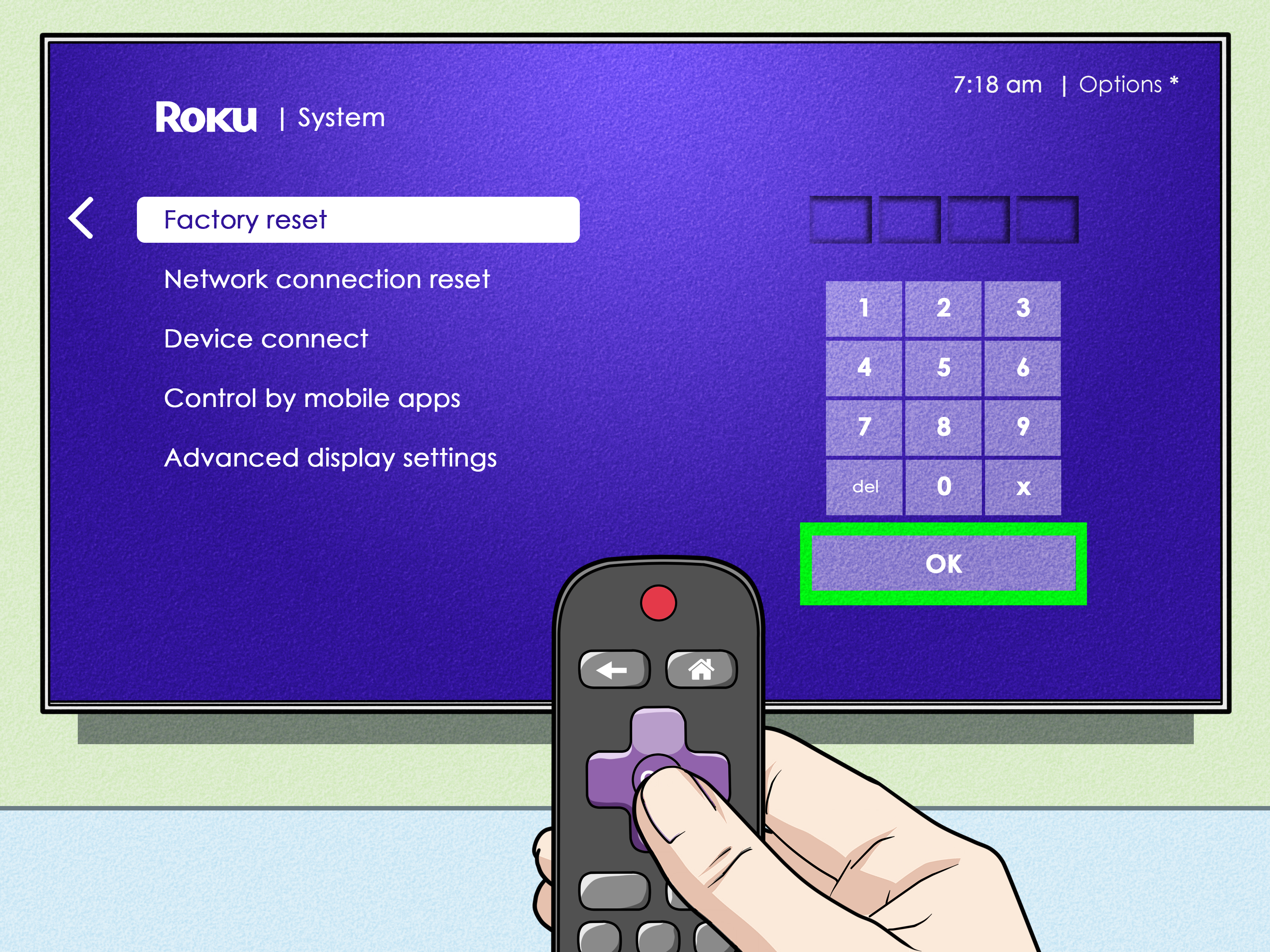
- Select Factory reset.
- Choose Factory reset everything.
- Follow the on-screen instructions and enter the confirmation code shown on the screen.
After the reset finishes, the TV will restart and show the initial setup screen. At that point, your Roku account is no longer linked to the TV. Your apps, settings, preferences, and account information are removed from that device.
What a Factory Reset Removes
A factory reset removes the Roku account connection from the TV, clears downloaded channels, deletes device preferences, resets network settings, and returns the TV to setup mode. It also clears local app data, which is why this method is recommended when another person will use the TV.
For example, suppose your living room Roku TV has Netflix, YouTube, Hulu, Disney+, and The Roku Channel customized under your profile. If you factory reset it before selling it, the buyer will not open the TV and see your app lineup ready to go. Instead, they will see the setup process, just as if the TV were new.
What a Factory Reset Does Not Do
A factory reset does not cancel paid subscriptions billed through Roku. It also does not delete your Roku account entirely. Your Roku account still exists online, and other Roku devices linked to the same account may continue working as usual.
That distinction matters. If you have a Roku TV in the bedroom and a Roku streaming stick in the den, factory resetting the bedroom TV does not erase the den device. It only removes the account from the TV being reset. Your Roku profile, subscriptions, and payment settings still live in your online Roku account unless you change them separately.
How to Factory Reset If the Remote Is Missing
If you lost the remote, do not panic. Your couch probably ate it, but you still have options. Many Roku TVs have a physical reset button or pinhole reset button on the back, side, or bottom of the TV. The exact location depends on the TV brand and model.
Look for a button labeled Reset. With the TV powered on, press and hold the reset button for about 10 to 20 seconds, or until the TV begins the reset process. If the reset button is inside a pinhole, use a paper clip carefully. Do not use anything sharp enough to damage the TV. This is electronics, not a pirate treasure map.
You may also be able to use the official Roku mobile app as a remote if your phone and Roku TV are connected to the same Wi-Fi network. Open the app, connect to the device, and navigate through the Settings menu. This is helpful when the physical remote has vanished into the same dimension as missing socks.
Way 2: Remove a Roku Account by Unlinking the TV Online
The second way to remove a Roku account from a TV is to unlink the device from your Roku account through a web browser. This is useful when you no longer have physical access to the TV. Maybe you sold it and forgot to reset it. Maybe the TV broke and will not turn on. Maybe it is at your vacation home, and you are not about to drive three hours just to click Settings.
Steps to Unlink a Roku TV from Your Account
- Open a browser on your phone, tablet, or computer.
- Go to the official Roku account website.
- Sign in with the email address and password connected to your Roku account.
- Find the section that lists your linked Roku devices.
- Select the Roku TV you want to remove.
- Choose the option to remove or unlink the device from your account.
- Confirm the action.
Once the device is unlinked, it is removed from your account’s device list. This helps prevent the TV from remaining associated with your Roku profile. If the next user wants to use it normally, they will need to set it up with a Roku account.
When Online Unlinking Is the Best Choice
Online unlinking is best when the TV is not in front of you. It is also helpful when reviewing your Roku account and noticing an old device still listed. For example, you may see a bedroom Roku TV from an apartment you moved out of two years ago. If you no longer use it, unlink it. Digital clutter is still clutter, even if it does not require a vacuum.
This method is also useful after a lost or stolen device situation. Unlinking the device from your Roku account is a practical security step. Afterward, you should also change your Roku password, review your payment method, and check for unfamiliar subscriptions or charges.
Does Unlinking Online Erase the TV?
Here is the key difference: unlinking the TV online removes it from your Roku account, but it is not exactly the same as physically factory resetting the TV. If you still have the TV, a factory reset is more complete because it clears the device locally. If you do not have the TV, online unlinking is the best available remote option.
For maximum privacy, use both methods when possible. First factory reset the TV from the Settings menu. Then sign in to your Roku account online and confirm the device no longer appears in your linked devices list. This is the digital equivalent of locking the door, checking the handle, and walking away with confidence.
Factory Reset vs. Unlinking Online: Which Method Should You Use?
| Situation | Best Method | Why |
|---|---|---|
| You are selling or giving away the TV | Factory reset | It clears the TV and prepares it for a new owner. |
| You already sold the TV | Unlink online | You can remove the device without physical access. |
| You want to switch to a different Roku account | Factory reset | The TV must be set up again with the new account. |
| The TV is broken or will not turn on | Unlink online | You can still remove it from your account list. |
| You want the strongest privacy cleanup | Use both | Reset the TV and confirm it is gone from your account. |
Do You Need to Delete Your Roku Account?
In most cases, no. You do not need to delete your entire Roku account just to remove it from one TV. Deleting or closing your Roku account is a bigger step. It may affect purchases, subscriptions, preferences, and other devices tied to the same account.
If you are simply selling one Roku TV, a factory reset is enough. If you are done with Roku completely, then you may want to cancel active subscriptions, remove your payment method, unlink all devices, and close the account through Roku’s account settings. But do not take the nuclear option unless you actually mean it. Nobody needs to demolish the house just because they are replacing a toaster.
What About Streaming Apps Like Netflix, Hulu, and YouTube?
Removing your Roku account from a TV is not always the same as managing each streaming service account. Apps have their own login systems. A factory reset should remove local app data from the Roku TV, but you can also sign out from the service’s website or account settings for extra protection.
For example, Netflix, YouTube, and many other streaming platforms let you manage devices from their websites. If you are worried that someone could still access an app account, visit that service’s account page and sign out of all devices or remove the old TV from the list of recognized devices. This is especially smart if you shared the TV with roommates, guests, short-term renters, or that one friend who says they only watched “one episode” but somehow finished three seasons.
How to Protect Your Roku Account After Removing a TV
After removing a Roku account from a TV, take a few extra steps to protect your account. Start by changing your password if the device was lost, stolen, sold without being reset, or used by someone you do not fully trust. Choose a strong, unique password that you do not use on other websites.
Next, review your Roku subscriptions. If a subscription was started through Roku, unlinking a device does not automatically stop billing. Go to your subscriptions section and cancel anything you no longer want. Then check your payment method. If you do not plan to make purchases through Roku, removing the saved payment method can reduce future risk.
Finally, review your PIN settings. A purchase PIN is useful because it prevents accidental rentals, subscriptions, or channel additions. If kids use your devices, or if guests sometimes have access to your Roku TV, a PIN can save you from surprise charges and awkward family meetings about who rented a movie at midnight.
Common Problems and Fixes
I Forgot My Roku Password
Use the password reset option on the Roku sign-in page. Make sure you check the inbox connected to your Roku account, including spam or junk folders. If you have multiple email addresses, try the ones you commonly use for streaming services.
I Do Not Know Which Roku Account Is on the TV
On the Roku TV, go to Settings, then System, then About. The screen may show the email address linked to the Roku account. This helps identify which account you need to access online.
The Factory Reset Option Is Grayed Out or Not Working
Restart the TV first, then try again. Unplug it for a minute, plug it back in, and return to the settings menu. If the software menu still fails, look for the physical reset button on the TV. If the TV is frozen or stuck in a loop, the hardware reset button may be the better route.
I Removed the Device Online, but It Still Shows Something on the TV
If you still have access to the TV, perform a factory reset. Online unlinking removes the device from your account, but resetting the TV locally provides the clean setup state most people want before transferring ownership.
I Bought a Used Roku TV and It Has Someone Else’s Account
Factory reset the TV. After the reset, connect it to Wi-Fi and activate it with your own Roku account. If the TV has a lock, error, or unusual setup issue, contact Roku support or the TV manufacturer for help.
Tips Before Selling or Giving Away a Roku TV
If you are selling or gifting a Roku TV, treat it like a phone, tablet, or laptop. You would not hand over a phone full of messages and saved passwords, right? A smart TV deserves the same respect.
- Factory reset the Roku TV before pickup or delivery.
- Confirm it reaches the first setup screen.
- Unlink the device from your online Roku account if it still appears there.
- Cancel subscriptions you no longer use.
- Remove the payment method if you are leaving Roku entirely.
- Sign out of major streaming accounts from their own websites if needed.
A good habit is to reset the TV while it is still connected to your Wi-Fi and you still have the remote. Waiting until the buyer is in your driveway is how small tech chores become dramatic mini-movies.
Experience-Based Advice: What Removing a Roku Account Is Really Like
In real-world use, the easiest experience is resetting the Roku TV directly from the Settings menu. The process is straightforward, but the moment people get confused is usually when they expect a simple “Log out of Roku” button. Roku TVs do not generally treat the system account like a single app login. The account is part of the setup foundation. That is why factory reset is the cleanest route when the TV is changing hands.
One common scenario is selling an older Roku TV after upgrading to a larger model. The seller may remove Netflix or delete a few apps and assume the job is done. That feels logical, but it is not complete. The TV can still be linked to the Roku account, and other account settings may still matter. A factory reset is faster than manually removing apps one by one, and it gives the buyer a better experience because they get the normal setup screen instead of inheriting a half-cleaned home screen.
Another common experience happens with family hand-me-downs. A parent gives a Roku TV to a college student, a sibling, or a grandparent. At first, leaving the original account sounds convenient because the apps are already installed. Then someone accidentally adds a paid channel, changes the home screen, or fills the recommendations with cartoons, cooking shows, and one suspiciously intense documentary about submarines. Setting up the TV with the new owner’s Roku account avoids confusion and keeps everyone’s viewing habits separate.
For rental homes and guest rooms, Roku’s Guest Mode can be a better long-term solution than constantly resetting the TV. Guest Mode lets visitors use their own streaming accounts without permanently mixing their activity with yours. However, if the TV is leaving your possession entirely, do not rely on Guest Mode alone. Factory reset it. Guest Mode is great for temporary access; factory reset is better for permanent transfer.
People also underestimate subscriptions. Removing a Roku TV from your account does not automatically cancel subscriptions billed through Roku. If you subscribed to a streaming service through Roku and then removed the TV, the subscription can continue unless you turn off auto-renew. This is one of those tiny details that can become expensive if ignored. Always check subscriptions before assuming the account cleanup is finished.
The online unlink method is especially helpful when you remember the problem too late. Maybe the TV was donated yesterday. Maybe your old roommate took it. Maybe it broke and went to electronics recycling. In those cases, signing in online and removing the device from your account is a practical recovery step. It may not physically wipe a TV you no longer control, but it does remove the device association from your Roku account.
The best overall experience is to use a simple rule: if the TV is in your hands, factory reset it; if the TV is not in your hands, unlink it online; if privacy really matters, do both. That rule covers nearly every normal situation and saves you from overthinking the process. Roku account removal is not glamorous, but it is one of those five-minute chores that can prevent billing surprises, privacy concerns, and future headaches.
Final Thoughts
Removing a Roku account from a TV comes down to two dependable methods. If you have the TV, factory reset it from the Settings menu so the device returns to its original setup state. If you do not have the TV, unlink it from your Roku account online. For the cleanest result, use both methods whenever possible.
Before you walk away, remember the extra account details: subscriptions, payment methods, PIN settings, and individual streaming app logins. A Roku factory reset clears the TV, but your online accounts deserve a quick check too. It is a small task, but it protects your privacy, keeps your billing under control, and makes life easier for the next person using the TV. Not bad for a few clicks and one confirmation code.