Publisher’s note: This guide is for harmless local demos, classroom examples, UI testing, and friendly jokes with permission. Do not use fake Windows error messages to scare people, collect information, impersonate Microsoft, push downloads, ask users to call a number, or pretend a device is infected. That is not a prank; that is scam-flavored lasagna, and nobody ordered it.
Introduction: Fake Error Messages, Real Responsibility
Learning how to make a fake error message in Windows can be surprisingly useful. It can help beginners understand how dialog boxes work, give IT trainers a safe way to demonstrate user reactions, or let a developer mock up an interface without building a full app. And yes, it can also power a lighthearted office jokesomething like, “Coffee.exe has stopped responding,” which is funny because, frankly, many of us also stop responding before coffee.
Still, fake error messages live in a tricky neighborhood. On one side, they are simple user-interface experiments. On the other, they resemble the same visual language used by scareware, fake tech-support pop-ups, and phishing pages. That is why this article focuses on ethical, local-only examples that do not imitate real security alerts, request private data, or pressure someone into taking action.
Below, you will learn what a Windows message box is, how harmless fake error messages work, how to create one with VBScript or PowerShell, and how to keep your prank or test from turning into a trust-destroying digital banana peel.
What Is a Windows Error Message?
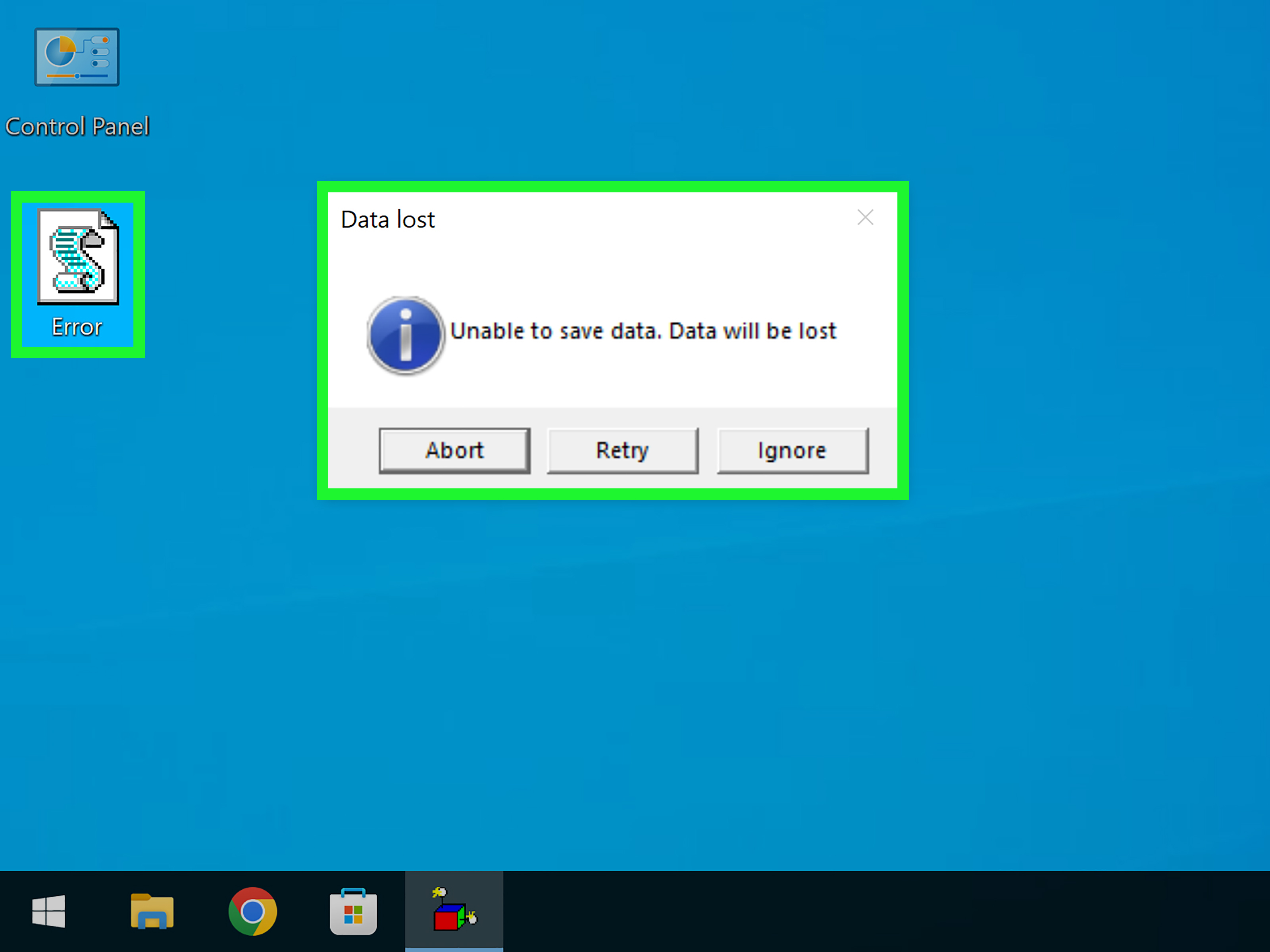
A Windows error message is a small dialog box that tells the user something needs attention. It may include a title, an icon, a short message, and one or more buttons such as OK, Cancel, Yes, or No. Real software uses message boxes to explain problems, confirm actions, or warn users before something important happens.
A fake Windows error message is simply a custom message box that looks like a normal dialog but does not represent a real system failure. The key word here is “custom.” It should be clearly made for a demo, joke, test, or tutorialnot designed to trick someone into believing their computer is broken.
Safe Uses for a Fake Error Message in Windows
Before opening Notepad and summoning your inner Windows wizard, decide why you are creating the message. A harmless fake error message can be useful in several situations.
1. UI and UX Testing
Developers and designers often need quick mockups. A fake dialog can help test wording, button labels, or how a user might react to a warning. It is much faster than building a full application just to see whether “Something went wrong” sounds too vague. Spoiler: it usually does.
2. Computer Training
Teachers, IT trainers, and cybersecurity educators can use mock alerts to explain how users should respond to pop-ups. A safe demo can show the difference between a normal software notice and a suspicious message that asks for money, passwords, remote access, or a phone call.
3. Friendly, Permission-Based Pranks
A silly local pop-up can be funny when everyone understands it is harmless. For example, “Error: Keyboard detected excessive snack crumbs” is low-risk and mildly judgmental in the best way. But the prank should end immediately, be easy to close, and never pretend to be from Microsoft, Windows Security, a bank, a school, or an employer.
What You Should Never Do
A fake error message crosses the line when it pressures, deceives, or frightens people. Avoid messages that claim a virus was detected, ask someone to call support, request passwords, demand payment, lock the screen, play alarming sounds, or imitate Windows Security. Those tactics are associated with real tech-support scams and scareware.
A good rule: if the message would make your grandma panic, your school IT admin sigh, or your future self say “Why did I do that?” rewrite it.
Method 1: Make a Simple Fake Error Message with VBScript
VBScript is one of the easiest ways to create a basic Windows message box. Windows Script Host can run script files such as .vbs, and a short script can display a dialog with a title, message, icon, and button.
Steps
- Right-click on your desktop.
- Select New, then choose Text Document.
- Name the file something clear, such as
demo-message.vbs. - If Windows warns you about changing the file extension, choose Yes.
- Right-click the file and select Edit.
- Paste the sample code below.
- Save the file.
- Double-click it to run the message.
This example displays a simple error-style dialog. The number 16 tells the message box to use a critical/error icon. The text inside the first pair of quotation marks is the message body, and the text at the end is the title shown at the top of the dialog.
Safe Customization Ideas
Use playful, clearly fictional messages. For example:
Printer is emotionally unavailable.Snack.dll is missing from the lunch folder.Productivity.exe has been paused for a mandatory stretch break.Demo alert: This is a training message only.
Notice what these examples do not include: phone numbers, fake virus claims, payment requests, password prompts, or “Microsoft has locked your PC” nonsense. That stuff belongs in the trash folder, next to mystery desktop shortcuts from 2012.
Method 2: Use PowerShell to Display a Windows Message Box
PowerShell is another practical option, especially for people who want a more modern scripting environment. With Windows Forms, you can display a message box using PowerShell code.
Example PowerShell Script
To run it, open Notepad, paste the code, and save the file as demo-message.ps1. Because PowerShell has security settings for scripts, some computers may block script execution unless the user changes settings or runs the command in a permitted environment. For a simple personal test, VBScript is often easier.
Method 3: Create a Fake Error Message for a Training Demo
If you are writing a tutorial, giving a cybersecurity lesson, or teaching basic computer literacy, the safest approach is to label the alert clearly. Instead of making the message look too real, make it obvious that it is a simulation.
The number 48 shows a warning-style icon. This is useful for a demonstration without implying that the computer is actually damaged or infected.
Common Message Box Icon Numbers
In simple VBScript examples, different numbers can change the icon or buttons. Here are a few beginner-friendly values:
0OK button only16Critical or error icon32Question icon48Warning icon64Information icon
Keep the dialog simple. One button is usually enough. Multiple buttons can be useful for testing, but fake “Yes/No” choices can confuse users if the message is not clearly labeled as a demo.
How to Write a Good Fake Error Message
The best fake error message is short, clear, and obviously harmless. It should not look like an official emergency. It should not demand urgent action. It should not pretend that the user’s files, money, account, or device are at risk.
Use Clear Titles
A safe title might be Training Demo, Test Message, or Friendly Reminder. Avoid titles such as Windows Security Alert, Microsoft Support Warning, or System Infection Detected. Those can mislead people and resemble scam tactics.
Keep the Message Friendly
Humor works best when it punches upward at technology, not downward at the person using it. “Printer.exe has entered its villain era” is funny. “Your computer is infected, call this number now” is not funny; it is the digital equivalent of yelling “fire” in a library and then trying to sell everyone a bucket.
Make It Easy to Close
A fake error message should close with one click. Do not create loops that repeatedly reopen the message. Do not create scripts that run at startup. Do not hide the file. Do not interfere with the keyboard or mouse. The goal is a tiny demo, not a haunted laptop.
Example Fake Error Messages You Can Safely Use
Here are some harmless examples for inspiration:
- Title: Training Demo
Message: Demo error: The computer has requested a five-minute snack break. - Title: Friendly Reminder
Message: Keyboard detected 47 crumbs. Please contact a sandwich professional. - Title: Test Alert
Message: This is a harmless test message for a Windows dialog tutorial. - Title: Productivity Notice
Message: Focus.exe is running low. Consider saving work and stretching.
How to Delete or Stop a Fake Error Message
If you created a simple .vbs or .ps1 file, closing the dialog usually ends the script. To remove it, delete the file you created. If you saved it on the desktop, right-click it and choose Delete. If you are not sure where it is, search for the filename from the Start menu or File Explorer.
If a pop-up appears repeatedly and you did not create it, treat it carefully. Do not call phone numbers shown in suspicious messages. Do not click links in scary warnings. Close the browser tab or app if possible, and ask a trusted adult, teacher, or IT support person for help if you are unsure.
SEO-Friendly Safety Angle: Why This Topic Matters
Searches for “how to make a fake error message in Windows” often come from curious beginners. That curiosity can lead to useful learning: scripting basics, interface design, user psychology, and cybersecurity awareness. But the same topic also sits near harmful territory because fake alerts are widely used in online scams.
That is why any responsible tutorial should separate playful local message boxes from deceptive scareware. A local demo says, “This is a test.” A scam says, “Your computer is infected, call us immediately.” One teaches. The other manipulates.
Best Practices Before Publishing or Sharing Your Demo
- Label the message as a demo or joke.
- Use fictional wording instead of official branding.
- Do not include phone numbers, payment instructions, links, or download prompts.
- Do not run the script on someone else’s computer without permission.
- Do not make the message repeat, hide, or launch automatically.
- Delete the test file when you are finished.
Experience Notes: What I Learned from Working with Fake Windows Error Messages
The first thing you learn when experimenting with fake Windows error messages is that small wording changes matter more than people expect. A message box is tiny, but it carries authority. When users see a title bar, an icon, and an OK button, many assume the computer is speaking in its serious robot voice. That makes these little boxes powerful, even when the code behind them is only one line long.
In practical testing, the safest and most useful fake messages are the ones that are clearly framed as demos. When a message says Training Demo in the title, people relax. They pay attention to the lesson instead of worrying that something broke. That is especially helpful in classrooms or cybersecurity awareness sessions, where the goal is not to embarrass anyone but to teach people how to pause, read carefully, and avoid panic-clicking.
Another lesson is that humor works best when it is obviously fictional. A line like “Coffee.exe has stopped responding” gets the point across without pretending to be a real system problem. It feels like a wink. On the other hand, messages about viruses, locked accounts, or urgent support calls can create real stress. They also resemble the language used by scammers, which makes them a poor choice even for jokes.
From a technical point of view, VBScript is still the simplest beginner method for a basic Windows dialog. It is quick, readable, and easy to remove. PowerShell is more flexible, but it may introduce execution-policy questions that distract beginners from the main idea. For a short tutorial, VBScript usually wins the “least confusing” trophy, though admittedly it is not the flashiest trophy on the shelf.
One underrated part of making fake error messages is learning restraint. It is tempting to add more buttons, scarier icons, longer text, or repeated pop-ups. Resist that temptation. A good demo is brief, reversible, and respectful. The moment a script becomes annoying, persistent, or hard to close, it stops being educational and starts becoming a problem.
The best overall experience comes from treating fake error messages as a user-interface lesson, not a trick. They show how design influences behavior, how official-looking language can change reactions, and why people should slow down before trusting pop-ups. Used responsibly, a fake Windows error message can teach scripting basics and digital safety at the same time. Used carelessly, it can damage trust faster than a printer jams five minutes before a deadline.
Conclusion
Making a fake error message in Windows is easy. Making one responsibly takes a little more thought. With a simple VBScript or PowerShell command, you can create a harmless local dialog for testing, training, or a friendly joke. The important part is to keep it transparent, easy to close, and clearly separated from real security warnings.
Use fictional text. Avoid official branding. Never ask for personal information, money, downloads, remote access, or phone calls. A good fake error message should make someone smile, learn, or test an interfacenot panic. In other words, be the person who writes “Snack.dll is missing,” not the person who makes the IT department consider a career in goat farming.