Installing Ubuntu Linux is one of those projects that sounds wildly technical until you actually do it. Then you realize most of the process is downloading a file, making a USB drive, clicking a few sensible buttons, and resisting the urge to panic when your computer briefly displays a black screen full of mysterious text.
Whether you want to replace Windows, create a dual-boot setup, revive an older laptop, or give your Mac a second career as a Linux machine, Ubuntu is one of the friendliest places to start. It has a polished desktop, a huge software library, solid security updates, and enough beginner-friendly help online to make even a first-time Linux user feel less like they are defusing a spaceship.
This guide explains how to install Ubuntu Linux on a Windows PC, an Intel-based Mac, or an Apple-silicon Mac. It also covers USB installation media, dual booting, partitioning, BitLocker precautions, troubleshooting, and the post-install steps that make Ubuntu feel like your computer instead of a temporary science experiment.
Note: Back up important files before changing partitions, reinstalling an operating system, or choosing any option labeled “Erase Disk.” Computers are usually forgiving. Storage devices are less emotionally available.
Choose the Right Ubuntu Installation Method
Before downloading anything, decide how you want Ubuntu to live on your machine. This choice matters more than the color of your desktop wallpaper, although Ubuntu does offer attractive wallpaper for people who enjoy staring at mountain ranges while avoiding emails.
Option 1: Replace Your Existing Operating System
This is the cleanest route if you no longer need Windows or macOS. Ubuntu takes over the internal drive, creates its own partitions, and becomes the primary operating system. It is a good choice for older PCs, dedicated development machines, home servers, or laptops that have been slowly collecting browser toolbars since 2014.
Option 2: Dual Boot Ubuntu and Windows
Dual booting lets you keep Windows and Ubuntu on the same computer. At startup, you choose which operating system to use. This is ideal for people who need Windows for specific software, games, work tools, or hardware utilities but want Ubuntu for coding, privacy, web development, learning Linux, or simply escaping the gravitational pull of Windows updates.
Option 3: Run Ubuntu in a Virtual Machine
A virtual machine runs Ubuntu inside another operating system. It is the lowest-risk option because it does not change your existing disk partitions. VirtualBox, VMware Fusion, UTM, and Parallels Desktop can all be used for this purpose, depending on your computer and processor type. A virtual machine is especially practical on Apple-silicon Macs if you want Ubuntu without changing your Mac’s internal boot setup.
Option 4: Install Ubuntu on an External Drive
Installing Ubuntu to an external SSD can be a useful middle ground. You get a real Linux environment without permanently rearranging your internal drive. Performance is much better on an external SSD than on a cheap USB flash drive, which is important because no one wants their operating system to move at the speed of a sleepy turtle.
What You Need Before Installing Ubuntu
For a modern Ubuntu Desktop installation, aim for a computer with a 64-bit processor, at least 6 GB of RAM, around 25 GB of free storage, internet access, and a USB drive with at least 12 GB of space. More RAM and storage will make the experience smoother, especially if you plan to use Docker, virtual machines, photo editing tools, or approximately 47 browser tabs.
- A backup of important documents, photos, passwords, and recovery keys
- A USB flash drive, preferably 12 GB or larger
- The latest Ubuntu Desktop ISO file
- A reliable internet connection
- Your Windows BitLocker recovery key, if Windows encryption is enabled
- About 30 to 90 minutes, depending on your hardware and internet speed
Ubuntu 26.04 LTS is the current long-term support release for desktop PCs and laptops. LTS stands for Long Term Support, which means it receives years of security and maintenance updates. For most people, the LTS version is the sensible choice. It is the dependable minivan of Linux releases: not always the flashiest, but it shows up when needed.
Step 1: Download the Ubuntu Desktop ISO
Download the official Ubuntu Desktop ISO file from the Ubuntu download page. The ISO is a complete disk image used to create installation media. Do not simply drag the ISO file onto a USB drive like it is a family vacation photo. The USB must be properly flashed so your computer can boot from it.
If you are installing Ubuntu on a standard Intel or AMD PC, download the regular 64-bit desktop version. If you are using an Apple-silicon Mac in a virtual machine, choose an ARM64 Ubuntu image that matches your virtualization software and Mac processor architecture.
Once the file finishes downloading, keep it somewhere easy to find, such as your Downloads folder. Giving it a mysterious new name like ubuntu-final-final-really-final.iso is optional but surprisingly common.
Step 2: Create a Bootable Ubuntu USB Drive
You need a bootable USB drive to install Ubuntu on most PCs and Intel Macs. The easiest method is to use a graphical USB flashing tool such as balenaEtcher or Rufus.
Create a Bootable USB on Windows
On Windows, Rufus is a popular option. Insert your USB drive, open Rufus, choose the Ubuntu ISO file, select the correct USB device, and start the flashing process. For modern PCs, choose GPT partitioning and UEFI boot mode when Rufus gives you the option.
Be careful when choosing the target drive. Flashing tools erase the selected USB device. Accidentally selecting an external backup drive can turn a calm Saturday afternoon into a personal character-development exercise.
Create a Bootable USB on macOS or Linux
balenaEtcher works on macOS, Windows, and Linux. Open the app, select the Ubuntu ISO, choose the USB drive, and click the button to flash it. Etcher validates the write process, which helps reduce the chance of a corrupted installer.
On an Intel Mac, you may need to prepare the USB drive in Disk Utility first. Choose the USB device itself, not merely one of its partitions, erase it using a GUID Partition Map, and then use the flashing tool to write the Ubuntu ISO.
Step 3: Prepare a Windows PC for Ubuntu Dual Boot
If you want Ubuntu and Windows on the same computer, prepare Windows before booting the Ubuntu installer. Start by backing up your files and saving your BitLocker recovery key somewhere safe. BitLocker can react to boot configuration changes by asking for that recovery key later, and discovering you do not have it is a poor way to improve your memory.
Shrink the Windows Partition
Open Windows Disk Management by right-clicking the Start button and choosing Disk Management. Locate your main Windows partition, usually the C: drive, right-click it, and choose Shrink Volume.
Create unallocated space for Ubuntu. A practical starting point is 50 GB, but 80 GB to 150 GB is more comfortable if you plan to install development tools, games, media applications, or large project files. Leave the new space unformatted. Ubuntu will use it during installation.
Protect Your Windows Installation
Do not delete the Windows recovery partition, EFI System Partition, or Microsoft reserved partitions. These small partitions may look unimportant, but they are often the plumbing that keeps Windows booting properly.
Also perform a full Windows shutdown before installing Ubuntu. Avoid hibernation or Fast Startup when sharing drives between operating systems. Windows and Linux have different ideas about who gets to hold the keys to a file system, and their arguments are not entertaining.
Step 4: Boot Your PC From the Ubuntu USB Drive
Insert the Ubuntu USB drive, restart your computer, and open the boot menu. Common boot-menu keys include F12, F9, Esc, F2, and Delete. The exact key depends on the manufacturer, so look for a brief message on the startup screen.
Select the USB device from the boot menu. On modern computers, choose the entry labeled UEFI if you see multiple options for the same USB drive.
Ubuntu should display a welcome screen with an option to try Ubuntu or install it. Choose Try Ubuntu first if you want to test Wi-Fi, sound, keyboard behavior, touchpad gestures, graphics, and display scaling before changing your disk.
Step 5: Install Ubuntu on a PC
When you are ready, click the Ubuntu installer icon from the live desktop. The installer will guide you through language, keyboard layout, accessibility settings, network connection, time zone, account creation, and disk setup.
Choose Your Installation Type Carefully
This is the most important screen in the entire process. Read the options slowly, even if you are confident. Most installation problems begin with someone clicking quickly because they saw the word “recommended.”
- Erase Disk and Install Ubuntu: Deletes the selected drive and installs Ubuntu as the only operating system.
- Install Ubuntu Alongside Windows: Creates a dual-boot setup when the installer detects suitable free space.
- Manual Partitioning: Lets advanced users choose exact partitions, mount points, and file systems.
For most dual-boot users, choose Install Ubuntu Alongside Windows. If you already created unallocated space in Windows, Ubuntu should recognize it. Avoid manual partitioning unless you understand EFI partitions, ext4 file systems, swap space, and the emotional consequences of formatting the wrong drive.
Enable Updates and Third-Party Software
During installation, Ubuntu may offer to download updates and install third-party software for Wi-Fi hardware, graphics drivers, media formats, or proprietary components. Connecting to the internet and enabling these options can save time later, especially on laptops with NVIDIA graphics or less common Wi-Fi adapters.
Create Your Ubuntu User Account
Choose a strong password and make sure you can remember it. Ubuntu uses your password for administrative tasks, software installation, system updates, and changes that could affect the computer. This is not the moment to use password123, unless you enjoy living dangerously.
How to Install Ubuntu on an Intel-Based Mac
Intel-based Macs can often boot a standard Ubuntu USB installer, but the process is more sensitive than on a typical PC. Before starting, back up your Mac with Time Machine or another backup solution. You should also test Ubuntu from the live USB session before installing it permanently.
Boot From the USB Drive
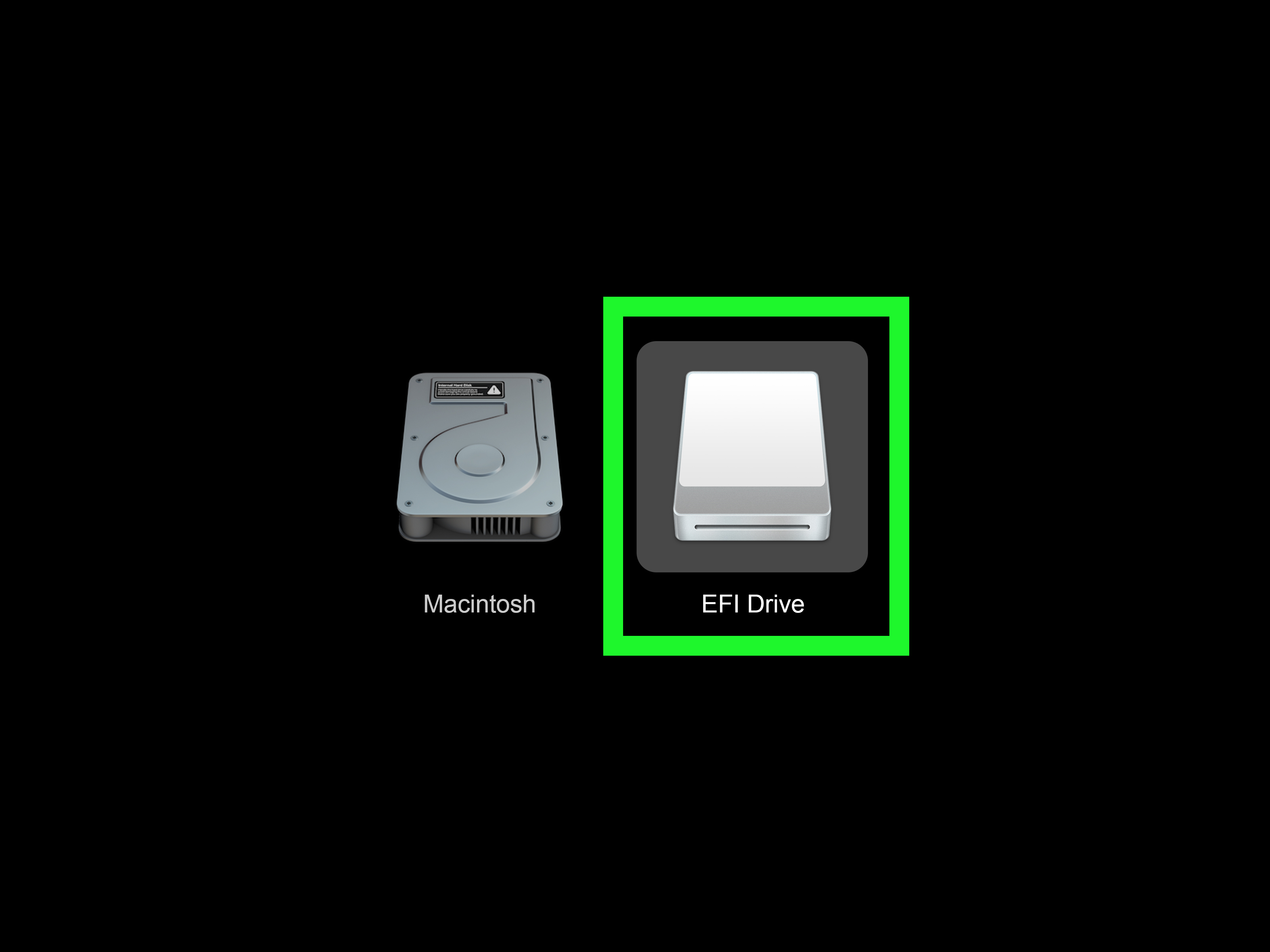
Insert the Ubuntu USB drive, shut down the Mac, then turn it on while holding the Option key. The Startup Manager should appear. Select the USB option, often labeled EFI Boot, to launch Ubuntu.
Some Intel Macs with the Apple T2 security chip may block external boot media by default. In that case, start macOS Recovery, open Startup Security Utility, and allow booting from external or removable media. Only change security settings when necessary, and restore your preferred security posture after installation.
Use Extra Caution With macOS Partitions
macOS uses APFS containers and recovery partitions that can be confusing if you are accustomed to Windows disks. The safest approach is often to install Ubuntu on a separate external SSD or dedicate a separate internal partition only after confirming you have a complete backup.
Do not erase the macOS recovery partition or the EFI partition. If you want a simple low-risk introduction to Linux on an Intel Mac, use Ubuntu from an external SSD or run Ubuntu in a virtual machine first.
How to Install Ubuntu on an Apple-Silicon Mac
Apple-silicon Macs, including M1, M2, M3, and newer models, are different from Intel Macs. They do not use the same standard USB boot process as a typical PC, and a normal x86 Ubuntu USB installer will not work as a native installation method.
For the easiest experience, run Ubuntu ARM64 inside a virtual machine using UTM, Parallels Desktop, VMware Fusion, or another Apple-silicon-compatible virtualization platform. This gives you a reliable Ubuntu environment without repartitioning your Mac’s internal storage.
Native Ubuntu installations on Apple silicon are possible through community projects such as Ubuntu Asahi, which adapts Linux support for Apple hardware. However, this route is more advanced, requires internal storage changes, and may have device-specific limitations. Check support for your exact Mac model, backup macOS first, and read current compatibility information before proceeding.
Apple-silicon Macs cannot simply boot Ubuntu from a USB drive in the same way as Intel Macs or standard PCs. Treat any guide that promises a one-click USB installation on an M-series Mac with healthy skepticism and perhaps a raised eyebrow.
Step 6: Restart and Choose Ubuntu or Windows
After installation, remove the USB drive when prompted and restart the computer. On a dual-boot PC, Ubuntu’s boot menu should appear and let you choose Ubuntu or Windows.
If the computer boots directly into Windows, open the firmware boot menu and look for an entry named Ubuntu. Select it, then make it the preferred boot option if you want the Ubuntu menu to appear by default.
If Windows asks for a BitLocker recovery key after the installation, enter the key you saved earlier. Once Windows starts normally, confirm that BitLocker protection and your recovery information are properly configured.
Step 7: What to Do After Installing Ubuntu
Your first task after installation is updating the system. Open Terminal and run:
This refreshes Ubuntu’s software information and installs available updates. Restart if Ubuntu installs a new kernel or asks you to reboot.
Check Additional Drivers
Open the Software & Updates tool and look for the Additional Drivers tab. This is especially useful for NVIDIA graphics cards, certain Wi-Fi adapters, and other hardware that may benefit from proprietary drivers.
Install Essential Apps
Ubuntu includes a software center where you can install browsers, communication tools, office suites, code editors, media players, and games. Popular first installs include Firefox or Chrome, Visual Studio Code, VLC, Steam, Discord, GIMP, and LibreOffice.
Set Up Backups
Use Ubuntu’s backup tools or another backup application to protect important files. Linux is stable, but no operating system can protect you from spilled coffee, failing drives, accidental deletion, or a cat that discovers the power button.
Troubleshooting Common Ubuntu Installation Problems
The USB Drive Does Not Appear in the Boot Menu
Try a different USB port, preferably a USB-A port directly on the computer rather than a hub. Recreate the installer using another USB drive if possible. Some flash drives are excellent for moving documents but terrible at pretending to be an operating system.
Ubuntu Cannot See the Internal Drive
On some Windows laptops, storage settings such as Intel RST or RAID mode can prevent Ubuntu from detecting the internal drive. Check the manufacturer’s documentation before changing firmware storage settings. Switching modes without preparing Windows can make Windows fail to boot.
Wi-Fi Does Not Work After Installation
Use a wired Ethernet connection, USB tethering from a phone, or another temporary internet method. Then open Additional Drivers and install any recommended wireless driver. A short-lived internet workaround is usually easier than trying to solve a wireless-driver mystery with no internet access.
The Screen Is Black or Resolution Looks Wrong
Try the live USB session first to confirm whether the issue appears before installation. Graphics problems are often related to NVIDIA hardware, display scaling, secure boot settings, or unsupported external adapters. Installing the recommended graphics driver after booting Ubuntu resolves many common cases.
Practical Experiences and Lessons From Installing Ubuntu
People often expect installing Ubuntu to feel like entering a hidden underground world of blinking green text and cryptic passwords. In reality, the most difficult part is usually not Linux itself. It is preparing the machine correctly before installation. The users who have the smoothest experience are usually the ones who spend ten extra minutes on backups, recovery keys, disk space, and USB testing before clicking the install button.
A common real-world lesson is that a live USB session is more valuable than it first appears. Booting into “Try Ubuntu” lets you check whether Wi-Fi works, whether your keyboard layout is correct, whether the touchpad is responsive, and whether the display looks normal. It is much better to discover that your laptop’s wireless adapter needs a driver before changing partitions. Think of the live session as a test drive, except the salesperson is a penguin and nobody asks whether you want paint protection.
Dual booting is especially useful for beginners because it lowers the pressure. You do not have to abandon Windows immediately. You can use Ubuntu for browsing, coding, learning terminal commands, and experimenting with open-source software while keeping Windows available for applications that still require it. Over time, many users find that they boot into Ubuntu more often simply because it feels focused and uncluttered. Others use both systems permanently, which is perfectly reasonable. Operating systems do not need to be a lifelong commitment.
Storage planning also makes a bigger difference than expected. Ubuntu can run in a relatively small amount of space, but development tools, Docker containers, Steam games, virtual machines, local databases, and downloaded media can fill a partition quickly. Giving Ubuntu enough room from the beginning prevents the awkward future moment when you are deleting old screenshots just to install an update. For most dual-boot users, reserving more space than the bare minimum is usually the wise move.
Mac users tend to have a different experience depending on the processor. Intel Macs can behave much like ordinary PCs, although startup security settings and Apple-specific hardware can add a few wrinkles. Apple-silicon Macs are more specialized. Running Ubuntu in a virtual machine is often the calmest route for learning and development, while native Apple-silicon Linux projects are better suited to users who enjoy checking compatibility charts, reading documentation, and treating operating-system installation as a hobby rather than a quick afternoon task.
Finally, the best post-install experience comes from patience. Do the updates, check for recommended drivers, set up backups, and spend time learning a few basic terminal commands. Ubuntu becomes dramatically less intimidating once you realize that most commands are simply concise ways of telling the computer what you want. The terminal is not a haunted basement. It is more like a very literal assistant who takes every sentence seriously.
Conclusion
Installing Ubuntu Linux on a PC or Mac can be simple, useful, and surprisingly fun when you prepare properly. A bootable USB drive is enough for most Windows PCs and Intel Macs, while Apple-silicon Mac users are usually better served by an ARM virtual machine or a carefully researched community-supported native installation.
Back up your files, keep recovery keys handy, test Ubuntu before installing it, and choose the installation method that matches your comfort level. Once Ubuntu is running, you get a fast, flexible operating system built for everything from casual browsing to serious development work. And unlike a cluttered desktop full of trial software, Ubuntu rarely asks whether you want to buy an extended warranty for your calculator app.
Research basis: Current official Ubuntu Desktop installation, release, encryption, and dual-boot documentation; Apple startup security guidance; Microsoft Disk Management and BitLocker guidance; balenaEtcher and Rufus documentation; and Apple-silicon compatibility guidance from Asahi and Ubuntu Asahi.