Note: This guide is based on current Instagram Live host controls, Instagram moderation features, and common creator safety best practices. Because Instagram changes menus from time to time, wording may vary slightly by app version, device, account type, or region.
Introduction: Sometimes the Best Live Comment Is No Comment
Instagram Live can be magical. One minute you are answering questions, launching a product, hosting a Q&A, teaching a mini-class, or casually chatting with your audience. The next minute, the comment section turns into a digital popcorn machine: hearts flying, questions stacking up, inside jokes multiplying, and one mysterious person asking, “Can you say hi to my iguana?” seventeen times.
Comments are part of what makes Instagram Live feel alive. They help hosts connect with viewers in real time, build community, answer questions, and keep the energy moving. But comments can also become distracting, overwhelming, spammy, or inappropriate. For creators, small businesses, educators, coaches, artists, public figures, and brand hosts, learning how to hide comments on Instagram Live is not just a technical trick. It is a practical hosting skill.
The good news: Instagram gives hosts several ways to control comments during a live broadcast. You can turn comments off completely, use moderation tools before going live, assign a moderator, restrict problem accounts, filter certain words, and plan your live stream so the conversation supports your message instead of hijacking it like a raccoon stealing a picnic basket.
This in-depth guide explains how to hide comments on Instagram Live for hosts, when to use the feature, what happens after comments are turned off, and how to create a smoother, safer, more professional live experience.
Can Hosts Hide Comments on Instagram Live?
Yes. If you are hosting an Instagram Live, you can hide comments by turning off commenting during the broadcast. This prevents viewers from adding new comments while you are live. Depending on your app version, you may find this option by tapping the three-dot menu near the comment field and choosing an option such as Turn Off Commenting.
This is different from viewers hiding comments on their own screen. As the host, turning off comments affects the live broadcast itself. Viewers will no longer be able to participate through comments until you turn commenting back on.
Why Hosts Hide Instagram Live Comments
Hosts usually hide comments for one of five reasons:
- To reduce distractions during a presentation, tutorial, or announcement
- To stop spam, trolling, harassment, or inappropriate messages
- To keep sensitive topics focused and respectful
- To improve the viewer experience during interviews or performances
- To maintain a cleaner replay if the live video is saved or shared later
Think of it as turning down background noise. You are not rejecting your audience; you are choosing the right format for the moment.
How to Hide Comments on Instagram Live as a Host
The exact interface can vary slightly depending on your phone, Instagram version, and account settings. However, the process usually follows the same basic path.
Step 1: Open Instagram and Start a Live Broadcast
Open the Instagram app and go to the area where you create content. Choose Live from the available camera options. Before you start, check your lighting, sound, connection, and topic notes. A tiny bit of prep can prevent the classic “Wait, can you hear me?” opening ceremony.
Step 2: Go Live
Tap the button to begin your Instagram Live. Once you are live, viewers may begin joining, reacting, and commenting. Give people a moment to arrive if your live session depends on audience participation.
Step 3: Tap the Three-Dot Menu Near the Comment Box
Look near the comment field at the bottom of the screen. You should see a menu icon, often shown as three dots. Tap it to open your live comment options.
Step 4: Select “Turn Off Commenting”
Choose Turn Off Commenting. Once activated, viewers will not be able to post comments during your live stream. The comment feed will stop updating, allowing you to focus on your content without interruption.
Step 5: Turn Comments Back On When Needed
If you want to reopen the discussion, return to the same menu and choose Turn On Commenting. This can be useful if you want to present first, then take questions at the end.
What Happens When You Turn Off Comments on Instagram Live?
When you turn off comments, the live broadcast becomes more like a one-way video stream. Viewers can still watch, but they cannot add new comments until you enable comments again.
This can immediately calm down a chaotic broadcast. It is especially useful if you are experiencing spam attacks, repetitive comments, offensive language, or a flood of unrelated messages. For example, if you are hosting a product launch and comments suddenly become a parade of “promote it on my page” spam, turning off comments can save the moment.
However, there is a trade-off. Instagram Live is designed for real-time interaction, so disabling comments may reduce engagement. The best approach is to use the feature intentionally rather than automatically. Comments off during a keynote-style announcement? Great. Comments off during a community Q&A? Maybe not ideal unless things get messy.
When Should Hosts Hide Comments on Instagram Live?
Hiding comments is not only for emergencies. Smart hosts use comment controls strategically. Here are the most common situations where turning off comments makes sense.
During Important Announcements
If you are announcing a new service, policy update, event, product, or personal news, a fast-moving comment feed can distract both you and your viewers. Turning comments off for the first few minutes helps everyone hear the message clearly.
During Tutorials or Demonstrations
Cooking demos, craft tutorials, fitness instructions, tech walkthroughs, and makeup lessons all require focus. If the host keeps glancing at comments, the tutorial can quickly become: “Add two cups of flour, answer Dave’s question about shipping, forget the eggs, panic.” Comments can come back during a dedicated Q&A section.
During Interviews
Guest interviews can become awkward if the comment section is distracting, inappropriate, or full of unrelated questions. A clean screen helps the host and guest stay present. You can collect questions in advance through Stories or use a moderator to select the best live questions.
During Sensitive Conversations
Some topics require care: mental health, grief, identity, social issues, medical experiences, workplace challenges, or community conflicts. In these cases, unmoderated comments may create harm or derail the discussion. Turning comments off, limiting comments, or using a moderator can protect the tone of the conversation.
When Spam or Harassment Appears
If spam bots or trolls enter your live stream, do not try to debate them like you are starring in a courtroom drama. Turn off comments, remove viewers if needed, and continue with your broadcast. Your audience came for you, not for the chaos goblin in the comment box.
How to Prepare Comment Controls Before Going Live
The best time to manage Instagram Live comments is before trouble starts. Instagram offers several safety and privacy features that can help hosts create a better live environment.
Use Hidden Words
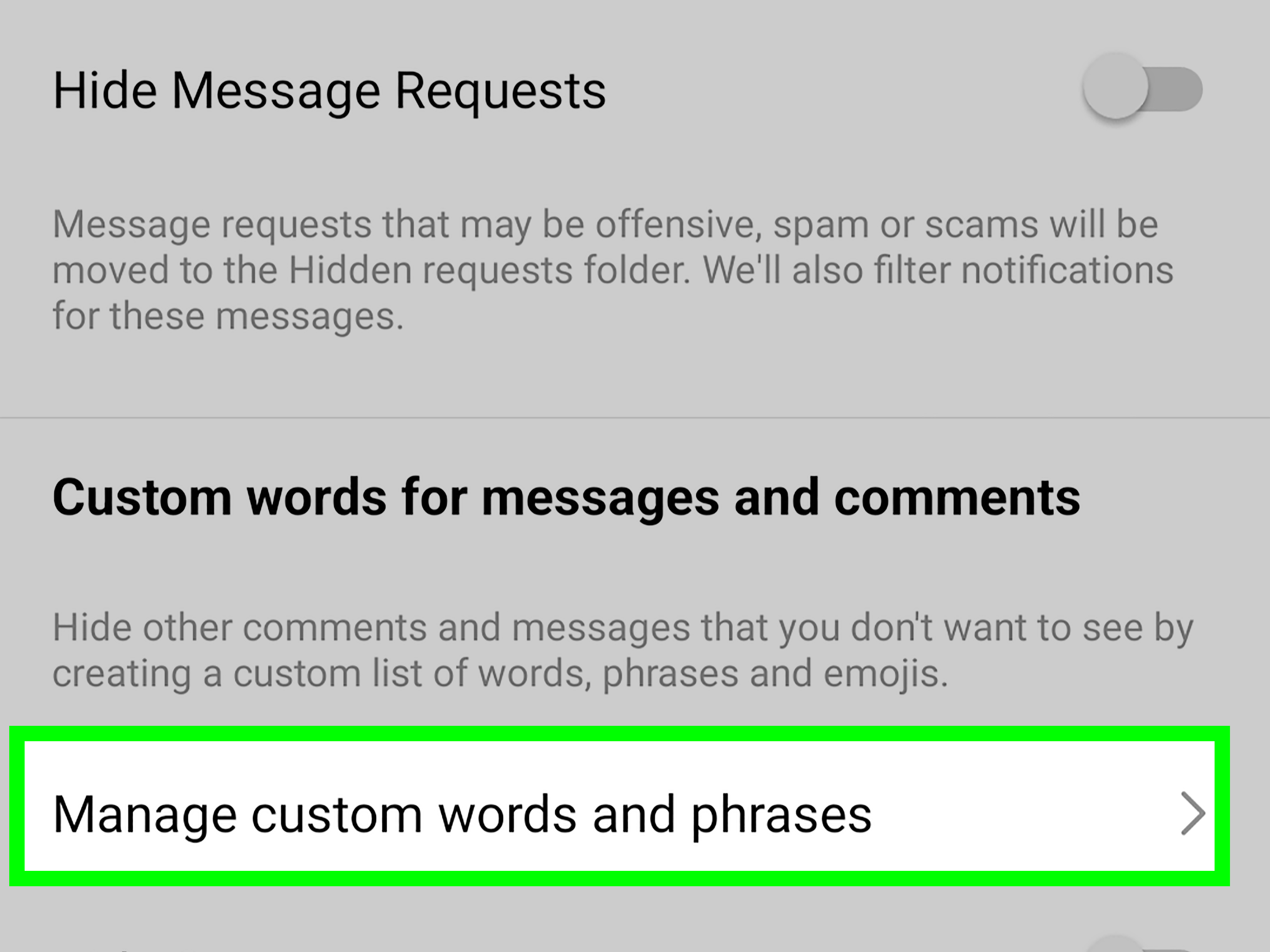
Instagram’s Hidden Words feature can help filter offensive, unwanted, or custom words and phrases. Hosts can use this setting to reduce abusive comments, spam phrases, inappropriate language, and repetitive promotional messages.
To find it, open Instagram settings and look for privacy or comment-related controls. Add words, phrases, emojis, or terms that you do not want appearing in your comments. This is especially useful for creators who repeatedly receive the same spam or harassment.
Limit Interactions From Certain Accounts
Instagram’s Limits feature can temporarily reduce unwanted interactions from groups such as accounts that do not follow you or accounts that recently followed you. This can be helpful during periods of sudden attention, controversy, viral growth, or targeted harassment.
For example, if your account receives a wave of new followers after a viral Reel, you may want to limit comments from brand-new accounts before hosting a live discussion.
Restrict Problem Users
Restricting someone is a quieter alternative to blocking. A restricted person may still be able to comment, but their interactions become less visible and easier to manage. This can be useful when you want to reduce disruption without escalating the situation.
Block Commenting From Specific People
Instagram also allows users to block specific accounts from commenting. This is useful if one person repeatedly causes problems but you do not want to shut down the entire comment section for everyone.
How to Assign a Moderator for Instagram Live
If your live streams attract a lot of viewers, a moderator can be your best friend. Instagram allows hosts to assign a moderator during a live broadcast. The moderator can help manage viewers and comments, allowing you to focus on speaking, teaching, interviewing, or demonstrating.
Why a Moderator Helps
A moderator can watch the comment feed while you stay on topic. This is especially helpful for business launches, influencer events, educational lives, charity streams, public conversations, and high-traffic broadcasts.
Moderators can help identify inappropriate comments, manage disruptive viewers, and keep the conversation aligned with the purpose of the live stream. In simple terms, the host drives the bus; the moderator keeps people from throwing nachos in the aisle.
Who Should Moderate Your Instagram Live?
Choose someone who understands your brand, tone, community guidelines, and goals for the broadcast. A good moderator should be calm, trustworthy, quick-thinking, and familiar with Instagram. Avoid choosing someone simply because they are available. Your cousin who still replies “LOL” to every email may not be the ideal live moderator.
Give Your Moderator Clear Instructions
Before going live, tell your moderator what to watch for. For example:
- Remove spam and repeated promotional comments
- Report hate speech, threats, or harassment
- Flag useful audience questions for the host
- Help keep the tone friendly and respectful
- Let the host know if comments should be turned off
Clear instructions prevent confusion. Moderation should feel smooth, not like two people trying to assemble furniture without the manual.
Best Practices for Hosting Instagram Live With Comments Off
Turning off comments is easy. Doing it without making your audience feel ignored takes a little finesse.
Tell Viewers Why Comments Are Off
Before or right after disabling comments, explain your reason. You might say, “I’m turning comments off for the first part so I can walk through the steps clearly, then I’ll open questions at the end.” This simple explanation keeps viewers from wondering whether something is broken.
Use a Question Sticker Before the Live
If you still want audience input, collect questions through Instagram Stories before your live session. Then answer selected questions during the broadcast. This gives you more control and reduces the pressure of reading comments in real time.
Create Comment Windows
Instead of leaving comments on or off for the entire live, divide your session into segments. For example:
- First 10 minutes: comments off while you teach or announce
- Next 10 minutes: comments on for questions
- Final 5 minutes: comments off for closing thoughts
This structure works well for professional hosts because it balances focus and engagement.
Pin Important Information
If comments are on, consider pinning an important comment with key details, such as the topic, link direction, event name, or community rule. A pinned comment can reduce repetitive questions and help viewers who join late.
Set Community Expectations
For recurring live sessions, create a short comment policy. Let viewers know that spam, harassment, hate speech, and off-topic promotion will be removed. The more consistent you are, the easier moderation becomes.
Pros and Cons of Hiding Comments on Instagram Live
Pros
- Reduces distractions for the host
- Improves focus during presentations and tutorials
- Helps prevent spam from taking over the broadcast
- Protects guests during interviews
- Makes sensitive discussions easier to manage
- Creates a cleaner viewing experience
Cons
- Reduces real-time audience engagement
- May make viewers feel less involved if not explained
- Limits spontaneous questions and reactions
- Can make casual lives feel less personal
- May not be necessary for smaller, friendly audiences
The goal is not to hide comments forever. The goal is to use the right level of control for the type of live stream you are hosting.
Common Problems and Fixes
I Cannot Find “Turn Off Commenting”
Update your Instagram app, restart it, and check again during an active live broadcast. Some options only appear after you are already live. If the wording is different, look for comment-related settings in the three-dot menu near the comment field.
Comments Are Still Appearing
Make sure you selected the correct live comment option. If you are using a moderator or co-host, confirm who has control over comment settings. Also check whether you are seeing reactions or other live indicators rather than actual comments.
Viewers Are Complaining That They Cannot Comment
Briefly explain the reason. For example, say, “Comments are off while I explain the update. I’ll turn them back on for questions in a few minutes.” Most viewers accept comment limits when they understand the purpose.
Spam Keeps Coming Back Every Time Comments Are On
Use Hidden Words, Limits, Restrict, and a moderator. If spam becomes intense, turn comments off for the rest of the live and invite viewers to submit questions through Stories or direct messages later.
Examples of Smart Comment Control for Different Hosts
For Small Business Owners
A boutique owner hosting a new collection preview might turn comments off while showing each product, then turn comments on for sizing and pricing questions. This keeps the presentation clean and prevents important details from getting buried.
For Coaches and Educators
A fitness coach teaching a live workout may keep comments off during the routine and turn them on during the cooldown. Nobody needs the instructor reading “What shoes are those?” while demonstrating a plank.
For Creators and Influencers
A creator discussing a personal topic may use a moderator and Hidden Words instead of turning comments off entirely. This allows supportive viewers to participate while reducing harmful or invasive comments.
For Brands and Agencies
A brand hosting a launch event should prepare moderation rules in advance. Comments can stay on during casual moments and be turned off during scripted announcements, guest interviews, or legal disclaimers.
SEO-Friendly FAQ About Hiding Instagram Live Comments
Can Instagram Live hosts turn comments off?
Yes. Hosts can usually turn off comments during an Instagram Live by opening the live comment menu and selecting Turn Off Commenting.
Can I turn Instagram Live comments back on?
Yes. You can return to the same menu and choose Turn On Commenting when you want viewers to comment again.
Can I hide comments from only one person?
You may be able to restrict, block, or limit specific users through Instagram’s privacy and comment settings. During a live stream, a moderator can also help manage disruptive viewers.
Should I disable comments for every Instagram Live?
Not necessarily. Comments are useful for engagement. Turn them off when you need focus, safety, clarity, or better control.
Do Hidden Words work on Instagram Live?
Instagram’s comment filtering tools can help reduce unwanted language and spam across comment surfaces. Hosts should set up Hidden Words before going live for better protection.
Experience-Based Tips: What Hosting With Hidden Comments Actually Feels Like
After hosting or observing many live sessions, one lesson becomes obvious: the comment section has a personality of its own. On a good day, it is warm, funny, useful, and full of great questions. On a chaotic day, it behaves like a group chat that drank three iced coffees and forgot why it came.
For hosts, hiding comments can feel strange the first time. Many people worry that turning off comments will make the live feel cold or unfriendly. In reality, it often creates relief. The host stops multitasking, the message becomes clearer, and the audience can focus on the content instead of watching the comment feed race by like a tiny stock ticker of opinions.
One practical experience is that comment control works best when it is announced confidently. If a host nervously says, “Um, I guess I’m turning comments off, sorry,” viewers may feel like something went wrong. A stronger approach sounds like this: “I’m going to turn comments off for five minutes so I can explain this clearly, then I’ll open them for questions.” That sentence is simple, respectful, and professional.
Another useful lesson: comments do not have to be on for the whole live to create engagement. Some of the best live streams use a rhythm. The host welcomes viewers with comments on, turns comments off for the main teaching or announcement, then turns them back on for Q&A. This format gives the audience a voice without letting the conversation wander into a swamp.
For business hosts, hiding comments can protect the quality of the presentation. Imagine launching a new service while the comments are full of unrelated discount requests, competitor mentions, or spam links. Even if the host handles it gracefully, viewers can get distracted. Turning off comments during the key pitch helps the offer land cleanly.
For educators, comment control is almost essential. Teaching live while reading comments is difficult because your brain has to explain, scan, decide, respond, and smile at the same time. That is not multitasking; that is mental juggling with flaming bowling pins. Turning comments off during instruction often makes the content better.
For creators discussing personal or sensitive topics, the emotional benefit can be even bigger. Live comments arrive instantly, and one cruel message can throw off the tone of the entire conversation. Using Hidden Words, a trusted moderator, or temporary comment shutdowns can help protect the host’s focus and emotional energy.
The best experience-based advice is to plan your comment strategy before you tap Live. Decide whether comments will be open, closed, moderated, or limited by segment. Prepare a short explanation for viewers. Ask a friend or team member to moderate if you expect a crowd. Add common spam phrases to Hidden Words. Keep a backup plan in case the comment section suddenly becomes a tiny digital circus.
Finally, do not feel guilty for using the tools Instagram provides. A live host is responsible for the room. In a physical event, you would not let someone shout over the speaker, tape flyers to the stage, or interrupt every sentence with “follow me for crypto tips.” Instagram Live is no different. Comment controls help you protect the experience for everyone who came to watch, learn, laugh, shop, or connect.
Conclusion: Hide Comments When Focus Matters
Knowing how to hide comments on Instagram Live for hosts gives you more control over your broadcast. Comments can be wonderful, but they are not always necessary. When they support the conversation, keep them on. When they distract, overwhelm, or harm the experience, turn them off with confidence.
The best hosts do not treat comment controls as a panic button. They treat them as part of the show plan. Use Hidden Words before going live, assign a moderator for busy streams, restrict or limit problem accounts, explain your comment policy clearly, and create dedicated moments for viewer questions.
Instagram Live works best when the host feels present and the audience feels respected. Sometimes that means a lively comment section. Sometimes it means a quiet screen, a focused message, and a host who can finally finish a sentence without reading, “Notice me please” for the ninth time.