You open YouTube on your PC, ready to watch one harmless video about “how to organize your desk,” and suddenly YouTube insists you are offline. Meanwhile, every other website loads perfectly, your Wi-Fi icon looks cheerful, and your computer is acting like nothing is wrong. Classic internet drama.
The YouTube offline problem on PC usually appears as messages such as “You’re offline,” “Connect to the internet,” “No connection,” or a blank YouTube page that refuses to load videos. Sometimes the issue affects only YouTube. Other times, it is part of a wider browser, DNS, network, VPN, firewall, or Windows connection problem.
The good news: in most cases, you do not need to reinstall Windows, call your internet provider in a dramatic whisper, or throw your router into the nearest laundry basket. You just need to isolate the cause step by step. This guide explains nine practical ways to fix YouTube saying offline on a PC, including browser fixes, network resets, DNS changes, extension checks, and YouTube Premium download troubleshooting.
Why Does YouTube Say You’re Offline on PC?
YouTube depends on several layers working together: your internet connection, browser, cookies, cache, DNS, Google account session, extensions, security software, and YouTube’s own servers. When one layer misbehaves, YouTube may think your PC is offline even when your connection is technically active.
Common causes include:
- Weak or unstable Wi-Fi
- Corrupted browser cache or cookies
- Outdated Chrome, Edge, Firefox, or Opera browser
- Ad blockers, privacy extensions, or script blockers interfering with YouTube
- VPN, proxy, firewall, or antivirus blocking YouTube services
- Incorrect DNS settings
- Temporary YouTube service issues
- Expired YouTube Premium downloads or unsupported offline playback conditions
- Windows network configuration problems
Before diving into advanced fixes, try opening another website, such as a news site or search engine. If nothing loads, the problem is your PC or network. If only YouTube fails, focus on browser, extension, account, DNS, or YouTube-specific fixes.
1. Check Your Internet Connection First
Yes, this is the “is it plugged in?” step. But it works often enough to deserve first place. YouTube may display an offline message when your connection is unstable, even if your PC still shows a Wi-Fi or Ethernet icon.
What to do
- Open two or three other websites in the same browser.
- Try playing a short video on another platform.
- Disconnect and reconnect Wi-Fi.
- If possible, switch from Wi-Fi to Ethernet.
- Restart your router and modem.
If you are using public Wi-Fi at a hotel, school, airport, library, or café, open a regular website first. Some networks require you to sign in through a portal page before apps and video sites work correctly. Your browser may look connected, but YouTube may still act like it has been ghosted.
For a quick test, connect your PC to a mobile hotspot. If YouTube works on the hotspot, your home or office network is likely the problem. If YouTube still says offline, the issue is probably inside your browser, PC settings, account session, or security software.
2. Refresh YouTube and Try a Hard Reload
Sometimes YouTube is not truly offline. Your browser may simply be holding onto an outdated or broken version of the page. A normal refresh may not be enough because the browser can reload cached files instead of fetching fresh ones from YouTube.
How to hard reload YouTube
On Windows, open YouTube and press:
- Ctrl + F5, or
- Ctrl + Shift + R
This forces the browser to reload the page and bypass cached files. If the offline message disappears, your browser cache was likely the tiny gremlin causing the problem.
You can also close the YouTube tab, open a new tab, and manually type youtube.com into the address bar. Avoid using an old bookmark for this test, especially if the bookmark points to a specific feed, video, playlist, or studio page.
3. Clear YouTube Cache and Cookies
Browser cache helps websites load faster, but old or corrupted cache files can make YouTube behave strangely. Cookies are also important because they store login sessions, preferences, and site data. If YouTube’s cookies become corrupted, the site may show errors, fail to load your account, or say you are offline.
Clear cache and cookies in Chrome
- Open Chrome.
- Click the three-dot menu in the top-right corner.
- Select Delete browsing data or go to Settings > Privacy and security > Delete browsing data.
- Choose a time range, such as All time.
- Select Cookies and other site data and Cached images and files.
- Click Delete data.
Clear cache and cookies in Microsoft Edge
- Open Edge.
- Go to Settings > Privacy, search, and services.
- Under Clear browsing data, choose what to clear.
- Select cookies and cached files.
- Confirm the deletion.
Clear cache and cookies in Firefox
- Open Firefox.
- Go to Settings > Privacy & Security.
- Find Cookies and Site Data.
- Click Clear Data.
After clearing data, close and reopen your browser. Then sign back into YouTube. This step often fixes YouTube offline errors, login loops, video loading issues, and pages that behave like they woke up on the wrong side of the server.
4. Open YouTube in Incognito or InPrivate Mode
Private browsing is a useful test because it usually opens the browser without your normal cookies, site data, and most extensions. That makes it perfect for figuring out whether your regular browser profile is the problem.
Try this test
- In Chrome, press Ctrl + Shift + N to open Incognito mode.
- In Edge, press Ctrl + Shift + N to open InPrivate mode.
- In Firefox, press Ctrl + Shift + P to open a Private Window.
Now visit YouTube. If YouTube works in private mode but not in your normal browser window, the problem is likely caused by cookies, cached data, browser settings, or extensions.
This does not mean you must watch YouTube in private mode forever like a digital raccoon sneaking through the bushes. It simply tells you where to look next.
5. Disable Extensions That Interfere With YouTube
Browser extensions can be helpful, but some of them interfere with scripts, ads, cookies, tracking protection, video playback, or Google account features. Ad blockers, privacy tools, VPN extensions, download managers, script blockers, and “video enhancer” extensions are common suspects.
How to check extensions in Chrome
- Open Chrome.
- Click the three-dot menu.
- Go to Extensions > Manage extensions.
- Turn off extensions one by one.
- Reload YouTube after each change.
How to check extensions in Edge
- Open Edge.
- Click the three-dot menu.
- Select Extensions.
- Disable suspicious extensions temporarily.
- Test YouTube again.
How to check extensions in Firefox
- Open Firefox.
- Click the menu button.
- Select Add-ons and themes.
- Disable extensions and test YouTube.
If YouTube starts working after disabling an extension, re-enable your extensions one at a time until the offline problem returns. The last extension you enabled is probably the troublemaker. You can keep it disabled, remove it, or adjust its permissions for YouTube.
6. Update Your Browser and Restart It
YouTube is constantly changing behind the scenes. Browsers also update frequently to improve security, video playback, site compatibility, and performance. An outdated browser can cause YouTube to load incorrectly, show connection errors, or fail to play videos.
Update Chrome
- Open Chrome.
- Click the three-dot menu.
- Go to Help > About Google Chrome.
- Allow Chrome to check for updates.
- Restart the browser.
Update Edge
- Open Edge.
- Go to Settings > About Microsoft Edge.
- Install any available updates.
- Restart Edge.
Update Firefox
- Open Firefox.
- Go to Help > About Firefox.
- Install updates if available.
- Restart Firefox.
If updating does not help, try a different browser. For example, if YouTube says offline in Chrome, test it in Edge or Firefox. If YouTube works elsewhere, your main browser profile needs cleanup. If YouTube fails everywhere, focus on Windows network settings, DNS, VPN, firewall, or the router.
7. Turn Off VPN, Proxy, Firewall, or Antivirus Temporarily
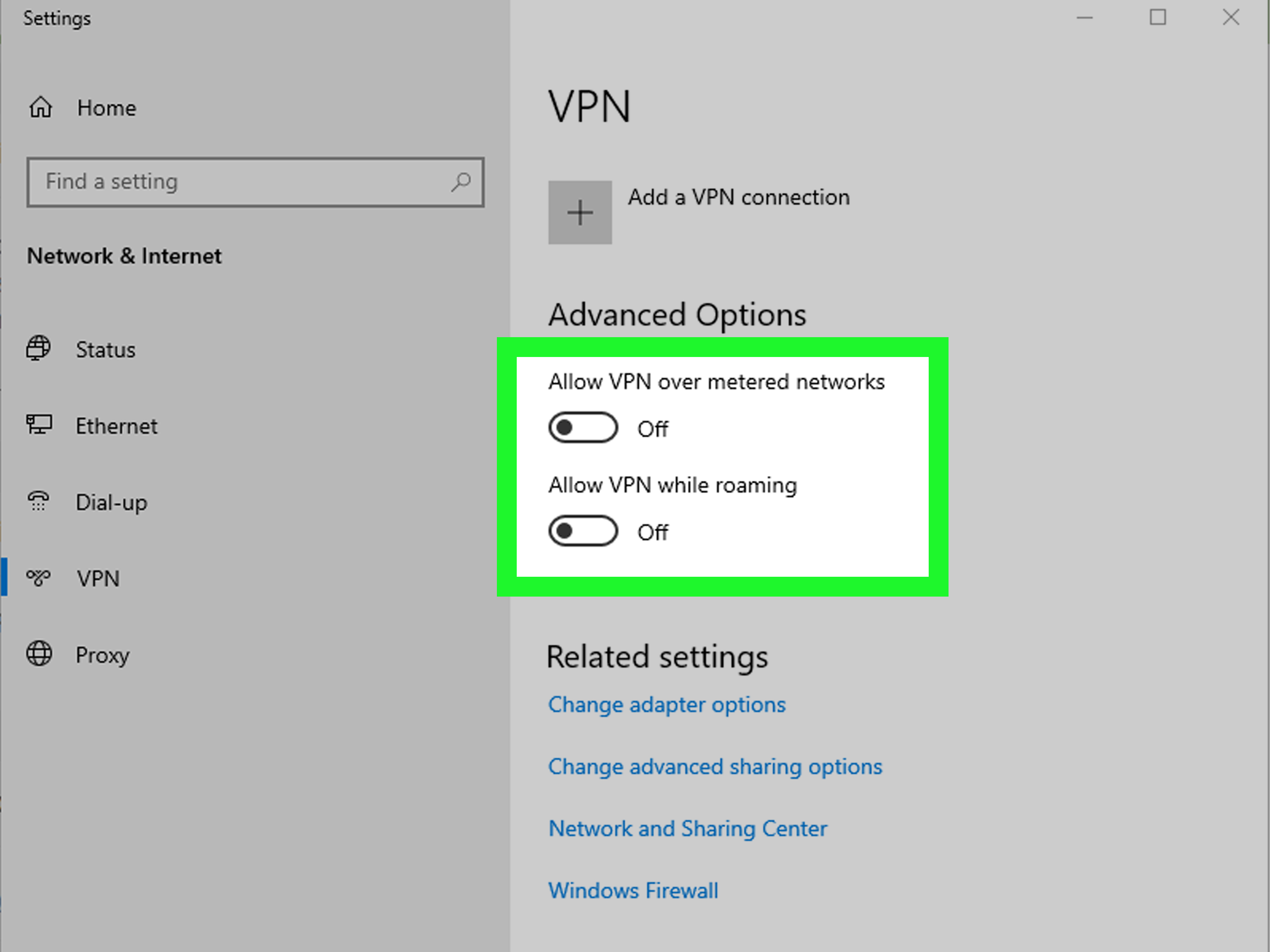
A VPN or proxy can route your traffic through servers that YouTube does not like, cannot reach reliably, or treats as suspicious. Firewalls and antivirus programs can also block parts of YouTube, especially if web protection, HTTPS scanning, or parental filtering is enabled.
What to check
- Turn off your VPN and reload YouTube.
- Disable proxy settings if you do not intentionally use a proxy.
- Pause third-party antivirus web protection briefly and test YouTube.
- Check whether firewall rules are blocking your browser.
- Try another network to compare results.
Do not leave your security software disabled permanently. The goal is only to test whether it is causing the YouTube offline problem. If YouTube works after disabling a security feature, open the program’s settings and create an exception for your browser or YouTube instead of turning protection off for good.
Also check whether your school, workplace, or managed device blocks YouTube. In that case, the offline message may not be a technical failure on your PC. It may be a network rule. If it is a managed computer, contact the administrator rather than trying random fixes that may violate device policy.
8. Change DNS Settings or Flush DNS Cache
DNS is like the internet’s phonebook. When you type youtube.com, DNS helps your PC find the correct server. If your DNS cache is outdated or your DNS provider is having issues, YouTube may fail to load even though other websites work.
Flush DNS on Windows
- Click the Start button.
- Type cmd.
- Right-click Command Prompt and choose Run as administrator.
- Type ipconfig /flushdns and press Enter.
- Restart your browser and open YouTube again.
You can also try switching to a public DNS service. Two common options are Google Public DNS and Cloudflare DNS.
Google Public DNS
- Preferred DNS: 8.8.8.8
- Alternate DNS: 8.8.4.4
Cloudflare DNS
- Preferred DNS: 1.1.1.1
- Alternate DNS: 1.0.0.1
How to change DNS on Windows 11
- Open Settings.
- Go to Network & internet.
- Select your active Wi-Fi or Ethernet connection.
- Find DNS server assignment and click Edit.
- Choose Manual.
- Turn on IPv4 and enter your preferred DNS addresses.
- Save changes and restart the browser.
Changing DNS is especially useful when YouTube fails to load, thumbnails are missing, videos get stuck before starting, or YouTube says offline while your connection appears normal.
9. Reset Windows Network Settings
If YouTube still says offline after browser and DNS fixes, your Windows network stack may need a reset. This can help when network adapters, saved Wi-Fi profiles, IP settings, or connection components are acting strangely.
Use Windows Network Reset
- Open Settings.
- Go to Network & internet.
- On Windows 11, select Advanced network settings.
- Choose Network reset.
- Select Reset now.
- Restart your PC.
After the reset, you may need to reconnect to Wi-Fi and re-enter the password. If you use VPN software, custom DNS, static IP settings, or work network tools, you may also need to configure them again.
This is a stronger fix, so use it after trying simpler steps first. Think of it as the “clean the whole kitchen” option after wiping the counter did not solve the mystery smell.
Bonus: Fix YouTube Premium Offline Downloads on PC
The phrase “YouTube offline problem on PC” can also refer to YouTube Premium downloads not working. YouTube supports offline downloads on computers through supported browsers such as Chrome, Edge, Firefox, and Opera in eligible regions. If downloaded videos will not play offline, check the following:
- Make sure you are signed into the same YouTube Premium account that downloaded the videos.
- Open YouTube while connected to the internet periodically so downloads can refresh their license.
- Use a supported browser.
- Check whether the video is still available on YouTube.
- Confirm that your YouTube Premium membership is active.
- Delete and re-download the video if the download is corrupted.
Some videos may not be available for offline viewing because of region, licensing, creator settings, or membership limitations. If only one downloaded video fails, the issue may be with that specific video. If all downloads fail, check your account, browser, storage, and Premium status.
Quick Troubleshooting Map
Use this mini-map if you want the fastest route:
- Only YouTube is offline: clear cache, disable extensions, update browser, try Incognito.
- All websites are offline: restart router, check Wi-Fi, run Windows network troubleshooting, reset network.
- YouTube works in another browser: fix your main browser profile, extensions, cookies, or cache.
- YouTube works on mobile data but not home Wi-Fi: restart router, change DNS, check network restrictions.
- YouTube works until VPN is enabled: change VPN server or disable VPN for YouTube.
- Offline downloads fail: check YouTube Premium, supported browser, account, and download expiration.
Personal Experience: What Usually Works in Real Life
In real-world troubleshooting, the YouTube offline problem on PC rarely has one magical solution. It is usually a small conflict hiding behind a very dramatic error message. The most common fix is clearing YouTube cache and cookies, especially when YouTube loads in Incognito mode but fails in the normal browser. That pattern usually means the connection is fine, but the browser profile is carrying stale site data.
Another frequent culprit is extensions. Many users install several browser add-ons over time: ad blockers, coupon tools, privacy shields, download helpers, dark mode extensions, grammar tools, and video speed controllers. Individually, they may work fine. Together, they can turn YouTube into a confused sandwich. If YouTube says offline only in one browser, disabling extensions one by one is one of the smartest moves you can make.
VPNs are also surprisingly common troublemakers. A VPN can be useful for privacy, but some servers are slow, overloaded, blocked, or routed in a way that breaks YouTube’s connection. If YouTube suddenly says you are offline right after connecting to a VPN, do not spend an hour blaming your browser. Turn off the VPN, reload YouTube, and see what happens. If YouTube works, switch to another VPN server or use split tunneling if your VPN supports it.
DNS problems are more subtle. The internet may seem mostly fine, but YouTube thumbnails fail, videos spin forever, or the homepage loads halfway and gives up. Changing DNS to Google Public DNS or Cloudflare DNS can make a noticeable difference, especially on networks where the default DNS server is slow or unreliable. Flushing DNS cache is also quick and harmless, which makes it worth trying before more drastic steps.
For Windows PCs, network reset is the “last reasonable button” before deeper repair work. It can fix stubborn connection weirdness, but it may also remove saved network settings. That is why it belongs near the end of the list. Do not start there unless your PC has broader connection issues or every browser acts broken.
The best troubleshooting mindset is simple: change one thing at a time. Do not clear cache, disable every extension, change DNS, restart the router, uninstall your VPN, and reset Windows all at once. If YouTube starts working after that, you will have no idea which fix actually helped. Start with the easiest steps: reload, test another site, open Incognito, clear YouTube data, and disable extensions. Then move to network and DNS fixes.
Also, remember that YouTube itself can occasionally have temporary issues. If everything on your PC looks normal and other people are reporting YouTube problems at the same time, waiting may be the most technical solution available. Sometimes the best repair tool is patience, which is annoying but free.
Finally, if you rely on YouTube Premium downloads on PC, check the basics before assuming something is broken. Downloads depend on account status, browser support, licensing, and periodic online verification. If your PC has been offline for a long time or you changed browsers, profiles, or accounts, YouTube may need to reconnect and refresh access. Re-downloading the video often solves individual download errors.
Conclusion
The YouTube offline problem on PC can feel confusing because your computer may look connected while YouTube insists otherwise. In most cases, the fix is straightforward: test your internet, hard reload the page, clear cache and cookies, try private browsing, disable extensions, update your browser, turn off VPN or proxy tools, change DNS, or reset Windows network settings.
Start small and move upward. The goal is not to randomly attack your PC with every setting change available. The goal is to find the exact layer causing the problem. Once you do, YouTube should return to normal, and you can get back to watching tutorials, music videos, lectures, reviews, or that one cooking video you opened “just for five minutes” two hours ago.