If you’ve found an old .doc file hiding in a dusty folder like it pays rent there, you’re not alone. Plenty of resumes, school papers, contracts, meeting notes, and mystery documents from the early 2000s still live in the older Word format. The good news? Converting a DOC file to a DOCX file is usually easy, fast, and far less dramatic than it sounds.
In most cases, you can open the file in Microsoft Word, save it in the newer format, and move on with your life. But there’s a little more to it if you want to avoid layout glitches, missing macros, broken formatting, or that strange moment when Word acts like your file came from the age of dial-up. This guide walks you through the smartest ways to convert DOC to DOCX, with step-by-step help for Windows, Mac, and free alternatives.
Whether you’re cleaning up old files for work, making documents easier to share, or simply trying to stop your computer from giving your file the side-eye, here’s how to convert a Doc file to a Docx file the right way.
What’s the Difference Between DOC and DOCX?
Before converting anything, it helps to know what changed. A DOC file is the older Microsoft Word format used heavily in Word 97 through Word 2003. A DOCX file is the newer XML-based Word format introduced with newer versions of Microsoft Office.
In plain English, DOCX is the modern version. It is usually more efficient, more compatible with current apps, and better suited for today’s editing and sharing workflows. It also tends to produce smaller files and is less likely to turn into a formatting gremlin when passed between modern platforms.
| Feature | DOC | DOCX |
|---|---|---|
| Era | Older Word format | Modern Word format |
| Typical file size | Larger | Usually smaller |
| Compatibility with current apps | Okay, but limited | Better |
| Modern features | Limited in newer Word features | Supports current editing features |
| Best use today | Legacy files only | Editing, sharing, storing |
If your goal is long-term convenience, better compatibility, and smoother collaboration, DOCX is almost always the better choice.
Why Convert a DOC File to DOCX?
There are a few very practical reasons people convert DOC to DOCX. First, newer versions of Word may open old DOC files in Compatibility Mode, which can limit some modern features. That means you may not get the full editing experience, and certain tools may stay grayed out like they’re on strike.
Second, DOCX tends to work better across newer versions of Microsoft Word, Word for the web, Google Drive, Apple Pages, and other document editors. Third, DOCX files are generally easier to manage in modern cloud-based workflows where collaboration, versioning, and portability matter.
And finally, if you are building a cleaner document library for work or personal use, converting old DOC files now saves future-you from opening a folder full of digital fossils later.
Fastest Method: Convert DOC to DOCX in Microsoft Word on Windows
If you already have Microsoft Word on your computer, this is the easiest and most reliable method.
Option 1: Use the Convert Feature
This method is great when Word opens the old file in Compatibility Mode and offers to modernize it.
- Open the .doc file in Microsoft Word.
- Click File.
- Select Info.
- Click Convert if the option appears.
- Confirm the conversion.
- Save the document.
This updates the file into the newer Word format and clears old compatibility settings. It is the cleanest route when Word clearly recognizes the file as an older format.
Option 2: Use Save As
If you do not see a Convert button, no problem. The classic Save As method works beautifully.
- Open the DOC file in Word.
- Click File and then Save As.
- Choose where you want to save the new file.
- In the file type menu, select Word Document (*.docx).
- Give the file a name.
- Click Save.
That’s it. You now have a DOCX version of the original file. It is often smart to keep the old DOC file for backup until you confirm the new version looks right.
How to Convert DOC to DOCX on a Mac
Mac users have a couple of easy options depending on the software they already have.
Using Microsoft Word for Mac
The process is almost identical to Windows:
- Open the DOC file in Word.
- Go to File.
- Choose Save As.
- Select Word Document (.docx) as the format.
- Save the file.
Simple. Efficient. Very little drama.
Using Apple Pages
If you do not have Microsoft Word, Apple Pages can open many Word documents and save them in Word-friendly formats.
- Open Pages.
- Open the old DOC file.
- Review the formatting.
- Choose File and then Export To.
- Select Word.
- Save the exported file as a DOCX document.
This is a handy workaround for Mac users who need a one-time conversion and do not want to subscribe to Word just to rescue one old report from 2004.
How to Convert DOC to DOCX Without Microsoft Word
No Word? No panic. There are still several practical ways to convert a DOC file to DOCX.
Use Google Docs
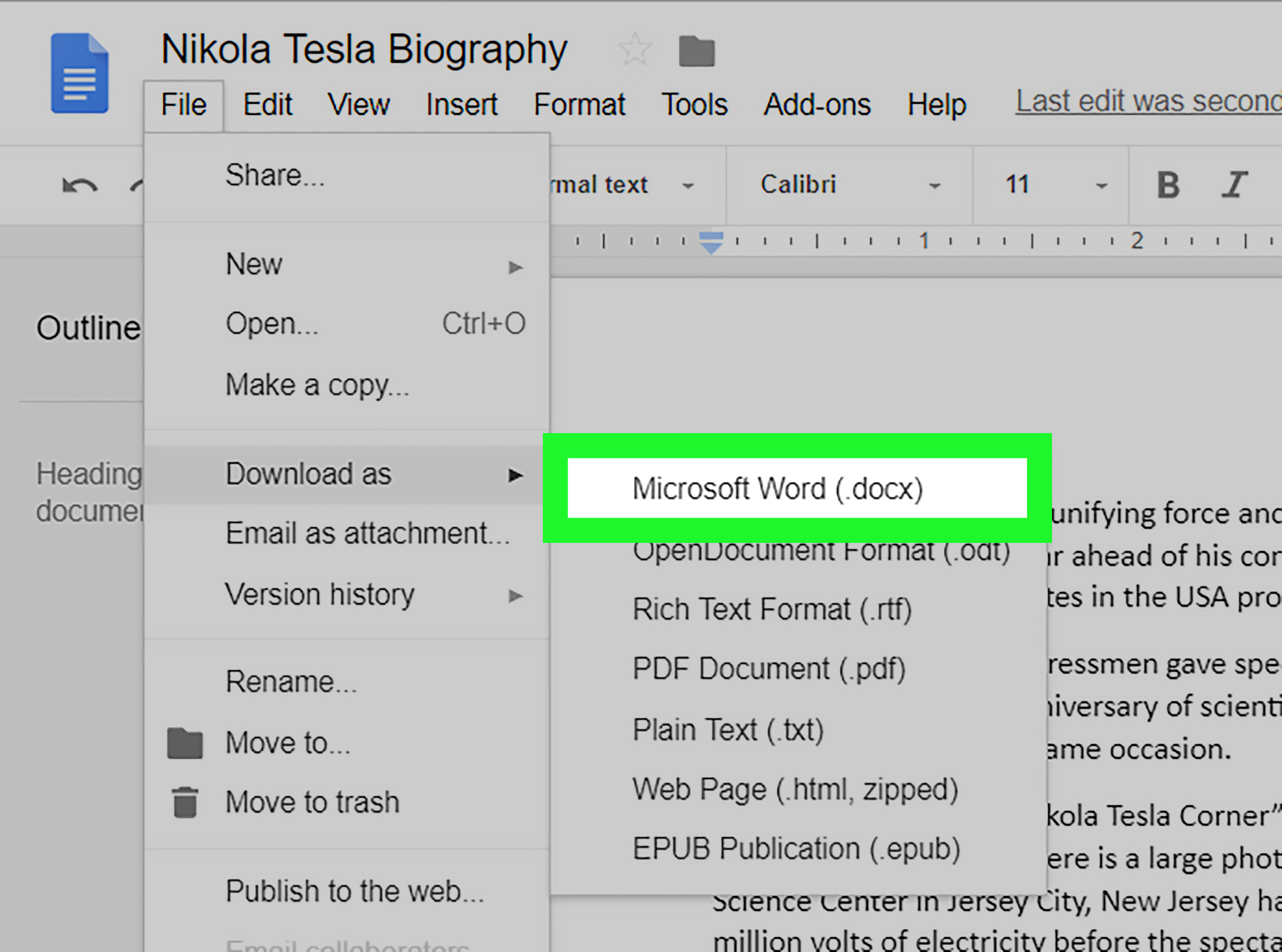
Google Drive can open and work with Microsoft Office files. You can upload a DOC file, open it, and then download a fresh copy as DOCX.
- Go to Google Drive.
- Upload your DOC file.
- Open the file in Google Docs.
- Click File.
- Select Download.
- Choose Microsoft Word (.docx).
This method is especially useful if you are on a borrowed computer or working in the browser. Just remember that some formatting may shift slightly, especially if the original file uses older fonts, embedded objects, or quirky formatting choices made during the George W. Bush administration.
Use Apache OpenOffice or Another Free Word Processor
Free office suites can also help. Open the DOC file, then save or export it in a newer Word-compatible format if the software supports it. This is a solid option when you need an offline tool and do not want to rely on browser-based editors.
Always double-check the resulting DOCX file afterward. Free tools are useful, but older documents with special layouts, tables, or tracked changes can sometimes look a little different after conversion.
What If the DOC File Contains Macros?
This is where you do not want to click blindly and hope for the best. If the original DOC file includes macros, saving it as a regular .docx file may strip out macro functionality. In that case, the correct modern format is usually .docm, not DOCX.
So before converting, ask yourself one question: does this document actually use macros or automation? If the answer is yes, save it as a macro-enabled document instead of standard DOCX. Otherwise, you may convert the file successfully while quietly breaking the thing it was built to do. That is the document version of “operation successful, patient confused.”
Common Problems When Converting DOC to DOCX
Most conversions go smoothly, but older documents can still surprise you. Here are the most common issues to watch for.
Formatting Changes
Fonts, spacing, tables, headers, and page breaks may shift slightly, especially if you convert the file in Google Docs, Pages, or another non-Microsoft app.
Compatibility Mode Warnings
Word may open old DOC files in Compatibility Mode. That is normal. It just means the document was created in an older format and may not use modern Word features until converted.
Missing or Different Fonts
If the original document uses fonts not installed on your current device, the layout may look different after conversion. This is common with older office templates and handmade business forms.
Password or Protection Issues
Some web-based editors do not fully handle password-protected or restricted Word documents. If the file is locked down, the desktop version of Word is usually the best conversion tool.
Old Embedded Objects
Very old DOC files sometimes include charts, comments, images, or embedded objects that do not behave perfectly in newer apps. If the document is mission-critical, check every page after conversion.
Best Practices Before and After You Convert
If the file matters, do not treat conversion like a game show buzzer round. A few smart habits will save you headaches.
- Keep the original DOC file. Save the new DOCX as a separate file first.
- Rename clearly. Use a name like Project-Proposal-Updated.docx instead of final-final-newest-2.docx.
- Check the layout. Review headings, tables, page numbers, and images.
- Test sharing. Open the DOCX on another device or send it to yourself.
- Watch for macros. Save as DOCM if macro support matters.
- Store the new file in the cloud. OneDrive, Google Drive, or Dropbox can make future edits and backups much easier.
When Should You Keep the Original DOC File?
Not every old document needs to be converted and tossed into the future. In some cases, it makes sense to keep the original DOC file too.
For example, if you work in legal, archival, compliance, or records management, you may want the original untouched file for reference. The same goes for school records, scanned forms, old templates, and documents with version history that matters. Think of the DOC file as your “before” photo. The DOCX version is the cleaner, easier-to-use “after” version.
Keeping both files is often the safest move, especially during a large cleanup project.
Why DOCX Is Usually the Better Choice Today
For most users, DOCX wins on convenience. It plays more nicely with current versions of Word, works better in modern collaboration tools, and is usually the file format people expect when you send a Word document today.
It also makes life easier when using Word for the web, Microsoft 365, Google Drive workflows, and other cross-platform editing tools. If your document is still actively used, updated, emailed, uploaded, reviewed, or printed, converting to DOCX is a smart little upgrade that pays off over time.
Real-World Experiences With Converting DOC to DOCX
In real life, people rarely convert DOC files for fun. No one wakes up on a Saturday and says, “You know what would really spice things up? Legacy file management.” Usually, there is a reason.
One common example is the old resume. Someone finds a job posting, opens a resume last updated years ago, and suddenly notices the file is still in DOC format. It opens in Compatibility Mode, the margins look a little suspicious, and the bullets seem to have gone on vacation. Converting to DOCX is usually the first step before making edits, checking formatting, and sending out a cleaner file.
Another familiar situation happens in small businesses. A company may have an old invoice template, employee handbook, training guide, or client proposal that has been reused for years. It still works, technically, but every time someone opens it, there is a small cloud of uncertainty. Will the table shift? Will the logo move? Will the footer leap to page three like an escaped circus act? Converting to DOCX makes these documents easier to edit and maintain in modern software.
Students run into this too. A professor may share an older document, or a student may find a paper written on an ancient family computer. After conversion, the file can be opened in newer versions of Word, uploaded more smoothly to learning platforms, and edited with fewer compatibility surprises.
Then there are family files: recipes, letters, reunion plans, church programs, genealogy notes, and old newsletters. These documents may not be “business critical,” but they still matter. Converting them to DOCX can make them easier to preserve, search, and update without constantly wondering whether your current software will choke on them.
The biggest lesson from real-world conversions is this: the file usually converts just fine, but you should never assume it is perfect without checking. The documents most likely to need a quick cleanup afterward are the ones with tables, old clip art, unusual fonts, tracked changes, text boxes, or hand-built formatting tricks that made sense to someone in 2003 and absolutely no one else since.
Another lesson is that not every tool handles conversion equally well. If the document is important, Microsoft Word remains the safest first choice. Browser-based tools and alternative editors are excellent backups, but they are better treated as practical substitutes than exact clones.
And finally, converting old DOC files often turns into a bigger cleanup win. Once people start modernizing one file, they usually end up organizing folders, renaming documents properly, deleting duplicates, and saving cleaner versions in the cloud. So yes, converting DOC to DOCX is a tiny task. But it has a funny way of starting a very useful digital spring cleaning project.
Final Thoughts
If you want the shortest possible answer to how to convert a Doc file to a Docx file, here it is: open the DOC file in Word, choose Convert or Save As, and save it as .docx. That handles most situations in under a minute.
If you do not have Word, Google Docs, Apple Pages, and free office suites can still help. Just review the finished file carefully, especially if the document includes complex formatting, embedded items, or macros.
In other words, converting DOC to DOCX is not hard. It is just one of those small digital chores that feels oddly satisfying once it is done. Like cleaning out a junk drawer, but with fewer dead batteries.