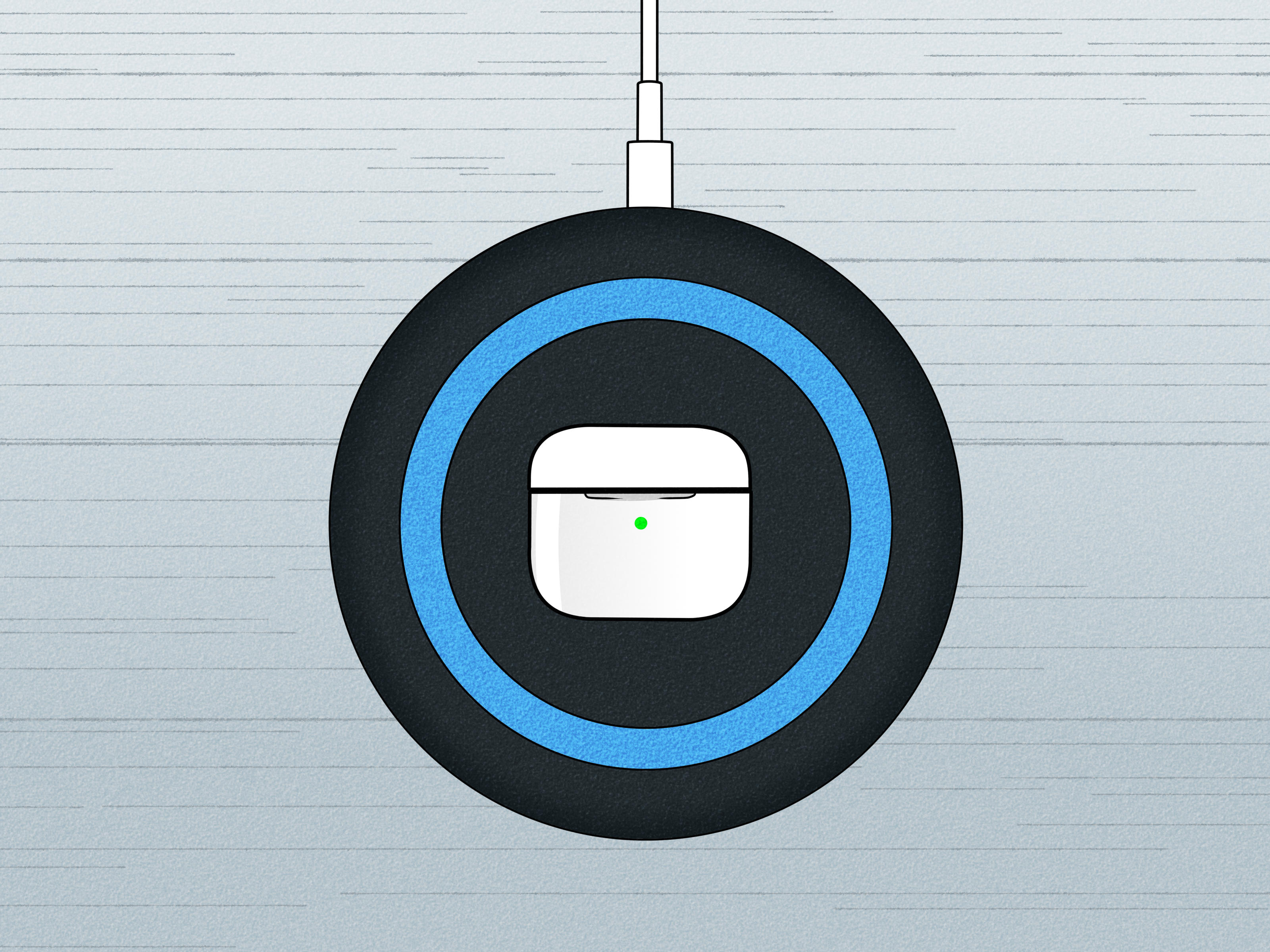
If your AirPods and HP laptop are acting like two exes avoiding eye contact at a coffee shop, don’t worry. They can absolutely work together. AirPods connect to HP laptops over Bluetooth just like other wireless earbuds, and once they are paired correctly, you can use them for music, videos, meetings, and casual “I swear I’m working” background playlists.
The catch is that Windows does not treat AirPods with the same magical, almost suspiciously smooth convenience you get on an iPhone or Mac. On an HP laptop, you may need to manually pair them, choose them as the audio output, and do a little troubleshooting if Bluetooth gets moody. The good news is that the process is usually quick once you know exactly where to click.
This guide walks you through how to connect AirPods to an HP laptop on Windows 11 and Windows 10, plus the most common fixes when your AirPods won’t connect, connect without sound, or disconnect at the worst possible moment.
Can You Connect AirPods to an HP Laptop?
Yes. AirPods work with HP laptops because they use standard Bluetooth audio. That means you can pair them with most HP notebooks, including Pavilion, Envy, Spectre, Omen, ProBook, and many other models. Once connected, you can listen to audio and usually use the microphone for calls and meetings too.
That said, you should keep your expectations realistic. On Windows, AirPods behave more like regular Bluetooth earbuds than like Apple’s favorite child. Some Apple-only conveniences, such as Siri and the smooth Apple ecosystem handoff, are not part of the experience here. So yes, they work. No, they do not turn your HP into a MacBook wearing a fake mustache.
Before You Start
Before pairing your AirPods, do these quick checks first:
- Make sure your HP laptop has Bluetooth turned on.
- Charge your AirPods and charging case.
- Keep the AirPods close to the laptop during setup.
- Disconnect the AirPods from nearby devices, especially your iPhone, iPad, or Mac, if they keep grabbing the connection.
- Open the AirPods case lid before trying to pair.
If Bluetooth seems to be missing entirely on your HP laptop, check your model’s specs. Most modern HP laptops include Bluetooth, but not every PC does. If your device lacks Bluetooth hardware, you will need a USB Bluetooth adapter.
How to Connect AirPods to an HP Laptop on Windows 11
- Click Start and open Settings.
- Go to Bluetooth & devices.
- Turn Bluetooth on.
- Click Add device.
- Select Bluetooth.
- Put your AirPods in pairing mode:
- For most AirPods models, place both AirPods in the case, open the lid, then press and hold the setup button on the back until the status light flashes white.
- If you have AirPods 4, use the front-of-case pairing control instead of the classic rear button.
- When your AirPods appear in the list of Bluetooth devices, click them.
- Wait for the connection message, then click Done.
That is the main pairing process. If everything goes smoothly, congratulations: your HP laptop and AirPods are now on speaking terms.
How to Connect AirPods to an HP Laptop on Windows 10
- Open Start, then click Settings.
- Select Devices.
- Click Bluetooth & other devices.
- Turn on Bluetooth.
- Click Add Bluetooth or other device.
- Choose Bluetooth.
- Put the AirPods into pairing mode with the lid open and the status light flashing white.
- Select your AirPods from the list.
- Click Done once Windows confirms the connection.
Windows 10 and Windows 11 follow almost the same logic. The menus just wear slightly different outfits.
How to Make Sure Sound Plays Through the AirPods
Here is where many people get tripped up: the AirPods may connect successfully, but your HP laptop still sends sound through its built-in speakers. That is not a betrayal. It is just Windows being Windows.
To switch audio output on Windows 11:
- Click the speaker icon on the taskbar.
- Select the audio output menu next to the volume control.
- Choose your AirPods as the output device.
To switch audio output on Windows 10:
- Right-click the speaker icon in the taskbar.
- Open Sound settings.
- Under Output, select your AirPods.
If you are on a Zoom call and suddenly hear your boss through the laptop speakers while your AirPods sit there looking innocent, this is the first setting to check.
Common AirPods Connection Problems on an HP Laptop
1. AirPods Won’t Show Up in Bluetooth
If your AirPods do not appear in the Bluetooth device list, the most common cause is pairing mode. Put both AirPods in the case, open the lid, and activate pairing mode again until the status light flashes white. Then keep the case near the laptop.
Also make sure the AirPods are not already actively connected to your iPhone or another nearby device. AirPods can remember multiple devices, but they are not always eager to switch nicely when another gadget has already claimed them.
2. Bluetooth Is Missing on the HP Laptop
If the Bluetooth toggle is missing, first turn off Airplane Mode. Then restart the laptop. If it is still missing, open Device Manager and check whether the Bluetooth adapter appears there. If it does not, your driver may be corrupted, disabled, or missing.
This is when HP support and Windows support become your new best friends. Update the Bluetooth driver through Device Manager or download the latest driver from HP’s support page for your exact model. If your HP laptop uses Intel wireless hardware, Intel’s official Bluetooth driver package can also help in some cases.
3. AirPods Are Connected but There’s No Sound
This problem is surprisingly common and wildly annoying. Usually, the fix is simple:
- Select the AirPods as the output device in Sound settings.
- Disconnect and reconnect the AirPods.
- Restart the audio app you are using.
- Check the volume on both Windows and the app.
If that does not work, remove the AirPods from Bluetooth settings and pair them again from scratch. Windows sometimes remembers a device in a less-than-helpful way, like a friend who only remembers your most embarrassing story.
4. AirPods Keep Disconnecting
If your AirPods keep dropping the connection, check the basics first: battery level, distance, and wireless interference. Bluetooth hates drama, but it also hates crowded signal environments. If your laptop is far away, sitting next to a router, or juggling too many Bluetooth accessories, the connection can become unstable.
Try these fixes:
- Charge the AirPods and case.
- Move closer to the HP laptop.
- Turn Bluetooth off and back on again.
- Restart the laptop.
- Remove old pairings you no longer use.
5. Audio Sounds Bad or the Microphone Quality Drops
Bluetooth earbuds can switch between different audio profiles depending on whether you are only listening or also using the mic. During calls, sound quality can drop because Windows may use a hands-free communication profile instead of the higher-quality stereo playback mode.
That does not always mean something is broken. It may just be how the active profile is working. If you need the best sound quality for music or video, close apps that are using the microphone and confirm that your AirPods are selected for standard output rather than a call-focused mode.
6. The Pairing Worked Before, but Not Anymore
When a device that used to work suddenly refuses to cooperate, do the classic cleanup routine:
- Go to Bluetooth settings.
- Find your AirPods.
- Click Remove device.
- Restart the laptop.
- Put the AirPods back into pairing mode.
- Pair them again.
Yes, “remove and re-pair” is the tech equivalent of “have you tried turning it off and on again?” But the annoying cliché is popular because it works.
How to Reset AirPods and Pair Them Again
If nothing else solves the problem, reset the AirPods. This is one of the most effective ways to fix stubborn pairing issues.
- Place the AirPods in the charging case.
- Close the lid for a moment, then reopen it.
- Use the case reset or pairing control according to your AirPods model.
- Wait for the status light to show the reset sequence, then return to pairing mode.
- Go back to your HP laptop and pair the AirPods again as a new Bluetooth device.
After the reset, Windows will treat them like a fresh device. This is ideal when the saved pairing information has become messy or corrupted.
HP-Specific Troubleshooting Tips That Actually Help
Because the article is specifically about HP laptops, here are the fixes that matter most on HP hardware:
- Update from HP first: If your HP support page offers a Bluetooth or wireless driver for your exact laptop model, use that before hunting randomly around the internet.
- Use HP Support Assistant if available: It can help identify missing or outdated drivers.
- Check Device Manager: Expand the Bluetooth category and look for warning icons.
- Restart after driver updates: This matters more than many people think.
- Check Windows Update too: Sometimes the Bluetooth fix arrives there rather than on the HP page.
If your HP laptop is older, the issue may not be the AirPods at all. It may be the Bluetooth adapter, old drivers, or a flaky Windows build that just needed a firm, respectful reboot.
Quick Troubleshooting Checklist
If you want the short version, run through this list in order:
- Turn Bluetooth on.
- Make sure Airplane Mode is off.
- Charge the AirPods.
- Open the case lid.
- Put the AirPods in pairing mode.
- Remove old AirPods pairing from Windows.
- Pair again.
- Select AirPods as the sound output device.
- Run the Windows Bluetooth troubleshooter or Get Help tool.
- Update the Bluetooth driver.
- Reset the AirPods if needed.
Real-World Experience: What It’s Actually Like Using AirPods With an HP Laptop
In real life, using AirPods with an HP laptop is usually less dramatic than people expect, but it is also not as seamless as using them with an iPhone. The first time you pair them, the process often feels a little more manual than it should. You open the case, hold the pairing button, stare at the blinking white light like it is giving you life advice, then wait for Windows to notice the AirPods exist. Sometimes it works immediately. Sometimes Windows takes its sweet time, as if it is reviewing your request with a committee.
Once the pairing is done, everyday use is generally pretty good. Watching YouTube, joining a Teams meeting, listening to Spotify while pretending your email inbox does not exist, all of that usually works well. The sound is clear, the connection is stable when you are sitting near the laptop, and the convenience of not dealing with wires still feels like a tiny modern miracle.
Where people get frustrated is not usually the first connection. It is the weird stuff that happens after. For example, the AirPods may reconnect to the laptop but still send sound through the HP speakers. Or they may connect for audio but become less impressive when the microphone kicks in during a call. Then there is the classic situation where your iPhone and HP laptop both seem to want the AirPods at the same time, and your earbuds are stuck in the middle like children of a messy custody battle.
That said, once users learn the three big habits, the experience improves a lot. First, always check the sound output device if there is no audio. Second, keep drivers updated if Bluetooth starts acting flaky. Third, do not be afraid to remove and re-pair the AirPods. It feels basic, but it solves a shocking number of problems.
Many users also notice that AirPods are perfectly fine for casual work on an HP laptop, but they are not always the ideal choice for every heavy-duty audio task. If you spend all day in video calls, record audio regularly, or need advanced Windows audio controls, a headset designed specifically for PC use may offer a smoother long-term experience. But for everyday listening, calls, streaming, and travel, AirPods can still be a very practical option.
The overall experience, then, is best described like this: AirPods and an HP laptop can absolutely be friends, but they are not childhood best friends who finish each other’s sentences. They are more like competent coworkers. They get the job done. They occasionally misunderstand each other. But once you learn their quirks, the relationship becomes surprisingly dependable.
Final Thoughts
Connecting AirPods to an HP laptop is usually simple: turn on Bluetooth, put the AirPods in pairing mode, select them in Windows, and make sure they are set as the audio output. If something goes wrong, the most effective fixes are usually re-pairing, updating the Bluetooth driver, checking Windows sound settings, and resetting the AirPods.
So yes, your AirPods can work with your HP laptop. And once you know how to deal with the occasional Bluetooth nonsense, they can work pretty well too. Not perfectly magical, but definitely useful. Think of it as cross-platform peace with a few minor negotiations.