If you’ve ever closed a tab and immediately forgotten where that magical website went, welcome to the club. It happens to the best of us. One minute you’re reading a recipe, tracking a package, checking homework, comparing laptop prices, or pretending you’re “just browsing” while shopping for things you absolutely do not need. The next minute, poof, the page is gone.
That is exactly why learning how to bookmark a website on Windows 10 is such a useful little life skill. A bookmark saves a page inside your browser so you can get back to it fast. In some cases, you can even turn a site into a desktop shortcut or pin it to the taskbar for one-click access. Once you know the basic methods, you will waste less time hunting through search results and more time actually using the sites you care about.
In this guide, you’ll learn four easy methods to bookmark a website on Windows 10. We’ll cover Microsoft Edge, Google Chrome, Mozilla Firefox, and a bonus-style Windows shortcut method for people who want their favorite site sitting right on the desktop like a loyal digital puppy.
Why Bookmarking Still Matters on Windows 10
Bookmarks may sound simple, but they are one of the easiest ways to organize your daily web life. Instead of typing the same URL again and again, you can save pages for work, school, shopping, banking, streaming, recipes, gaming, or research. A well-placed bookmark can save time every single day.
Bookmarking also helps you avoid a messy tab habit. You know the one: 37 tabs open, a browser gasping for air, and you insisting that every page is “important.” A bookmark lets you close the tab without losing the page. That is good for your focus and great for your sanity.
Method 1: Bookmark a Website in Microsoft Edge
If you use Microsoft Edge on Windows 10, bookmarks are called Favorites. Different name, same mission: save the page so you can find it later without performing a dramatic internet scavenger hunt.
How to add a site to Favorites in Edge
Open Microsoft Edge and visit the website you want to save. Look at the right side of the address bar and click the star-shaped Favorites button. A small menu will appear, and you can rename the page if you want. You can also choose which folder to save it in. Then click Done.
If you prefer keyboard shortcuts, Windows 10 gives you a speedier option. Press Ctrl + D while the page is open. That immediately opens the save-to-Favorites prompt. It is one of those tiny shortcuts that makes you feel weirdly efficient.
How to keep Edge Favorites organized
Create folders for categories like Work, Shopping, Bills, News, or Recipes. That way you are not throwing every saved site into one giant digital junk drawer. If you want quick access, turn on the Favorites bar so your most-used links stay visible near the top of the browser window.
Edge is a great choice for Windows 10 users who want something built in, clean, and easy to manage. If you already use Edge for everyday browsing, this is the simplest method of all.
Method 2: Bookmark a Website in Google Chrome
Google Chrome is still a favorite for many Windows 10 users, and bookmarking a page there is easy enough that you can do it half-awake before coffee. Not that I recommend testing that theory.
How to save a page in Chrome
Open Chrome and go to the page you want to bookmark. Click the star icon on the right side of the address bar. A small box will pop up where you can edit the bookmark name and choose a folder. Click Done, and the page is saved.
Want the faster route? Press Ctrl + D. That is the classic Chrome bookmark shortcut on Windows 10. It works so quickly that many users never bother clicking the star at all.
How to find your saved Chrome bookmarks
If your bookmarks seem to disappear into the Chrome universe, do not panic. They are usually sitting in the Bookmarks Bar or the Bookmarks Manager. You can show or hide the Bookmarks Bar with Ctrl + Shift + B, and you can open the Bookmarks Manager with Ctrl + Shift + O.
The real trick is naming bookmarks clearly. “Article” is not helpful. “Best budget gaming laptops” is helpful. Future-you will be grateful.
When Chrome bookmarking works best
Chrome works especially well if you save lots of research pages, product links, or study materials. It is also handy if you switch devices often and want your browser bookmarks synced to the same Google account.
Method 3: Bookmark a Website in Mozilla Firefox
Firefox has a loyal fan base for good reason. It is fast, flexible, and excellent if you like having a little more control over your browser. Bookmarking in Firefox is simple, but it also gives you a few nice organizational extras.
How to bookmark a page in Firefox
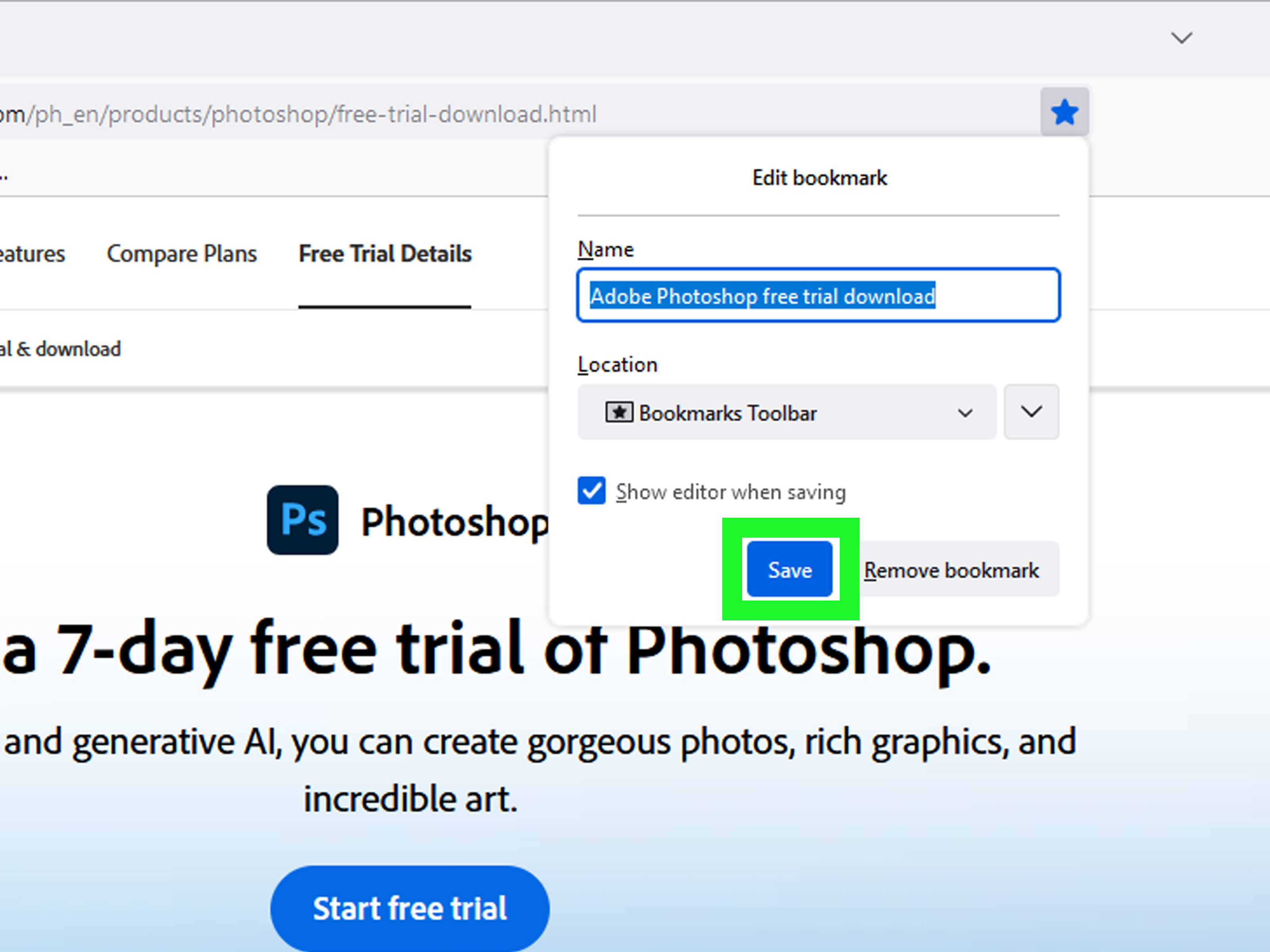
Open Firefox and visit the page you want to save. Click the star icon in the address bar. Once the page is bookmarked, the star changes color, and Firefox lets you edit the name, choose a folder, or even add tags. That last part is useful if you like organizing things with more precision.
Just like Edge and Chrome, Firefox also supports the trusty Ctrl + D shortcut. If you love consistency, this is your moment.
How to manage Firefox bookmarks
Firefox gives you a Bookmarks Toolbar and a full Library window for more detailed management. If you save a lot of pages, the Library becomes your best friend. It is especially helpful for cleaning duplicates, moving folders around, and finding older saved links.
Firefox is a strong option if you want bookmarking to feel a little more structured instead of just saving pages and hoping for the best.
Method 4: Create a Website Shortcut on the Windows 10 Desktop
This is the method for people who do not just want a bookmark inside a browser. They want a website to sit right on the desktop like an app shortcut. And honestly, that is a pretty smart move for sites you open all the time.
Option 1: Create a shortcut from Chrome
Open Chrome and visit the site you want. Click the three-dot menu in the top-right corner, then go to the option for creating a shortcut. Name it, confirm it, and Chrome will place a clickable shortcut on your desktop. This is perfect for things like Gmail, Google Docs, project dashboards, or a school portal.
Option 2: Pin a site from Edge
In Microsoft Edge, open the website, click the three-dot menu, and look for the tools option that lets you pin the page. Depending on the setup, you may be able to pin it to the taskbar, Start menu, or as an app-style shortcut. This is fantastic for websites you use like software, such as email, music, calendars, or team chat tools.
Option 3: Drag a web address to the desktop
Some browsers also let you drag the padlock or site icon from the address bar straight to the desktop. That creates a website shortcut in a very old-school, oddly satisfying way. Click, drag, drop, done. It feels a little like magic, except the boring grown-up kind.
When a desktop shortcut is better than a bookmark
A browser bookmark is best for pages you want to save and organize inside the browser. A desktop shortcut is better when you use the same site every day and want one-click access from Windows 10 itself. Think Outlook Web, a class portal, your cloud storage dashboard, or your company login page.
Tips to Keep Your Bookmarks Useful Instead of Chaotic
Bookmarking is easy. Managing bookmarks well is where the adults are separated from the goblins. Here are a few smart habits that keep your saved sites under control.
Use folders right away
Create broad categories first: Work, Personal, Shopping, Finance, News, and Entertainment. You can always get more specific later.
Rename bookmarks clearly
Use names that make sense at a glance. “Travel insurance comparison” beats “tab 4.” Every time.
Delete outdated links
If a page is no longer useful, remove it. Old coupon pages, expired event links, and random articles you will never read again do not deserve lifelong residency in your browser.
Pin only the essentials
The Bookmarks Bar and desktop should be reserved for your most-used websites. If everything is a favorite, nothing is really a favorite.
Common Bookmark Problems on Windows 10
I bookmarked a page, but I cannot find it
Check the browser’s bookmarks or favorites manager. In many cases, the page was saved to a different folder than expected. Also look for the Bookmarks Bar or Favorites menu.
My bookmarks bar is gone
It is usually just hidden. In Chrome, the shortcut to show it is Ctrl + Shift + B. Edge and Firefox also support toolbar visibility shortcuts and menu options for this.
I saved too many bookmarks
Congratulations, you are human. Start by deleting duplicates, then move what remains into folders. Do not try to fix five years of bookmark chaos in one sitting unless you enjoy unnecessary drama.
Desktop shortcut opens in the wrong browser
That usually means your default browser setting in Windows 10 is different from the browser you used to make the shortcut. You can either change your default browser or recreate the shortcut the way you want.
Best Method for Different Types of Users
For casual users
Use Ctrl + D. It is the fastest and easiest bookmark method on Windows 10.
For organized users
Use folders in Edge, Chrome, or Firefox and review them once a month. You will save yourself a lot of digital clutter.
For power users
Create desktop or taskbar shortcuts for the websites you open every day. Save bookmarks for everything else.
For students and researchers
Firefox and Chrome are especially useful when you want to save lots of reference pages, class resources, and reading material without leaving every tab open forever.
Real-World Experiences: What Bookmarking a Website on Windows 10 Actually Feels Like
Here is the funny thing about bookmarks: people usually do not care about them until they suddenly care a lot. Nobody wakes up thinking, “Today I shall master browser organization.” But the moment you lose a page you needed, the humble bookmark becomes the hero of the day.
A very common experience is the workday scramble. You open your browser in the morning, and there are the same five or six sites you use every day: email, project management tools, spreadsheets, a company dashboard, maybe a training portal, and one news site you “accidentally” read for 20 minutes. Without bookmarks, you type, search, click, and repeat. With bookmarks, you click once and move on. It feels small until you realize how much mental friction it removes.
Students have a similar experience on Windows 10 laptops. One semester can generate a ridiculous number of useful pages: course websites, online textbooks, research databases, lecture recordings, assignment trackers, cloud folders, and discussion boards. At first, everything lives in open tabs. Then the browser crashes, or the laptop restarts, and chaos arrives wearing tiny academic shoes. A bookmark folder for each class suddenly looks less like a nerdy extra step and more like survival.
Shopping is another classic bookmark situation. Let’s say you are comparing desks, monitors, or sneakers. You find one item that looks perfect, then another that is cheaper, then a third that has suspiciously glowing reviews written by people who sound like toasters pretending to be humans. Bookmarking each option in a folder called “Desk Ideas” or “Monitor Comparison” keeps the search tidy. Instead of reopening old tabs and wondering which store had the better return policy, you have everything saved neatly in one place.
Then there is the family-tech-support angle, which deserves its own documentary. Plenty of Windows 10 users discover bookmarks because they are helping a parent, grandparent, or younger sibling use a website more easily. A desktop shortcut to a bank login page, a telehealth portal, a school website, or a favorite radio station can be a game changer. For someone who does not want to dig through browser menus, clicking one big icon on the desktop is much less intimidating than remembering web addresses.
There is also a subtle emotional benefit to bookmarking. It reduces digital stress. When you know a page is safely saved, you do not feel pressure to keep it open “just in case.” That means fewer tabs, less browser clutter, and less of that low-level panic that comes from wondering whether you will ever find that useful page again. It is a tiny systems upgrade for your everyday life.
And yes, once people start using bookmarks properly, they often get a little obsessed. First it is one folder. Then five. Then color-coded browser habits in the brain, even if the browser does not technically color-code anything. Suddenly they are the kind of person who says things like, “I keep my receipts in a Finance folder and my recipes in a Weekend folder,” which is both practical and mildly adorable.
So if bookmarking a website on Windows 10 sounds basic, good. Basic tools are often the ones that save the most time. A bookmark is not flashy. It is just useful. And sometimes useful wins.
Final Thoughts
If you want the quickest answer to how to bookmark a website on Windows 10, it is this: open the site and press Ctrl + D. That works in the major browsers most people use every day. From there, you can get fancier with folders, bookmark bars, taskbar pins, and desktop shortcuts.
The best method depends on how you use your computer. If you want simple browser access, use standard bookmarks in Edge, Chrome, or Firefox. If you want instant access from the desktop, create a website shortcut. Either way, once you start saving your most important websites properly, your browsing becomes faster, cleaner, and a whole lot less annoying.
In other words, stop trusting your memory to remember that one perfect page from three Tuesdays ago. Your browser has tools. Let it help.