Note: This article discusses defensive laptop hardening, firmware privacy, and practical risk reduction. The word “backdoor” is used the way many privacy advocates use it: to describe highly privileged, closed, hard-to-audit subsystems such as Intel Management Engine and Intel Active Management Technology. It does not claim that every Intel laptop is actively spying on its owner. Tin foil hats are optional; firmware literacy is not.
Why Intel “Backdoors” Became a Laptop Privacy Debate
Modern laptops are not just a CPU, memory, storage, and a keyboard that collects crumbs like a tiny archaeological site. They are layered machines with firmware, embedded controllers, trusted platform modules, wireless chips, management engines, and vendor utilities all stacked together before your operating system even says good morning. That complexity is powerful, but it also makes privacy-minded users ask a reasonable question: who else can talk to my computer when I am not looking?
The phrase “Intel backdoors” usually points to two related technologies: Intel Management Engine, often shortened to Intel ME or IME, and Intel Active Management Technology, known as Intel AMT. Intel ME is a small, privileged subsystem built into many Intel platforms. Intel AMT is a remote management feature available on Intel vPro business systems. In corporate IT, these tools can be genuinely useful. They allow administrators to inventory machines, troubleshoot systems, and sometimes manage a device even when the operating system is broken. For an IT department, that is a superpower. For a privacy enthusiast, it sounds like a raccoon with a key to the pantry.
The concern is not simply that remote management exists. The real issue is privilege and transparency. Intel ME runs below the operating system, below most security tools, and outside the normal control surface that users can inspect. Intel AMT, when provisioned, can enable out-of-band management over the network. That does not automatically mean your laptop is compromised. It does mean the feature deserves careful configuration, especially on secondhand business laptops, refurbished enterprise machines, and any notebook that once lived in a corporate fleet.
Intel ME vs. Intel AMT: Same Neighborhood, Different Doors
Before disabling anything, it helps to separate the acronyms. Intel ME is the underlying management engine environment. It is part of the platform firmware and performs initialization and management tasks. On many modern laptops, it cannot simply be removed like an unwanted browser toolbar from 2006. Intel AMT is a feature built on top of Intel ME and associated with Intel vPro systems. AMT is the part most users think of when they hear about remote administration, remote keyboard-video-mouse control, provisioning, or network-based management.
Intel Management Engine
Intel ME is controversial because it is proprietary, deeply privileged, and difficult for ordinary users to audit. Privacy-focused firmware projects have spent years trying to reduce, neutralize, or disable as much of it as possible. On older platforms, some projects could remove large portions of the ME firmware while leaving only what was required for boot. On newer platforms, the picture is more complicated. The firmware is signed, the platform may enforce boot integrity, and a careless modification can turn a laptop into a decorative cutting board with USB-C.
Intel Active Management Technology
Intel AMT is easier to understand because it has a clearer administrative purpose. It is designed for remote management on supported business systems. If AMT is unconfigured, disabled, or unavailable, the practical risk to a home user is much lower. If AMT is enabled, provisioned, and reachable on a network, it becomes a serious security setting that should be managed like any other privileged access path. Default passwords, forgotten provisioning profiles, and abandoned enterprise settings are where the gremlins start doing paperwork.
Can You Fully Disable Intel ME on a Modern Laptop?
The honest answer is: usually not in the simple, absolute way people want. On many recent Intel laptops, Intel ME is part of the boot chain and platform initialization. Fully removing it is generally not realistic for ordinary users, and even experienced firmware modders treat the process with caution. Some open firmware projects and privacy-focused vendors can reduce or disable Intel ME behavior on specific models, but this depends heavily on chipset generation, firmware layout, vendor locks, Intel Boot Guard status, and whether recovery hardware is available.
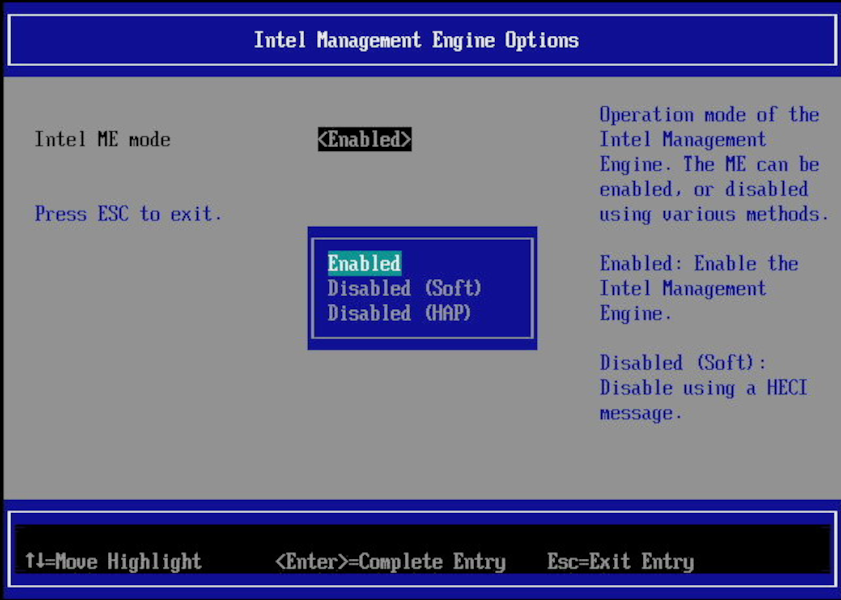
That is why the more practical goal is risk reduction, not magic. A home user can often disable Intel AMT in BIOS or UEFI settings. Some systems allow disabling “Intel ME State Control,” “Intel AMT,” “Remote Management,” or “MEBx” features. Certain open firmware platforms provide a menu option for Intel ME soft disable or HAP-based disablement. Advanced users may investigate tools such as me_cleaner, but firmware flashing should never be treated like installing a screensaver. One bad flash and your laptop may become a very expensive paperweight with excellent hinge engineering.
The Practical Laptop Hardening Checklist
1. Check Whether the Laptop Supports Intel vPro
Not every Intel laptop includes Intel AMT. Many consumer laptops do not support the full vPro management stack. Business models from Dell Latitude, Lenovo ThinkPad, HP EliteBook, Intel NUC, and similar enterprise lines are more likely to include AMT or MEBx options. Look for Intel vPro branding, BIOS entries related to AMT, or a boot-time prompt for the Intel Management Engine BIOS Extension, often accessed with Ctrl + P on older systems.
Secondhand laptops deserve extra attention. A used business notebook may still have remnants of corporate configuration, even after the operating system has been wiped. Reinstalling Windows or Linux does not necessarily reset firmware-level management settings. The operating system is the living room; AMT lives closer to the basement electrical panel.
2. Enter BIOS or UEFI and Look for Remote Management
Restart the laptop and enter the firmware setup menu. The key varies by manufacturer: F2, F10, F12, Esc, Delete, or Enter are common suspects. Once inside, search for settings such as Intel AMT, MEBx, Intel Management Engine, Remote Management, Manageability, vPro, or ME State Control. On some Dell systems, there is an Intel ME State Control option. On some HP systems, AMT controls may appear under advanced chipset or remote management menus. ASUS NUC-style systems may expose MEBx through a boot shortcut.
If the setting is available and you do not need corporate remote management, disable it. If the firmware provides “Unconfigure AMT on next boot,” use it when appropriate. This removes provisioning state, which is especially important on machines that came from an office, school, lab, or “mystery eBay seller with 97% feedback and a pile of identical ThinkPads.”
3. Set a Strong MEBx Password Where Disabling Is Not Enough
Some systems behave strangely when AMT is toggled from BIOS. In certain cases, disabling a control may reset AMT settings rather than permanently protecting them. If MEBx remains accessible, set a strong password. The old default was famously simple, and default credentials are the cybersecurity equivalent of leaving a spare key under a doormat labeled “spare key.”
For business laptops, also set a strong BIOS supervisor password and lock firmware settings if the platform supports it. This prevents casual changes to AMT, boot order, Thunderbolt security, secure boot, and other firmware options. A laptop is only as secure as the person with physical access and a curious index finger.
4. Update Firmware Before You Start Tweaking
Firmware updates can patch security issues, fix broken AMT behavior, and improve compatibility with modern operating systems. Before attempting any deeper hardening, install the latest BIOS or UEFI update from the laptop manufacturer. Use official vendor tools and verify the exact model. Updating firmware on the wrong machine is not “close enough”; it is how laptops learn to play dead.
After updating, revisit the BIOS settings. Some firmware updates reset defaults, restore manageability options, or change menu names. Check again for AMT, MEBx, remote management, and provisioning settings. Security is not a one-click event; it is a maintenance habit with less confetti.
Advanced Options: HAP Bit, Soft Disable, Coreboot, and me_cleaner
HAP and AltMeDisable
The HAP bit, commonly associated with Intel ME 11 and newer, and AltMeDisable, associated with older versions, are firmware-level mechanisms used by some projects to disable much of Intel ME’s runtime behavior. Privacy vendors and open firmware projects have used these mechanisms to reduce the amount of active closed firmware. Dasharo-based systems, for example, may expose options such as soft disable or HAP-based disablement through firmware menus.
In plain English, HAP-based disablement is a cleaner approach than randomly chopping at firmware with a digital machete. It tells the platform to halt much of Intel ME’s activity early. But “disabled” does not always mean “physically absent,” and it does not mean every model behaves identically. Hardware generations differ. Firmware layouts differ. Vendor locks differ. Reality, as usual, did not attend the marketing meeting.
me_cleaner
me_cleaner is a well-known open-source tool used by firmware enthusiasts to remove nonessential Intel ME firmware components or set HAP/AltMeDisable where supported. It has been used successfully on many older systems and in open firmware workflows. However, using it on a modern laptop can be risky. If Intel Boot Guard is enabled, if the flash descriptor is locked, or if the firmware image is modified incorrectly, the system may fail to boot.
Anyone considering me_cleaner should research the exact laptop model, chipset, firmware version, and recovery procedure first. Ideally, have a verified full firmware backup, an external SPI programmer, and a known-good recovery path. This is not gatekeeping; it is gravity. Firmware work punishes optimism with a black screen.
Coreboot, Dasharo, Purism, System76, and Other Privacy-Focused Paths
For users who want stronger control, buying hardware that already supports open firmware may be wiser than retrofitting a random modern laptop. System76 has shipped models with open firmware and has documented disabling Intel ME where possible. Purism has long marketed Librem laptops around neutralized or disabled Intel ME behavior. Dasharo firmware provides user-facing options on supported devices. Nitrokey’s NitroPad line also focuses on measured boot, tamper detection, and firmware transparency.
Libreboot takes a stricter view and recommends avoiding recent Intel hardware when complete freedom from Intel ME is the goal. That is an important philosophical and practical distinction. If your standard is “reduce the attack surface,” modern Intel laptops may be workable. If your standard is “no proprietary management firmware at all,” your hardware choices become much narrower, older, or more specialized.
Network-Level Defenses Still Matter
Even if you disable AMT, laptop security should not stop at firmware settings. Disable unused network boot features. Turn off PXE boot if you do not need it. Keep Wi-Fi firmware and operating system drivers updated. Use a firewall. Avoid exposing management interfaces on untrusted networks. On Linux, tools such as lspci, fwupd, and vendor firmware utilities can help identify hardware and update firmware. On Windows, vendor support applications may reveal BIOS versions and manageability settings, though some of them bring enough background services to qualify as tiny office tenants.
For enterprise machines, the safest approach is policy-driven. IT teams should inventory AMT-capable systems, enforce strong MEBx passwords, disable AMT where not needed, update BIOS firmware, and ensure decommissioned laptops are unprovisioned before resale. For home users, the most important steps are simpler: buy from reputable sellers, reset firmware settings, disable AMT, update BIOS, and avoid unknown provisioning states.
Common Myths About Disabling Intel’s Backdoors
Myth 1: Installing Linux Removes Intel ME
Linux is wonderful, but it does not rewrite your chipset firmware by existing near it. Installing Linux can improve transparency at the operating system level, reduce vendor bloat, and give you better control over software updates. It does not automatically disable Intel ME or AMT. Firmware lives below the OS, wearing a little hard hat and ignoring your package manager.
Myth 2: If AMT Is Disabled, Intel ME Is Gone
Disabling AMT reduces remote management exposure, but it does not necessarily remove Intel ME. AMT is one feature that depends on the manageability stack. Intel ME may still perform platform tasks. This distinction matters because many tutorials blur the line between disabling remote management and neutralizing the management engine.
Myth 3: Every Intel Laptop Is Remotely Controllable by Strangers
This is too dramatic. AMT usually requires platform support, provisioning, configuration, credentials, and network reachability. A disabled or unconfigured AMT setup is not the same as an open remote-control portal. Still, the feature is powerful enough that it deserves verification, especially on used business machines.
Myth 4: Firmware Modding Is Always Worth It
Firmware modding can be valuable, but not every user needs to chase maximum purity. For many people, disabling AMT, updating BIOS, enabling secure boot where appropriate, encrypting storage, using a strong login password, and keeping the OS patched provide more practical protection than risky firmware surgery. Security should make you safer, not merely more exhausted.
Specific Examples: What This Looks Like in Real Life
Imagine a refurbished ThinkPad from a corporate auction. It boots fine, has a fresh SSD, and looks innocent enough. A careful owner enters BIOS, sets a supervisor password, disables Intel AMT, checks MEBx, clears provisioning, updates firmware, and installs a clean operating system. That is a sensible workflow. The user has not “destroyed Intel ME,” but they have reduced the most obvious remote-management risk.
Now imagine a privacy enthusiast with a supported System76 laptop running open firmware. The vendor may already disable Intel ME where possible, and the firmware stack may be easier to audit than a typical OEM BIOS. That user starts from a better position because the hardware and firmware were chosen with transparency in mind.
Finally, imagine an advanced hobbyist with an older ThinkPad, a clip-on SPI programmer, full firmware backups, and a weekend schedule that says “fun” but means “hex editor.” That person may experiment with coreboot and me_cleaner. The same procedure would be reckless for someone who has one work laptop, no backup machine, and a Monday morning meeting with their boss. Context matters.
Best Practices for Privacy-Minded Laptop Buyers
If you are shopping for a laptop and care deeply about firmware privacy, choose the machine before choosing the tweak. Look for vendors that document firmware behavior clearly. Favor models with open firmware support, transparent update processes, and active user communities. Avoid assuming that the newest machine is the most controllable. In firmware land, new often means more locked down, more signed, and more difficult to modify.
For mainstream buyers, the safest path is simple: buy a current laptop from a reputable vendor, keep firmware updated, disable unused remote management features, and use full-disk encryption. For high-security users, consider hardware from vendors that specialize in open firmware, tamper-evident boot, or reduced proprietary firmware. For researchers, use test machines and recovery tools. For everyone else, do not learn SPI flashing on the only laptop that contains your tax documents, wedding photos, and half-written novel about a detective who solves crimes using keyboard shortcuts.
The Balanced Verdict
Disabling Intel’s backdoors on modern laptops is less like flipping a single switch and more like closing several doors, checking the windows, and politely asking the raccoon to leave. Intel AMT can often be disabled or unconfigured through BIOS, UEFI, or MEBx settings. Intel ME is much harder to remove completely, especially on recent platforms. HAP-based disablement, soft disablement, open firmware, and tools like me_cleaner can reduce exposure on supported systems, but they require model-specific knowledge and real recovery planning.
The best strategy is to match the hardening level to the threat model. A journalist, security researcher, activist, or executive handling sensitive data may have good reason to seek open firmware hardware and deeper ME disablement. A typical home user may gain more from disabling AMT, updating firmware, encrypting storage, and avoiding shady refurbished devices. Not every laptop needs a firmware exorcism. Some just need the remote-management settings turned off and the BIOS updated.
Personal Experience and Practical Lessons From Disabling Intel’s Backdoors
The first lesson from working around Intel ME and Intel AMT is that laptop firmware has the emotional range of a cat: it may cooperate, ignore you, or knock everything off the table without explanation. Two laptops with similar processors can behave differently because the manufacturer configured the firmware differently. One Dell Latitude may expose a clean “Intel ME State Control” option. A ThinkPad may tuck AMT controls into a security menu. An HP EliteBook may provide remote management options with wording that sounds like it was translated from engineering into legal and then into menu text by a tired printer.
The most useful habit is documentation. Before changing anything, record the BIOS version, current settings, boot mode, secure boot state, storage mode, and whether Intel AMT or MEBx appears. Take photos of firmware menus with a phone. This feels silly until a BIOS update resets half the menu and you cannot remember whether “Manageability Feature Selection” was originally enabled, disabled, hidden, or invented by goblins overnight.
On refurbished business laptops, clearing AMT provisioning is often the most satisfying step. These machines are built for fleets, and fleet settings can survive longer than expected. A clean OS install gives you a fresh desktop, but firmware configuration may still carry old assumptions. Entering MEBx, changing the password, disabling AMT, and unconfiguring remote management can turn a suspicious used laptop into a much more trustworthy daily driver.
Advanced firmware work is a different universe. Reading about me_cleaner is easy. Actually modifying firmware responsibly means understanding flash regions, descriptors, Boot Guard, recovery methods, and the specific board layout. The internet is full of heroic success stories, but it is also full of quiet failures where nobody posts the sequel because the laptop never booted again. If you decide to experiment, use a spare machine. Buy an external programmer. Practice reading and verifying firmware dumps before writing anything. Treat every command like it is holding a tiny chainsaw.
The best experience comes from choosing hardware that aligns with your goals from the start. Open firmware laptops from privacy-conscious vendors are not always the cheapest, fastest, or flashiest machines, but they save time and reduce uncertainty. Instead of fighting the vendor firmware, you start with a platform designed for visibility and control. That alone can be worth more than a benchmark score. A laptop that respects your threat model is a laptop that lets you sleep at night without dreaming of invisible management controllers wearing sunglasses.
In the end, disabling Intel’s backdoors is not about panic. It is about ownership. Your laptop should serve you, not surprise you. Disable what you do not use. Verify what you can. Avoid risky changes unless you have recovery tools. And remember that practical security is not a purity contest; it is a series of smart, boring decisions that make your machine harder to misuse. Boring, in security, is often beautiful.
Conclusion
Disabling Intel’s backdoors on modern laptops requires clear thinking, not conspiracy fog. Intel AMT is the most practical target for everyday users because it can often be disabled, unconfigured, or protected with strong firmware credentials. Intel ME is more deeply embedded and usually cannot be fully removed on recent laptops without specialized firmware support. HAP-based disablement, soft disablement, coreboot, Dasharo, Purism, System76, Libreboot, and me_cleaner all belong in the conversation, but each applies to specific hardware and risk levels.
For most users, the winning formula is simple: update BIOS, disable AMT, clear provisioning, lock firmware settings, encrypt storage, and buy hardware from vendors that document their firmware choices. For advanced users, open firmware and verified recovery tools can go further. Either way, the goal is the same: reduce invisible control paths and make your laptop feel less like a mystery appliance and more like a computer you actually own.