For a long time, the built-in photo experience in Windows had the personality of unsalted crackers: technically useful, emotionally forgettable. Then Windows 8 showed up with a slick, modern Photos app that looked pretty on a touchscreen but often felt more like a showroom than a workshop. By the time Windows 8.1 arrived, Microsoft clearly understood the assignment: people did not just want to admire their photos. They wanted to fix them, crop them, brighten them, rescue Aunt Linda from red-eye, and move on with life.
That is what made the built-in image editor in the Windows 8.1 Photos app such an interesting upgrade. It was not trying to topple Photoshop from its throne, nor was it pretending to be a pro studio in disguise. Instead, it aimed for something more practical: quick, touch-friendly photo editing built into the operating system, available the moment you opened a picture. For casual users, tablet owners, Windows RT users, and anyone who just wanted to clean up a shot without downloading extra software, that mattered a lot.
So, was the Windows 8.1 Photos app actually good? Surprisingly, yes, within limits. It was better than many people expected, smarter than the original Windows 8 version, and still humble enough to know it was a built-in editor, not a full-blown creative suite wearing a fake mustache.
Why the Windows 8.1 Photos App Was a Big Deal
The most important thing about the Windows 8.1 Photos app was not any single editing tool. It was the fact that the app finally felt useful. Earlier versions of the modern Photos experience were criticized for being mostly about viewing images rather than actually working with them. Windows 8.1 changed that story.
Instead of forcing users to jump immediately to third-party apps for basic fixes, Microsoft built a lightweight image editor directly into Photos. That meant you could open a picture from your library, pull up the app bar, hit Edit, and start making changes right away. For touch devices, that was especially important. On a Surface or other Windows tablet, the built-in editor made the system feel more complete. For Windows RT owners, it was even more important because traditional desktop editing programs were not always an option.
In plain English, the Photos app stopped being just the place where your pictures sat around looking decorative. It became the place where small problems got solved.
What Editing Tools Were Built In?
The Windows 8.1 Photos app did not overwhelm users with a thousand buttons, which was probably for the best. Nobody needs a built-in editor that looks like the cockpit of a moon mission just to straighten a vacation photo. Instead, Microsoft organized the tools into a handful of useful categories that covered the most common photo editing jobs.
1. Crop and Rotate
These were the everyday workhorses. Crop let users remove distracting edges, improve framing, and choose aspect ratios for different uses. If a photo had too much ceiling, too much sidewalk, or one random stranger making a suspicious face in the corner, crop was your friend. Rotate handled sideways shots in a quick, low-drama way. Basic? Yes. Essential? Also yes.
2. Auto Fix
Auto Fix was made for the universal human condition of taking a photo that looked better in your head than it did on-screen. It offered quick preset improvements and gave casual users a one-tap route to better-looking images. If you did not want to spend time playing with exposure or color settings, Auto Fix was the digital equivalent of tidying up your room by shoving everything into one closet and somehow getting away with it.
3. Basic Fixes
This area handled practical cleanup tasks beyond cropping. It included tools such as red-eye removal and retouching, both of which were especially useful for portraits and family photos. Red-eye repair was the sort of feature that made ordinary people feel like editing wizards. Click a problem spot, and suddenly your holiday photo no longer looked like it had been sponsored by vampires.
4. Light Adjustments
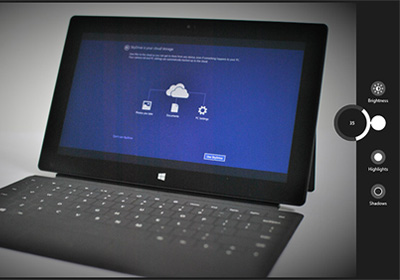
The Photos app also let users tweak brightness, contrast, highlights, and shadows. These controls mattered because bad lighting ruins more images than almost anything else. A dark indoor photo could be lifted. A washed-out outdoor shot could be given more punch. This was where the editor started to feel a little more serious, even if it still kept things approachable.
5. Color Controls
Color adjustments included options such as saturation, temperature, and tint. In practical terms, this meant you could warm up a photo that looked too cold, calm down colors that were shouting, or give a flat image some life. For users who wanted their sky bluer, their grass greener, or their skin tones less ghostly, these controls were very welcome.
6. Effects
Then there were the effects. These added a little style without requiring any deep technical skill. Used lightly, they could improve mood or polish a casual image. Used recklessly, they could turn a normal photo into something that looked like it belonged on a coffee shop wall next to a chalkboard menu. The app gave users the freedom to make either choice.
The Interface: Simple, Touch-Friendly, and Mostly Smart
One of the best things about the built-in image editor in Windows 8.1 Photos was how it fit the operating system’s design language. The interface was clean, roomy, and built for touch as much as mouse input. You could swipe up or right-click to reveal the app bar, choose editing options, and move through tools without feeling buried under menus.
That simplicity was not an accident. Microsoft wanted the editor to feel immediate. Open photo. Tap edit. Fix problem. Save. Done. The workflow was efficient for people who were editing one image at a time and wanted visible results without taking a class first.
It also helped that the app displayed images full-screen. This gave the Photos app a more immersive feel than older Windows photo tools. You were looking at the image, not at a maze of panels. For many users, that made even small edits feel clearer and more satisfying.
There was, however, a catch. Simplicity is wonderful until it hides too much. Some reviewers and users noted that Windows 8-era modern apps could be a little too proud of hiding controls. Windows 8.1 improved discoverability, but the learning curve was still not zero. If you did not know to swipe up or right-click, the interface could play hard to get. It was less confusing than before, but still occasionally acted like it wanted you to solve a tiny riddle first.
SkyDrive Integration Made It More Than a Local Editor
One of the most underrated strengths of the Windows 8.1 Photos app was its relationship with SkyDrive. The Photos and SkyDrive apps became more tightly connected, and that mattered because plenty of users were already storing pictures in Microsoft’s cloud service. Instead of hitting dead ends, users could browse photos in SkyDrive, open them in the rich viewer/editor, make changes, and save them back through the sync system.
That made the built-in image editor feel surprisingly modern for its time. It was not just a local picture fixer living in a dusty corner of the operating system. It was part of a wider workflow: import from devices, view in full-screen, edit with touch-friendly tools, and sync changes through the cloud.
For ordinary users, this meant less friction. You did not need to ask, “Wait, is this the local copy or the cloud copy?” quite as often. You could just edit the photo and move on. In a world where people take pictures on phones, move them to tablets, and review them on PCs, that integration was genuinely useful.
Where the Photos App Worked Best
The Windows 8.1 Photos app was at its best when the job was clear and modest. It worked beautifully for quick cleanup. A crooked horizon? Rotate and crop. A dim snapshot? Light adjustments. Red eyes from a flash-heavy birthday party? Fixed. Slight skin blemish or distracting speck? Retouch it and keep things moving.
It was also a great fit for people who did not want to think of themselves as “photo editors.” Plenty of users just want their pictures to look a little better. They do not want to learn layers, masks, curves, or any other term that sounds like it belongs in a graduate design seminar. The Photos app respected that.
Another strength was speed. Because the editor was already built into Windows 8.1, it cut down the number of steps between opening an image and improving it. There was no need to install extra software for every tiny fix. That convenience alone made the feature valuable.
Where the Built-In Editor Fell Short
Of course, every built-in tool eventually runs into the same awkward conversation with reality: “You are good, but are you enough?” In the case of the Windows 8.1 Photos app, the answer depended on what kind of user you were.
For basic photo editing, yes, it was enough. For serious creative work, not even close. The app did not replace advanced editors for people who needed layers, selective masking, fine-grained control, batch editing, deep resizing options, or professional RAW workflows. If you were editing product photos for work, building a design portfolio, or obsessing over pixel-level precision, the Photos app would hit its ceiling fast.
Even some of its convenient tools had limitations. Cropping was straightforward, but not especially surgical. Effects were useful, but not endlessly flexible. The interface was simple, but that simplicity came partly from not offering too many advanced options in the first place. This was a built-in image editor, not a digital darkroom.
There was also the broader issue of the modern Windows design style. Some users loved the clean, touch-first feel. Others found it less efficient than traditional desktop editing tools, especially with a keyboard and mouse. If you were a longtime Windows desktop user, the app sometimes felt like it wanted to be touched even when your hand was very clearly on a mouse.
Who Should Have Used It?
The ideal audience for the Windows 8.1 Photos app was broad but specific at the same time. It was perfect for casual users, families, students, travelers, tablet owners, and anyone who wanted a free built-in photo editor for quick fixes. It was also a smart option for Windows RT users who needed better editing tools without relying on old-school desktop software.
If your editing checklist looked like this, the app probably served you well:
Make the photo brighter. Straighten it. Crop out the mess. Fix red-eye. Add a little color. Save a copy. Share it. Done.
If your checklist looked more like this, you probably needed something else:
Open RAW files, perform local adjustments, use layers, isolate regions, export in multiple production sizes, compare versions, and spend 40 minutes deciding whether the shadows should feel “brooding” or merely “thoughtful.”
The Photos app knew which side of that line it belonged on, and honestly, that self-awareness was one of its best features.
Final Verdict
The built-in image editor in the Windows 8.1 Photos app was one of those features that quietly made the operating system feel more complete. It was not flashy enough to dominate headlines on its own, but it solved real problems for real users. It brought together practical editing tools, a clean full-screen viewer, touch-friendly controls, and cloud-aware photo handling in a way that felt modern and useful.
Its biggest success was not technical complexity. Its biggest success was restraint. Microsoft gave users enough power to handle common photo editing tasks without drowning them in options. In a world of software that often assumes you want to become a part-time engineer just to adjust brightness, that simplicity was refreshing.
So yes, the Windows 8.1 Photos app was worth a look. Not because it was the most powerful image editor of its era, but because it understood the assignment better than its predecessor. It made everyday photo editing easier, faster, and far less annoying. And when software helps you fix a crooked photo in under a minute without making you question your life choices, that deserves at least a polite round of applause.
Experience Section: What Using the Windows 8.1 Photos App Actually Felt Like
Using the Windows 8.1 Photos app in real life felt a lot like discovering that the plain-looking multitool in your kitchen drawer actually has a surprisingly sharp blade. You did not expect much from it, but once you started using it, you realized it could handle more than the packaging suggested.
A typical experience often started with a photo that was almost good. Maybe it was a family picture that came out a little dark, a vacation shot with too much empty sky, or a quick portrait ruined by red-eye. In older Windows setups, that kind of problem often led to an annoying fork in the road: either live with the flawed photo or open some other program. Windows 8.1 made that decision much easier. You could stay inside Photos, tap Edit, and start working immediately.
The first impression was usually how calm the app felt. The full-screen view gave the image room to breathe, and the editing controls did not scream for attention. This was helpful for users who were not especially technical. Instead of feeling like you had entered a complicated studio, it felt like you had opened a practical workspace. There was enough structure to guide you, but not enough clutter to scare you away.
Crop was often the gateway tool. You opened a photo, trimmed the edges, nudged the framing, and instantly the image looked more intentional. It was the kind of quick win that made people think, “Oh, I can do this.” Then came rotate, which quietly rescued all those sideways shots that cameras and phones somehow still managed to produce at the worst possible moments.
The more satisfying moments came from the cleanup tools. Red-eye correction had that tiny magic-trick quality. One minute your subject looked like they had just returned from a vampire convention, and the next minute they looked normal again. Retouching had a similar charm. It was not built for magazine-cover perfection, but it was perfectly capable of removing small distractions that pulled attention away from the photo.
Light and color adjustments were where the app started to feel smarter than expected. A dull picture could be given more life without much effort. A cold image could be warmed up. A flat image could gain contrast. You did not have to know much theory to get a better result, and that was the real victory. The app made improvement accessible instead of intimidating.
Of course, experienced users could still feel the boundaries. If you were used to desktop editors, the Photos app sometimes felt like it was saying, “I can help, but let us not get carried away.” And that was fair. It was never meant to be the last stop for professional editing. But for everyday use, it delivered the kind of experience many people actually needed: quick, pleasant, and good enough to make a photo shareable without turning the task into a full evening project.
In that sense, the Windows 8.1 Photos app succeeded not by being dramatic, but by being useful. It made photo editing feel normal, which may be the most underrated compliment software can get.