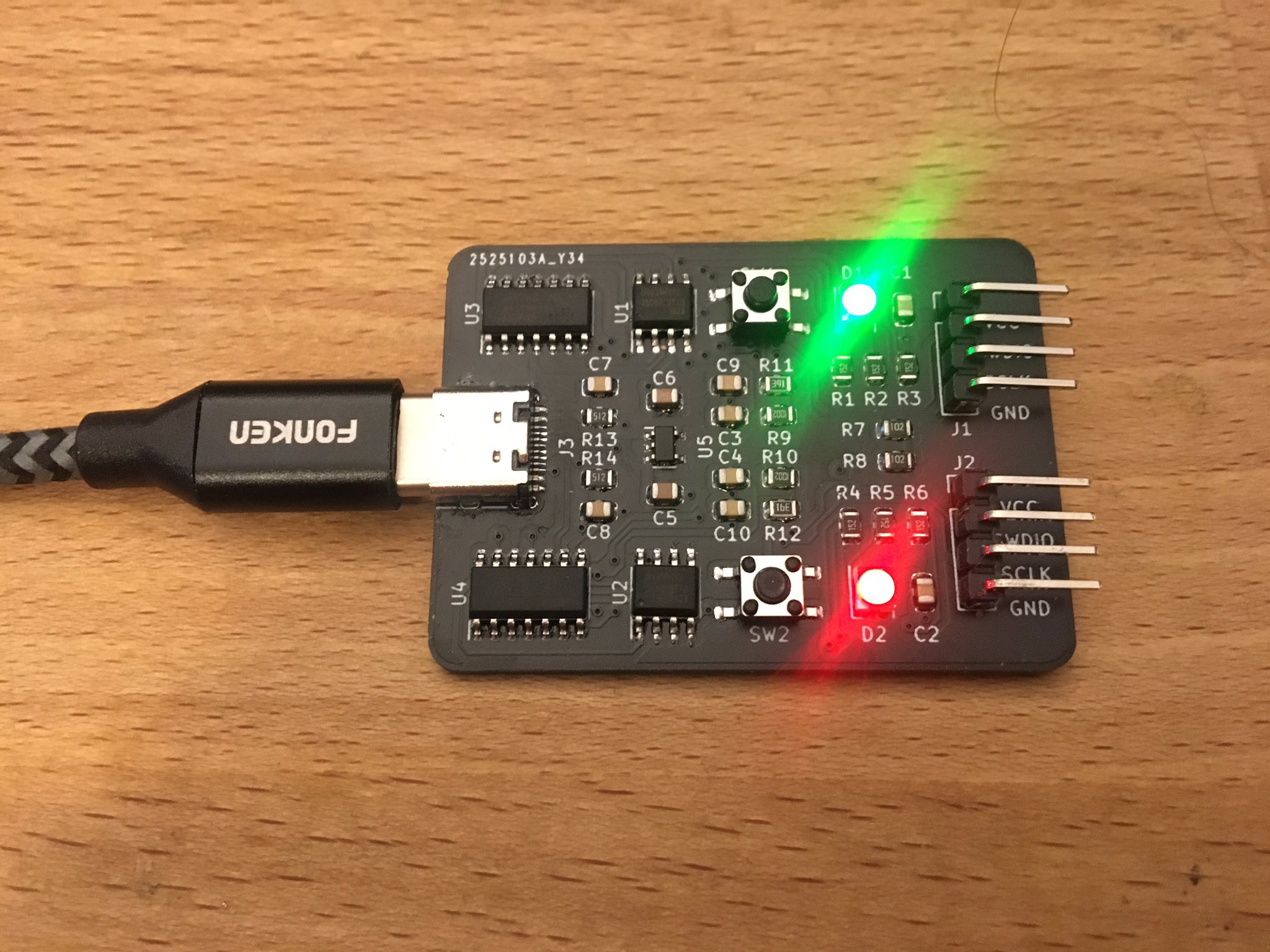
USB-C was supposed to be the cable that ended cable chaos. No more flipping the plug three times like you are trying to unlock a secret Nintendo cheat code. No more squinting at a connector in the dark. No more “wrong side up” because, technically, there is no wrong side up. USB-C arrived wearing a cape and promising one small oval port for charging, data, video, docks, phones, laptops, monitors, earbuds, tablets, handheld game systems, and probably your toaster if the toaster union ever approves it.
And yet, every so often, someone plugs in a USB-C cable one way and nothing happens. Flip it over, and suddenly the device charges, the display wakes up, the external SSD appears, or the laptop stops acting like it has been personally insulted. This is the strange little gremlin people call “cursed USB-C”: the moment when plug orientation matters even though the entire point of USB-C is that it should not.
The good news is that USB-C is not actually magical. The bad news is also that USB-C is not magical. It is a compact connector carrying a surprising number of signals, power rules, sideband pins, negotiation protocols, and optional features. When everything is designed and manufactured correctly, orientation should be invisible to the user. When something is damaged, cheap, incomplete, dirty, non-compliant, or just badly implemented, flipping the connector can become the world’s smallest troubleshooting ritual.
What USB-C Is Supposed to Do
USB-C is a connector shape, not one single speed or feature set. That detail matters because many people assume every USB-C port can do everything. In reality, one USB-C port may support only charging and USB 2.0 data, while another may support high-speed USB, DisplayPort Alt Mode, Thunderbolt, USB4, fast charging, and enough external monitor power to make a laptop feel like it has joined a professional workstation gym.
The connector itself is reversible. A full USB Type-C receptacle has pins arranged so that the cable can be inserted in either orientation. Internally, the device detects which side is connected and routes the signals correctly. In theory, the user should not care whether the seam on the cable faces up, down, left, right, or toward the nearest houseplant.
The Key Role of CC Pins
The Configuration Channel pins, usually discussed as CC1 and CC2, are central to the USB-C handshake. These pins help devices detect that something has been plugged in, determine cable orientation, establish power roles, and begin USB Power Delivery negotiation when supported. In a healthy connection, one CC path tells the system which way the plug is inserted. The device then maps high-speed lanes, power behavior, and optional modes accordingly.
If that sounds like a lot of responsibility for a tiny contact inside a tiny port, congratulations: you have identified why USB-C is both brilliant and occasionally dramatic.
Why Plug Orientation Should Not Matter
USB-C achieves reversibility through duplicated and mirrored pin arrangements, along with internal switching. The USB 2.0 data lines are available in a way that lets basic connections work in either orientation. Higher-speed signals, such as SuperSpeed USB, USB4, Thunderbolt, and DisplayPort Alt Mode, rely on routing through high-speed lanes. The system uses orientation detection and multiplexers to connect the right lanes to the right internal circuits.
In plain English: when you flip the cable, the device is supposed to notice and quietly rearrange the traffic behind the scenes. It is like a hotel concierge instantly redirecting guests to the correct elevator without asking you to understand the floor plan. When that behind-the-scenes routing fails, the user sees the symptom: “It only works one way.”
When USB-C Becomes Cursed
A USB-C cable or port that only works in one orientation usually points to a problem somewhere in the chain. The chain includes the cable, the device port, the charger, the dock, the monitor, the adapter, the firmware, the operating system, and sometimes a tiny crumb that has made a long-term real estate investment inside the connector.
Here are the most common reasons USB-C orientation can suddenly matter.
1. A Damaged Cable Contact
USB-C plugs are small, and the contacts inside them are smaller. A cable that has been bent, stepped on, yanked from behind a desk, or stuffed into a backpack with keys, coins, and emotional baggage may lose reliable contact on one side. When that happens, flipping the plug can move the working contacts into a position where the device can complete the connection.
This is especially common with cables used daily for charging phones or laptops. The cable may look fine from the outside, but one worn pin or slightly deformed plug can cause orientation-specific charging, slow data, display dropouts, or random disconnects.
2. A Dirty or Worn USB-C Port
Ports collect lint, dust, skin oils, and pocket debris. Phones are particularly vulnerable because they spend time in pockets, bags, cars, beds, and other environments that are basically lint factories with Wi-Fi. A partially blocked USB-C port may allow the plug to sit at a slight angle. One orientation might press the contacts firmly enough to work, while the other orientation fails.
Before blaming the cable, inspect the port under good light. If the connector does not seat fully, do not force it. Gentle cleaning with proper tools can help, but avoid metal objects that can damage the contacts. The goal is to remove debris, not perform open-heart surgery on a smartphone with a paperclip.
3. A Cheap or Non-Compliant Cable
Not all USB-C cables are equal. Some are charge-only. Some support USB 2.0 data but not high-speed transfer. Some support 60W charging but not 240W Extended Power Range. Some include an electronic marker chip, often called an e-marker, to advertise cable capabilities. Others do not because they are simple cables that do not need one. And some bargain-bin cables are built with the confidence of a raccoon assembling furniture at midnight.
A non-compliant cable may wire contacts incorrectly, omit expected connections, use poor shielding, fail signal integrity requirements, or misrepresent its capabilities. In the best case, it works slowly. In the worst case, it creates power negotiation problems or damages equipment. A cable that behaves differently depending on orientation should be treated with suspicion, especially if the problem follows the cable from one device to another.
4. Missing or Poor Orientation Detection
USB-C devices are supposed to detect cable orientation using the configuration channel. If a product cuts corners or implements the detection poorly, one orientation may work while the other drops to a lower mode or fails completely. This is more likely with very cheap adapters, test boards, no-name hubs, unusual embedded devices, and accessories that technically have a USB-C port but spiritually still live in the Micro-USB era.
Sometimes the device will charge in both orientations but only transfer high-speed data in one. That usually means the basic power and USB 2.0 paths are fine, but the high-speed lane switching is not working correctly.
5. DisplayPort Alt Mode and High-Speed Lane Problems
USB-C can carry video through DisplayPort Alt Mode on supported devices. That is convenient, but it also makes the connection more complex. Video output may require specific high-speed lanes, sideband signals, and proper negotiation. If a cable, adapter, dock, or port has a bad high-speed path on one side, a monitor may work only when the cable is flipped.
This is why a USB-C cable can charge a laptop perfectly but fail to drive a monitor. Charging and video are not the same job. A cable can be a fine power cord and a terrible video cable, just as a spoon can stir soup but should not be hired to cut plywood.
6. Power Delivery Negotiation Glitches
USB Power Delivery, often shortened to USB PD, allows devices to negotiate higher power levels. Instead of simply throwing voltage at a device and hoping for the best, the charger and device communicate about what is available and what is needed. When the handshake works, your laptop charges at the correct wattage. When it fails, charging may be slow, intermittent, or absent.
Orientation-specific charging can happen if one CC path is damaged or unreliable. The device may not correctly detect the source, the cable, or the available power in one orientation. Flip the plug, and the other CC contact may make a clean enough connection for negotiation to succeed.
How to Diagnose a USB-C Orientation Problem
The first rule of cursed USB-C is simple: do not assume the device is broken until you test the whole chain. USB-C problems are often caused by the least glamorous part of the setup, which is usually the cable. The cable is the butler in this mystery novel. Always question the butler.
Step 1: Flip the Cable and Observe the Pattern
Try the cable in both orientations at the device end. Then flip the other end if it is USB-C to USB-C. Note what changes. Does charging start only in one orientation? Does data work in both but video in one? Does the device connect, disconnect, and reconnect like it is practicing tap dancing?
The pattern tells you where to look. If only one end matters, that port or connector may be the issue. If every combination is unreliable, the cable or accessory may be the weak link.
Step 2: Try a Known-Good Cable
Use a reputable cable that supports the feature you are testing. For laptop charging, confirm the wattage rating. For external SSDs, use a cable rated for the required data speed. For monitors and docks, use a cable that supports video or Thunderbolt/USB4 if the device requires it.
If the problem disappears with a known-good cable, retire the old cable. Do not keep it “just in case.” That is how cursed cables reproduce in drawers.
Step 3: Test Another Port or Device
Plug the same cable and accessory into another compatible device. If the issue follows the cable, the cable is likely guilty. If the issue stays with the original device port, the port may be dirty, worn, or damaged.
On laptops with multiple USB-C ports, test each one. Some laptops have identical-looking ports with different capabilities. One may support charging and video; another may only support data. That design choice is not exactly user-friendly, but it is common enough that checking specifications is worth the five minutes.
Step 4: Inspect and Clean Carefully
Look inside the USB-C port with a flashlight. If you see debris, clean gently using non-metal tools and avoid liquids unless the manufacturer recommends a specific method. If the internal tongue of the connector appears bent, cracked, loose, or off-center, stop using that port until it can be repaired. A damaged USB-C port can create more problems than a cable that merely refuses to cooperate.
Step 5: Update Firmware and Drivers
For docks, monitors, laptops, and operating systems, firmware and driver updates can improve USB-C behavior. Windows, macOS, ChromeOS, Android, and device manufacturers all handle USB-C negotiation through a mix of hardware and software. A buggy dock firmware version can turn a modern workstation into a guessing game involving cables, prayers, and suspicious blinking lights.
What to Buy to Avoid Cursed USB-C
When buying USB-C cables, do not shop by connector shape alone. Shop by purpose. A cable for phone charging does not need the same capabilities as a cable for a 4K monitor, an external NVMe SSD, or a high-wattage laptop charger.
For Charging
Choose a cable rated for the power your device needs. Many modern USB-C cables are rated at 60W or 240W. If you are charging a small phone, 60W may be more than enough. If you are charging a power-hungry laptop, confirm the wattage requirement and use a cable and charger that both support it. The weakest part of the chain sets the limit.
For Data Transfer
Check the data rating. USB-C cables can support different speeds, including USB 2.0, USB 5Gbps, USB 10Gbps, USB 20Gbps, USB4, or Thunderbolt, depending on the cable. A cable that looks perfect on the outside may transfer data at old-school speeds inside. External SSD users learn this lesson quickly, usually while staring at a progress bar that appears to be powered by a sleepy hamster.
For Monitors and Docks
Use a cable that explicitly supports video, USB4, or Thunderbolt if your setup requires it. Display output over USB-C depends on device support, cable support, and monitor or dock support. A random charging cable from a phone box may not carry video at all.
Why USB-C Feels More Confusing Than Older Connectors
Older connectors were annoying, but they were often honest. USB-A was big and rectangular. Micro-USB was fragile and directional. HDMI looked like HDMI. Power barrels came in enough sizes to make humanity question its priorities. But each connector usually hinted at its job.
USB-C hides many jobs behind one shape. That is elegant when everything works. It is confusing when it does not. The same oval port can mean “charge only,” “data only,” “video capable,” “Thunderbolt ready,” “USB4,” “slow charging,” “fast charging,” or “please consult the laptop manual written in six-point gray text.”
This is why labeling matters. Clear logos, wattage markings, and speed ratings help users know what they are plugging in. Without labels, USB-C becomes a tiny guessing game where the prize is maybe your monitor turning on.
Real-World Examples of Orientation Trouble
Imagine an external SSD that appears only when the cable logo faces up. The likely cause may be a damaged high-speed lane in the cable or a faulty connector contact. The USB 2.0 fallback might still work in both directions, but the faster data path fails when routed through the bad side.
Now imagine a laptop that charges from a USB-C power brick only after the cable is flipped. That points toward a CC contact issue, a cable defect, or debris preventing a clean connection. If another cable works normally, the first cable should go directly to cable retirement village.
Finally, picture a USB-C monitor that wakes up in one orientation but shows “no signal” in the other. The power connection may be fine, but DisplayPort Alt Mode negotiation or high-speed lane mapping may be failing. A certified full-featured cable is the first thing to test before blaming the monitor, laptop, or the moon phase.
Is It Safe to Keep Using a One-Way USB-C Cable?
Usually, no. If a USB-C cable only works in one orientation, treat it as unreliable. It may be damaged, poorly made, or failing internally. For low-power accessories, the risk may be inconvenience. For laptop charging, high-speed storage, docks, and monitors, the risk can include unstable performance, data interruptions, excessive heat, or power negotiation problems.
A cable is cheaper than a laptop port. Replace the cable before the cable auditions for a disaster movie.
Practical Experiences: Living With Cursed USB-C
The most memorable USB-C problems usually begin with denial. You plug in a laptop. Nothing happens. You unplug it, flip the cable, plug it back in, and charging starts instantly. At first you laugh. Then you try it again. Same result. Now you are not laughing; you are studying a cable like it owes you money.
One common experience is the “desk dock mystery.” A user connects a laptop to a USB-C dock that handles power, monitor output, keyboard, mouse, Ethernet, and maybe an external drive. Everything works for months. Then one morning the monitor stays black. The keyboard lights up. The laptop charges. The mouse works. The display refuses. Flip the cable, and the monitor comes alive. In that situation, the dock is not necessarily cursed, although it may deserve a stern look. The video lanes may be failing through one orientation because of cable wear, port looseness, or a marginal signal path that finally became unreliable.
Another classic is the “phone charges only on Tuesdays” scenario. The phone charges when the cable is inserted one way, slow-charges the other way, and sometimes stops charging when moved. Most of the time, the villain is pocket lint packed into the port. The plug does not fully seat, so one set of contacts barely touches. Flip it, and pressure shifts just enough to work. Cleaning the port carefully can make the problem vanish so suddenly that it feels like technology has decided to apologize.
Gamers and creators often meet cursed USB-C through capture cards, portable monitors, external GPUs, or fast SSDs. These devices need more than basic charging. They require stable high-speed data or video paths. A cable that performs fine for a phone may fail spectacularly when asked to move large files or carry video. The user flips the connector and, by accident, finds the one orientation where the damaged or marginal lane is not in use. That does not mean the cable has a “correct” side. It means the cable has a problem wearing a tiny reversible mask.
Travel also exposes USB-C weirdness. You bring one cable for everything because minimalism sounds wonderful until your tablet charges, your laptop complains, your power bank works only with one end, and the hotel TV refuses to accept video from your adapter. The lesson is simple: for travel, carry at least one high-quality, clearly rated USB-C cable for charging and one cable known to support data or video if you need those features. The goal is not to carry a spaghetti museum. The goal is to avoid trusting your entire trip to a mystery cable you found in a drawer next to expired batteries.
The funniest part of cursed USB-C is that flipping the plug often works as a temporary fix. That makes people tolerate the problem. But temporary fixes become habits, and habits become “my setup is just like this.” It should not be like this. A properly working USB-C connection should not require a lucky orientation, a special wiggle, or a whispered promise to the cable goblin.
The best experience-based advice is boring but effective: label your important cables, buy from reliable brands, match the cable to the job, and throw away cables that behave strangely. Keep one known-good cable for testing. When something fails, test systematically instead of swapping random parts in a panic. USB-C can look mysterious, but most problems become clear once you separate charging, data, video, power delivery, and physical connector health.
Conclusion: USB-C Is Reversible, but Reality Has Jokes
USB-C remains one of the most useful connector standards ever created. It can simplify charging, reduce cable clutter, and support impressive combinations of power, data, and display output. But the same flexibility that makes USB-C powerful also makes failures confusing. When plug orientation matters, something in the system is not doing its job correctly.
The cause may be a damaged cable, dirty port, weak connector, non-compliant accessory, poor orientation detection, firmware issue, or a mismatch between what the cable supports and what the device requires. The fix is usually practical: test with a known-good cable, inspect the port, verify cable ratings, update firmware, and stop trusting suspicious cables just because they are already on your desk.
USB-C was designed so users would not have to think about orientation. If you do have to think about it, your setup is telling you something. Listen before the cursed cable turns a small annoyance into a bigger repair bill.