This HTML body draft is based on current Google Account and Gmail help documentation plus recent U.S. reporting about Google’s Gmail address-change rollout, including the fact that some personal accounts can now change the pa
Google Help
+2
Google Help
+2
addresses, messages sent to both addresses can still arrive, some old references may still show the old address, the option may not appear for every account, and managed work or school accounts may require an administrator.
Google Help
+10
Google Help
+10
Google Help
+10
>
Note: This guide reflects current Google account guidance and recent rollout details as of April 2026. Menu labels can vary slightly by device, region, and account type.
Choosing a Gmail address used to feel like naming a band in middle school: it seemed brilliant at the time, and then adulthood arrived wearing a blazer and asking why your email is still something like pizza_ninja_420. The good news? Google now gives many users a real path to change their Google Account email without starting over from scratch. The slightly less magical news? The option is not identical for every account, and Google still treats personal Gmail accounts, non-Gmail Google Accounts, and work or school accounts a little differently.
This guide walks you through exactly how to change your email address on Google, what to do if the option does not appear, and what to update afterward so your apps, subscriptions, and sign-ins do not act like they have never met you before. If you want a cleaner, more professional Google email setup, here is the practical, current roadmap.
Before You Start: Know What “Change Your Google Email” Really Means
When people say they want to change their Google email address, they usually mean one of four things:
- They want to change the actual Gmail address they use to sign in.
- They want to change the display name people see when they receive messages.
- They want to update their recovery email or contact email.
- They use Google Workspace through work or school and need the administrator to change the primary email address.
This article focuses on the main event: changing your Google Account email. That said, if the button is missing, do not panic and throw your laptop into a decorative pillow. Google may not have enabled the feature for your account yet, or your account type may follow different rules.
How to Change Your Email Address on Google in 13 Steps
-
Step 1: Sign in to your Google Account
Start by signing in to the Google Account you want to update. Use the account that currently owns the Gmail address you want to change. This sounds obvious, but “I changed the wrong Google account” is a surprisingly popular side quest.
-
Step 2: Open your account settings
Go to your Google Account dashboard. On desktop, this usually starts from your profile icon in the upper-right corner, then Manage your Google Account. On mobile, you can usually reach the same area through the Google app or Gmail app by tapping your profile picture.
-
Step 3: Click or tap Personal info
In your Google Account menu, open Personal info. This is the section where Google stores your name, birthday, contact details, and email settings. Think of it as the control panel for your digital identity.
-
Step 4: Open the Email section
Scroll until you see Email, then select it. If Google has enabled address changes for your account, this is where the useful stuff lives. If it feels hidden, that is because Google enjoys a little treasure hunt energy.
-
Step 5: Select Google Account email
Inside the email section, click Google Account email. This is the primary address tied to your Google Account, meaning it affects sign-in across Google services like Gmail, Drive, YouTube, Maps, and more.
-
Step 6: Look for Change Google Account email
If you see Change Google Account email, you are in business. If you do not see it, that usually means one of three things: the feature is not available for your account yet, your account is managed by work or school, or your account type is not eligible for this kind of change. In that case, skip ahead to the troubleshooting section.
-
Step 7: Read Google’s warnings before you charge ahead
Google may show you a screen explaining what happens next. Read it. Really. This is not one of those “terms and conditions” moments where everyone pretends to read and then clicks anyway. Google explains that your old address may remain attached as an alternate email, your data stays in place, and some older references across Google products may still display the previous address.
-
Step 8: Enter your new Gmail username
Type the new address you want to use before @gmail.com. Choose carefully. Google requires a unique username, and not every option will be available. If your dream address is taken, try a clean variation with your name, profession, or brand instead of random numbers that look like you lost a bet.
-
Step 9: Confirm the change
Once you pick an available username, confirm the change. Google may ask you to verify your identity, enter your password again, or approve the update through on-screen prompts. This is normal and useful. Security is slightly less glamorous than confetti, but much more helpful.
-
Step 10: Finish any verification steps
Follow the remaining instructions until Google confirms the update is complete. In many cases, your account will now have a new primary Gmail address, while the old one remains connected as an alternate address. That means emails sent to the old address may still land in your inbox.
-
Step 11: Test both the old and new addresses
Send yourself a couple of test messages. Use the new address first, then the old one. Check your inbox and confirm that messages arrive properly. Also test sign-in on one or two Google services. This simple step helps catch confusion before your bank, dentist, and streaming subscriptions all start emailing the wrong version of you.
-
Step 12: Update your sending settings, filters, and forwarding if needed
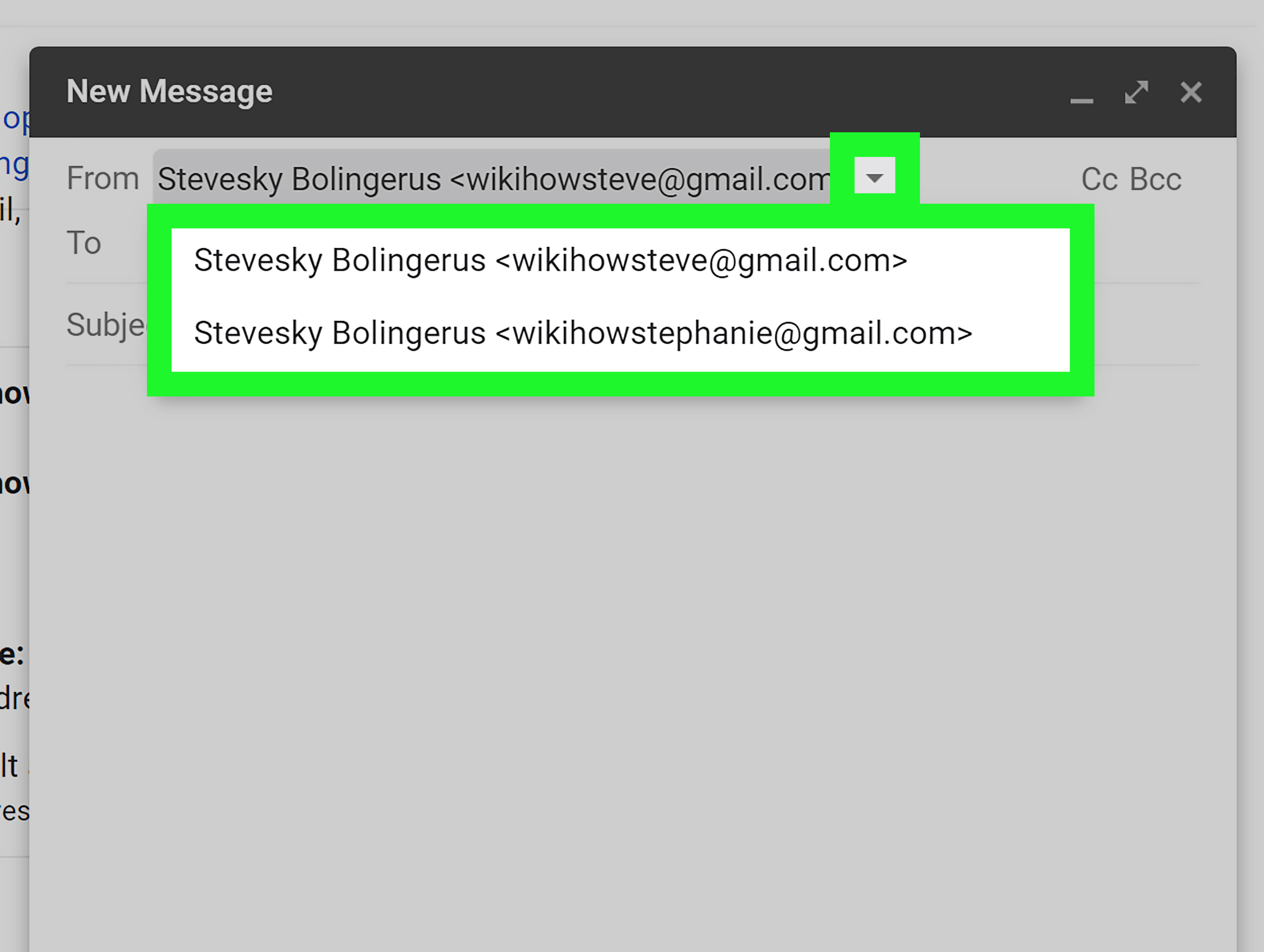
After the switch, review Gmail settings such as Send mail as, filters, forwarding, and reply-to behavior. If you want to keep sending from the old address, or stop using it when replying, this is where you clean things up. This step is not glamorous, but it is where your inbox stops behaving like a house with three front doors and no labels.
-
Step 13: Update third-party accounts and security settings
Now update the email address used for sign-in on shopping sites, banking apps, social media, newsletters, cloud storage, and work tools. Also review your recovery email, password manager, and two-factor authentication settings. If anything looks suspicious during this process, pause and secure your account before making more changes.
What Happens After You Change Your Google Email?
Here is the part most people care about: no, your account does not turn into a pumpkin at midnight. Your saved Google data stays with your account. That includes Gmail messages, Drive files, photos, and account history. In many cases, your old Gmail address remains on the account as an alternate email, and messages sent to both addresses can still reach your inbox.
That said, not everything updates retroactively. Older Calendar invites, shared documents, account references, and other historical records may still show the old address. Also, websites where you signed in with the old email may not automatically know you had a glow-up. You will usually need to update those manually.
If You Do Not See the Change Option
If Change Google Account email is missing, do not assume you broke something. Here are the most common reasons:
- Your account has not received the feature yet.
- Your Google Account is managed by work, school, or another organization.
- You are trying to change a different type of email setting, such as a contact or recovery email.
- You recently changed your address and hit a limit.
Google’s current guidance also suggests there are timing limits. You cannot keep spinning through fresh Gmail names like stage costumes. In general, Google limits how often a new Gmail-style Google Account email can be created, so pick a name that will still make sense when you are older, wiser, and maybe no longer obsessed with dinosaurs or esports handles.
What If You Only Want to Change Your Display Name?
If you only want the name people see in their inbox, that is much easier. You can change the sender name in Gmail settings without changing the actual email address. This is the fix for anyone whose email address is fine but whose displayed name still says something unhelpful like “The Boss Baby.”
What If You Want a Different Recovery or Contact Email?
You can also add or edit a recovery email, alternate email, or contact email inside your Google Account settings. This does not change your main Gmail address, but it does improve security and communication. It is a smart move if you are reorganizing your digital life and want important Google alerts to land somewhere you check regularly.
What About Google Workspace Accounts?
If your account comes from work, school, or a business domain, your administrator may control the primary email address. In Google Workspace, admins can often rename users or add aliases, but regular users usually cannot do it on their own. Translation: if your email ends with your company domain, the person with admin powers is your new best friend.
Smart Tips Before You Finalize the Change
- Choose an email that sounds professional and timeless.
- Avoid nicknames, joke spellings, and cluttered numbers unless they are part of your brand.
- Update your email on financial, medical, and school accounts first.
- Review security activity if anything looks unfamiliar.
- Keep a short checklist so you do not forget important logins.
Common Mistakes to Avoid
The biggest mistake is assuming every Google email setting means the same thing. Changing your display name is not the same as changing your Gmail address. Updating your recovery email is not the same as changing your sign-in email. And changing a work address is not always something you can do without admin help.
The second big mistake is choosing a new email address too quickly. This is not a fantasy football team name. Pick something that works for resumes, online shopping, family group chats, client communication, and future you. Future you deserves better than chaosgremlin1999.
Experiences People Commonly Have After Changing a Google Email
One of the most common experiences is pure relief. People who created their Gmail address years ago often feel mildly haunted by it. Maybe it includes an old nickname, a former last name, a hobby that no longer exists, or a number string that makes it look like they registered during a power outage. Once they switch to a cleaner address, even basic tasks like emailing a recruiter or sending a document to a client feel more polished. It is a small change, but psychologically, it feels like finally replacing a squeaky office chair you suffered through for years.
Another common experience is surprise at how much still works. Many users expect changing a Google Account email to trigger inbox chaos, missing files, or dramatic login disasters. In practice, the underlying Google data usually stays put. Gmail messages, Drive files, Photos, and account history remain connected to the same account, which makes the transition much smoother than creating a brand-new account from scratch. That said, people often discover that while Google is pretty organized, the rest of the internet is not. Shopping sites, newsletter subscriptions, payment tools, and random apps from 2018 do not magically update themselves.
A lot of users also notice an awkward in-between stage. Their new email looks great, but the old one still appears in old calendar invites, account receipts, saved contacts, or previous email threads. This can feel a little like repainting your kitchen and then noticing the one cabinet door you forgot. Nothing is broken, but the old version of your identity lingers in corners. Most people handle this by slowly updating important accounts over a few days and keeping a simple checklist: banks, utilities, social media, work tools, cloud accounts, and anything tied to password recovery.
For people changing an address after a life event, the experience can be more emotional than expected. A name change after marriage, divorce, or personal rebranding can turn an email update into something symbolic. It is not just a tech adjustment; it can feel like closing one chapter and opening another. In those cases, the best approach is practical and patient: test everything, update your most important accounts first, and give yourself time to let the old address fade into the background.
Then there are the users who discover they did not actually need to change the whole email address at all. Some only wanted to update the name recipients see when messages arrive. Others just needed a better recovery email or an alternate address for sign-in. Once they realize Google separates these settings, the whole task becomes simpler. That is probably the biggest lesson from real-world experience: the process gets much easier when you first identify exactly what kind of “email change” you actually need.
Conclusion
Changing your email address on Google is finally more realistic than it used to be, but it still comes with a few important rules. If your account shows the Change Google Account email option, follow the steps carefully, choose a strong new address, and then clean up your connected accounts afterward. If the option does not appear, check whether you are dealing with a managed account, a missing rollout, or a different email setting altogether.
Done right, this change can make your Google identity look more professional, more current, and far less likely to cause embarrassment when you send an email that matters. Your inbox may still contain bills, newsletters, and that one store that somehow emails you every eleven minutes, but at least the address on top will finally feel like it belongs to a grown-up.
“` :