Note: This guide is written for everyday Fire TV Stick users who want the fastest, safest, and most beginner-friendly way to install apps without turning the living room into a tech support call center.
Why Downloading Apps on a Fire TV Stick Is Easier Than It Looks
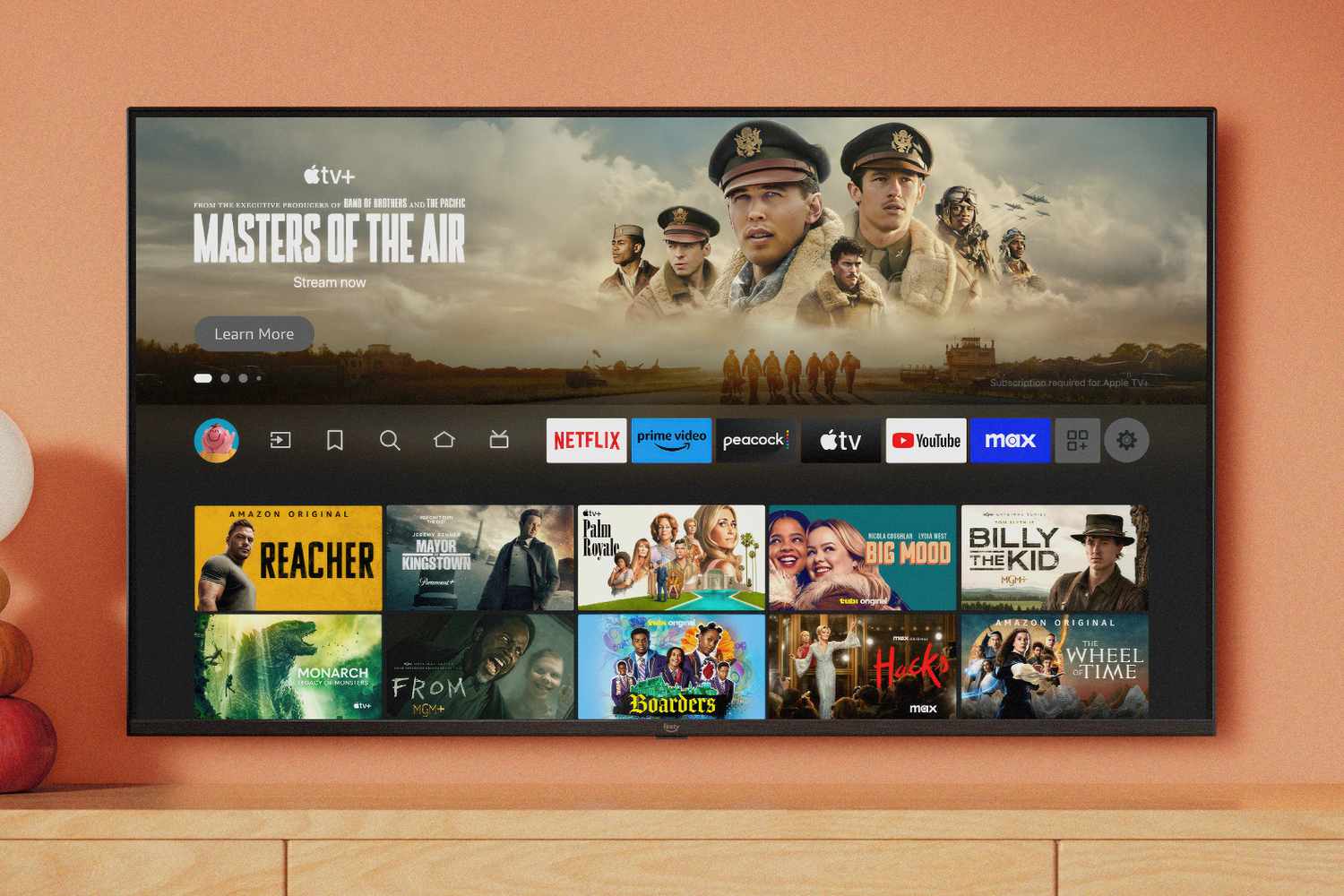
The Amazon Fire TV Stick is a tiny streaming device with one big job: turn your regular TV into a buffet of movies, shows, music, sports, news, fitness classes, games, and the occasional app you download once and forget exists. The good news is that downloading apps on a Fire TV Stick is not complicated. In most cases, the easiest way is to use the built-in Amazon Appstore directly from the Fire TV home screen.
That means you do not need a laptop, a cable, a mysterious “tech guy,” or a secret ritual involving three remotes and a bowl of popcorn. If the app is available in the Amazon Appstore, you can usually search for it, select it, and install it in less time than it takes someone in your house to ask, “Are we watching something yet?”
This guide explains the simplest way to download apps on a Fire TV Stick, how to use voice search, how to install apps from Amazon’s website, what to do when apps will not download, and how to keep your Fire TV organized after your app collection starts looking like a digital junk drawer.
The Easiest Method: Use the Amazon Appstore on Fire TV
The easiest way to download apps on a Fire TV Stick is through the Amazon Appstore already built into the device. This is the safest and most reliable method because apps listed there are designed for Fire TV devices, work with your remote, and usually update automatically.
Step 1: Go to the Fire TV Home Screen
Press the Home button on your Fire TV remote. This brings you back to the main screen, where Fire TV displays your apps, recommended content, search options, and menus. If your Fire TV Stick has been sleeping longer than a teenager on summer break, give it a moment to wake up and reconnect to Wi-Fi.
Step 2: Open Find or Appstore
Depending on your Fire TV interface version, you may see a Find option, a search icon, or an Appstore tile. Select the option that lets you search or browse apps. Amazon occasionally updates the layout, so do not panic if your screen looks slightly different from screenshots online. The basic idea remains the same: find the Appstore, search for the app, and install it.
Step 3: Search for the App
Use the on-screen keyboard to type the name of the app you want. Popular examples include Netflix, Hulu, Disney+, Max, YouTube, Peacock, Spotify, Plex, ESPN, Paramount+, and Tubi. Typing with a TV remote is not exactly a spa experience, but it works. For faster searching, use the microphone button on an Alexa Voice Remote and say something like, “Search for YouTube” or “Find Hulu.”
Step 4: Select Get, Download, or the Shopping Cart Icon
Once you find the app, open its app page. If the app is free, you will usually see Get or Download. If it is a paid app, you may see a price or shopping cart icon. Select the button, confirm if needed, and wait while your Fire TV Stick downloads and installs the app.
Step 5: Open the App
After installation, the button usually changes to Open. Select it to launch the app immediately. Many streaming apps require you to sign in with an account or activate the device using a code on your phone or computer. That is normal. Slightly annoying, yes, but normal.
Using Alexa Voice Search to Download Apps Faster
If your Fire TV remote has a microphone button, voice search can make downloading apps much easier. Instead of pecking through letters one by one like you are trying to send a text message in 2007, hold the voice button and say the app name clearly.
For example, you can say:
- “Alexa, search for Netflix.”
- “Alexa, find the Disney Plus app.”
- “Alexa, open the Appstore.”
- “Alexa, launch YouTube.”
If the app is already installed, Alexa may open it. If it is not installed, Fire TV should show search results or the app page. Voice search is especially helpful when an app name is long, oddly spelled, or packed with symbols that make remote typing feel like solving a tiny puzzle.
Another Easy Option: Download Apps from Amazon’s Website
You can also install Fire TV apps from Amazon’s Appstore website. This method is helpful if you prefer typing on a computer or phone instead of using the Fire TV remote. It is also useful when you are setting up several Fire TV devices and want to send an app to the right one.
How It Works
Sign in to the same Amazon account connected to your Fire TV Stick. Search for the app in Amazon’s Fire TV apps section, open the app page, choose your Fire TV device from the delivery menu, and select the option to get or deliver the app. The app should then download to your Fire TV Stick when the device is online.
This method is convenient, but it depends on your Fire TV Stick being registered to the same Amazon account and connected to the internet. If you send an app from the website and nothing happens, check whether your device is online, has enough storage, and appears correctly in your Amazon account.
What Apps Can You Download on a Fire TV Stick?
The Fire TV Stick supports many popular app categories. Streaming apps are the obvious stars of the show, but the Appstore includes more than just movie and TV services.
Popular App Categories
- Streaming video: Prime Video, Netflix, Hulu, Disney+, Max, Peacock, Paramount+, YouTube, Tubi, Pluto TV, and more.
- Music and audio: Spotify, Amazon Music, Pandora, SiriusXM, and podcast-friendly services.
- Sports: ESPN, NFL, NBA, MLB, Fubo, and league or network apps.
- News: Local news apps, national networks, weather apps, and live news services.
- Games: Casual games designed for TV screens and remote controls.
- Utilities: Media servers, photo apps, browsers where available, and device tools.
Some apps are free to download but require a paid subscription. Others offer free content with ads. A few apps require a cable provider login. Before blaming the Fire TV Stick for asking you to sign in, remember: the app is free to install, but the content inside may still belong to a subscription service. The app is the door; the subscription is the key.
How to Move Newly Downloaded Apps to the Front
After you download apps on your Fire TV Stick, they may not always appear exactly where you want them. Fire TV has an apps section, but your favorite app might be hiding behind several others like it owes somebody money.
To organize your apps, go to your apps list, highlight the app you want to move, press the menu button on your remote, and choose the move option if available. Place your most-used apps near the front. This saves time and prevents the nightly scroll marathon where everyone watches you pass the same app three times.
A smart layout might include your main streaming apps first, then music, sports, free TV apps, and utilities. Keep apps you rarely use farther back. Your future self will thank you, probably while holding snacks.
What to Do If an App Will Not Download
Sometimes a Fire TV Stick refuses to download an app. This can happen because of weak Wi-Fi, low storage, account verification issues, outdated software, Appstore glitches, or compatibility problems. Before declaring your streaming stick haunted, try these practical fixes.
Check Your Internet Connection
Go to Fire TV settings and check the network connection. If your Wi-Fi signal is weak, move the Fire TV Stick closer to the router or use an HDMI extender to improve placement. Streaming devices tucked behind a TV can sometimes struggle with signal strength, especially if your router is in another room living its best life far away.
Restart the Fire TV Stick
A restart fixes many small problems. You can restart through the settings menu or unplug the Fire TV Stick from power, wait a short moment, and plug it back in. This gives the device a fresh start and often clears temporary issues.
Check Available Storage
Fire TV Sticks do not have unlimited storage. If your device is packed with apps, downloads, cache files, and digital clutter, new apps may fail to install. Go to settings, open applications, and review installed apps. Remove apps you no longer use. Clearing cache from large apps can also free up space without deleting the app itself.
Update Fire TV Software
Older software can cause compatibility issues. Check for system updates in the Fire TV settings under the device or system menu. Keeping Fire TV updated helps with performance, security, app compatibility, and general “please stop acting weird” behavior.
Clear Appstore Cache and Data
If downloads keep failing, the Appstore itself may need a refresh. In settings, go to applications, manage installed applications, select Appstore, and clear cache. If needed, clear data as well. Afterward, restart the Fire TV Stick and try downloading the app again.
Why Some Apps Do Not Appear in the Fire TV Appstore
Not every app is available on every Fire TV Stick. App availability can vary because of device model, Fire OS version, region, developer support, licensing rules, or the app’s technical requirements. In plain English: sometimes the app is not missing because you did something wrong. It may simply not support your device.
Older Fire TV devices may lose support for certain apps over time. Streaming services update their apps to support newer video formats, security standards, and operating systems. If your Fire TV Stick is very old, some modern apps may stop working or disappear from search results. That is frustrating, but it is common across streaming devices, smart TVs, phones, and tablets.
If an app does not show up, check the app provider’s official support page, confirm that your Fire TV Stick model is supported, and make sure your device is updated. If the app requires a newer Fire OS version than your stick can run, the easiest fix may be upgrading to a newer Fire TV device.
Should You Sideload Apps on a Fire TV Stick?
Sideloading means installing apps from outside the official Amazon Appstore. Some advanced users do this for legitimate reasons, such as testing their own apps or installing software from a trusted developer. However, for most people, the easiest and safest way to download apps on a Fire TV Stick is still the Amazon Appstore.
There are several reasons to be cautious. Apps from unknown sources may not be optimized for TV screens, may not work with the Fire TV remote, may fail to update automatically, or may create security and privacy risks. Some unofficial apps may also promote unauthorized access to copyrighted content, which is not worth the trouble. Free entertainment is great; surprise malware and legal headaches are not exactly a cozy movie night.
Newer Fire TV models and software changes may also limit or block installing apps from outside the official Appstore. For everyday users, the simple rule is this: use the Appstore first. It is cleaner, easier, safer, and less likely to make you regret pressing buttons with confidence.
Best Practices for Downloading Fire TV Apps
Downloading apps is easy, but managing them well makes your Fire TV Stick faster and more pleasant to use. Think of your Fire TV like a small closet. It works beautifully until you shove everything into it and pretend the door closing counts as organization.
Only Install Apps You Actually Use
Try not to download every streaming app just because it exists. Install the services you use regularly. Too many unused apps can clutter your screen, eat storage, and make navigation slower.
Use Parental Controls When Needed
If kids use the Fire TV Stick, set up parental controls and purchase restrictions. This can help prevent accidental purchases, surprise rentals, and that magical moment when someone buys a full season of a cartoon because the remote was “just sitting there.”
Keep Apps Updated
Official Appstore apps usually update automatically, but it is still smart to keep your Fire TV connected to Wi-Fi and restart it occasionally. Updates can improve playback, fix bugs, and maintain compatibility with streaming services.
Remove Apps That Misbehave
If an app freezes, crashes, or refuses to load, try clearing its cache first. If that does not help, uninstall and reinstall it. A fresh install can fix corrupted app data and restore normal performance.
Specific Example: Downloading YouTube on a Fire TV Stick
Let’s say you want to download YouTube. From the Fire TV home screen, open Find or Appstore, search for “YouTube,” select the official YouTube app, and choose Get or Download. Once installed, open the app. You can watch without signing in, but signing in lets you access subscriptions, watch history, playlists, and recommendations.
The same general steps work for most apps. Search, select, download, open, sign in if required, then move the app to a convenient spot. Once you understand that pattern, downloading Fire TV apps becomes very simple.
Specific Example: Downloading a Free TV App
Free streaming apps like Tubi, Pluto TV, Freevee, and similar services are popular because they offer movies, shows, and live-style channels without a monthly subscription. To install one, search for the app in the Appstore, select it, and choose Get. After installation, open it and follow any setup prompts.
Free apps often include ads. That is how they pay for the content. It is a fair trade if you want something to watch without adding another subscription to the monthly bill, which may already look like it has been doing push-ups.
Extra Experience: What I’ve Learned from Setting Up Fire TV Apps the Easy Way
The easiest way to download apps on a Fire TV Stick is not just about knowing where the Appstore is. It is also about setting up the device in a way that feels smooth every time you turn on the TV. A Fire TV Stick can be wonderfully simple, but small habits make a big difference.
First, voice search is underrated. Many people ignore the microphone button because they assume it will misunderstand them, start ordering paper towels, or summon a playlist from 2014. But for app downloads, it is genuinely useful. Saying “Find Peacock” or “Search for Spotify” is much faster than using the on-screen keyboard. This is especially true for app names with punctuation, plus signs, or brand spellings that make typing with a remote feel like a tiny obstacle course.
Second, the Amazon website method is a quiet lifesaver. If you manage more than one Fire TV Stick, downloading apps from a browser can be easier than repeating the same steps on every TV. Just make sure you choose the correct device. Many homes have device names like “Living Room Fire TV,” “Bedroom Fire TV,” and the classic “John’s 3rd Fire TV,” which nobody remembers naming. Renaming devices in your Amazon account can prevent confusion later.
Third, storage matters more than people expect. A Fire TV Stick is small, and its storage fills up quickly. Streaming apps themselves may not look huge, but cache files build up over time. If downloads fail or the device feels sluggish, checking storage should be one of the first steps. Removing old apps is not dramatic. The app will not be offended. It will not send a goodbye letter. It can be downloaded again later.
Fourth, app organization saves real time. Put your top apps in the first few slots. For most people, that means one or two paid streaming services, one free TV app, YouTube, a music app, and maybe a sports or news app. When everything important is easy to reach, the Fire TV Stick feels faster even before you change any technical settings.
Fifth, avoid making sideloading your default plan. It may sound exciting because it feels like unlocking a secret level, but for everyday streaming, it often creates more problems than it solves. Official Appstore apps are easier to install, easier to update, safer to use, and more likely to work properly with the Fire TV remote. Unless you have a legitimate advanced reason, the Appstore route is the best route.
Finally, keep expectations realistic with older Fire TV Sticks. If a device is several years old, some apps may become slower, stop updating, or disappear because they no longer support that Fire OS version. That does not mean you failed at technology. It means the app world moved on, as app worlds annoyingly do. If you constantly run into compatibility problems, upgrading the device may be easier than fighting the same battle every weekend.
In short, the best Fire TV app experience comes from using the official Appstore, searching with Alexa when possible, keeping storage clean, organizing favorites, and avoiding unnecessary complications. The Fire TV Stick is supposed to make entertainment easier, not turn your couch into a command center.
Conclusion
The easiest way to download apps on a Fire TV Stick is to use the built-in Amazon Appstore. From the home screen, search for the app, select it, choose Get or Download, and open it after installation. For faster results, use Alexa voice search. For convenience, you can also send apps to your Fire TV Stick from Amazon’s website when signed in with the same account.
If an app will not download, check your Wi-Fi, restart the device, free up storage, update Fire TV software, or clear the Appstore cache. If an app is missing, confirm that it supports your Fire TV model and operating system. Most importantly, stick with official Appstore apps whenever possible. They are safer, simpler, and less likely to turn your relaxing TV night into a troubleshooting documentary.