Telegram stickers are wonderful until your sticker drawer starts looking like a digital garage sale. One day you add a cute cat pack, the next day you have 47 packs featuring frogs, penguins, dramatic potatoes, and a suspiciously emotional slice of pizza. At first, it feels fun. Then you open the sticker panel to send one simple thumbs-up and spend ten seconds scrolling through chaos. That is your sign: it is time to remove stickers on Telegram on Android.
The good news is that Telegram makes sticker management fairly simple once you know where to look. The slightly less good news is that the setting is tucked away just enough to make many Android users tap around like they are solving a mini escape room. This guide walks you through exactly how to delete Telegram sticker packs, clean up your sticker list, understand what actually gets removed, and avoid deleting the wrong thing by accident.
Below, you will find the quick six-step method first, followed by deeper explanations, troubleshooting tips, and practical advice for keeping your Telegram stickers neat without turning your chats into a joyless sticker desert.
How to Remove Stickers on Telegram on Android: Quick Answer
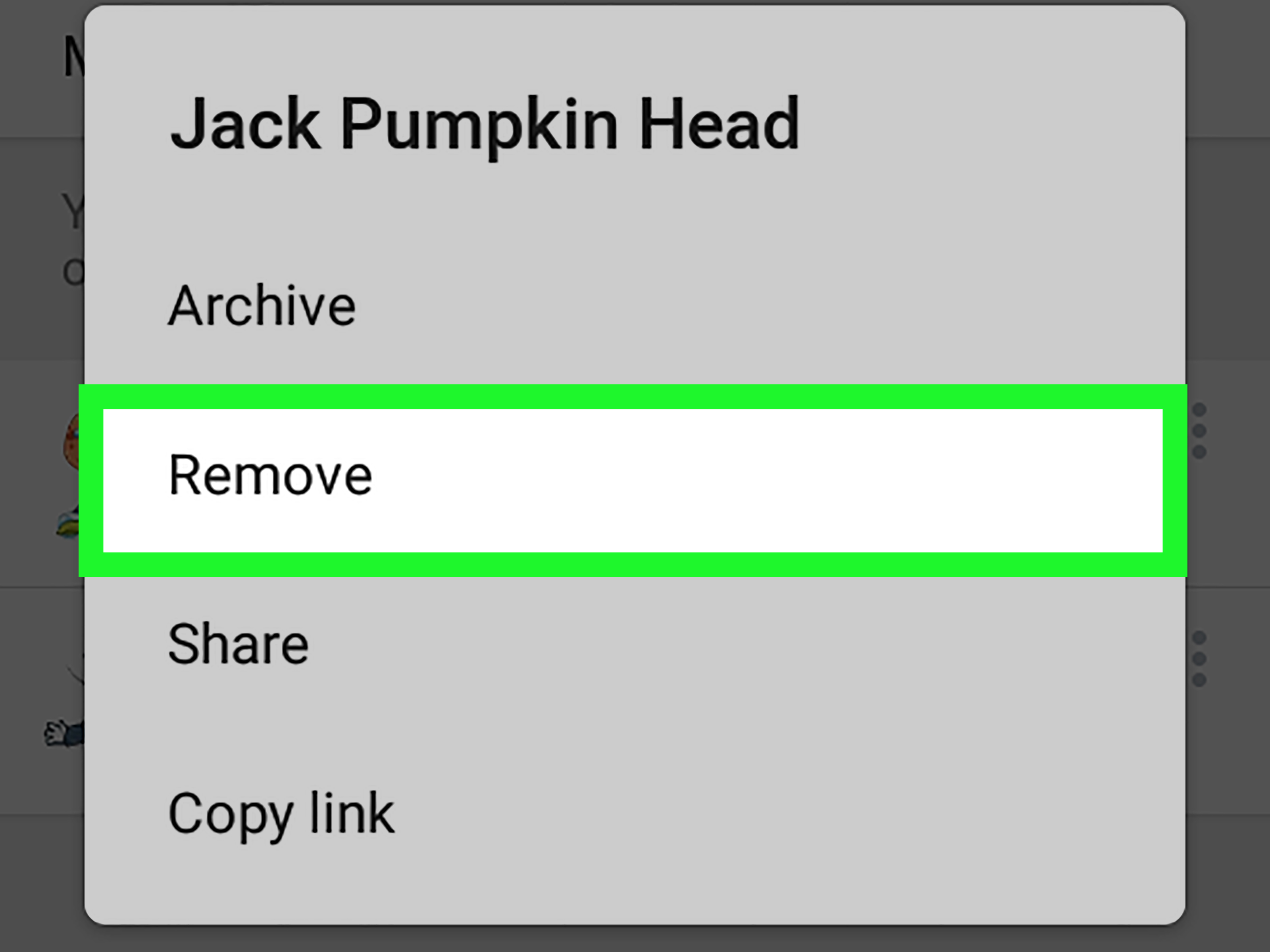
To remove stickers on Telegram for Android, open Telegram, go to Settings, tap Chat Settings, open Stickers and Emoji, find the sticker pack you no longer want, tap the three-dot menu beside it, and choose Remove. The pack will disappear from your active sticker collection, making your sticker panel cleaner and easier to use.
You are not deleting Telegram itself, your chats, or the sticker from other people’s accounts. You are only removing that sticker pack from your own active sticker collection. Think of it like taking a novelty mug out of your kitchen cabinet. The mug still exists in the universe; it just no longer falls on your foot every time you open the door.
Before You Start: What “Removing Stickers” Means on Telegram
Before tapping buttons with confidence and mild dramatic flair, it helps to understand what Telegram means by removing stickers. Telegram stickers usually come in packs. A sticker pack is a collection of related stickers, often built around a character, theme, meme, emoji style, brand, or inside joke. When you remove stickers on Telegram, you usually remove the entire pack from your sticker panel.
This is different from deleting a sticker message you already sent in a chat. It is also different from deleting a sticker from a custom pack you created. If you are simply tired of seeing a sticker pack in your collection, the regular Remove option is enough. If you created the pack and want to delete one sticker from the public set, you may need Telegram’s official sticker tools or bot commands. That is a separate task, and yes, Telegram likes to keep life spicy.
How to Remove Stickers on Telegram on Android: 6 Steps
Step 1: Open the Telegram App on Your Android Phone
Start by opening the Telegram app on your Android device. Make sure you are using the official Telegram app and that you are signed in to the account where the unwanted sticker pack appears. If you use multiple Telegram accounts on the same phone, switch to the correct account first. Otherwise, you may spend two minutes removing stickers from the wrong account and wondering why your chaos drawer is still alive.
For best results, update Telegram from the Google Play Store before you begin. Menu names and layouts can change slightly over time, and an updated app is less likely to hide options behind older interface behavior.
Step 2: Tap the Menu Icon
On most Android versions of Telegram, tap the three horizontal lines in the top-left corner of the main screen. This opens the side menu. On some newer layouts or customized Android environments, you may see a profile icon or a slightly different navigation style. The goal is the same: open the main Telegram menu where your account settings live.
This menu is where Telegram keeps many of the controls users need but do not visit every day, such as privacy settings, notification controls, chat appearance, folders, devices, and sticker settings.
Step 3: Go to Settings
From the side menu, tap Settings. This opens your Telegram account settings page. Here you can manage your profile, notifications, privacy, data usage, chat display, language, folders, and other app preferences.
Sticker controls are not usually on the first screen, so do not panic if you do not immediately see a giant button labeled “Delete my ancient raccoon sticker collection.” Telegram is powerful, but it has not yet reached that level of emotional understanding.
Step 4: Open Chat Settings, Then Stickers and Emoji
Inside Settings, tap Chat Settings. Then look for Stickers and Emoji. This is the section where Telegram stores controls related to sticker packs, emoji suggestions, animated emoji behavior, and sticker organization.
Depending on your Telegram version, the exact wording may vary slightly. You may see Stickers and Masks on older versions, or Stickers and Emoji on newer versions. If your app has a search bar inside Settings, type “stickers” to find the section faster. This is especially helpful if Telegram moves the furniture around in a future update, as apps love doing when users finally memorize where everything is.
Step 5: Find the Sticker Pack You Want to Remove
In the sticker settings area, you should see a list of sticker packs currently added to your Telegram account. Scroll through the list and find the pack you want to remove. Look carefully at the pack name and preview image before deleting anything. Some sticker packs look surprisingly similar, especially if you have multiple packs featuring the same character, meme, or cartoon animal making the same exhausted face you make on Monday mornings.
If you have many sticker packs, take a moment to identify the ones you actually use. Telegram stickers are cloud-based and sync across devices, so organizing them on Android can also make your sticker experience cleaner on other devices where you use the same account.
Step 6: Tap the Three-Dot Menu and Choose Remove
Once you find the sticker pack, tap the three-dot menu next to it. Then choose Remove. Telegram may remove the pack immediately or ask you to confirm, depending on your app version. After that, the pack should disappear from your active sticker list.
That is it. Six steps, no wizard hat required. Your Telegram sticker panel should now feel cleaner, faster to browse, and less like a museum of every joke you found funny for eight minutes in 2021.
Alternative Method: Remove Stickers from the Sticker Panel
There is another common way to manage stickers directly from a chat. Open any Telegram conversation, tap the emoji icon near the message field, and switch to the sticker tab. Look for a settings gear or sticker management option in the sticker panel. From there, you can manage installed packs, reorder them, archive some, or remove the packs you no longer want.
This method is useful because it starts exactly where the problem appears: the sticker drawer. If you are scrolling through stickers and suddenly think, “Why do I still have this?” you can often jump into sticker settings from the panel instead of backing out to the main Settings menu.
Remove vs. Archive: What Is the Difference?
Telegram may allow some sticker packs to be archived rather than fully removed from your active list. Archiving hides a sticker pack from your main sticker panel while keeping it available for later restoration. Removing a pack takes it out of your collection, though you may be able to add it again later if you still have the sticker pack link or can find it through search.
Use Remove when you are sure you do not want the pack anymore. Use Archive when you are not ready for a clean breakup. Archiving is perfect for seasonal packs, old meme packs, or stickers you rarely use but might want again. Basically, it is the digital equivalent of putting something in a storage box labeled “Maybe.”
Will Removing a Sticker Pack Delete Stickers from Chats?
No. Removing a sticker pack from your Telegram account does not erase stickers that you or other people already sent in conversations. Old messages remain in chats unless you delete those messages separately. If someone else has the same sticker pack installed, they can still use it. Your action only affects your own sticker collection.
This distinction matters because many users expect sticker removal to work like deleting a file from a folder. Telegram stickers are not quite like local files. They are part of a cloud-based messaging experience, and packs can be shared, added, removed, and restored across devices.
Can You Remove One Sticker Instead of the Whole Pack?
For regular sticker packs added to your account, Telegram generally manages stickers by pack. That means you remove the whole pack, not one individual sticker inside it. If you like five stickers in a pack but hate one sticker that looks like it has seen the secrets of the universe, you usually have to keep the full pack or remove the full pack.
If you created the sticker pack yourself, you may have more control through Telegram’s sticker management tools. Creators can manage their own sticker sets differently from regular users who simply added a public pack. For everyday Android users, though, the practical answer is simple: remove the entire sticker pack from your collection.
How to Remove Recently Used Stickers on Telegram Android
Sometimes the sticker pack is not the problem. The problem is one embarrassing sticker sitting in your recent stickers section, staring at you like a tiny animated witness. On Android, you may be able to press and hold a recently used sticker and choose an option such as Remove from Recent, depending on your Telegram version.
If that option does not appear, try clearing recent stickers from the sticker settings area, or update the app and check again. Telegram’s interface can change, and options may vary between stable releases, beta builds, and device-specific Android skins.
How to Reorder Sticker Packs Instead of Removing Them
If your sticker panel feels messy but you still like most of your packs, try reordering them before deleting anything. In the sticker settings section, Telegram often lets users press, hold, and drag sticker packs into a preferred order. Put your most-used packs first and move the weird-but-occasionally-perfect packs toward the end.
This is a smart option if you use stickers often. Instead of cutting your collection down to three packs like a minimalist monk, you can build a practical order: favorites first, seasonal stickers later, retired meme packs near the bottom. Organization solves more problems than deletion, which is also true for closets, phone galleries, and that mysterious drawer full of cables no one is brave enough to open.
How to Clear Telegram Cache Without Removing Sticker Packs
If your goal is to free up storage space, removing sticker packs is only part of the picture. Telegram also stores cached media on your phone, including images, videos, files, and other temporary content. Clearing cache can reduce Telegram’s local storage use without deleting your cloud chats or permanently removing your account data.
To clear cache on Android, go to Settings, open Data and Storage, then choose Storage Usage. From there, you can clear cached media and adjust how long Telegram keeps unused media on your device. This is different from removing a sticker pack. Clearing cache is about phone storage; removing stickers is about cleaning your sticker collection.
Common Problems When Removing Telegram Stickers on Android
The Sticker Pack Still Appears After I Remove It
If a sticker pack still appears after you remove it, close and reopen Telegram. You can also switch to another chat and return to the sticker panel. In some cases, the interface simply needs a moment to refresh. If the pack continues to appear, check whether it is actually installed or only showing as a suggested sticker pack.
I Cannot Find Stickers and Emoji in Settings
Use the search function inside Telegram Settings and type “stickers.” If nothing appears, update the Telegram app. Older versions may use slightly different names, such as Stickers and Masks. Telegram updates often rename or relocate settings, so searching is faster than playing hide-and-seek with menu labels.
I Removed a Pack by Mistake
If you removed a sticker pack accidentally, you can usually add it again if you have the pack link, can find it in Telegram sticker search, or receive one of its stickers from another user. Tap the sticker, open the pack preview, and add it back. Telegram is forgiving; your pride may need a minute.
Suggested Stickers Keep Appearing
Telegram may show sticker suggestions based on emoji, trending packs, or sticker search behavior. Removing your own sticker packs does not always disable suggestions from packs you have not installed. Look inside Stickers and Emoji for suggestion settings if you want fewer recommendations.
Best Practices for Managing Telegram Stickers on Android
The best sticker collection is not necessarily the smallest one. It is the one that helps you reply quickly and express yourself without making your thumb run a marathon. Keep the packs you use often, archive or remove packs tied to old jokes, and reorder favorites so they appear first.
It is also wise to review your sticker collection every few months. If a sticker pack has not made you laugh, helped you reply, or saved you from typing a sentence in the last year, it may be time to let it go. Your Telegram panel deserves peace. Your Android screen deserves fewer tiny cartoon faces demanding attention.
Privacy and Safety Tips for Sticker Packs
Telegram sticker packs are often public and shareable. If you create your own pack, avoid using private photos, copyrighted artwork, personal information, school or workplace jokes that could embarrass someone, or images of people who did not give permission. Stickers spread quickly, and what feels funny inside one group chat may feel less funny when it becomes a public pack.
When adding sticker packs from unknown sources, use common sense. Stickers themselves are usually simple media, but pack names, links, and surrounding channels may lead to content you do not want. Stick with packs you recognize, preview packs before adding them, and remove anything that makes your sticker drawer feel cluttered, annoying, or inappropriate.
Why Removing Telegram Stickers Makes the App Feel Better
Small digital messes create real friction. A messy sticker panel may not ruin your life, but it can slow down quick replies and make the app feel heavier than it is. Removing unused Telegram stickers on Android gives you a cleaner interface, faster sticker selection, and fewer accidental sends.
It also helps your favorite packs stand out. The best stickers are usually the ones you can find quickly: the perfect laugh, the dramatic face, the polite thumbs-up, the “I have no idea what is happening but I support you” sticker. When those are buried under dozens of forgotten packs, Telegram becomes less expressive and more like a tiny scrolling chore.
Real-World Experience: Cleaning Up Telegram Stickers on Android
Removing stickers on Telegram sounds like a tiny task, but in real life it often turns into a surprisingly satisfying cleanup session. Many Android users start with one goal: delete a single sticker pack they added months ago. Then they open the sticker settings and discover an entire history of their personality in sticker form. There is the pack from a group chat that no longer exists. There is the holiday pack used twice. There is the cartoon animal pack that once felt hilarious and now feels like it has overstayed its welcome.
The first practical experience is that Telegram’s sticker settings are easier to use when you approach them with a plan. Instead of deleting randomly, scroll through your packs and ask three simple questions: Do I use this? Do I like this? Would I add it again today? If the answer is no to all three, remove it. This little decision test prevents overthinking. Without it, you may stare at a dancing duck sticker for thirty seconds, wondering whether it still represents your personal brand. It probably does not. Let the duck retire.
Another common experience is realizing that removing sticker packs makes conversations faster. When the sticker drawer contains only useful packs, replying becomes smoother. You tap the sticker icon, find what you need, and send it without digging through old memes. This is especially helpful in busy group chats where timing matters. A perfectly timed sticker is comedy. A sticker sent forty-five seconds late is just evidence that your panel needs organizing.
Users also notice that removing stickers is not the same as losing memories. Old stickers sent in chats remain visible, and friends can still use packs they have installed. This makes cleanup less scary. You are not deleting history; you are cleaning your own workspace. It is like removing apps from your home screen without deleting every photo you ever took while using them.
A useful habit is to reorder before removing. Many people think they have too many stickers, when the real issue is that their favorites are buried. Put your best packs first. Move seasonal or rarely used packs lower. Remove the ones that serve no purpose. This balanced approach keeps Telegram fun while avoiding sticker overload.
Finally, sticker cleanup can become part of general Android maintenance. After removing unused packs, check Telegram’s storage usage and clear cache if your phone feels crowded. The combination of sticker organization and cache management makes Telegram feel lighter without sacrificing the chats and media you care about. It is a small task, but it creates a noticeable improvement. Your sticker drawer becomes cleaner, your replies become quicker, and your thumb can finally stop training for the scrolling Olympics.
Conclusion
Learning how to remove stickers on Telegram on Android is simple once you know the path: open Telegram, go to Settings, enter Chat Settings, open Stickers and Emoji, find the pack, and tap Remove. The process takes less than a minute, but it can make Telegram feel cleaner, faster, and much easier to use.
The key is knowing what you are removing. You are not deleting old chat messages, erasing stickers from other people’s accounts, or destroying a sticker pack across Telegram. You are simply removing it from your own active collection. For most users, that is exactly what is needed: fewer unused packs, better organization, and a sticker panel that no longer feels like it was assembled by a raccoon with Wi-Fi.
Note: This article is based on current Telegram Android behavior and widely documented sticker-management practices. Telegram may adjust menu names or layouts in future updates, but the core process remains the same: open sticker settings, find the pack, and remove it from your collection.