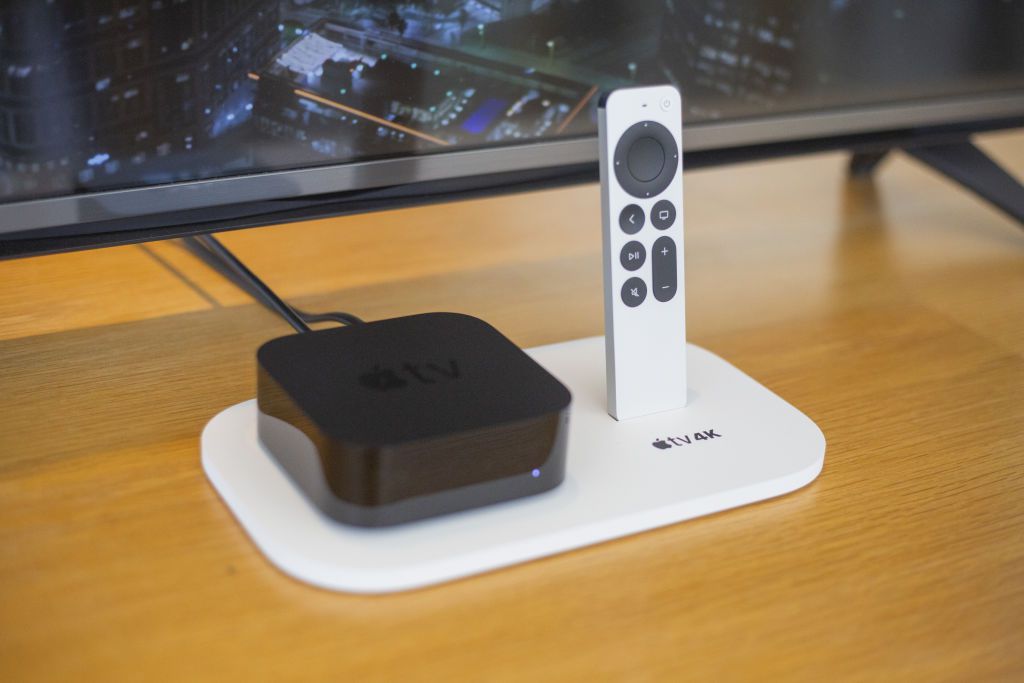
Misplacing an Apple TV remote has a special talent for happening at the worst possible moment. Usually it disappears right when you are ready to watch something, right after you changed your Wi-Fi password, moved apartments, or decided that tonight was finally the night to make your entertainment setup feel “organized.” Then the tiny aluminum wand vanishes into the couch dimension, and suddenly your Apple TV acts like a very expensive paperweight with excellent taste in streaming apps.
The good news is this: if you lost your Apple TV remote, you are not automatically doomed. In many cases, you can still connect your Apple TV to Wi-Fi without a remote, especially if you have an iPhone, iPad, or an Apple TV model with an Ethernet port. The trick is understanding which workaround fits your exact situation, because this problem is less about magic and more about networking, device models, and one annoying truth: the Apple TV Remote feature on iPhone works beautifully, but it still needs the Apple TV to be reachable first.
That is the whole puzzle in one sentence. If your Apple TV is already on the same network as your iPhone, the fix is easy. If it is offline, you need a temporary bridge. Once you know that, the problem stops feeling impossible and starts feeling like a mildly rude scavenger hunt.
The Short Answer: Yes, You Can Connect Apple TV to Wi-Fi Without the Remote
If you want the fast version, here it is: the easiest way to connect an Apple TV to Wi-Fi without a remote is to use your iPhone or iPad as a remote. But that only works when the Apple TV and your phone can see each other on the same local network. If the Apple TV is not currently online, the cleanest rescue method is to temporarily connect it to your router with an Ethernet cable, use your phone as the remote, then switch the Apple TV back to Wi-Fi in Settings.
If your Apple TV model does not have Ethernet, or your router is nowhere near the TV, your next best move is usually borrowing a compatible remote, using a replacement remote, or using another device that is already able to control the box. Some people try clever hotspot tricks, but those are more “desperate Saturday energy” than reliable best practice.
Why This Problem Feels So Irritating
Apple makes device setup look smooth and elegant, and to be fair, it often is. But Apple TV setup assumes one important thing: you can actually control the box. Without a remote, every normal step becomes a locked door. You cannot browse networks. You cannot type a password. You cannot jump into Settings. You cannot even confidently press “the button that definitely fixes everything,” because there is no button.
That is why so many people search for phrases like connect Apple TV to Wi-Fi without remote, lost Apple TV remote, and Apple TV no remote fix. It feels like there should be one obvious rescue feature built into the TV itself. Instead, the solution depends on what the Apple TV remembers, what model you own, and whether you can give it a temporary network path.
Method 1: Use Your iPhone or iPad as the Apple TV Remote
When this works
This is the best option when your Apple TV is already connected to the same Wi-Fi network as your iPhone or iPad, or when you have temporarily connected the Apple TV with Ethernet. If those devices can see each other on the same local network, Apple’s built-in remote feature is surprisingly good. In fact, once people start using it, a lot of them realize the physical remote is no longer the only star of the show.
How to do it
- Open Control Center on your iPhone or iPad.
- Tap the Apple TV Remote control. If you do not see it, add it to Control Center first.
- Select your Apple TV from the list.
- If a four-digit code appears on the TV, enter it on your iPhone or iPad.
- Once connected, use the touch controls to open Settings > Network > Wi-Fi.
- Choose your network and enter the password.
This method is especially handy because it lets you navigate like you have the real remote in your hand, minus the risk of it sliding under a cushion and starting a new life there.
Why people love this method
It is fast, official, and does not require downloading random apps that look like they were designed in a basement during the early smartphone era. It also helps with typing because iPhone and iPad can provide keyboard assistance when text fields pop up on Apple TV. That makes entering a long Wi-Fi password far less painful than pecking at an on-screen keyboard one character at a time.
Method 2: Use Ethernet as a Temporary Rescue Line
Why Ethernet is the smartest workaround
If your Apple TV is offline and your iPhone remote cannot find it, Ethernet is usually the cleanest fix. Plug the Apple TV into your router with an Ethernet cable, and it will typically use that wired internet connection automatically. Once it is online, your iPhone or iPad can usually discover it on the network. Then you can use the Apple TV Remote feature to switch the device back to Wi-Fi.
This is the method that saves the most sanity because it turns the “my Apple TV is invisible” problem into a manageable “now I can finally open Settings” problem.
Step-by-step
- Connect your Apple TV to your router with an Ethernet cable.
- Make sure your iPhone or iPad is connected to that same router’s network.
- Open the Apple TV Remote from Control Center.
- Pair it with the Apple TV.
- Go to Settings > Network > Wi-Fi.
- Select your wireless network and enter the password.
- After the Wi-Fi connection is working, disconnect the Ethernet cable if you want to go wireless again.
One important catch: not every Apple TV has Ethernet
This is where model details matter. Many Apple TV models include an Ethernet port, but not all of them. The Apple TV 4K (3rd generation) came in two versions: one with Wi-Fi only and another with Wi-Fi plus Ethernet. So before you start hunting for a cable, flip the unit around and check the ports. If there is no Ethernet jack, do not waste twenty minutes angrily inspecting the HDMI slot like it betrayed you personally.
Method 3: Use Apple Watch or Another Already-Connected Control Option
If you use an Apple Watch and your Apple TV is already reachable on the same network, the watch can also act as a remote. It is not the first solution most people think of, but it is a nice backup when your phone is charging in another room and your physical remote has chosen exile.
You may also have luck with another control method that was already paired before the crisis began, such as a home control setup or a remote system already tied into your Apple Home environment. The keyword here is already. These are backup paths, not miracle cures for a box that has zero network access and no prior configuration.
What About Android Phones?
Here is the honest answer: Android is not the ideal rescue device for this problem. Apple does not provide a native Android version of its Apple TV Remote control. Third-party apps do exist, and some people use them successfully, but they are generally less straightforward and still usually require the Apple TV to be on the same network first.
So yes, an Android phone may help in some setups, especially once the Apple TV is online through Ethernet. But if you are looking for the easiest and most reliable path, an iPhone or iPad is still the gold standard here.
What Usually Does Not Work
Expecting the iPhone remote to find an offline Apple TV
This is the biggest misunderstanding. Your iPhone remote is not magic. It is a network remote. If the Apple TV is not on the same local network, it generally will not appear.
Assuming Bluetooth alone will save the day
Many people assume Apple TV and iPhone will just “sense each other” over Bluetooth and sort everything out. Apple uses Bluetooth in some setup scenarios, but network visibility still matters. Bluetooth is part of the story, not the whole story.
Believing every Apple TV can be hardwired
Some can. Some cannot. The Wi-Fi-only Apple TV 4K (3rd generation) is the model that causes the most disappointment here because it removes the easiest fallback option.
Relying on random hacks as Plan A
You may see people suggest renaming a hotspot to match your old Wi-Fi name and password so the Apple TV reconnects automatically. Sometimes that kind of trick works. Sometimes it does absolutely nothing except make you question your life choices. It is a backup gamble, not a primary recommendation.
Troubleshooting When the Usual Fix Still Fails
If your iPhone remote cannot find the Apple TV
First, confirm both devices are on the same local network. Then restart both devices. On the iPhone, make sure Wi-Fi is actually on and that you did not accidentally leave it on cellular while assuming everything would be fine. Also check for software updates if the remote still refuses to cooperate.
If the Apple TV sees Wi-Fi but will not connect
Double-check the password. Then restart the Apple TV and the router. If the box is far from the router, move it closer temporarily or use Ethernet if your model supports it. Weak signal strength can turn a simple setup job into a slow-motion comedy.
If you changed your Wi-Fi name or password recently
This is one of the most common causes of the whole mess. The Apple TV may still be looking for the old network. Once you regain control with your phone or a wired connection, go straight to the Wi-Fi settings and rejoin the correct network manually.
If you are in a hotel, dorm, or other captive network
Public networks that require browser sign-in can be trickier, but newer Apple TV workflows can sometimes hand parts of that sign-in process over to an iPhone or iPad. It is not always as smooth as home Wi-Fi, but it is far more doable than it used to be.
Should You Just Buy a Replacement Remote?
Sometimes, yes. If your Apple TV is offline, your model lacks Ethernet, and you do not have an iPhone, iPad, or already-connected alternative control method, a replacement remote may be the most realistic fix. That is not glamorous advice, but it is honest advice.
There is also a strong case for treating a replacement remote as a future-proofing purchase. Once you get back into the system, you can also use features like iPhone remote access more consistently, and on supported hardware, your iPhone can even help locate a misplaced Apple TV remote later. In other words, the remote can stop being a recurring household mystery and become just another device you manage intelligently.
The Best Long-Term Strategy
Once your Apple TV is connected again, do yourself a favor and set up at least one backup control method immediately. Add the Apple TV Remote to Control Center on your iPhone. Make sure another household iPhone or iPad can also control it if needed. Keep the remote in a case, tray, or a spot that does not turn into a black hole after sunset.
If your Apple TV sits close to the router, you might even decide that Ethernet is the better permanent solution. Wired internet is often more stable for streaming, easier for discovery, and wonderfully boring in the best possible way. Sometimes the smartest tech choice is the least dramatic one.
Conclusion
Losing the Apple TV remote feels like a tiny domestic disaster, but it is rarely the end of the story. If your Apple TV is already on the same network, your iPhone or iPad can usually step in as the hero. If it is offline, Ethernet is often the rescue rope that gets everything talking again. And if your setup is more stubborn than expected, a replacement remote is still better than spending your weekend in a passive-aggressive feud with a streaming box.
The main lesson is simple: the problem is fixable once you stop treating it like a remote problem and start treating it like a network access problem. Do that, and suddenly the path forward becomes much clearer. Also, maybe check the couch one more time. The remote is probably there, smug as ever.
Real-World Experiences: What This Actually Feels Like in Everyday Life
In real life, this issue almost never happens in a calm, well-lit moment where everyone is patient and the router is conveniently nearby. It happens when dinner is finished, somebody wants to watch a movie, the Wi-Fi was just updated last week, and the room has already developed that low-level family energy of “please let one thing work the first time.” That is why the experience of reconnecting an Apple TV without a remote is oddly memorable. It is not just a technical problem. It is a living-room test of personality.
One common experience is the false confidence phase. Someone says, “No problem, I’ll just use my phone.” That feels logical. Modern devices do everything. Phones unlock cars, pay for groceries, and pretend to count our steps. Surely they can handle one little streaming box. Then the Apple TV does not appear in the Remote panel, and suddenly the room gets quiet in a very specific way. Not angry quiet. More like the quiet of everyone realizing the plan had one missing ingredient: the Apple TV had to be online first.
Then comes the detective phase. People start tracing what changed. Did the router name change? Did the password get updated? Is the Apple TV in the guest room still connected while the main one is not? Did someone unplug something while vacuuming? This is the part where ordinary homeowners become temporary network historians. You are no longer just trying to watch a show. You are reconstructing the biography of your Wi-Fi.
The most satisfying experience is when the Ethernet workaround works on the first try. You plug the cable in, the Apple TV wakes up, the iPhone suddenly sees it, and the whole problem transforms from “impossible” to “mildly embarrassing.” That moment feels fantastic because the fix is so practical. No gimmicks. No weird app with suspicious permissions. Just one cable, one connection, and one tiny restoration of household peace. It is the tech equivalent of finding out the locked door was never actually locked; you just had to push instead of pull.
Another very real experience is discovering that the best backup tool was sitting on your wrist or in your pocket the whole time. People who already had the Apple TV Remote in Control Center, or who had an Apple Watch ready to help, often describe the recovery as weirdly smooth. Those people look like geniuses, even if their success is mostly the result of previous setup and a bit of luck. It is one of those moments where a small habit, like setting up a backup control option, pays off far more than expected.
And then there is the final phase: the promise that this will never happen again. After reconnecting the Apple TV, people suddenly become serious about remote management. They buy a case. They pick a permanent spot on the coffee table. They add the iPhone remote to Control Center. They tell everyone in the house, with great authority, where the remote now “lives.” This vow lasts anywhere from three days to three months, depending on how many throw pillows are involved.
So yes, the experience can be annoying. But it is also the kind of modern tech problem that teaches a useful lesson. Once you understand how Apple TV, Wi-Fi, and backup controls fit together, you stop feeling stuck. Next time the remote disappears, you are not panicking. You are just mildly inconvenienced, slightly dramatic, and far more prepared.