If you need to remove an item from eBay, take a deep breath. This is not a “smash random buttons and hope for the best” situation. On eBay, removing an item usually means ending a live listing early. That sounds simple, but the rules depend on whether your listing is fixed price or auction-style, whether it has bids, and how close it is to ending.
In other words, eBay is happy to help you remove a listing, but it also wants to make sure buyers are not left standing in the online parking lot wondering where the item went. That is why smart sellers do not just ask, “How do I delete this?” They ask, “Should I delete this, revise it, pause the pain, or use a better tool?”
This guide walks you through the exact process in 10 clear steps, explains when you should not remove a listing, and shows you what to do next so one listing mistake does not turn into a full-blown seller headache. Whether you sold the item somewhere else, discovered the listing has an error, or realized your inventory count was written by chaos itself, here is how to remove an item from eBay the right way.
What “Removing an Item from eBay” Actually Means
On eBay, you are usually not deleting a product forever like it never existed. You are ending the listing early. That matters because ending a listing can affect visibility, sales history, bids, fees, and buyer trust. If your item is fixed price, you generally have more freedom. If it is an auction listing, things get stricter the moment bids appear.
Before you remove anything, remember this golden seller rule: if the item may come back into stock, or if the issue is just a typo, bad photo, wrong price, or missing detail, revising the listing is often smarter than ending it. Ending and relisting can wipe out useful listing history. That is like throwing away a perfectly good sandwich because the mustard line looked weird.
How to Remove an Item from eBay in 10 Steps
Step 1: Sign in to Your eBay Seller Account
Start by logging into the eBay account that owns the listing. This sounds obvious, but it is amazing how many problems begin with “Oops, wrong account.” If you manage more than one seller account, double-check you are in the right one before making any changes.
Once you are signed in, head to Seller Hub if you use it. Seller Hub is the easiest place to manage active listings, and it is the central dashboard eBay provides for sellers. If you do not normally use Seller Hub, you can also reach your listings through My eBay and then your selling activity.
Step 2: Decide Whether You Should Remove the Listing at All
This is the grown-up step, which is why people love to skip it. Do not. Ask yourself why you want to remove the item:
- The item sold on another marketplace
- The item was lost, damaged, or is no longer available
- You made a serious error in the listing
- You suspect fraud or a problematic bid
- You want to switch strategy, price, or format
If the issue is fixable, consider revising the listing instead. eBay generally lets sellers edit titles, photos, descriptions, and certain pricing details, depending on the format and timing. For many sellers, revision is the cleaner move because it preserves listing momentum instead of resetting the clock.
Step 3: Identify the Listing Type
This step changes everything. Is the item a fixed-price listing or an auction-style listing?
Fixed-price listings are easier to end. Auction listings are where the rules get spicy. If there are no bids, you can usually end the auction. If there are bids and at least 12 hours remain, you may still have options. But if there are bids and fewer than 12 hours remain, your choices are far more limited. At that point, eBay is protecting the bidding process, not your sudden urge to vanish.
So before you click anything, look at the listing format, the time left, and whether bids or offers are already in play.
Step 4: Check for Bids, Offers, and Timing Restrictions
This is the step that saves sellers from the classic “Why is eBay not letting me remove this?” moment.
If your auction has bids and fewer than 12 hours left, you generally cannot just end it early if the reserve has been met or if there is no reserve. In that case, you may be required to sell to the highest bidder. If the reserve has not been met, you may still be able to end it, though fees can still apply. If the auction is not eligible to end early, one option is to contact bidders and ask them to retract their bids. If the auction already ended, you may need to contact the winner and cancel the transaction if they agree.
Also look for active Best Offer situations. In some cases, offers and certain revision restrictions make it smarter to resolve the offer or revise selectively rather than yank the listing.
Step 5: Go to Your Active Listings
In Seller Hub, open the Listings tab and go to your Active listings. In My eBay, go to Selling Activity. This is where eBay keeps your currently live listings.
If you have many products, use filters or search by title, SKU, category, or item number. Bulk sellers especially should search carefully. Ending the wrong listing is a very effective way to remove your own joy from the day.
Step 6: Select the Item You Want to Remove
Find the listing, then either open the action menu beside it or check the box next to it. In Seller Hub, eBay gives you listing controls through dropdown menus and bulk action tools. If you only need to remove one item, use the single-listing actions. If you are cleaning up multiple duplicate or out-of-stock listings, bulk tools may save you time and your remaining patience.
This is also the moment to confirm you are removing the correct quantity. On a multi-quantity listing, you may need to reduce quantity or use an out-of-stock approach instead of ending the whole listing.
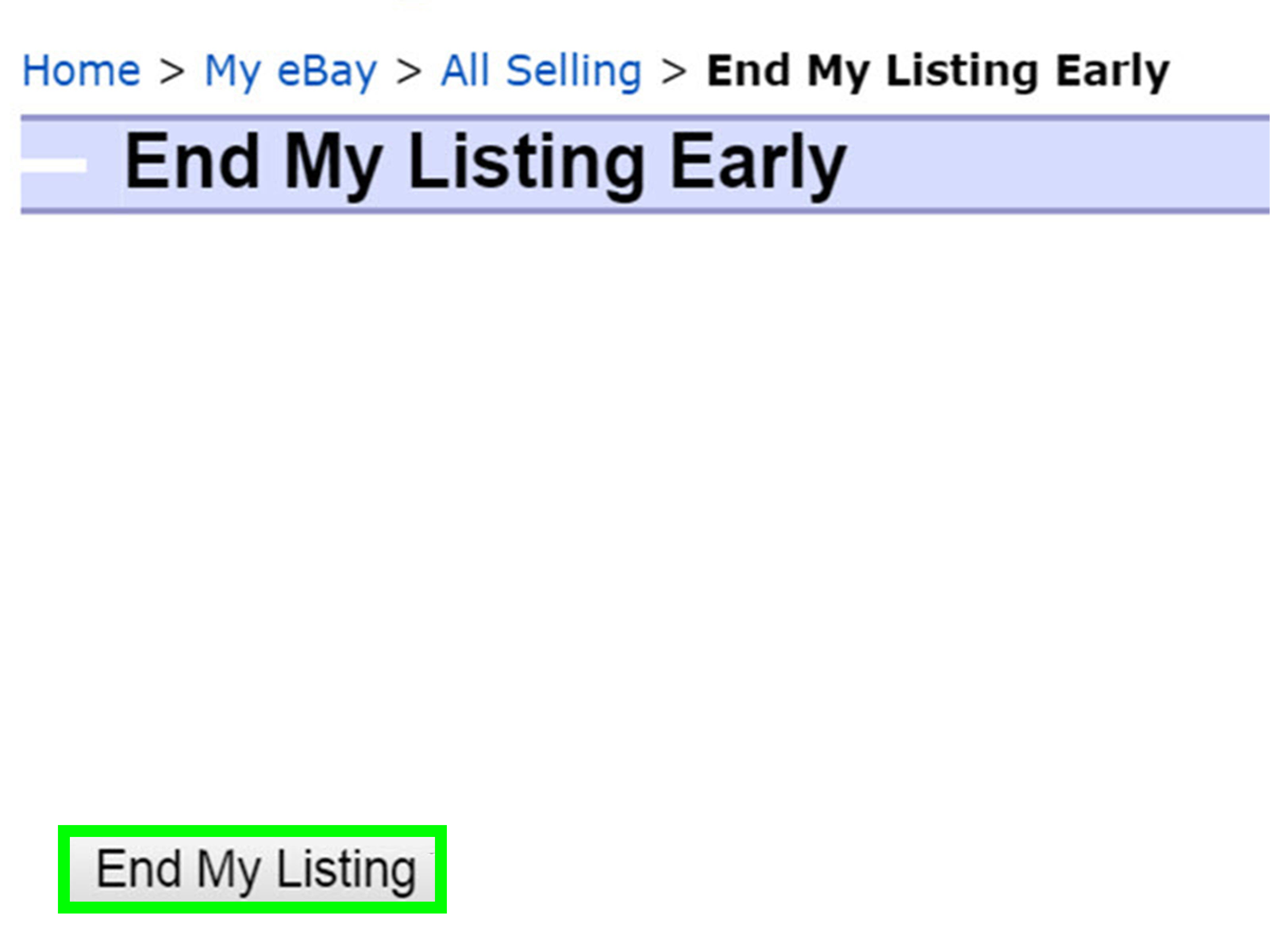
Step 7: Choose “End Listing” or “End My Listing Early”
Now click the option to end the listing. Depending on the interface, it may appear as End listing, End my listing early, or inside a More Actions menu.
If eBay blocks you here, it is usually because one of the restrictions from Step 4 applies. That does not mean the site is broken. It usually means the listing has bids, the clock is running low, or you need to cancel bids first where permitted.
If you are dealing with promoted listings, remember that stopping promotion is not the same as ending the item listing. You can stop promoting a listing without removing the product itself. That is useful if your real problem is ad spend, not inventory.
Step 8: Choose the Reason for Ending the Listing
eBay will usually ask why you are ending the item. Pick the most accurate reason. Common reasons include:
- Item is no longer available for sale
- There was an error in the listing
- You are concerned about a fraudulent bidder
- The buyer asked to cancel a bid
Be honest here. The reason helps determine what happens next, especially when bids are involved. More importantly, it keeps your seller record aligned with reality. That is helpful if eBay ever reviews account behavior or repeated listing issues.
Step 9: Review the Consequences Before You Confirm
Do not click through this screen like you are accepting a cookie banner at 2 a.m. Read it.
Depending on the listing and its status, ending it may mean:
- You lose the listing’s views, watchers, and sales history
- You may still owe certain listing-related fees
- You may be charged if you end an auction early under certain bid scenarios
- You may need to message bidders or buyers afterward
For fixed-price listings you plan to restock later, it may be better to use eBay’s Out of Stock setting with Good ’Til Canceled listings instead of ending the listing completely. That way, you preserve the item ID and historical momentum instead of starting from zero later.
Step 10: Confirm the Removal and Handle the Aftermath
Once everything looks right, confirm the action. Your item should be removed from active listings.
Then do the grown-up follow-up work:
- Update inventory across your other sales channels
- Message any affected bidder or buyer if needed
- Correct the underlying problem so it does not happen again
- Decide whether to relist, revise, or leave it down permanently
If the listing ended because of bad stock control, consider using SKUs, inventory syncing, or out-of-stock protections. Canceling orders because you cannot ship the item can hurt seller performance, so fixing the root cause matters more than celebrating the click.
When You Should Revise Instead of Remove
Not every flawed listing deserves the dramatic soap-opera ending. Sometimes a quick revision is the better move.
Revise the listing if:
- You used the wrong keywords or title wording
- Your photos are bad but the item is still available
- Your description is incomplete or inaccurate
- Your fixed price needs adjusting
- You want to improve conversion without losing listing history
eBay allows many listing edits, and there is usually no fee to revise unless you add a special listing feature. For sellers trying to improve SEO inside eBay and on search engines, preserving a solid listing can be a smart move.
Common Mistakes Sellers Make When Removing eBay Listings
- Ending too fast: Sellers sometimes end a listing over a typo that could have been revised in five minutes.
- Ignoring the 12-hour auction rule: This is where many “Why can’t I cancel it?” complaints are born.
- Forgetting multi-channel inventory: If you sell on multiple platforms, one stock error can become two unhappy customers.
- Killing a Good ’Til Canceled listing unnecessarily: That can wipe out valuable history and visibility.
- Confusing stopping ads with ending the item: Promoted listings can be turned off without removing the product listing.
- Not thinking about seller performance: Repeated stock mistakes and cancellations can damage account health.
Real-World Experiences Sellers Learn the Hard Way
One of the most common experiences sellers talk about is the “double sale panic.” You list a vintage jacket, camera lens, or limited-run collectible on eBay and another marketplace at the same time. Everything looks fine until both platforms decide, apparently for sport, to attract a buyer on the same day. Suddenly you are speed-running a lesson in inventory control. The seller who removes the eBay listing quickly may avoid a cancellation. The seller who notices too late may end up apologizing, refunding, and watching account metrics wobble like a shopping cart with one bad wheel.
Another common story starts with a small listing error that did not feel small later. A seller types the wrong model number, selects the wrong condition, or forgets to mention a defect in the description. At first the temptation is to yank the listing immediately and pretend it never happened. But experienced sellers usually learn that revising is often the better move when the item is still available. Why? Because a mature listing can carry useful engagement, views, and sales history. In other words, sometimes the smartest fix is a scalpel, not a wrecking ball.
Then there is the auction problem. Newer sellers often assume they can remove an auction the same way they can end a fixed-price listing. That confidence usually lasts right up until there are bids and the clock is under 12 hours. At that point, eBay gets much less flexible, because buyers are actively participating in a live process. Sellers who have been around a while learn to check bid status early, not at the dramatic final hour when the listing has already become legally, emotionally, and spiritually expensive.
Some sellers also discover that removing listings too often can reveal a deeper business issue. It may point to sloppy sourcing, bad SKU habits, weak stock tracking, or scattered workflows across eBay, Shopify, Mercari, Facebook Marketplace, and a spreadsheet named something heroic like FINAL-INVENTORY-REAL-v12. When listing removal becomes routine instead of occasional, smart sellers stop blaming the platform and start building a system.
There is also a psychological side to this topic. Sellers sometimes remove a listing because it is not selling fast enough. That is usually the wrong reason. A slow listing may need better photos, a sharper title, more accurate item specifics, or a price adjustment. Ending it too soon can erase progress instead of solving the problem. Seasoned sellers often learn patience the hard way: after relisting the same item three times, they realize the issue was not timing. It was the terrible first photo taken under what looked like witness-protection lighting.
The best experience-based lesson is simple: remove a listing when you truly must, revise when you can, and build your workflow so “emergency removal” stays an exception. eBay rewards sellers who are organized, transparent, and realistic. Also, it rewards those who know where the End Listing button is and when not to touch it like it is a red movie-prop launch switch.
Final Thoughts
Learning how to remove an item from eBay is not just about clicking an option in Seller Hub. It is about understanding how eBay listings work, how auction rules differ from fixed-price listings, and how to protect your seller performance while keeping buyers informed.
The short version is this: if the item is gone, damaged, duplicated, or listed in error, remove it properly. If the listing is salvageable, revise it instead. If you may restock later, consider Good ’Til Canceled with an out-of-stock strategy. And if an auction already has bids and the end time is close, check the rules before trying to perform a disappearing act.
Handle the removal carefully, and your eBay store stays clean, credible, and much less likely to surprise you with the digital equivalent of a fire alarm.