If you still call it Twitter, you are not alone. The bird may have flown off into the sunset and come back wearing an X-shaped nametag, but millions of people still say “Twitter” when they mean the same scrolling circus of memes, breaking news, sports reactions, celebrity drama, and the occasional photo you actually want to keep.
Maybe you found a stunning travel shot, a funny reaction image, a useful infographic, or a picture you posted years ago and suddenly need again. Whatever the reason, the good news is that downloading pictures from Twitter is usually pretty simple. The better news is that you do not need to wander into the internet’s sketchiest corners to do it.
This guide walks through three clean, practical ways to download pictures from Twitter, whether you are on a phone, a laptop, or trying to grab your own images in bulk. Along the way, you will also learn what to do when the obvious save option disappears, why some downloaded images look worse than expected, and how to avoid turning a quick photo save into a full-blown tech support saga.
Note: This article focuses on legitimate device and browser tools, plus your own X account archive. In other words, helpful methods, not shady magic tricks in a trench coat.
Why Download Pictures from Twitter in the First Place?
People save images from Twitter for all kinds of perfectly normal reasons. You may want to keep a reference image for a project, save your own content before reorganizing an account, archive a visual thread, or simply hold onto a photo before it vanishes into the social media void. Twitter moves fast. One minute the picture is everywhere, and the next minute it is buried under thirty-seven hot takes about something unrelated.
Saving an image also makes sense when you want offline access. Maybe you are traveling, building a mood board, collecting screenshots for a presentation, or preserving your own posts. If the image matters, downloading it beats hoping you will remember the exact post six months later. Spoiler alert: you will not.
Method 1: Download Twitter Pictures Directly on Mobile
This is the fastest method for most people because it uses the built-in tools on your phone. No extra software, no browser extension, no dramatic sighing required.
How to Save Twitter Pictures on iPhone or iPad
- Open the Twitter or X post with the image you want.
- Tap the picture so it opens larger.
- Touch and hold the image.
- Choose the option to save or share the image if it appears.
- Check the Photos app for the saved image, or the Files app if you saved it as a downloaded file.
On Apple devices, this usually feels wonderfully easy when it works. Touch, hold, save, done. You feel like a productivity wizard. Then once in a while, you do the exact same thing and nothing happens. That is usually not you being cursed. It is often the way the image is being rendered in the browser or app.
If the image does not save on the first try, open it full screen first. A thumbnail view can sometimes behave differently from the actual full image. And if you saved a file but cannot find it, check the Downloads folder in the Files app before assuming it disappeared into another dimension.
How to Save Twitter Pictures on Android
- Open the tweet or post that contains the image.
- Tap the image to open it larger.
- Touch and hold the picture.
- Select Download image or Save image, depending on your browser or device.
- Look in your Downloads folder or Gallery app.
Android is often very straightforward here, especially in Chrome. Long-pressing an image is the classic move, and it still gets the job done. If the image saves but you cannot find it, open your file manager or the browser’s downloads history. Sometimes the image is sitting quietly in Downloads while you are accusing your phone of betrayal.
Best use case for Method 1: You want one or two images quickly, and you are already on your phone.
Method 2: Download Twitter Pictures on Desktop
If you are on a computer, downloading images from Twitter is usually even easier. Desktop browsers offer more precise save options, better file organization, and fewer moments where your thumb covers the thing you are trying to tap.
How to Save Images from Twitter in Chrome or Edge
- Open the Twitter post with the image.
- Click the image so it opens at a larger size.
- Right-click the image.
- Select Save Image As or the browser’s similar save option.
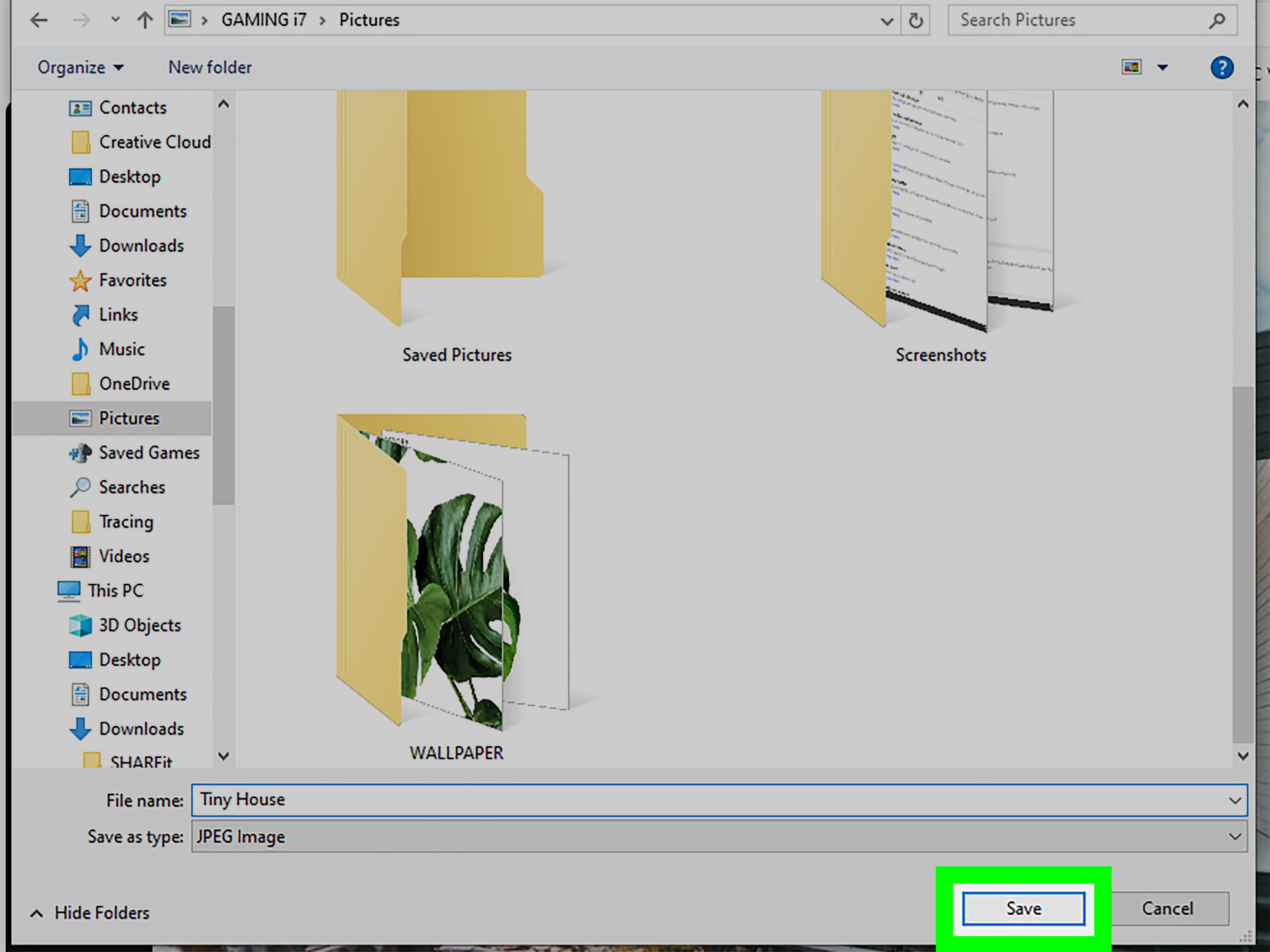
- Choose your folder and save the file.
This is the cleanest desktop method for downloading Twitter photos. It is fast, familiar, and works well when the image is actually available as an image file in the page view. If you are using a Mac in Safari, the steps are almost the same, except you will likely Control-click instead of right-clicking.
How to Save Images from Twitter in Safari on Mac
- Open the image on Twitter in Safari.
- Control-click the image.
- Choose Save Image to Downloads, Save Image As, or a similar option.
- Open your Downloads folder or Photos app if you sent it there.
Safari deserves a polite round of applause here. It often gives you a couple of clear choices instead of turning a simple save into a puzzle. That said, some web images cannot be saved directly, especially if the page is serving them in a more complicated format.
When Right-Click Does Not Work
Sometimes the right-click menu will not show the option you want. This does not always mean the image is impossible to download. It usually means the image is embedded or layered in a way your browser is not exposing cleanly.
Try these fixes:
- Open the image at full size before saving it.
- Refresh the page and try again.
- Open the tweet in another browser.
- Use the browser’s download or screenshot tools if needed.
- As a more advanced fallback, inspect the page element, open the direct image URL in a new tab, and then save it.
That last option sounds more dramatic than it is. It is basically the internet version of moving a chair so you can reach the cookie jar. You are not hacking anything. You are just locating the actual image file when the page is being unhelpful.
Best use case for Method 2: You want the cleanest desktop workflow, better control over filenames, and easier access to downloaded files.
Method 3: Download Your Own Twitter Pictures with Your X Archive
If you want to download your own pictures from Twitter, especially older ones, the smartest method is often not manual saving at all. It is requesting your account archive from X.
This method is especially useful when:
- You want your old photos in bulk
- You are backing up your content
- You do not feel like manually opening and saving dozens of posts one by one
- You would rather avoid repetitive clicking until your soul leaves your body
How to Download Your Twitter Archive
- Log in to your X account.
- Go to Settings and privacy.
- Open Your account.
- Choose the option to Download an archive of your data.
- Confirm your password and request the archive.
- Wait for X to prepare the file.
- Download the archive when it is ready.
The archive is the grown-up option. It is less instant, but it is far better if your goal is preservation rather than saving one pretty picture you found while procrastinating. You get a broader backup of your account data, which can be useful for old image posts you forgot even existed.
This is also the method that feels least chaotic. Instead of playing detective across old posts, you are using the platform’s official data export tool. Very civilized. Almost suspiciously civilized.
Best use case for Method 3: You want to back up your own Twitter images or recover older media efficiently.
What About Browser Extensions?
Browser extensions can help when you need to download multiple images from a page or when the standard save method is being stubborn. There are image downloader extensions in both the Chrome Web Store and Firefox add-on ecosystem that scan the current page and list image files for quick saving.
That sounds convenient, and sometimes it is. But there is a catch. Some extensions only capture images that are currently loaded on the page, and some may grab thumbnails instead of the full-resolution version. In other words, they can be useful, but they are not always the magic “download everything perfectly” button they claim to be.
If you use an extension, treat it like a helpful assistant, not a flawless genius. Double-check file size, resolution, and image quality before you assume you got the real thing.
Common Problems When Downloading Pictures from Twitter
The Image Saves as a Smaller File Than Expected
This often happens when you saved a preview image or a thumbnail rather than the full image. Open the image directly, enlarge it, then save again. Bulk download tools can be especially guilty of this.
You Cannot Find the Saved Image
Check your device’s Downloads folder, photo library, or browser download history. The image is often saved correctly, just not where you expected.
The Save Option Is Missing
Try another browser, open the image in a new tab, or use the inspect-element method to locate the image file. On Firefox, the built-in screenshot tool can also help as a fallback when direct saving is messy.
The Account Is Protected
If a Twitter account is protected, access to its media is limited to approved followers. If you cannot properly view the image, you will not have a normal download path either. Social media still has doors, even if they are digital.
Download Responsibly: A Quick Reality Check
Just because you can save an image does not automatically mean you can repost it, sell it, turn it into merch, or pretend it mysteriously appeared in your hard drive like a woodland gift. Original photographs are generally protected by copyright, and that matters whether the image lives in a gallery, a portfolio, or a tweet.
The safest rule is simple: downloading for personal reference is one thing, but reusing someone else’s image publicly or commercially is a different issue. If you plan to publish, repost, edit, or monetize the photo, make sure you have permission or a clear legal basis to use it.
Real-World Experiences with Downloading Pictures from Twitter
In real life, downloading pictures from Twitter is rarely hard, but it is often just annoying enough to make people question their devices, their browsers, and occasionally their entire relationship with technology. Most people do not run into one giant problem. They run into five small ones in a row. That is what makes the experience memorable.
A very common experience starts with total confidence. You see the image, you click it, you right-click, and then suddenly the menu does not show the option you expected. Now you are squinting at the screen like it personally offended you. You try again. Same result. You open the image in a new tab, and magically the save option appears. At that point, you are relieved, but also slightly insulted that the solution was “do the exact same thing, but in a slightly different place.”
Phone users have their own version of this comedy. On one day, a long-press saves the image immediately. On another day, the same gesture brings up a different menu, or nothing useful happens at all. Usually the difference is whether the image was fully opened, whether you were in the app or the browser, or whether the device decided this was a perfect moment to behave like a mystery novel. Once people learn to open the picture fully first, the success rate usually improves a lot.
Another very normal experience is thinking the image did not save, when it actually did. This is especially common on iPhone and iPad, where some files land in the Files app while others appear in Photos. Android users run into a similar issue when the image saves to Downloads instead of showing up immediately in the gallery. So the problem is not always the download. Sometimes it is just a game of hide-and-seek with your own file system.
People who download images for work, school, research, or content planning also tend to notice a different frustration: file quality. You think you saved the full image, then later you realize you grabbed a preview version that looks fine on a phone but not in a slide deck or design mockup. That is why experienced users often check resolution early. It saves a lot of pain later, especially when deadlines are involved and caffeine is already doing most of the project management.
Then there is the archive experience, which feels completely different. It is less instant but more satisfying. Instead of hunting down old posts one by one, you request your data, wait a bit, and get a more organized backup of your own content. People who use this method usually wish they had done it sooner, especially after years of posting photos they assumed would always be easy to find.
The biggest lesson from all of these experiences is simple: downloading pictures from Twitter is easy once you know which tool fits the situation. Single image on mobile? Long-press it. Clean desktop save? Right-click it. Need your own media in bulk? Request the archive. Most frustration comes from using the wrong method for the moment, not from the platform being impossible.
Conclusion
If you want to download pictures from Twitter, you have three reliable paths. On mobile, the built-in save or download options are the fastest for one-off images. On desktop, right-click or control-click remains the easiest and most organized method. And if the pictures are your own, your X archive is the smartest route for a larger backup.
The trick is not finding a secret loophole. It is choosing the method that matches your goal. Save one image fast, save several images neatly, or back up your own history properly. Once you know the difference, the process gets much smoother and far less “why is this website making me work for it?”