Few computer problems feel as silly and irritating as an off-screen window. The app is open. You can see its icon on the taskbar. You may even hear its notifications. But the actual window? Gone. It has wandered beyond the visible edge of your monitor like it is taking a tiny digital vacation without approval.
The good news is that you usually do not need to restart your PC, reinstall the app, or perform a dramatic speech over your keyboard. Windows includes several built-in ways to move an off-screen window back into view, whether you are using Windows 10, Windows 11, a laptop, a desktop, a docking station, or a multi-monitor setup that occasionally forgets who is in charge.
This guide explains 4 ways to bring an off screen window back on Windows, using practical shortcuts, taskbar tricks, display settings, and simple recovery habits. The methods are written for normal people, not only IT admins who speak fluent Control Panel. Let’s rescue that missing window and bring it home.
Why Windows Sometimes Opens a Window Off Screen
An off-screen window usually happens because Windows remembers a previous window position that no longer makes sense. Maybe you used a second monitor yesterday, unplugged it today, and opened the same app again. The app may still think the second monitor exists. Classic “I left my keys in a house I no longer live in” behavior.
Other common causes include changing screen resolution, switching between laptop and external display modes, connecting through Remote Desktop, using a projector, waking a PC from sleep, or moving between monitors with different scaling settings. Some apps also save their own window position separately, which means they may reopen exactly where they were last closedeven if that place is now somewhere in the invisible wilderness.
Before you panic, confirm that the program is actually running. Look for its icon on the taskbar, press Alt + Tab to cycle through open apps, or use Ctrl + Shift + Esc to open Task Manager and check whether the app is active. Once you know the window exists, the following methods can pull it back onto the visible desktop.
Method 1: Use Alt + Space, Then Move the Window with Arrow Keys
This is the classic Windows rescue move. It works especially well when a window is completely off screen and you cannot grab its title bar with the mouse. The shortcut opens the active window’s system menu, where Windows keeps old-school options like Restore, Move, Size, Minimize, Maximize, and Close.
Steps to bring the off-screen window back
- Click the app’s icon on the taskbar, or press Alt + Tab until the missing window is selected.
- Press Alt + Spacebar. This opens the shortcut menu for the active window.
- Press M to choose Move.
- Press any arrow key once. This “attaches” the hidden window to keyboard movement.
- Move your mouse, or keep pressing the arrow keys, until the window appears on screen.
- Press Enter to place the window where you want it.
Here is the important part: after pressing M, do not click randomly around the desktop. Use an arrow key first. That tiny keyboard tap tells Windows, “Yes, I really do want to move the active window.” After that, moving the mouse can often pull the window back very quickly.
This method is useful for older desktop programs, file dialogs, utility windows, settings panels, and stubborn apps that open in the exact same impossible position every time. It may not work perfectly with every modern app, especially if the window is maximized or does not expose the traditional Move command. If the menu appears but Move is unavailable, choose Restore first, then repeat the shortcut.
Best example
Suppose you used Microsoft Excel on a second monitor at work, then opened the same file at home on your laptop. Excel appears on the taskbar, but nothing shows on the screen. Select Excel with Alt + Tab, press Alt + Spacebar, press M, tap the left or right arrow key, and move the mouse. In many cases, the window slides back into view like a sheepish cat pretending it was never missing.
Method 2: Use Windows Key + Arrow Shortcuts to Snap the Window Back
If the first method feels too much like a secret handshake from 1998, try Windows Snap shortcuts. Windows lets you snap the active window to the left, right, top, or bottom of the screen with the keyboard. This can force a hidden window back into a visible position.
Steps for Windows Snap recovery
- Select the missing app from the taskbar or with Alt + Tab.
- Press Windows Key + Left Arrow.
- If nothing appears, press Windows Key + Right Arrow.
- Repeat the shortcut a few times to cycle the window through possible snap positions.
- Use Windows Key + Up Arrow to maximize it once it appears.
This method works because Snap Assist changes the window’s layout position instead of asking you to drag it manually. If the app is off the right side of your display, Windows Key + Left Arrow may bring it back. If it is hiding on a disconnected monitor, repeated left or right snaps can sometimes cycle it onto your current screen.
For multi-monitor setups, try Windows Key + Shift + Left Arrow or Windows Key + Shift + Right Arrow. These shortcuts move the active window between monitors. If Windows still believes an external display is attached, this shortcut can help pull the app from the “phantom monitor” to the one you can actually see.
When this method works best
Use this method when the app is active but invisible, especially after disconnecting a second monitor, changing display arrangement, docking or undocking a laptop, or switching from a projector back to a single screen. It is fast, clean, and does not require opening Settings. It is also easy to remember: choose the missing app, then shove it left or right with the Windows key.
There is one small catch. If the app opens as a tiny utility window, a modal dialog, or a non-standard panel, Snap shortcuts may not affect it. In that case, return to Method 1 or try the taskbar method below.
Method 3: Use the Taskbar Menu, Task View, or Cascade Windows
The Windows taskbar is more than a row of app icons. It can also help you recover a lost window, especially if your mouse can interact with the app preview even though the full window is off screen.
Option A: Shift + right-click the taskbar icon
- Hold Shift.
- Right-click the missing app’s icon on the taskbar.
- Select Move from the menu.
- Use the arrow keys to bring the window back.
- Press Enter when it is visible.
Holding Shift is the trick. A normal right-click often shows a jump list with recent files or pinned tasks. Shift + right-click is more likely to show the traditional window menu with Move, Restore, and Maximize.
Option B: Use Task View
On Windows 10 and Windows 11, press Windows Key + Tab to open Task View. This displays open windows as thumbnails. If you can see the missing app’s thumbnail, select it. In some cases, the window becomes easier to snap, maximize, or move after you bring it into focus from Task View.
Task View is also useful when the window is on a different virtual desktop. If you accidentally opened the app on another desktop, it may not be off screen at allit may simply be in another workspace. Windows Key + Tab lets you check that quickly without feeling like your computer is gaslighting you.
Option C: Cascade windows on Windows 10
On Windows 10, you may be able to right-click an empty area of the taskbar and choose Cascade windows. This arranges open windows in a visible stack, often pulling missing windows back to the main screen. This option is not generally available in the same way on Windows 11, so Windows 11 users should rely more on Task View, Snap shortcuts, and display settings.
The taskbar method is excellent when you prefer using the mouse but still need keyboard precision. It is also helpful when the window is partly visible but the title bar is off screen, making it impossible to drag normally.
Method 4: Fix Display Settings and Multiple-Monitor Layout
If windows keep disappearing, the problem may not be the app. It may be your display configuration. Windows might think a monitor is arranged to the left when it is physically on the right. Or it may remember window positions from a monitor you disconnected. In that case, you should correct the display setup instead of chasing the same runaway window every day.
Check your display mode with Windows Key + P
Press Windows Key + P to open projection options. You will usually see choices such as PC screen only, Duplicate, Extend, and Second screen only.
If you are using only one monitor, choose PC screen only. If you are using two monitors, choose Extend. If the wrong mode is selected, windows may appear to open somewhere you cannot see.
Rearrange monitors in Display settings
- Right-click the desktop and choose Display settings.
- Look for the numbered monitor boxes.
- Click Identify to see which physical monitor matches each number.
- Drag the boxes so they match the real layout of your desk.
- Select your main display if needed.
- Click Apply.
This matters because Windows uses the monitor arrangement to decide where windows go. If your laptop screen is physically below your monitor but Windows thinks it is to the left, dragging and snapping can feel strangely wrong. Fixing the layout can prevent windows from disappearing into awkward corners.
Use “Remember window locations” carefully
Windows includes multiple-display options that can remember window locations based on monitor connection. This is convenient when you regularly dock and undock a laptop. When it works, your windows return to the correct monitor like well-trained office pets. When it does not, an app may reopen off screen because Windows remembered a layout that no longer applies.
If you frequently switch between a laptop-only setup and a multi-monitor desk, review these settings under Settings > System > Display > Multiple displays. You can experiment with the option to remember window locations and the option to minimize windows when a monitor is disconnected. The best setting depends on how often you change workspaces.
Extra Fixes When the Window Still Will Not Return
Most off-screen windows come back with the four methods above. But some apps are stubborn. They cling to their invisible coordinates like they paid rent there. If nothing works, try these additional fixes.
Maximize the window from the taskbar
Hover over the app icon on the taskbar. When the thumbnail preview appears, right-click the preview and choose Maximize if available. A maximized window usually fills the current screen, which can override a bad saved position.
Close and reopen the app after moving it
Once you recover the window, move it to the center of your screen. Then close the app normally. Many programs save their last window position when they close. If you close it while it is visible, it may reopen correctly next time.
Temporarily change display resolution or scaling
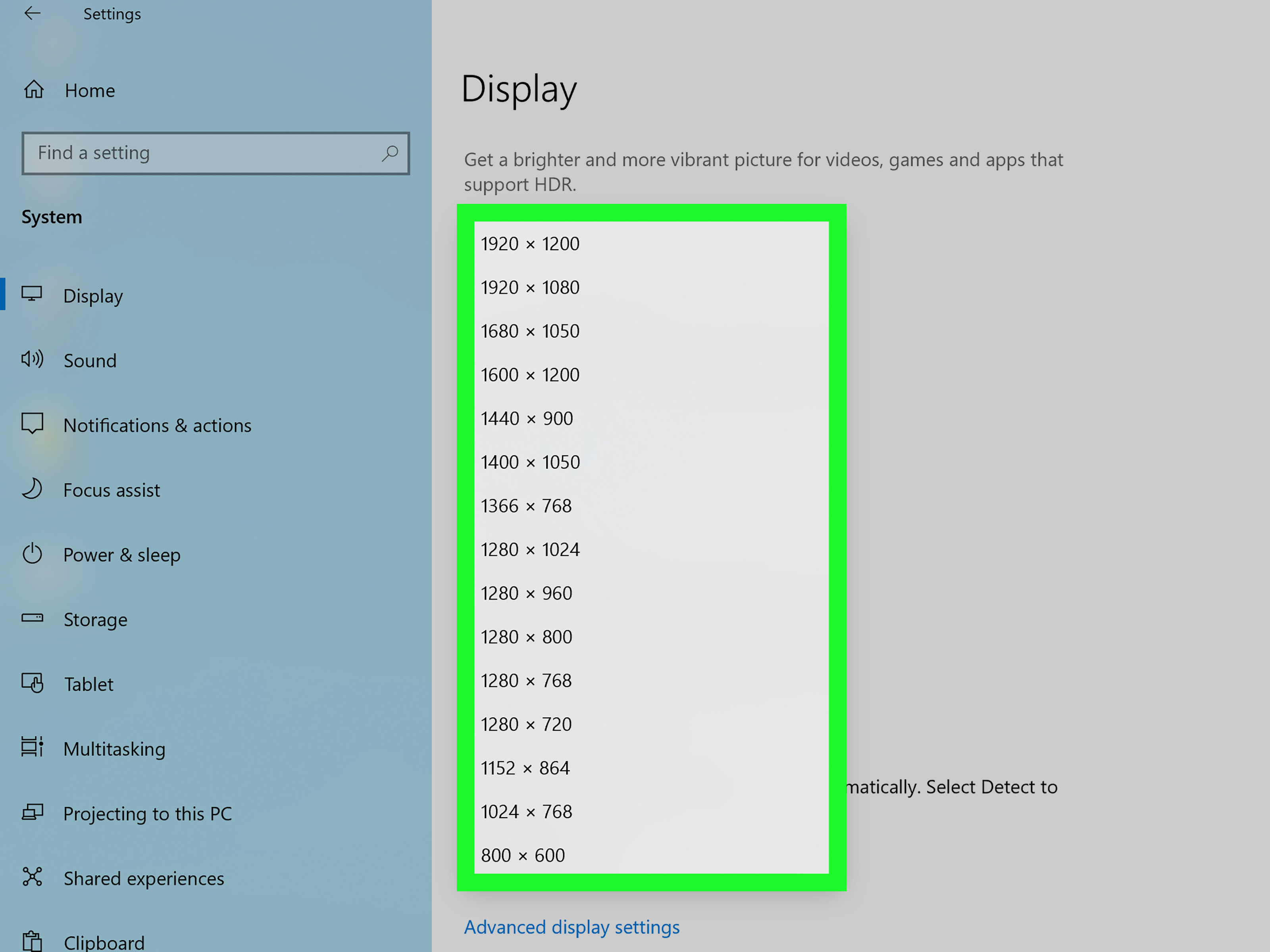
Changing resolution or scaling can force Windows to recalculate window positions. Go to Settings > System > Display, change the resolution temporarily, apply it, then switch back to the recommended setting. This is not the first fix to try, but it can help with apps that refuse to move.
Restart Windows Explorer
If the taskbar or window previews seem broken, open Task Manager, find Windows Explorer, and choose Restart. This refreshes the shell without fully rebooting the PC. Save important work first, because a refresh can close some temporary interface elements.
Reset the app’s window layout
Some professional apps, creative tools, IDEs, and utilities store window positions in their own settings. Look for options such as Reset layout, Reset workspace, Default window layout, or Safe mode. This is common in design software, coding tools, video editors, and apps with floating panels.
Which Method Should You Try First?
If you want the fastest path, use this order:
- Windows Key + Left/Right Arrow for a quick Snap recovery.
- Alt + Spacebar, then M for a fully invisible window.
- Shift + right-click taskbar icon, then Move if you prefer the taskbar menu.
- Display settings if the problem keeps happening after monitor changes.
This order solves most cases without digging too deeply into settings. The first two methods are especially useful because they work even when your mouse cannot reach the window. Remember: the window does not need to be visible; it only needs to be active.
How to Prevent Off-Screen Windows in the Future
The best fix is not having to fix the same thing twice. If you often use external monitors, close important apps before unplugging the display. This gives apps a better chance of saving their position on the screen that remains connected.
Also, keep your display layout accurate. If your monitor is on the right side of your laptop, make sure Windows shows it on the right side in Display settings. A mismatched monitor map can cause strange mouse movement, awkward snapping, and windows that appear to vanish.
Use the recommended resolution and scaling for each display whenever possible. Extreme scaling differences between monitors can occasionally make apps appear partly off screen or reopen in odd places. For example, a 4K monitor set to 150% scaling paired with a 1080p monitor at 100% scaling can be perfectly usable, but some older apps may not handle the transition gracefully.
Finally, update apps that repeatedly open off screen. If one program causes the problem again and again while everything else behaves, the issue may be in the app’s own window-position logic. Updating, resetting its layout, or clearing its saved preferences may solve the problem permanently.
Real-World Experience: What Actually Works Best
In everyday use, the most reliable trick is usually Alt + Spacebar, then M. It feels a little ancient, like discovering a secret passage behind a bookshelf, but it works because the command targets the active window directly. When someone says, “The app is open, but I cannot see it,” this is often the first method worth trying.
The Snap shortcut is faster when you are dealing with normal app windows. Pressing Windows Key + Left Arrow or Windows Key + Right Arrow takes less than a second, and it is easy to teach someone over the phone. It is also less intimidating than explaining the system menu. If the window appears after one or two taps, you look like a computer wizard. Please use this power responsibly.
For laptops that move between home and office, display settings are the real long-term fix. Many people blame the app, but the hidden cause is often a disconnected monitor, a docking station change, or a display arrangement that no longer matches the desk. Once the monitors are correctly arranged and Windows knows which screen is primary, the problem becomes much less frequent.
One common scenario is the “presentation projector problem.” You connect to a projector in a meeting, extend your display, drag PowerPoint or a browser to the projected screen, finish the meeting, disconnect the cable, and later the same window opens somewhere off screen. The app is not broken. It is simply remembering its last location with the confidence of someone using an outdated map.
Another common case happens with remote work. You may use two large monitors at the office, then open the same app later on a laptop at home. Some windows return politely to the laptop screen. Others act like they are still living on Monitor 2. In that moment, Snap shortcuts and Alt + Space become your emergency toolkit.
Dialogs can be trickier than full app windows. Sometimes the main app is visible, but a save box, login prompt, print dialog, or settings panel opens off screen. This is extra annoying because the main app may appear frozen while it waits for you to respond to a dialog you cannot see. Use Alt + Tab carefully to find the hidden dialog, then try Alt + Spacebar and M. If that fails, try Esc to close the dialog and reopen it after adjusting display settings.
Creative and technical apps can be especially dramatic. Video editors, coding tools, CAD software, audio workstations, and design programs often have floating panels. A color picker, properties panel, timeline, or preview window may drift off screen after a monitor change. In these apps, look for a workspace reset option. It may be called Reset Workspace, Default Layout, Window Layout, or something similar. When the app has many panels, resetting the workspace can be faster than rescuing each window one by one.
The most practical habit is to move recovered windows to the center of the main screen before closing them. This gives the app a sane position to remember. If you recover the window but close it while it is still half off screen, do not be surprised when it reopens half off screen. Computers are very literal. They do not understand “close enough.”
If you support family members, coworkers, or clients, teach them two shortcuts: Windows Key + Arrow and Alt + Spacebar, M. Those two alone solve a surprising number of “my program disappeared” complaints. You do not need to explain every technical detail. Just tell them: select the app first, then use the shortcut. The active window is the one Windows will move.
There is also a psychological benefit to knowing these fixes. An off-screen window looks like a serious problem, but it is usually just a positioning issue. Once you know the recovery methods, the situation becomes less mysterious. The app is not gone. Your work is probably not lost. The window is just standing slightly outside the camera frame, waiting for someone to call it back.
Conclusion
An off-screen window on Windows can look confusing, but the fix is usually simple. Start with Windows Key + Arrow shortcuts to snap the active window back into view. If that fails, use Alt + Spacebar, press M, and move the window with arrow keys or your mouse. For stubborn cases, try the taskbar menu, Task View, Cascade windows on Windows 10, or a quick review of your display settings.
The key is to make the hidden app active first. Once Windows knows which window you want, you can usually move, snap, maximize, or relocate it without restarting. And if the problem keeps returning, check your monitor arrangement, projection mode, scaling, and app layout settings. Your missing window is not trying to ruin your day. It just needs better directions.