If your Apple Watch keeps locking when you’re clearly still wearing it, welcome to one of the most annoying tiny-tech problems on Earth. It’s right up there with “my earbuds are connected but somehow not connected” and “why is my Wi-Fi acting like it pays rent somewhere else.”
The good news is that an Apple Watch that keeps locking usually isn’t broken beyond hope. In most cases, the culprit is something surprisingly fixable: a loose band, dirty sensors, a software hiccup, Water Lock, an outdated watchOS version, or settings that are working a little too hard in the name of security.
This guide breaks down 8 practical solutions to stop your Apple Watch from locking over and over again. We’ll also explain why it happens, when you should change settings, and when it’s smarter to reset the watch and start fresh.
Why Your Apple Watch Keeps Locking in the First Place
Apple Watch uses Wrist Detection to figure out whether it’s still on your wrist. When that feature thinks the watch is no longer making proper skin contact, it locks automatically. That’s a security feature, not a bug. It protects your messages, Apple Pay, health data, and other personal info.
So if your watch keeps locking while you’re still wearing it, one of two things is usually happening:
- The watch can’t maintain good contact with your skin.
- The watch has a software or settings problem that’s causing false lock behavior.
Common triggers include a band that’s too loose, sweat or lotion on the sensors, debris around the back crystal or Digital Crown, third-party bands that don’t fit correctly, Water Lock left on after a swim, watchOS glitches, pairing issues, and in some cases tattoos or skin conditions that interfere with sensor readings.
Solution 1: Tighten the Band and Reposition the Watch
This is the first fix because it’s also the most common one. If the watch shifts around on your wrist, the back sensors can briefly lose contact with your skin. The watch sees that gap and says, “Well, guess I’m off-duty now,” then locks.
What to do
- Wear the watch above your wrist bone, not directly on top of it.
- Make sure it feels snug but comfortable.
- If the watch slides when you move your arm, tighten the band one notch.
- During workouts, tighten it a bit more, then loosen it afterward.
Apple’s own fit guidance is clear: the back of the watch needs solid skin contact for Wrist Detect, heart rate sensing, and haptic features to work properly. If you shake your wrist and the back of the watch lifts off your skin, it’s too loose.
This is also where some third-party bands become accidental villains. A cheap band that stretches too much or doesn’t sit flat can make your Apple Watch act like it’s trying to escape your arm.
Solution 2: Clean the Back Sensors, Band, and Digital Crown
Even if your band fits well, the watch can still misread skin contact when the back crystal is dirty. Sweat, sunscreen, lotion, dust, soap residue, and plain old wrist grime can all interfere with sensor performance.
How to clean it properly
- Turn off the watch and remove it from the charger.
- Wipe the back of the watch with a nonabrasive, lint-free cloth.
- If needed, lightly dampen the cloth with fresh water.
- Dry the watch completely, especially the back crystal.
- Clean the band too, because trapped sweat and lotion can affect comfort and fit.
If the Digital Crown feels sticky or stiff, Apple recommends rinsing it briefly under lightly running warm fresh water while turning and pressing the crown, then drying it thoroughly. No soap. No harsh cleaners. No “I found this random chemical under the sink so let’s experiment.”
Also, if your skin gets irritated, the problem may be the band fit itself. Too tight can cause irritation; too loose can cause rubbing. Either way, an uncomfortable watch rarely behaves like a happy watch.
Solution 3: Turn On “Unlock with iPhone”
If your Apple Watch locks now and then but otherwise works fine, this setting can make your life much easier. When Unlock with iPhone is enabled, unlocking your iPhone while it’s nearby can also unlock your watch.
How to enable it
- Open the Watch app on your iPhone.
- Tap My Watch.
- Tap Passcode.
- Turn on Unlock with iPhone.
This doesn’t stop the watch from locking if it thinks it lost contact with your wrist, but it does reduce how often you have to manually tap in a passcode like you’re entering a nuclear launch code on a stamp-sized screen.
Solution 4: Check Wrist Detection and Passcode Settings
Now we get to the setting that sits at the center of the drama: Wrist Detection.
By default, Wrist Detection is turned on, which means the watch locks automatically when it thinks you’re no longer wearing it. That’s great for security, but terrible when sensor contact is unreliable.
How to review it
- On your Apple Watch, open Settings.
- Tap Passcode.
- Check whether Wrist Detection is on.
If your Apple Watch keeps locking and nothing else works, you can try turning Wrist Detection off as a test. If the locking stops immediately, you’ve confirmed the issue is related to fit, sensor contact, or how the watch reads your skin.
Important trade-off: turning off Wrist Detection also affects some features, including heart rate tracking behavior, Activity measurements, automatic locking and unlocking, and Apple Pay convenience. So this is best treated as a troubleshooting step or a last-resort workaround, not your forever solution unless you’re comfortable with the compromise.
Solution 5: Make Sure Water Lock Isn’t the Problem
Sometimes people say their Apple Watch is “locking,” but what’s really happening is that Water Lock is still active. When Water Lock is on, the display won’t respond normally to touch. It can feel like the watch has frozen, locked, or stopped cooperating out of pure spite.
How to turn off Water Lock
- Press and hold the Digital Crown until the watch says it’s unlocked.
- If you’re on an older watchOS version, rotating the crown may be the step used instead.
Water Lock turns on automatically during swimming workouts, and it can also be turned on manually from Control Center. If your watch started acting weird right after the pool, shower, surf session, or an overly enthusiastic sink battle, check this first.
And yes, Water Lock is useful. It prevents accidental taps in water. But if you forget to turn it off, the watch feels less like a smartwatch and more like a tiny passive-aggressive paperweight.
Solution 6: Restart the Watch and, If Needed, Force Restart
Classic advice? Yes. Boring advice? Also yes. Still wildly effective? Absolutely.
A simple restart can clear temporary watchOS glitches, background hiccups, and weird behavior that makes the watch lock unexpectedly.
Try a normal restart first
- Press and hold the side button.
- Use the power-off option.
- Wait a few seconds.
- Turn the watch back on.
If the watch is frozen or still acting up, try a force restart.
How to force restart Apple Watch
- Press and hold the side button and the Digital Crown together for at least 10 seconds.
- Release when the Apple logo appears.
It’s also smart to restart your paired iPhone. Since Apple Watch relies heavily on the iPhone for syncing, authentication, and settings, sometimes the problem is really a cranky relationship issue between the two devices.
Solution 7: Update watchOS and iOS
If your Apple Watch started locking more often after a bug, update delay, or strange sync behavior, software may be the real culprit. Apple continues to push bug fixes and security improvements through watchOS and iOS updates, and outdated software can absolutely cause quirky behavior.
Before updating
- Make sure your Apple Watch is at least 50% charged.
- Keep it on the charger.
- Make sure your iPhone is updated and connected to Wi-Fi.
- Keep the iPhone near the watch.
How to update
- On iPhone, open the Watch app.
- Tap My Watch > General > Software Update.
- Install any available update.
If you’ve been putting off updates because “everything mostly works,” this may be the moment when “mostly” has filed for divorce.
Solution 8: Unpair and Re-Pair the Apple Watch
If none of the earlier fixes work, it’s time for the clean-slate option. Unpairing and pairing the watch again can fix deeper software problems, corrupted settings, and connection issues that survive restarts and updates.
How to unpair it properly
- Keep the Apple Watch and iPhone close together.
- Open the Watch app on your iPhone.
- Tap All Watches.
- Tap the info button next to your watch.
- Tap Unpair Apple Watch.
When you unpair through the iPhone, Apple removes Activation Lock properly and resets the watch for setup again. Afterward, pair it like new and restore from backup if offered.
If the watch becomes disabled because of too many failed passcode attempts, Apple also allows you to erase and reset it, then restore from backup during setup.
Special Cases That Can Make Apple Watch Keep Locking
Tattoos and skin contact issues
Some users with heavily pigmented wrist tattoos report that Apple Watch has trouble detecting skin contact consistently. If the sensor can’t read properly, the watch may keep locking even when the fit seems fine. If this sounds like your situation, try wearing the watch on the other wrist or slightly repositioning it.
Third-party bands
Not all bands are created equal. Some don’t fit properly, some stretch too much, and some can interfere with Wrist Detection performance. If the issue started after a band change, switch back to a known good band and test again.
Persistent screen issues or ghost touches
If the watch is randomly opening menus, freezing, or behaving erratically, the locking problem may be part of a broader display or input issue. Remove any case or accessory that might interfere with the screen, then test again. If strange behavior continues, hardware service may be the next stop.
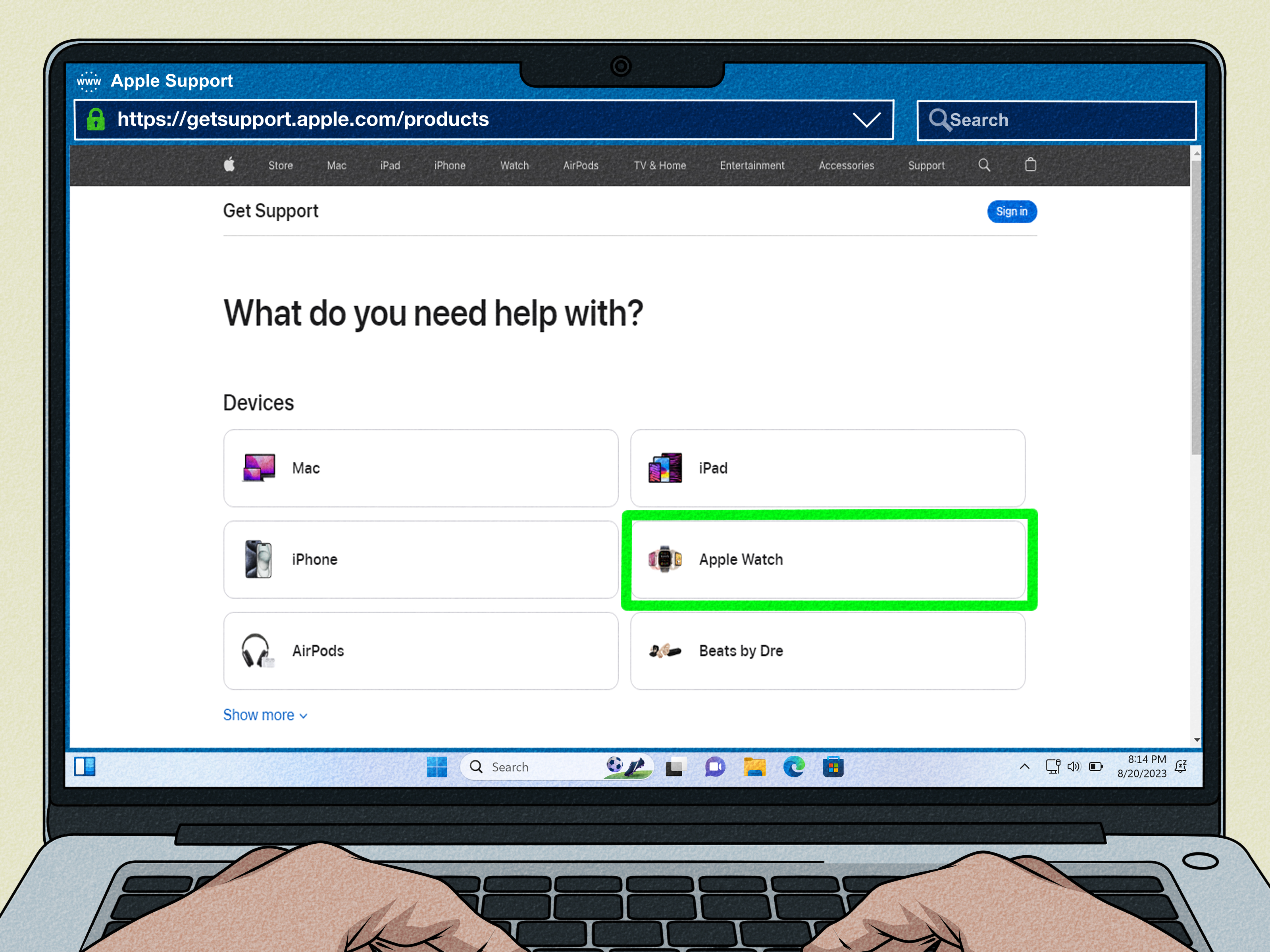
When to Contact Apple Support
You should contact Apple Support or visit an Apple Store if:
- The watch keeps locking after you’ve tried all 8 fixes.
- The screen is glitching, flickering, or triggering random inputs.
- The sensors seem totally unresponsive.
- The watch won’t pair, update, or complete a reset.
- The problem began after impact damage or liquid exposure.
At that point, you’re no longer doing routine troubleshooting. You’re auditioning for unpaid tech support, and Apple should really take it from there.
Final Thoughts
If your Apple Watch keeps locking, don’t panic and don’t assume it’s dying a dramatic electronic death. Most of the time, the issue comes down to fit, cleanliness, settings, or software. Start with the simple fixes: tighten the band, clean the sensors, review Wrist Detection, and disable Water Lock if needed. Then work your way up to restarts, updates, and re-pairing.
In short, your watch probably doesn’t hate you. It just wants better skin contact, a cleaner back sensor, and maybe a software update it has been politely begging for since last month.
Experiences People Commonly Have When Their Apple Watch Keeps Locking
One reason this issue feels so frustrating is that it rarely happens at a convenient time. Most people don’t notice it while calmly sitting still on the couch. They notice it during a workout, while checking a notification in a grocery line, while using Maps on a walk, or when trying to tap a verification code before it disappears into the digital void. The locking feels random, but the pattern is usually there once you look closely.
A common experience is this: the watch works fine during normal daily use, then starts locking during exercise. That usually points to fit. People often loosen the band for comfort, especially in warm weather, and then sweat makes the watch shift more than usual. The watch loses solid skin contact for a second, locks, and suddenly the user is pecking at a passcode while jogging. It is not a glamorous fitness moment.
Another common experience is the “I just changed bands and now this started” scenario. Someone upgrades to a cheaper third-party band online, feels proud of saving money, and then spends the next three days wondering why the watch behaves like it’s having trust issues. In many of those cases, the new band either stretches, sits unevenly, or keeps the watch from resting flat on the wrist. The problem looks like software, but it’s really hardware fit.
Then there’s the post-swim confusion. A user finishes a pool workout, tries to tap the screen, and nothing happens. They assume the watch is frozen or locked, when really Water Lock is still active. Once they press and hold the Digital Crown and hear the little water-eject sounds, everything suddenly works again. That moment usually comes with a mix of relief and mild embarrassment, which is honestly part of the Apple Watch ownership experience.
Some users also describe the issue as getting worse over time rather than appearing all at once. At first, the watch locks once every few days. Then it starts happening every afternoon. Then every workout. Then every time they raise their wrist to check the weather. That gradual pattern often points to buildup on the sensors, skin irritation changing how the watch sits, or a band that has stretched out over months of use.
And for users with tattoos or certain skin-contact challenges, the experience can be extra confusing because the watch appears to fit properly and still misbehaves. In those cases, people often spend far too long blaming settings before discovering that simply switching wrists or adjusting placement slightly can make a real difference.
The biggest lesson from real-world experience is this: when an Apple Watch keeps locking, the problem usually feels mysterious but ends up being surprisingly practical. It’s often not one giant defect. It’s a small chain reaction involving fit, moisture, dirt, software, and everyday habits. Once users test the basics methodically, they usually find the actual culprit much faster than expected.