Want to change your Discord nickname without accidentally renaming your entire online identity? Good news: Discord makes it pretty easy once you know where to click, tap, or type. Whether you want to look professional in a study server, chaotic in a gaming server, or mysteriously cool in a private friend group, a server nickname lets you show up differently in different communities.
This guide explains how to change your Discord nickname on desktop and mobile, how server nicknames are different from usernames and display names, why the option may not appear, and what to do when Discord stubbornly refuses to accept your new name. Think of it as a wardrobe change for your profile, but with fewer laundry consequences.
What Is a Discord Nickname?
A Discord nickname is a server-specific name. That means it changes how your name appears inside one Discord server, but it does not change your global Discord username or your display name everywhere else.
For example, your Discord display name might be Jordan. In a gaming server, your nickname could be CriticalHitJordan. In a class server, it could be Jordan M.. In a private meme server, it could be something like Soup Wizard, because every friend group has its own laws of physics.
Discord Nickname vs. Username vs. Display Name
Before changing anything, it helps to understand the three main names people confuse on Discord:
- Username: Your unique Discord identifier. This is used for account identity, adding friends, and verification.
- Display name: The name people usually see across Discord when no server nickname is set.
- Server nickname: A name used only inside a specific server. It takes priority over your display name within that server.
In plain English: changing your nickname is like wearing a different name tag at a party. Changing your username is like changing your legal Discord passport. One is casual. The other deserves a tiny drumroll.
How to Change Your Discord Nickname on Desktop
The desktop method works in the Discord desktop app and in the browser version. The wording may appear as Edit Server Profile or Edit per-server profile, depending on your app version and interface updates.
Method 1: Change Your Nickname From the Member List
- Open Discord on your computer.
- Select the server where you want to change your nickname.
- Look for the member list on the right side of the server.
- Right-click your name.
- Select Edit Server Profile or Edit per-server profile.
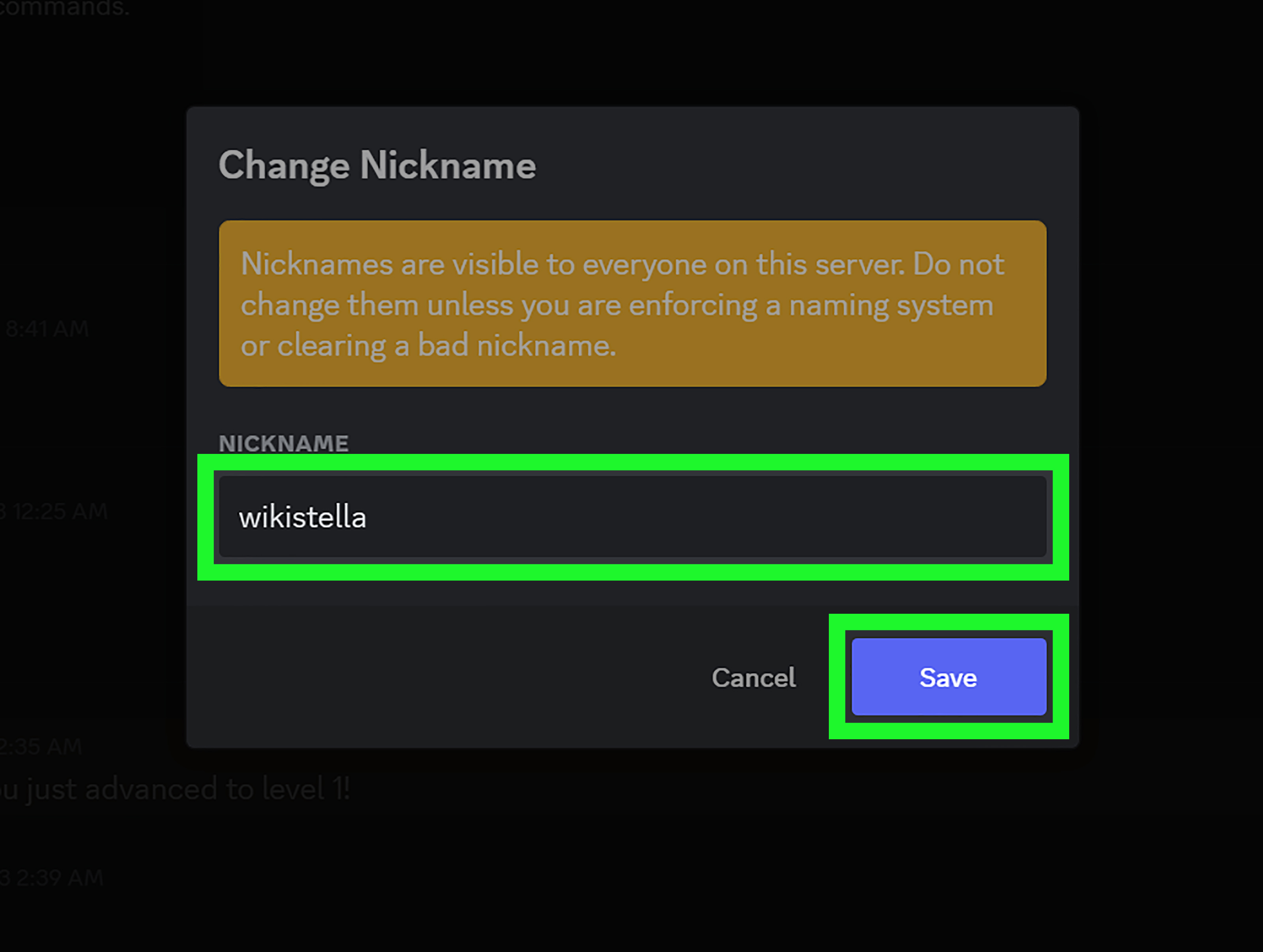
- Find the Nickname field.
- Type your new nickname.
- Click Save Changes or Save.
That is it. Your new nickname should appear in that server immediately or after a quick refresh. If it does not appear right away, switch channels or restart Discord. Sometimes the app needs a polite digital nudge.
Method 2: Change Your Nickname From a Message
If the server is huge and finding your name in the member list feels like searching for one specific noodle in a bowl of ramen, use one of your recent messages instead.
- Go to a channel where you recently sent a message.
- Right-click your avatar or name beside that message.
- Choose Edit Server Profile or Edit per-server profile.
- Enter your new nickname in the Nickname box.
- Click Save.
This method is especially useful in large community servers, school servers, gaming clans, and any place where the member list scroll bar becomes a personality test.
Method 3: Use the /nick Slash Command
Discord also lets you change your server nickname with a quick command, if the server allows it.
For example:
Send the command in a text channel inside the server. If you have permission to change your nickname, Discord should update it. If not, Discord may show a message explaining that you cannot change your nickname in that server.
How to Change Your Discord Nickname on Mobile
You can also change your Discord nickname from the mobile app on iPhone, iPad, and Android. The exact location of buttons may shift slightly as Discord updates the app, but the process usually follows the same path: open the server, open your server profile, edit the nickname, and save.
Method 1: Change Your Nickname From Your Server Profile
- Open the Discord mobile app.
- Tap the server where you want to change your nickname.
- Open the member list or tap your profile from inside the server.
- Tap your name or avatar.
- Select Edit Server Profile, Edit per-server profile, or a similar profile editing option.
- Tap the Nickname field.
- Enter your new nickname.
- Tap Save.
Once saved, your nickname should update for that server. It will not change your name in every Discord server, which is exactly the point. You can be Alex in one server, RaidBossAlex in another, and Definitely Not Alex in the group chat where everyone knows it is absolutely Alex.
Method 2: Use the /nick Command on Mobile
The slash command is often the fastest mobile method because it does not require digging through menus.
- Open the Discord app.
- Go to the server where you want the new nickname.
- Tap a text channel where you can send messages.
- Type
/nick, followed by your new nickname. - Send the command.
Example:
If the server allows nickname changes, the command should work. If it does not, the issue is probably permission-related rather than phone-related.
Why You Cannot Change Your Discord Nickname
If Discord refuses to let you change your nickname, do not immediately blame your phone, your laptop, or Mercury retrograde. The most common reason is server permissions.
You Do Not Have the “Change Nickname” Permission
Discord servers can control whether members may change their own nicknames. If the server owner or admins have disabled the Change Nickname permission for your role, you will not be able to edit your nickname yourself.
In that case, you can ask a server admin or moderator to enable nickname changes or change your nickname for you. Be polite. “Hey, could you help me update my server nickname?” works better than “The app is broken and also society has failed.”
The Server Uses Strict Name Rules
Some servers require real names, gamer tags, team names, class sections, or role-based naming formats. For example, a school server may ask members to use First Name + Last Initial. A gaming server may ask members to match in-game names. A professional community may reject joke names because “Tax Goblin 3000” is not always ideal in a networking channel.
Your Nickname Breaks Community Rules
Discord servers often have rules against offensive names, impersonation, spammy text, excessive symbols, invisible characters, or names designed to confuse moderators. Even if Discord technically lets you type a nickname, server moderators may still change it if it violates server guidelines.
You Are Trying to Change Someone Else’s Nickname
Changing another member’s nickname requires the Manage Nicknames permission. Even then, Discord’s role hierarchy matters. In many cases, moderators cannot change the nickname of someone whose highest role is equal to or higher than theirs.
How to Change Someone Else’s Discord Nickname as a Moderator
If you manage a Discord server, you may need to change a member’s nickname for clarity, moderation, or community organization. This is common in classrooms, event servers, gaming teams, and large communities where names need to stay readable.
On Desktop
- Open your Discord server.
- Find the member in the member list or click their name in chat.
- Right-click their name.
- Select the option to manage or edit their server profile.
- Change the nickname.
- Save your changes.
On Mobile
- Open the server in the Discord mobile app.
- Tap the member’s profile.
- Look for moderation, profile, or management options.
- Edit the member’s nickname if your permissions allow it.
- Save the change.
Use this power carefully. A server where moderators randomly rename everyone after vegetables may be funny for four minutes, but after that it becomes an onion-flavored administrative problem.
Best Practices for Choosing a Discord Nickname
A good Discord nickname should be clear, memorable, and appropriate for the server you are in. The best nickname depends on the context.
For Gaming Servers
Use a nickname close to your gamer tag, character name, or team role. For example:
- NovaTank for a player who usually tanks
- MiraSupport for a healer or support player
- Jake | Valorant if the server organizes multiple games
For School or Study Servers
Use something recognizable. Teachers, classmates, and study partners should not need detective-level patience to identify you.
- Emily R.
- Marcus – Bio 201
- Ava | Group 3
For Work or Professional Servers
Keep it simple and searchable. A good professional nickname often includes your first name, last initial, company, department, or role.
- Chris W. | Design
- Nina – Marketing
- Sam Patel
For Friend Servers
This is where creativity may legally go feral. Just make sure your nickname is still readable and not so cryptic that even your closest friends need a legend, a map, and a flashlight.
- Snack Commander
- Becca but sleepy
- The Wi-Fi Goblin
Tips for Server Owners and Admins
If you run a Discord server, nickname permissions can help keep the community organized. The trick is balancing freedom with readability.
Decide Whether Members Can Change Their Own Nicknames
For casual communities, allowing members to change their own nicknames can make the server feel personal and fun. For schools, workplaces, event communities, or heavily moderated servers, you may want stricter rules.
Create a Naming Format
If your server needs structure, create a naming format and pin it in a rules channel. Examples include:
- First Name + Last Initial
- Name | Team
- In-game Name | Region
- Name | Pronouns
Use Manage Nicknames Carefully
The Manage Nicknames permission should usually be reserved for trusted moderators. It is useful for fixing inappropriate names, correcting confusing names, or helping new members match the server format.
Troubleshooting: Discord Nickname Not Updating
If your nickname does not change after saving, try these fixes:
- Check your permissions: The server may not allow you to change your nickname.
- Refresh Discord: Close and reopen the app or browser tab.
- Switch channels: Sometimes the interface updates after you move to another channel.
- Update the app: An outdated mobile app may show older menus or behave oddly.
- Check server rules: Moderators may have changed your nickname back if it violated a naming policy.
- Try the slash command: If the menu method fails, use
/nick New Nickname.
Frequently Asked Questions
Does changing my Discord nickname change my username?
No. A server nickname only changes how your name appears in one server. Your username remains the same.
Can I have different nicknames in different Discord servers?
Yes. That is one of the best parts of Discord nicknames. You can use a different nickname in each server, as long as each server allows it.
Can other people still see my real Discord username?
Yes. A nickname changes how you appear in a server, but people can still open your profile to view identifying account information such as your username.
Why is the Change Nickname option missing?
The most likely reason is that you do not have the Change Nickname permission in that server. Ask a server admin or moderator for help.
Can I remove my Discord nickname?
Yes. Go back to your server profile, clear the nickname field, and save. Discord should then show your display name in that server unless another server-specific name is applied.
Real-World Experience: What Changing Discord Nicknames Is Actually Like
Changing a Discord nickname sounds like a tiny task, but in real communities, it can solve surprisingly large problems. Anyone who has spent time in busy Discord servers knows that names matter. When ten people are talking at once, three users have anime avatars, and someone named “bread” is giving serious technical advice, clarity becomes a public service.
In gaming servers, nicknames often become a bridge between Discord and the actual game. A player might have one name on Discord, another name in Steam, another name in Riot, and a completely different name in a Minecraft realm because apparently one identity was not enough for the internet. Setting a server nickname to match an in-game name helps teammates recognize who is who. That means fewer awkward moments like, “Who is ShadowWolf?” followed by “That is Kevin,” followed by “Why is Kevin like this?”
In school servers, nicknames can make group work much smoother. A nickname like Maya | History 102 or Daniel – Lab Group B helps classmates and instructors identify people quickly. This is especially useful in large classes where students may not know everyone by avatar alone. A clear nickname can prevent messages from being ignored simply because nobody knows that MoonCrab is actually the person responsible for the slides.
In professional communities, a good Discord nickname can make networking feel less awkward. Using your real first name, company, specialty, or role helps people understand who you are before they reply. For example, Taylor | UX Research immediately gives context. It tells people how to address you and why they might want to connect with you. That is a lot of work for a tiny line of text.
There is also a social side to nicknames. In friend servers, nicknames often become inside jokes. Someone loses a game badly and becomes Captain Lag. Someone always brings snacks and becomes Snack Lord. Someone says one weird sentence at 2 a.m. and the nickname follows them for six months. Discord nicknames are digital sticky notes for friendship history.
However, it is worth using nicknames thoughtfully. A funny name in one server may look strange in another. Spreadsheet Gremlin might be hilarious among coworkers who know your Excel skills, but less ideal in a formal event server. Likewise, names full of symbols, invisible characters, or unreadable fonts may seem clever until someone needs to mention you, search for you, or moderate a conversation.
The best experience comes from treating nicknames as context tools. Ask yourself: “Will people in this server understand who I am?” If the answer is yes, your nickname is probably doing its job. If the answer is “Only if they have read all seven volumes of our group lore,” maybe simplify it a little.
One helpful habit is to keep a recognizable part of your name across servers. For example, if your usual name is Sam, you might use Sam | DPS in a game server, Sam R. in a class server, and Sam – Design in a professional server. This gives you flexibility without making people wonder whether you are a new person, a bot, or someone’s experimental side quest.
Overall, changing your Discord nickname is one of those small customization features that makes the platform more useful. It helps you fit into different communities without creating multiple accounts. It keeps servers organized. It gives moderators a tool for clarity. And yes, it also lets your friends rename you after a potato if the server rules permit such democracy.
Conclusion
Changing your Discord nickname on desktop and mobile is simple once you know where the setting lives. On desktop, right-click your name in the member list or in chat, choose the server profile option, update the nickname field, and save. On mobile, open the server, access your server profile, edit the nickname field, and save. For the fastest route, use the /nick command followed by your new nickname.
The key thing to remember is that Discord nicknames are server-specific. They do not replace your username, and they do not automatically change your identity across Discord. If you cannot change your nickname, the server probably has nickname permissions turned off for your role. In that case, ask an admin or moderator for help.
Whether you are organizing a study group, joining a gaming squad, moderating a community, or simply giving yourself a name that makes your friends laugh, Discord nicknames are a small feature with big practical value. Use them clearly, use them creatively, and maybe avoid naming yourself something you would be embarrassed to see in a screenshot later. The internet has a very long memory and a very short attention span.