Steam has a funny way of turning “I’ll just check one sale” into “Why do I suddenly own seventeen survival games and a goat simulator DLC?” If you have ever stared at your library, your bank statement, or your own life choices and wondered what exactly you bought, Steam’s purchase history is the place to go.
Whether you need to confirm a recent order, track down a gift purchase, print a receipt, check a pending transaction, or start a refund request, learning how to view your Steam purchase history is one of those low-effort skills that saves a surprising amount of stress. The good news: it only takes a minute on desktop, and it is also possible on mobile.
In this guide, you’ll learn how to check your Steam purchase history on desktop, web, and mobile, what information you’ll see once you open it, and what to do if something looks wrong. We’ll also cover a few real-world scenarios that make this feature more useful than most people realize.
Why Your Steam Purchase History Actually Matters
At first glance, purchase history sounds about as exciting as reading the back of a cereal box. But in practice, it is one of the most useful account pages on Steam. It helps you:
- Verify that a game, DLC, wallet top-up, or in-game item was purchased successfully
- Check the date, amount, and payment type for a transaction
- Look into pending Steam purchases or failed orders
- Find the correct transaction when requesting a refund
- Open support options for charges that seem incorrect or unfamiliar
- View or print a receipt for personal records, reimbursement, or proof of purchase
In other words, this page is not just your digital spending diary. It is also the control center for purchase-related support on Steam.
How to View Your Steam Purchase History on Desktop
If you use the Steam desktop client on Windows, macOS, or Linux, this is the easiest route. The layout is straightforward, and the larger screen makes it much easier to review older transactions without squinting like you’re deciphering ancient runes.
Method 1: Steam Desktop App
- Open the Steam desktop app and sign in to your account.
- In the top-right corner, click your account name or profile name.
- Select Account details.
- Under the Store & Purchase History section, click View purchase history.
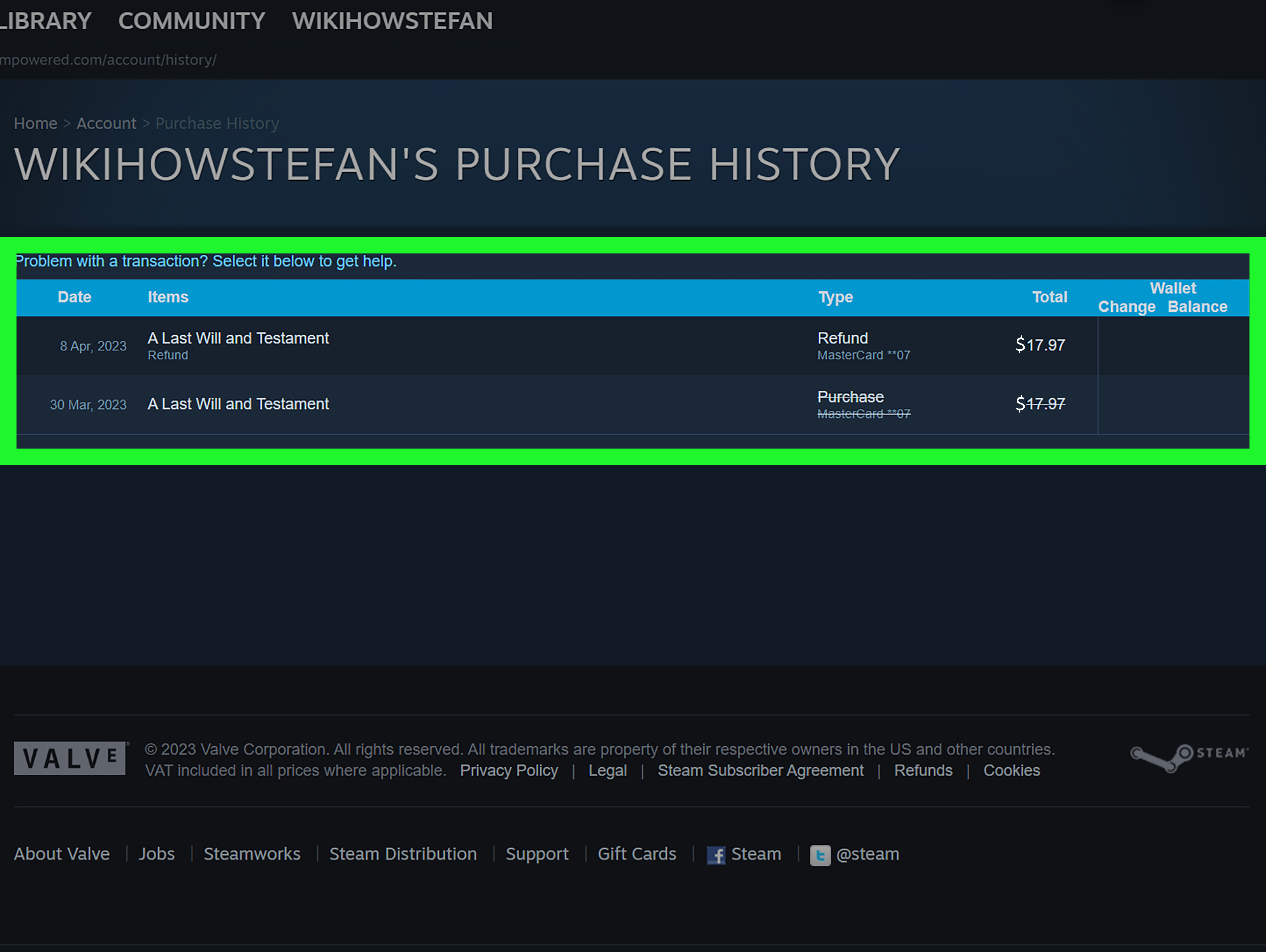
That’s it. You’ll be taken to a page that lists your Steam transactions. If you click an individual entry, Steam usually opens additional support options tied to that specific purchase.
Method 2: Steam Website in a Browser
Do not feel like opening the desktop app? No problem. You can also check your Steam purchase history from a regular web browser.
- Go to the Steam website and sign in.
- Click your profile name in the top-right corner.
- Choose Account details.
- Find the Store & Purchase History section.
- Click View purchase history.
This method is especially handy if you’re on a shared computer, using a laptop without the Steam client installed, or just prefer browser tabs because apparently one more tab will not hurt anyone.
How to View Your Purchase History in the Steam Mobile App
If you are away from your computer and need to check a purchase quickly, the Steam mobile app can usually get the job done. On current mobile layouts, the process is similar to desktop, though the exact placement of buttons can vary slightly depending on your device and app version.
Steam Mobile App Steps
- Open the Steam app on your iPhone or Android device.
- Sign in to your Steam account if needed.
- Tap your profile icon, account name, or account menu.
- Select Account Details.
- Under Store & Purchase History, tap View Purchase History.
Once opened, you should see a list of purchases connected to your account. Tap a transaction to view more details or support options.
If You Don’t See the Purchase History Button on Mobile
Here is where mobile apps like to get a little dramatic. If your app layout looks different and you can’t immediately find View Purchase History, try these fixes:
- Update the Steam app to the latest version
- Look under Account Details rather than store menus
- Use the Steam website in your phone’s browser instead
- Switch to desktop view in your mobile browser if the page looks stripped down
That browser workaround is useful because Steam’s web account pages often expose the full set of purchase tools more clearly than a compact mobile interface.
What You’ll See in Steam Purchase History
When you open your Steam account purchase history, you are not just looking at a random list of games. Steam typically shows helpful transaction-level details, including:
- Date of purchase
- Game, DLC, wallet funding, gift, or item purchased
- Transaction amount
- Payment method or transaction type
- Status information for some purchases
If you click a transaction, Steam may also give you support paths such as:
- I would like a refund
- I was charged the wrong amount
- I have a question about this purchase
- I would like to view or print the receipt
This is what makes the page so practical. It is not only a history log. It is the starting point for solving purchase problems without wandering through half the support site like a lost NPC.
How to Find Older Steam Purchases
One common misconception is that Steam only shows recent orders. In reality, your purchase history can include transactions going back a long time, often as far back as your account’s earlier buying activity. So yes, that game you bought in a midnight sale frenzy six years ago may still be there, waiting to be rediscovered like a fossil from your “I only play strategy games” era.
If you need to locate an older purchase:
- Use desktop or the web version for easier scrolling
- Look for the approximate year or season of the sale
- Check whether the item was bought directly, gifted, or funded through Steam Wallet
- Click entries one by one if you need a receipt or a support option
Older purchases may take a little patience to find, but they are often still accessible from the same history page.
How Steam Purchase History Helps With Refunds
If you want a refund, your purchase history is usually the fastest path to start. Steam’s general refund policy for games and software typically applies if the request is made within 14 days of purchase and the title has been played for less than 2 hours. Some other purchase types, such as certain DLC or in-game items, follow different rules.
To begin:
- Open your purchase history.
- Select the game or transaction.
- Choose I would like a refund.
- Follow the prompts and submit your request.
Steam may refund the money back to your original payment method when supported, or to your Steam Wallet in some cases. That means the purchase history page is not just where you remember your spending habits. It is also where you begin to reverse them.
How to View or Print a Steam Receipt
Need proof that you bought something? Maybe you are tracking expenses, trying to confirm a gift purchase, or proving you really did buy that game before your cousin “borrowed” your login. Steam’s purchase history can help with that too.
Open the relevant transaction and look for an option like view or print receipt. If the option is available, you can save it or print it for your records. This is useful for:
- Expense reimbursement
- Family spending reviews
- Personal budgeting
- Proof of purchase for support cases
What to Do if You See an Unrecognized Steam Charge
Seeing a Steam charge you do not recognize is not exactly a relaxing moment. Before you assume your account has been hijacked by a goblin with excellent taste in indie games, start with your purchase history.
First Steps
- Open View purchase history.
- Check whether the charge matches a game, wallet top-up, DLC, or gift purchase.
- Review the date and amount carefully.
- Click the transaction to see related support options.
If the charge still looks suspicious, use Steam Support and secure your account right away. It is also smart to change your password, review authorized devices, and make sure Steam Guard is enabled in the mobile app for extra protection.
Steam Purchase History vs. Other Steam Account Pages
Steam has several account sections that sound similar enough to confuse almost anyone. Here is the quick breakdown:
Purchase History
This shows your transactions, support options, and receipts. This is the page you want for purchases, charges, refunds, and payment questions.
Recent Purchases in Steam Support
This support area highlights more recent transactions and can also lead into refund or billing help. It is helpful, but View Purchase History is usually the fuller account-level view.
Steam Wallet
This is where you see or manage wallet funds, add money, or redeem wallet codes. It is related to spending, but not the same as your full transaction history.
Subscriptions
Recurring subscriptions live in a separate area under account details. If you are looking for a recurring charge, make sure you check there too.
Troubleshooting: Why Can’t I See My Steam Purchase History?
If the purchase history page refuses to cooperate, try the following:
- Make sure you are signed into the correct Steam account
- Use the official account menu rather than the community profile
- Switch from the app to the website if a button seems missing
- Update the Steam mobile app
- Try the desktop client if mobile feels limited
- Sign out and back in if the page fails to load properly
And yes, sometimes the issue is simply Steam being Steam. A quick refresh, app restart, or browser retry can solve more than anyone would like to admit.
Best Reasons to Check Your Steam Purchase History Regularly
You do not have to wait for a problem to use this page. It is worth checking now and then if you:
- Buy games during big seasonal sales
- Share a PC with family members
- Use Steam Wallet often
- Purchase gifts for friends
- Need to stay on top of digital spending
- Have ever said, “I’m pretty sure I already bought that”
Steam sales are wonderful, but they can also turn your financial memory into mashed potatoes. A quick glance at your history keeps everything grounded in reality.
Everyday Experiences With Steam Purchase History
For many players, the first time they visit their Steam purchase history is not planned. It usually starts with a tiny moment of panic. Maybe a game does not appear in the library right away. Maybe a card charge looks unfamiliar. Maybe you bought a title during a sale, forgot about it, and now you are trying to prove to yourself that your impulse buy was, in fact, a real event and not a caffeine-fueled fever dream.
One of the most common experiences is the “Did I actually buy this?” scenario. You spot a game in the store, it looks familiar, and then the internal monologue begins. “Wait, didn’t I grab this during the Winter Sale? Or was that a different post-apocalyptic crafting roguelike with suspiciously similar cover art?” Instead of guessing, purchase history settles the argument in seconds. It is like having a boring but extremely reliable friend who keeps receipts for everything.
Another common situation happens on mobile. You are out of the house, see a sale notification, and decide to grab a game from your phone before the discount disappears. Later, you want to confirm the purchase went through. The mobile app can help, but sometimes the layout makes you feel like the button you need is playing hide-and-seek. That is why knowing the fallback route through the Steam website on mobile is so useful. It saves you from tapping random menus like you are diffusing a bomb.
Then there is the family-PC experience. Maybe a sibling, spouse, or kid uses the same computer, and suddenly you notice a wallet balance that looks a little too skinny. Purchase history becomes your detective board. You check the date, the amount, and the item, and suddenly the mystery is solved. Ah yes, someone apparently needed an in-game cosmetic item with the urgency of a medical procedure.
Budget-conscious gamers also get a lot out of this page. Steam makes spending feel almost too painless. Click, confirm, install, repeat. Weeks later, purchase history provides a sobering but useful review of where the money went. You may discover that you bought five games during a sale and launched exactly one of them. Humbling? Yes. Helpful? Also yes.
It is also reassuring during refund situations. When a game does not run well, turns out to be nothing like expected, or simply fails to spark joy, purchase history gives you a structured way to act. Instead of hunting around the support center, you select the exact transaction and follow the prompts. That is much nicer than yelling “refund!” into the void and hoping Valve hears you.
Even longtime Steam users are often surprised by how much this page can do. It is not flashy. It does not have trailers, achievements, or neon sale banners. But when you need clarity, proof, or a fast path to support, it quietly becomes one of the most useful pages on your account.
Conclusion
If you want to view your purchase history in Steam, the fastest route is simple: open your account menu, go to Account Details, and select View Purchase History. You can do this from the desktop client, the Steam website, and often the mobile app as well.
Once you know where it is, this page becomes a handy tool for checking receipts, verifying payments, tracking old purchases, reviewing wallet activity, spotting unfamiliar charges, and starting refund requests. In short, it is the one Steam page that helps when your gaming life meets your real-life money.
And honestly, in a world full of giant backlogs and suspiciously tempting sales, a little purchase transparency is not just useful. It is character-building.