Note: This article is written for web publishing in standard American English and focuses on the iOS 10 Messages feature that lets users manage read receipts one conversation at a time.
Introduction: Because Not Every “Read” Needs a Receipt
Read receipts are one of those tiny iPhone features that can create surprisingly big feelings. One little word“Read”can make a simple message feel like a courtroom exhibit. Did you see the message? Yes. Did you reply? Not yet. Are you now being silently judged by a friend, coworker, sibling, or that one person who texts “???” after eight minutes? Possibly.
With iOS 10, Apple gave iMessage users a much-needed privacy upgrade: the ability to turn read receipts on or off for individual contacts. Before iOS 10, read receipts were mostly an all-or-nothing decision. You either let everyone know when you opened their iMessages, or you turned the feature off entirely. That was fine for people who enjoy living boldly, but not ideal for anyone who wanted to share read receipts with close family while keeping them off for coworkers, acquaintances, or enthusiastic group-chat captains.
This guide explains exactly how to turn off read receipts for individual contacts in iOS 10, how the feature works, when to use the global setting, and what to do if the option does not appear. Think of it as your calm, practical escape plan from unnecessary texting pressure.
What Are Read Receipts on iPhone?
Read receipts are status indicators in Apple’s Messages app. When you read an iMessage and read receipts are enabled, the sender can see that the message was read. In many cases, they may also see the time it was read. This is different from “Delivered,” which simply means the message reached your device or Apple account.
The most important detail is this: read receipts apply to iMessage, not regular SMS text messages. iMessages usually appear in blue bubbles, while SMS and MMS messages appear in green bubbles. If you are texting someone who does not use iMessage, the read receipt setting will not work in the same way. Turning off read receipts will not magically give green-bubble conversations the same controls as iMessage.
Delivered vs. Read: The Simple Difference
“Delivered” means the message arrived. “Read” means the message was opened in a way that triggered a read status. That second part is what many users want to control. Maybe you are busy. Maybe you need time to think. Maybe you opened a message while half-awake and holding a cereal spoon like a microphone. Whatever the reason, iOS 10 lets you decide who gets that extra bit of information.
Why iOS 10 Made Read Receipts More Useful
The big improvement in iOS 10 was flexibility. Instead of forcing users to choose one read receipt rule for everyone, Apple added a per-conversation control inside the Messages app. That means you could keep read receipts on for your spouse, parents, or best friend, while turning them off for specific contacts where you prefer more privacy.
This was a small feature, but it solved a very real problem. Communication is not one-size-fits-all. You may want transparency with some people and breathing room with others. iOS 10 made that possible without requiring complicated workarounds, third-party apps, or pretending your phone fell into a mysterious lake every time you needed a quiet evening.
How To Turn Off Read Receipts For One Contact In iOS 10
If you want to stop one specific person from seeing when you have read their iMessages, you can do it directly inside that conversation. The setting is not hidden in a secret tech cave. It is just tucked behind the information screen in Messages.
Step-by-Step Instructions
- Open the Messages app on your iPhone.
- Tap the conversation with the contact you want to manage.
- Tap the i information button in the upper-right corner of the conversation screen.
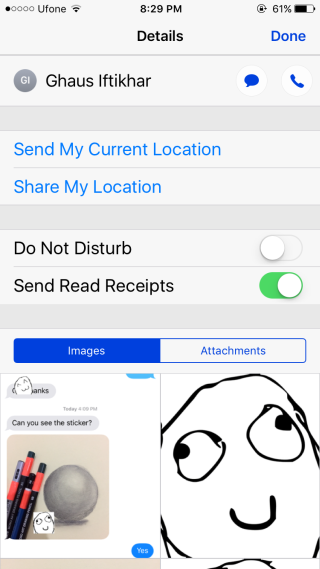
- Look for the option labeled Send Read Receipts.
- Turn the switch off for that contact.
Once the switch is off, that person should no longer receive read receipts from you in that iMessage conversation. They may still see that messages are delivered, but they should not see the “Read” label from your side when you open their messages.
What the Toggle Means
The individual “Send Read Receipts” toggle controls that specific iMessage conversation. If the switch is on, the contact can see when you read their messages. If the switch is off, they cannot. It is a personal privacy switch, and honestly, it feels like the kind of switch every phone should have had from the beginning.
How To Turn Off Read Receipts For Everyone
Sometimes you do not want to manage read receipts contact by contact. You just want the whole feature off. In that case, use the global Messages setting.
Global Read Receipt Setting
- Open the Settings app.
- Scroll down and tap Messages.
- Find Send Read Receipts.
- Turn the switch off.
This disables read receipts generally. However, iOS 10’s individual controls allow exceptions. That means you can keep the global setting off and still turn read receipts on for certain people if you want to. For example, you might turn them on for a partner or parent while leaving them off for everyone else.
Best Setup for Maximum Privacy
If privacy is your main goal, start by turning off read receipts globally in Settings. Then open only the conversations where you actually want read receipts enabled and turn them on individually. This gives you the cleanest setup: private by default, selective by choice.
How To Turn Read Receipts Back On For One Contact
Changed your mind? No problem. iOS 10 makes it just as easy to turn read receipts back on for one contact.
- Open Messages.
- Tap the conversation with the person you want to update.
- Tap the i information button.
- Turn Send Read Receipts back on.
This is useful for close relationships where quick confirmation matters. For example, if a family member sends important travel details, read receipts can reassure them that you saw the message. It is not always about pressure. Sometimes it is just helpful communication.
When Should You Turn Off Read Receipts?
There is no universal rule. Some people love read receipts because they reduce uncertainty. Others dislike them because they create pressure to respond instantly. The right choice depends on your relationships, schedule, and personal texting style.
Turn Them Off for Work-Life Balance
If coworkers or clients message you through iMessage, turning off read receipts can help protect your personal time. Reading a message does not always mean you are ready to respond. You may need to check a document, finish another task, or simply wait until business hours. Without read receipts, you can process the message without accidentally creating the expectation of an instant reply.
Turn Them Off for High-Pressure Conversations
Some conversations require thought. If someone sends emotional, complicated, or time-sensitive messages, you may not want a read receipt to start a countdown clock. Turning off read receipts gives you room to respond carefully instead of quickly.
Leave Them On for Trusted Contacts
Read receipts can be useful with people who understand your communication style. A close friend may appreciate knowing that you saw their address, arrival time, or quick question. In healthy communication, a read receipt is informationnot a demand.
Why You Might Not See the Send Read Receipts Option
If you open a conversation and do not see the individual read receipt toggle, there are a few possible reasons.
The Conversation May Not Be iMessage
Individual read receipt controls are designed for iMessage conversations. If the conversation uses SMS or MMS, shown as green bubbles, the setting may not appear or may not apply. The other person needs to be using iMessage for read receipts to work properly.
Your iPhone May Not Be Running iOS 10 or Later
The per-contact read receipt feature arrived with iOS 10. If your iPhone is running an older version of iOS, you may only have the global read receipt setting. Updating to iOS 10 or a later compatible version is required for individual controls.
You May Be Looking in the Wrong Place
The individual setting is not found in the Contacts app. It is inside the Messages conversation. Open the message thread first, then tap the information button. This is a common mistake because the phrase “individual contacts” makes it sound like the setting should live inside each contact card. It does not. Apple hid the magic inside the chat itself.
Read Receipts and Group Messages
Read receipt behavior can be more complicated in group conversations. The individual contact toggle is easiest to understand in one-on-one iMessage chats. In group threads, settings and visibility may depend on the conversation type, participants, and iMessage availability.
If privacy matters, do not rely on group chats for perfect read receipt control. For sensitive conversations, use one-on-one threads and check the specific conversation settings. Group chats are wonderful for birthday plans, dinner debates, and sending one meme to six people at once. They are less wonderful when you are trying to fine-tune privacy settings like a spaceship dashboard.
Practical Examples of Individual Read Receipt Settings
Example 1: Family On, Work Off
You might keep read receipts on for your parents or spouse because they mostly text about practical things: appointments, rides, groceries, or whether you made it home safely. At the same time, you can turn read receipts off for coworkers so that reading a message after dinner does not make it look like you are available for a full conversation.
Example 2: Best Friend On, Group Organizer Off
Maybe your best friend knows that you read messages and respond when you can. No drama, no countdown timer. Read receipts can stay on there. But for the friend who sends five follow-up texts after seeing “Read,” turning the feature off may save everyone from unnecessary tension.
Example 3: Privacy by Default
A privacy-focused setup would be to turn off read receipts globally, then enable them only for a few trusted contacts. This approach gives you control without requiring you to inspect every new conversation like a digital security guard.
Common Myths About iPhone Read Receipts
Myth 1: Turning Off Read Receipts Blocks Messages
Turning off read receipts does not block anyone. Messages still arrive normally. The sender simply does not get confirmation that you opened the message.
Myth 2: Read Receipts Work for Every Text Message
Read receipts are mainly an iMessage feature. If you are texting through SMS, you should not expect the same read status controls.
Myth 3: If Read Receipts Are Off Globally, You Cannot Use Them at All
In iOS 10, you can turn read receipts off globally and still enable them for selected conversations. That is the beauty of the per-contact feature.
Myth 4: Turning Them Off Is Rude
Privacy is not rude. People have different communication styles. Turning off read receipts simply means you prefer to reply on your own timeline. The message still matters. You just do not need your phone announcing every time your eyes pass over it.
Troubleshooting: If Read Receipts Still Appear
If someone says they can still see when you read their messages, check both your global and individual settings. Open Settings, go to Messages, and confirm that Send Read Receipts is off if you want a privacy-first setup. Then open the specific conversation, tap the information button, and make sure the individual toggle is also off.
You should also check other Apple devices signed into the same Apple ID. If you use Messages on an iPad or Mac, your messaging behavior may feel different across devices. For the cleanest experience, review Messages settings on each device you actively use.
Finally, make sure you are testing with an iMessage conversation. If the chat is not using iMessage, read receipt expectations may not apply in the same way.
Privacy Tips for Better iMessage Control
Turning off read receipts is only one part of managing your iPhone privacy. You can also control message previews, notification alerts, and Do Not Disturb settings. Together, these tools help you use Messages without feeling like your phone is running your social life.
Use Message Previews Carefully
Message previews let you see part of a message from the lock screen or notification banner. This can be convenient, but it can also expose private information. If you often receive sensitive messages, consider limiting previews in your notification settings.
Use Do Not Disturb for Focus
If you are studying, working, sleeping, or trying to enjoy dinner without your phone buzzing like an anxious bee, Do Not Disturb can help. Read receipts manage what others see after you open messages. Do Not Disturb helps manage whether you get interrupted in the first place.
Set Expectations With People
Technology settings help, but communication helps too. A simple “I read messages throughout the day but reply when I have time” can reduce pressure. It is amazing how many digital problems become smaller when humans use actual words.
Extra Experience: Living With Read Receipts in Real Life
After using individual read receipt controls, many iPhone users realize that the feature is less about hiding and more about managing expectations. The modern phone is not just a device; it is a tiny social contract machine. Every buzz, badge, and status label can imply something. Read receipts are useful in the right relationship, but they can feel intrusive in the wrong one.
A common experience is keeping read receipts on for close family. For example, if your mom texts, “Call me when you get home,” a read receipt can be comforting. It tells her the message reached you and that you saw it. In that situation, the feature works beautifully. It reduces worry and saves both sides from extra “Did you see this?” messages.
Work conversations are different. Suppose a coworker sends a message at 9:30 p.m. You open it because curiosity wins, as it often does. If read receipts are on, that coworker may assume you are available. Now you are not just a person in pajamas checking your phone; you are apparently open for business. Turning off read receipts for work contacts can create a healthier boundary. You can read the message, think about it, and respond during appropriate hours.
Friendships can vary too. Some friends treat read receipts casually. They understand that people are busy, distracted, tired, or trapped in the eternal chaos of everyday life. Other people treat “Read” like a legal summons. If they see it and do not get a reply quickly, the follow-up messages begin: “Hello?” “You there?” “Did I say something?” “Why are you ignoring me?” At that point, turning off read receipts is not just a setting; it is emotional pest control.
Another real-life benefit is decision time. Not every message deserves an instant answer. Some messages require checking your calendar, asking someone else, looking up an address, or deciding how to respond kindly. Read receipts can make thoughtful people feel rushed. Turning them off for certain contacts gives you space to answer better instead of faster.
There is also a privacy comfort factor. Many users simply do not like broadcasting their activity. They are not doing anything suspicious; they just prefer not to share every tiny interaction with their phone. That is reasonable. A person can value privacy and still be polite, responsive, and caring. Read receipts should be optional because communication styles are personal.
The best setup for many users is selective. Turn read receipts off globally, then enable them only for people who benefit from them and will not misuse them. That might include your partner, parents, close friends, or anyone who sends practical updates. For everyone else, the “Delivered” status is enough. They know the message arrived. You get to decide when to answer.
In daily use, iOS 10’s individual read receipt feature feels like a small but meaningful privacy upgrade. It does not change how messages are written, sent, or received. It simply gives users more control over the social signal attached to reading. And sometimes, that little bit of control is the difference between a peaceful phone and a pocket-sized pressure cooker.
Conclusion: Take Back Control of the “Read” Label
Learning how to turn off read receipts for individual contacts in iOS 10 is simple, but the benefit is bigger than the steps. Open Messages, choose a conversation, tap the information button, and switch off Send Read Receipts. That is all it takes to stop one specific contact from seeing when you have read their iMessages.
For broader privacy, turn off Send Read Receipts globally under Settings > Messages, then enable the feature only for contacts you trust. This gives you a balanced setup: more privacy, fewer awkward texting moments, and better control over your communication style.
Read receipts are not good or bad by themselves. They are useful when they reduce uncertainty and annoying when they create pressure. With iOS 10’s individual contact controls, you get to decide which conversations deserve that extra transparency and which ones can live happily with “Delivered.”