Your iPad is sitting right there. The screen is glowing. The Wi-Fi is working. Your Messages app looks innocent. And yet, somehow, your notifications have vanished like socks in a dryer. Before you blame the internet, your cousin, Mercury retrograde, or the iPad itself, check one tiny culprit first: Do Not Disturb mode.
On today’s iPads, Do Not Disturb is part of Apple’s broader Focus system. It is designed to help you silence calls, alerts, and app notifications when you are working, reading, sleeping, watching a movie, or pretending to be productive while scrolling recipes you will never cook. The feature is usefuluntil you forget it is on. Then it becomes the digital equivalent of putting your iPad in a soundproof room and wondering why nobody is visiting.
The good news? You can disable Do Not Disturb mode on iPad in seconds. This guide walks you through the fastest methods, the hidden settings that make Do Not Disturb turn itself back on, and the practical fixes for those moments when your iPad still refuses to behave.
What Is Do Not Disturb Mode on iPad?
Do Not Disturb, often shortened to DND, is a Focus option that quiets notifications on your iPad. When it is active, your iPad can silence alerts from apps, messages, calls, reminders, and other interruptions depending on your Focus settings. You may still receive the notifications in the background, but your iPad will not shout, ping, buzz, or light up like a miniature Times Square unless you have allowed certain people or apps to break through.
In older versions of iOS and iPadOS, Do Not Disturb was more of a simple on/off switch. In newer iPadOS versions, it sits inside Focus, alongside other modes such as Work, Sleep, Personal, Reading, Driving, and custom Focus profiles. This is why many users look for the classic “Do Not Disturb” switch and feel like Apple hid it in a secret cave guarded by a purple crescent moon.
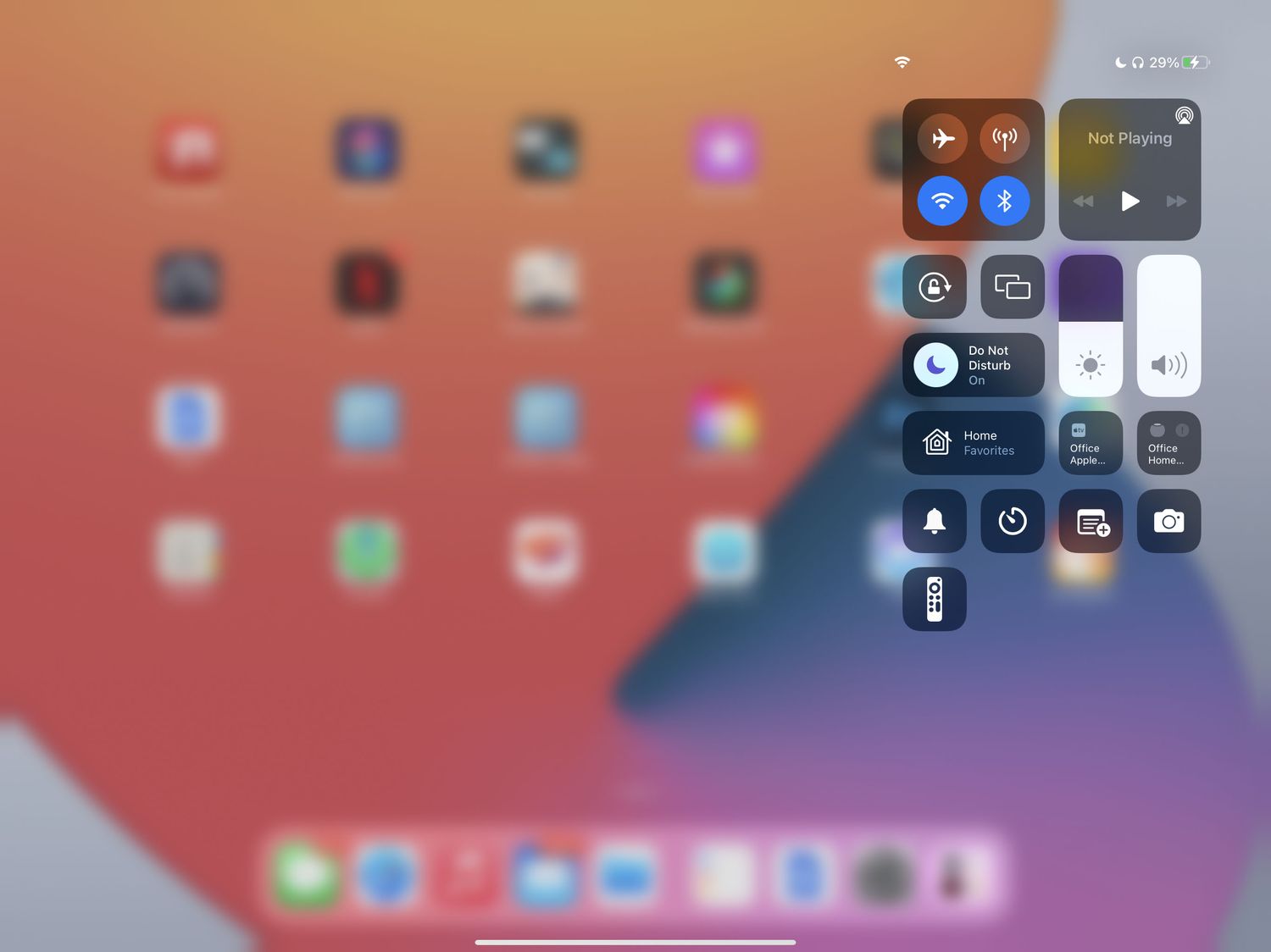
Here is the simplest way to think about it: Do Not Disturb is still there, but it now lives under Focus. To turn it off, you usually need to open Control Center, find the Focus button, and tap the active Do Not Disturb icon.
Fastest Way to Disable Do Not Disturb on iPad
If you only came here because your iPad stopped notifying you and you need the answer immediately, this is the express lane.
Turn Off Do Not Disturb from Control Center
- Swipe down from the top-right corner of your iPad screen to open Control Center.
- Look for the Focus button or the button labeled Do Not Disturb.
- If you see a crescent moon icon and Do Not Disturb is active, tap it.
- When the button changes back to Focus and the icon is no longer highlighted, Do Not Disturb is off.
That is it. No dramatic ceremony. No password. No tiny screwdriver. Just a swipe and a tap. If iPad had confetti, this would be the moment.
Use the Focus Menu if the Shortcut Is Not Obvious
Sometimes the Control Center button does not simply say “Do Not Disturb.” It may say Focus, Work, Sleep, Personal, or another mode. In that case, do this:
- Swipe down from the top-right corner to open Control Center.
- Tap or press the Focus button.
- Look for the active mode with a highlighted icon.
- Tap Do Not Disturb to turn it off.
If another Focus mode is active, such as Work or Sleep, turning off Do Not Disturb alone may not solve the problem. Other Focus modes can also silence notifications. If your iPad is still quiet, check whether another Focus profile is currently active.
How to Turn Off Do Not Disturb in Settings
Control Center is the fastest method, but Settings gives you more control. Use this route when Do Not Disturb keeps coming back, your notifications are still blocked, or you want to clean up the settings properly.
- Open the Settings app on your iPad.
- Tap Focus.
- Tap Do Not Disturb.
- Review the options for allowed notifications, schedules, screens, and filters.
- Turn off or delete any settings that are causing Do Not Disturb to activate automatically.
This is the “check under the hood” version. You are not just turning off Do Not Disturb for the moment; you are finding out why it turned on in the first place.
Why Do Not Disturb Keeps Turning Back On
If Do Not Disturb turns off and then returns like a villain in a sequel, there is almost always a reason. Your iPad may be following a schedule, reacting to a linked Lock Screen, syncing with another Apple device, or obeying a Focus automation you set up months ago and immediately forgot. No judgment. We have all created settings with the confidence of a software engineer and the memory of a goldfish.
Check Scheduled Do Not Disturb
One of the most common reasons Do Not Disturb keeps enabling itself is a schedule. Maybe you once told your iPad to silence notifications every night at 10 p.m. Sensible. Adult. Admirable. But now it is blocking alerts during a time when you actually need them.
To check the schedule:
- Open Settings.
- Tap Focus.
- Tap Do Not Disturb.
- Scroll to Set a Schedule.
- Turn off any active schedule you no longer want.
You may see schedules based on time, location, or app use. For example, Do Not Disturb might turn on every evening, when you arrive at a location, or when you open a certain app. Disable the schedule if it no longer fits your routine.
Check Smart Activation
Some Focus modes can use smart activation, which means your iPad may decide when to turn them on based on patterns such as time, location, and app activity. This sounds futuristic until your iPad “smartly” silences notifications while you are waiting for an important delivery message.
Go to Settings > Focus > Do Not Disturb and look for automation or smart activation options. If anything looks suspicious, turn it off. The goal is simple: your iPad should not be making notification decisions like an overconfident intern.
Check Share Across Devices
Apple’s Focus system can sync across devices signed in with the same Apple Account. This means turning on Do Not Disturb on your iPhone, Mac, or Apple Watch can also affect your iPad if Share Across Devices is enabled.
To stop this behavior:
- Open Settings on your iPad.
- Tap Focus.
- Turn off Share Across Devices if you want Focus changes to stay on one device.
This is especially useful if your iPad is used for school, family video calls, recipes in the kitchen, or entertainment, while your iPhone follows stricter work or sleep settings. Your devices can still be friends; they just do not need to copy each other’s every mood.
Check Lock Screen or Home Screen Links
Newer iPadOS versions let you connect Focus modes to specific Lock Screens or Home Screens. This is convenient when you want a clean study screen, a work layout, or a bedtime setup. But it can also be confusing. If you switch to a screen linked to Do Not Disturb, the Focus may turn on automatically.
Open your Focus settings and check whether Do Not Disturb is connected to a customized screen. If it is, unlink it or choose a different screen. This can solve the mystery of why Do Not Disturb activates when you change wallpapers or layouts.
How to Tell If Do Not Disturb Is On
The easiest clue is the crescent moon icon. If Do Not Disturb is active, you may see a crescent moon in the status area or on the Lock Screen. In Control Center, the Focus button may also show Do Not Disturb as active.
Another clue is notification behavior. If messages arrive silently, app alerts do not appear as expected, or callers seem to be reaching the void, a Focus mode may be active. However, do not assume every notification problem is Do Not Disturb. Your iPad also has notification settings for individual apps, volume controls, mute behavior, scheduled summaries, and network conditions that can affect what you see and hear.
Do Not Disturb vs. Silent Mode vs. Muted Notifications
Many users mix up Do Not Disturb, silent mode, and app-specific notification settings. They are related, but they are not identical.
Do Not Disturb
Do Not Disturb is a Focus mode. It can silence notifications, calls, and alerts based on rules. It can also allow selected people or apps to notify you. It is the “please hold my digital interruptions” feature.
Muted Sound
Muting sound lowers or removes alert audio, but notifications may still appear visually. If your iPad is muted, you might still see banners and badges. It is like telling your iPad, “Use your indoor voice.”
App Notification Settings
Each app can have its own notification permissions. If one app is not alerting you, go to Settings > Notifications, choose the app, and make sure notifications are allowed. This is important if only Messages, Mail, FaceTime, Calendar, or another specific app seems affected.
How to Allow Important Notifications Without Turning Off Do Not Disturb
Sometimes you do not want to disable Do Not Disturb completely. You just want certain people or apps to reach you. Maybe you want your family, boss, doctor, delivery driver, or calendar alerts to get through while everything else stays quiet. That is where allowed notifications come in.
Allow Notifications from People
- Open Settings.
- Tap Focus.
- Tap Do Not Disturb.
- Tap People.
- Add the contacts who should be allowed to notify you.
This is useful if you want peace without becoming unreachable. Think of it as giving VIP passes to the people who matter most.
Allow Notifications from Apps
- Go to Settings > Focus > Do Not Disturb.
- Tap Apps.
- Add apps that should be allowed to send notifications.
For example, you might allow Calendar, Reminders, Messages, or a work app while blocking social media, games, shopping alerts, and that one app that thinks every minor update deserves a red carpet announcement.
What to Do If Notifications Still Do Not Work
If you turned off Do Not Disturb and your iPad still acts like it is taking a vow of silence, work through these quick checks.
Check for Another Active Focus Mode
Open Control Center and tap Focus. If Work, Sleep, Personal, Reading, Driving, or another custom Focus is active, turn it off. Any Focus can silence notifications depending on its settings.
Check Notification Settings
Go to Settings > Notifications. Choose the app that is not notifying you and confirm that notifications, sounds, banners, and Lock Screen alerts are enabled. A single app may be blocked even when Do Not Disturb is off.
Check Volume and Sound
Use the volume buttons or Control Center to make sure your iPad volume is not extremely low. Also check the app’s own sound settings if it has them. Some apps have notification controls inside the app itself.
Restart Your iPad
Restarting is not glamorous, but it works often enough to deserve respect. Turn your iPad off, wait a moment, and turn it back on. This can clear temporary glitches with notifications or Focus status.
Update iPadOS
If your iPad is running an older version of iPadOS, update it when possible. Apple regularly fixes bugs, improves Focus behavior, and adjusts notification features. Go to Settings > General > Software Update to check.
Disable Do Not Disturb with Siri
There is also a hands-free option. You can ask Siri to turn off Do Not Disturb. Try saying:
“Hey Siri, turn off Do Not Disturb.”
If Siri is enabled and listening, your iPad should disable the mode. This is handy when you are cooking, typing, exercising, or buried under a blanket with only one hand available. Technology should occasionally make us feel powerful.
Best Practices for Managing Do Not Disturb on iPad
Do Not Disturb is not bad. In fact, it is one of the most useful iPad features when configured properly. The problem is not the feature; the problem is accidental silence. Use these best practices to keep your notifications under control without missing important alerts.
Use Schedules Carefully
Schedules are excellent for bedtime, school hours, reading time, and meetings. Just make sure the schedule matches your real life. If your routine changes, update the Focus schedule. Otherwise, your iPad may keep enforcing rules from a version of your life that no longer exists.
Name Custom Focus Modes Clearly
If you create custom Focus modes, use obvious names such as Study, Deep Work, Family Time, or Movie Night. Avoid vague names like “Mode 1” or “Serenity Zone” unless you enjoy future confusion.
Allow Critical Apps
If certain apps are important, add them to allowed notifications. Calendar, Messages, FaceTime, Mail, school platforms, work tools, smart home alerts, and health-related apps may deserve permission depending on your life.
Turn Off Share Across Devices When Needed
If your iPhone, Mac, Apple Watch, and iPad serve different purposes, consider disabling Share Across Devices. This prevents a Focus mode on one device from unexpectedly silencing another.
Common Questions About Disabling Do Not Disturb on iPad
Where is Do Not Disturb on iPad?
Do Not Disturb is located inside Focus. You can access it quickly from Control Center or by going to Settings > Focus > Do Not Disturb.
Why does my iPad say Focus instead of Do Not Disturb?
Apple uses Focus as the main category for several notification modes. Do Not Disturb is one type of Focus. If the button says Focus, tap it to see Do Not Disturb and other Focus options.
Does Do Not Disturb block alarms?
Alarms usually still sound even when Do Not Disturb is on. However, app notifications, calls, and alerts may be silenced unless allowed in your Focus settings.
Can people tell when my notifications are silenced?
If Focus Status is enabled and supported by the app they are using, people may see that you have notifications silenced. They generally do not see the exact Focus name.
Is Do Not Disturb the same as Airplane Mode?
No. Do Not Disturb controls interruptions. Airplane Mode disables wireless connections such as cellular, Wi-Fi, and Bluetooth depending on your settings. If you want notifications to arrive quietly, use Do Not Disturb. If you want to disconnect from networks, use Airplane Mode.
Real-Life Experience: Turning Off Do Not Disturb When the iPad Goes Too Quiet
The first time many people run into Do Not Disturb trouble, it does not feel like a settings issue. It feels like the iPad has developed an attitude. You expect a message, a FaceTime call, a calendar reminder, or a delivery alert, and nothing happens. The iPad sits there calmly, as if it has entered a monastery and taken a solemn oath against push notifications.
In everyday use, the fastest fix is almost always Control Center. Once you know the gestureswipe down from the top-right cornerit becomes second nature. The tricky part is recognizing that the Focus button may not scream “Do Not Disturb” at you. Sometimes it looks like a small crescent moon. Sometimes it simply says Focus. Sometimes another mode is active, and you have to tap into the Focus menu to see what is going on. After you do this a few times, it becomes a ten-second habit.
One of the most common real-world scenarios is the bedtime schedule problem. A user sets Do Not Disturb to turn on at night, which is a great idea. Then their schedule changes. Maybe they start working late, traveling, taking online classes, or waiting for family messages in another time zone. Suddenly, a helpful bedtime rule becomes a notification trap. The iPad is not broken; it is just following old instructions very faithfully. In that case, the fix is not just turning Do Not Disturb off once. The better move is opening Settings > Focus > Do Not Disturb and removing or adjusting the schedule.
Another familiar situation happens when someone owns several Apple devices. They turn on Do Not Disturb on an iPhone before a meeting, and later their iPad is quiet too. At first, this feels mysterious. Then they discover Share Across Devices. This feature can be wonderful when you want all your Apple devices to respect the same quiet time. But if your iPad is used differently from your phone, syncing Focus can feel like one device is gossiping to the others. Turning off Share Across Devices gives each device its own notification personality.
There is also the “important app disappeared from my life” problem. For example, a student may need alerts from a school app while blocking entertainment notifications. A parent may want messages from family but not news alerts during dinner. A remote worker may need Calendar and Slack, but not every shopping app announcing a sale like it discovered electricity. In those cases, disabling Do Not Disturb completely may not be the best solution. Customizing allowed people and apps is smarter. It gives you quiet without cutting the phone line to reality.
The biggest lesson from using Do Not Disturb on an iPad is that the feature works best when it is intentional. Turn it on when you want silence. Turn it off when you need the world back. Review schedules occasionally. Check shared device settings. Keep your allowed contacts and apps updated. Used this way, Do Not Disturb stops being a confusing switch and becomes what Apple intended: a simple tool for protecting your attention.
So the next time your iPad gets suspiciously quiet, do not panic. Swipe down, tap Focus, turn off Do Not Disturb, and enjoy the sweet sound of notifications returning to your digital life. Carefully, of course. Nobody needs twelve app alerts before coffee.
Conclusion
To disable Do Not Disturb mode on iPad in seconds, open Control Center by swiping down from the top-right corner, tap the Focus or Do Not Disturb button, and switch off the active mode. If it keeps coming back, check schedules, smart activation, Share Across Devices, and any Lock Screen or Home Screen links connected to Focus.
Do Not Disturb is not your enemy. It is a helpful feature that sometimes gets a little too enthusiastic. With a few quick settings checks, you can control when your iPad stays quiet and when it gets back to delivering calls, messages, reminders, and app alerts exactly the way you expect.
Note: This article is based on current iPadOS Focus and Do Not Disturb behavior, synthesized from official Apple guidance and reputable U.S.-based technology references. Source links are intentionally not inserted into the article body for publication readiness.