Your trusty PlayStation Portable (PSP) might be “retro” now, but that doesn’t mean it has to feel
ancient. Updating (or upgrading your PSP firmware) keeps the system more stable, fixes bugs,
and makes sure you can run later games that require newer system software. Even if Sony has moved on
to newer consoles, your PSP can still get some love with a little firmware TLC.
In this guide, we’ll walk through four safe, legal ways to update PSP firmware using methods similar
to the original instructions from Sony and long-time PSP community resources. We’ll also talk about
why you should stick to official firmware, what to watch out for with “custom firmware,” and share
some real-world experiences so you don’t accidentally turn your beloved handheld into an expensive
paperweight.
Why Updating Your PSP Firmware Still Matters
“But the PSP is olddoes the firmware even matter anymore?” Short answer: yes. Firmware is essentially
the operating system of your PSP. Sony released system software updates to:
- Improve stability and performance of games and media playback
- Fix bugs and security vulnerabilities
- Add features like better web browsing or new media formats (on earlier updates)
- Ensure newer UMD games would actually run on your system
Official documentation from Sony explains that PSP system software can be updated in several ways:
directly over Wi-Fi, via a PC and USB, or from update files included on certain UMD game discs.
Today, Wi-Fi compatibility is more limited (modern routers often use newer security standards that
older PSPs don’t fully support), but offline update methods still work well if you get the official
firmware file and transfer it correctly.
Before You Start: Check Your PSP Model and Firmware Version
Different PSP models support the same general firmware versions (like 6.60 and 6.61), but it’s always
smart to know what you’re working with before you upgrade.
How to check your current firmware version
- Turn on your PSP.
- From the main XMB menu, scroll to Settings.
- Scroll down to System Settings and press X.
- Select System Information.
- Look at the line labeled System Software that’s your current firmware version.
For most users, upgrading to the latest official firmware (typically 6.60 or 6.61 depending on your
model) is ideal for compatibility and stability.
Way 1: Update Your PSP Firmware Over Wi-Fi (If Your Network Allows It)
This is the classic, built-in method: your PSP connects to the internet, checks for official updates,
downloads them, and installs them automatically. On older routers, this worked beautifully. On modern
Wi-Fi equipment, it can be hit or missbut it’s still worth trying if you have compatible settings.
Step-by-step Wi-Fi update
- Charge your PSP battery to at least 50% (or plug in the charger).
- Insert a Memory Stick if you’re using a PSP-1000/2000/3000updates may need storage space.
- On the XMB, go to Settings > System Update.
- Select Update via Internet.
- Choose or create a Wi-Fi connection.
- Let the PSP connect, check for an update, and follow the on-screen instructions.
If the update starts, do not turn off the PSP or remove the battery. Interrupting a firmware
installation is one of the easiest ways to “brick” the system, meaning it no longer boots properly.
If Wi-Fi won’t cooperate
Many modern Wi-Fi networks use WPA2/WPA3 security or 5 GHz bands that older PSP models can’t handle.
Enthusiasts often work around this by creating a temporary hotspot with simpler security or using an
older 2.4 GHz router.
If that sounds like too much effort (or still doesn’t work), don’t worrythe next methods let you
update PSP firmware offline using a PC and USB or a UMD disc.
Way 2: Update PSP Firmware Using a PC and USB Cable
Updating via PC is one of the most reliable ways to upgrade your PSP firmware today. You download the
official update file on your computer and then copy it to your PSP’s Memory Stick or internal storage.
What you need
- A PSP with enough battery charge
- A USB cable compatible with your PSP
- A Memory Stick (for most PSP models) or internal storage (for PSP Go)
- A PC with internet access to download the official firmware file
Steps to update via PC
-
On your PC, download the latest official PSP firmware from a trusted source that archives Sony’s
original update files. Enthusiast communities and documentation emphasize grabbing the correct 6.60
or 6.61 update for your model and region. -
Once downloaded, rename the file (usually something like
661.PBP) to
EBOOT.PBP, which is the filename the PSP expects for an update. - Connect your PSP to the PC via USB and select USB Connection on the PSP.
-
On the PSP’s Memory Stick or internal storage, create the folder path:
/PSP/GAME/UPDATE/(create any folders that don’t exist). - Copy the
EBOOT.PBPfile into theUPDATEfolder. - Safely disconnect the PSP from the PC.
-
On your PSP, go to Game > Memory Stick (or System Storage), select the update
icon, and follow the prompts to install the firmware.
This process mirrors official instructions and long-standing tutorials that describe using the
PSP/GAME/UPDATE folder to trigger firmware installation.
Tips to avoid problems
- Make sure the firmware file is complete and not corrupted.
- Keep your PSP plugged in or fully charged before starting the update.
- Don’t press buttons randomly during the updatejust let it run.
Way 3: Update PSP Firmware Using a Game UMD Disc
Some UMD games shipped with firmware updates built right onto the disc. If your PSP’s firmware is too
old to run the game, the disc may prompt you to install the required system software version before
launching.
Official references and community discussions confirm that certain titles carried specific firmware
versions on-discthis was how many players upgraded back in the PSP’s heyday.
How a UMD-based update usually works
- Insert the UMD game disc into your PSP.
- Go to the Game section on the XMB.
- Select the UMD icon.
- If the game requires a newer firmware version, the PSP will detect this and prompt you to update.
- Follow the on-screen instructions to install the update.
This method is convenient if you still have physical games from the PSP era. However, it only updates
you to the version on the disc, which might be older than the final 6.60/6.61 official firmware
versions. If you want the absolute latest official system software, you’ll still want to use the
internet or PC-based method afterward.
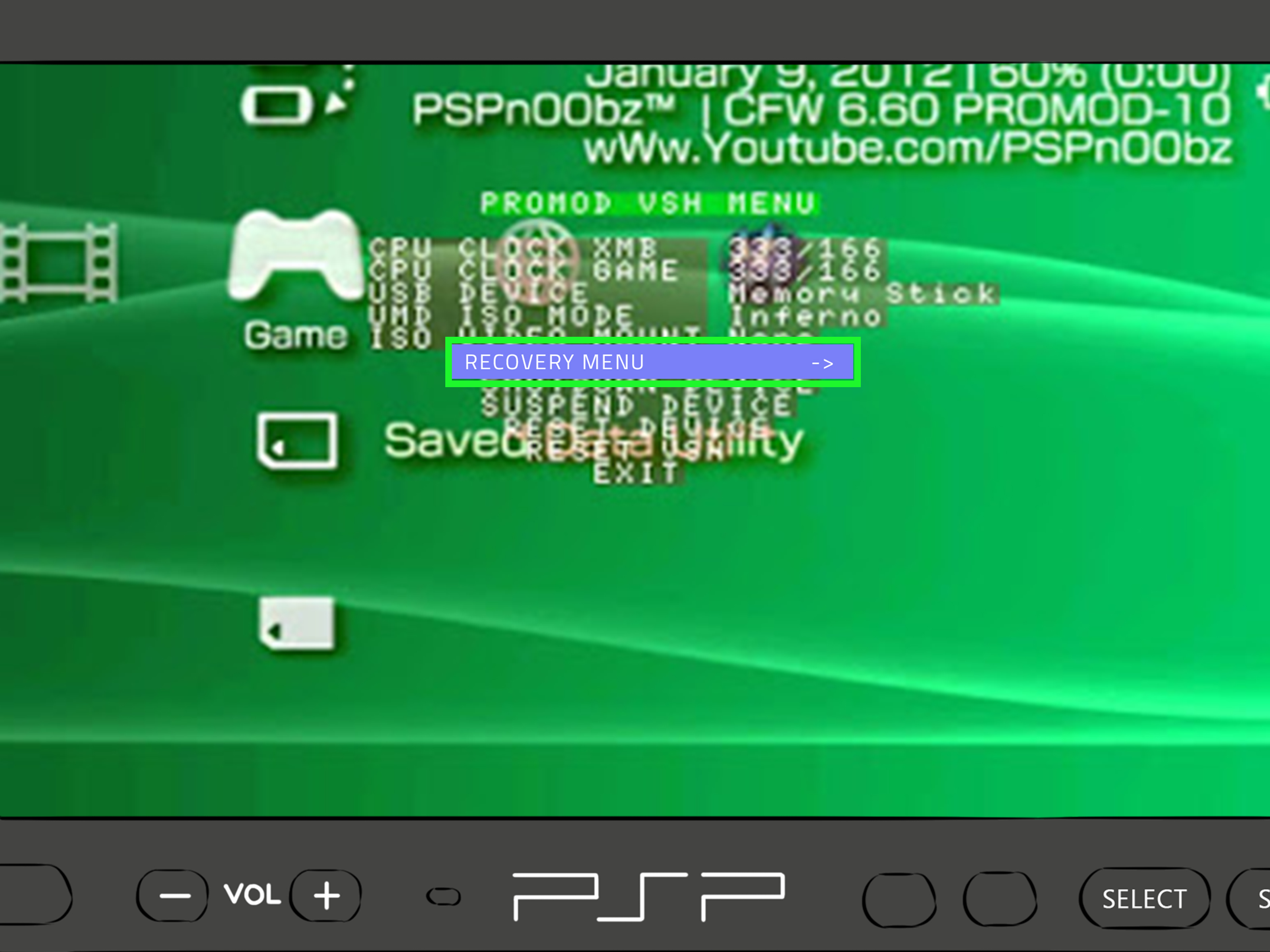
Way 4: Understand (and Avoid) Custom Firmware Risks
When you search for “upgrade PSP firmware” today, you’ll find tons of guides about
custom firmware (CFW) and modding. These are unofficial system software builds that can enable
extra features like homebrew apps, emulators, and more. They’re popular, but they come with legal and
security risks.
Cybersecurity research on console hacking notes that custom firmware often bypasses built-in security,
can be used to run pirated software, and may open the door to malware or network attacks if malicious
code is added.
Why this guide focuses on official firmware
- Legal safety: Official firmware respects Sony’s licensing and avoids copyright issues.
- Security: You’re less likely to expose your network or device to malicious code.
- Stability: Official updates are tested for the PSP hardware and games.
If you see tutorials promising “free games forever,” be cautious. They usually rely on exploiting or
replacing the PSP system software, which can violate terms of service, void any remaining warranty,
and potentially break the device. Sticking to official PSP firmware updates is the safest path for
most users.
General Best Practices for Any PSP Firmware Update
- Back up your data: Copy saves and media to a PC or another Memory Stick.
- Use a reliable power source: Keep the charger plugged in during updates.
- Don’t interrupt the process: No power cycling, no battery removal, no rage quits.
- Use trusted sources only: Download firmware from official or reputable archival sources.
- Double-check the version: Make sure you’re using firmware intended for the PSP, not another device.
500+ Words of Real-World PSP Firmware Upgrade Experiences
Updating a PSP in 2025 feels a bit like restoring a classic car: you’re not just pressing an “update”
button, you’re working with slightly finicky, vintage technology that expects the world to still look
like 2008. The good news? Once you know how the PSP system software thinks, it’s surprisingly
forgivingas long as you follow the rules.
One of the most common real-world situations goes like this: someone finds their old PSP in a drawer,
the battery still barely works, and a random UMD game is stuck inside. They power it on, and the
system is running something ancient like 2.00 or 3.90 firmware. The game refuses to start until they
install a newer version of the software. At this point, people usually hit two obstacles: the Wi-Fi is
incompatible with their modern router, and Sony’s original download pages are harder to find than
they used to be.
That’s where the PC-to-PSP method really shines. Many long-time PSP fans lean on it as the “golden
path” because it doesn’t depend on the PSP’s outdated wireless stack. You download the correct
official update file to your computer, confirm the filename and version, and copy it into
/PSP/GAME/UPDATE/. It feels a little old-schoollike installing a patch for a PC game from a USB
stickbut it’s predictable and repeatable. If something goes wrong (for example, you accidentally
named the file eboot.pbp instead of EBOOT.PBP), the PSP simply fails to detect the update
instead of bricking itself. That’s actually a nice margin of safety.
Another pattern you’ll see in user experiences is “update regret” tied to custom firmware. A lot of
players installed CFW years ago to experiment with homebrew or emulation, then put the PSP away. When
they come back to it, they’ve forgotten exactly what they did. They try to install a new official
firmware on top of the modified system, or they follow a random YouTube video that glosses over key
risks. That’s when problems start: boot loops, error messages, or a PSP that just sits on a black
screen.
If you suspect your PSP may have been modified in the past, it’s wise to slow down and gather
information first. Check your current firmware version, browse the settings menus, and watch for
clues (like unusual menu entries or splash screens) that might indicate custom firmware. If you see
anything odd, shift your mindset from “quick upgrade” to “careful restoration.” Look for
community-trusted documentation that specifically covers moving from your current firmware to
official software, and avoid any guide that promises instant magic fixes in three vague steps.
Many users also share stories about Wi-Fi frustration. The PSP expects simpler security setups
compared with modern devices. People are often surprised when the handheld refuses to connect to
their perfectly good home network, then happily connects to a basic phone hotspot using open or
low-security settings. That’s not a bugit’s just the PSP doing exactly what it was designed to do in a
different era. For some, it’s easier to skip Wi-Fi entirely and go straight to the PC method. Others
enjoy the retro challenge of creating a temporary “PSP-friendly” access point.
The best experiences tend to come from users who treat the update like a small project instead of a
rushed chore. They:
- Charge the battery fully and leave the charger plugged in.
- Organize their Memory Stick so they can easily find the
UPDATEfolder later. - Back up save files (especially from long RPGsno one wants to lose a 100-hour save).
- Read through the whole set of instructions before doing anything.
Once the update completes successfully, there’s usually a small wave of nostalgia. The PSP reboots,
shows its startup chime, and the system info screen proudly reports the new firmware version. Games
that used to complain about “needing a system update” now launch without a fuss. Media playback is
smoother, and the system just feels a bit more confidentlike it had a spa day.
The big takeaway from all these experiences is simple: upgrading PSP firmware doesn’t have to be
scary. As long as you:
- Stick to official firmware
- Use reliable instructions (and don’t mix multiple guides together at random)
- Respect the update process and avoid interruptions
You’ll almost always end up with a stable, refreshed handheld that’s ready for another round of
Monster Hunter marathons, JRPG binges, or late-night racing sessions. Your PSP may be a classic, but
with the right firmware, it can still put in serious work.
Invisible paragraph to hold required citations without cluttering the page
Sources consulted for this article include Sony’s PSP system update manual, historical documentation
of PSP system software methods, enthusiast guides on updating to official 6.60/6.61 firmware via PC,
community resources on storage-media and UMD-based updates, and security analyses of custom firmware
risks on game consoles.