Windows Command Prompt may look like a black rectangle from the past, but it is still one of the fastest ways to create, organize, and remove files and folders. You do not need a mouse, a right-click menu, or fifteen open File Explorer windows. You just need the right commands, a little caution, and the emotional maturity not to type del *.* in the wrong folder.
This guide explains four practical ways to create and delete files and directories from Windows Command Prompt. You will learn how to make folders with mkdir, create files with echo, type nul, copy con, and fsutil, delete files with del, and remove folders with rmdir. Along the way, you will also learn how to handle spaces in paths, preview your work with dir, and avoid the kind of command-line mistakes that make people suddenly believe in backups.
Before You Start: Command Prompt Basics That Save Headaches
Open Command Prompt by pressing Windows + R, typing cmd, and pressing Enter. You can also search for “Command Prompt” from the Start menu. For normal file and folder work inside your user profile, standard Command Prompt is usually enough. For protected system locations, you may need “Run as administrator,” but beginners should avoid deleting or editing anything inside Windows system folders unless they know exactly why.
Start by checking where you are:
List the files and folders in the current location:
Move into a folder:
Move up one level:
Change drive and folder at the same time:
If a folder or file name contains spaces, wrap the path in quotation marks. Command Prompt treats spaces as separators unless you tell it otherwise:
That one habit prevents many beginner errors. Command Prompt is powerful, but it is not psychic. If you type a path with spaces and no quotes, it may think you are giving it several separate instructions. That is when the command line stops feeling efficient and starts acting like a grumpy substitute teacher.
Way 1: Create Directories with mkdir or md
The simplest way to create a directory from Windows Command Prompt is with mkdir. The shorter version, md, does the same thing. A directory is simply a folder, so “create a directory” and “create a folder” mean the same thing in this context.
Create One Folder
To create a folder named Reports in your current location, run:
or:
Confirm it exists:
Create a Folder with Spaces in the Name
Use quotation marks when the folder name includes spaces:
Without quotes, Command Prompt may create separate folders named Client and Reports, depending on how the command is interpreted. That is a fun surprise only if your idea of fun is cleaning up accidental folders.
Create Nested Directories in One Command
You can also create several levels of folders at once:
If command extensions are enabled, which is the default on modern Windows systems, mkdir can create intermediate directories automatically. In plain English: if Projects and Website do not already exist, Windows can create them while making the final Images folder.
Create a Directory in a Specific Location
You do not have to be inside a folder to create something there. You can provide the full path:
This is especially useful in scripts, setup routines, or repeatable project structures. For example, a web designer might create a basic project layout like this:
In a few seconds, the project has a clean structure. No right-clicking, no dragging, no hunting through menus.
Way 2: Create Files from Command Prompt
Command Prompt gives you several ways to create files. The best method depends on whether you want an empty file, a text file with content, or a file of a specific size for testing.
Create a Text File with echo
The echo command displays text, but with redirection, it can also write text into a file. The > symbol sends the output into a file instead of showing it on the screen.
This creates notes.txt and writes one line into it. If the file already exists, > replaces its contents. To add a line without replacing the file, use >>:
To read the file:
Create an Empty File with type nul
If you need a blank file, use:
This creates an empty file named empty.txt. It is handy when you need placeholder files, quick test files, or a file that another program expects to find.
Create a File with copy con
The old-school method is copy con, which copies input from the console into a file. Run:
Type your text:
When finished, press Ctrl + Z, then press Enter. Command Prompt saves the file.
This method feels a bit vintage, like using a flip phone at a tech conference, but it still works for quick notes.
Create a File of a Specific Size with fsutil
For testing storage, uploads, scripts, or file handling, you may want a file with an exact size. The fsutil file createnew command can create a file filled with zeroes.
This creates a 1 MB file named testfile.bin. The number is the file size in bytes. For example:
Some fsutil operations may require administrative permissions, so if the command fails, try Command Prompt as administrator or use one of the simpler methods above.
Way 3: Delete Files with del or erase
To delete files from Windows Command Prompt, use del. The command erase performs the same basic job. Before using either one, slow down and check your location with cd and dir. Deleted files from Command Prompt may not go to the Recycle Bin, so this is not the moment for keyboard confidence cosplay.
Delete One File
To delete a file named notes.txt:
or:
Delete a File with Spaces in the Name
Use quotation marks:
Ask Before Deleting
The /p switch asks for confirmation before deleting each file:
This is a good habit when you are learning. It adds a tiny pause between “I think this is right” and “Oops, that was my homework folder.”
Force Delete Read-Only Files
If a file is marked read-only, use /f:
Quietly Delete Files
The /q switch runs in quiet mode, which suppresses confirmation prompts for wildcard deletions:
Use this carefully. It is useful for cleanup scripts, but dangerous in the wrong folder.
Delete Files by Extension
Wildcards let you target groups of files. To delete all temporary files in the current folder:
To delete all log files:
The asterisk means “match anything.” That is powerful. It is also why you should never run wildcard delete commands while half-asleep.
Delete Files in Subdirectories
The /s switch deletes matching files from the current directory and all subdirectories:
This can be useful for cleaning backup files across a project, but you should preview what exists first:
Preview first, delete second. That rule has saved more files than any motivational poster ever printed.
Way 4: Delete Directories with rmdir or rd
Files and directories are deleted with different commands. del removes files, not folders. To remove directories, use rmdir or its shorter version, rd.
Delete an Empty Directory
To remove an empty folder named OldReports:
or:
If the folder contains files or subfolders, Command Prompt will not remove it unless you add the correct switch.
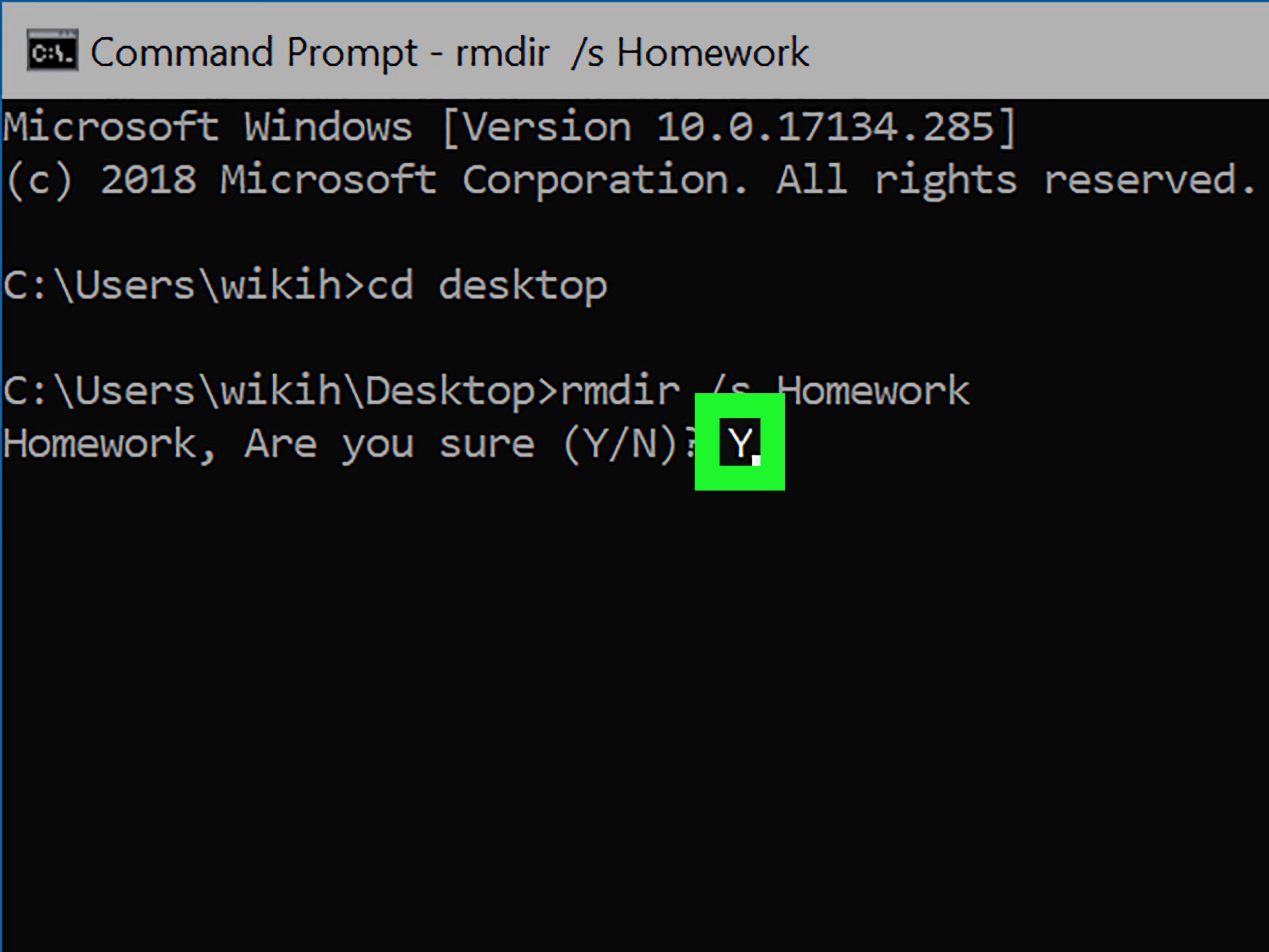
Delete a Directory and Everything Inside It
To delete a folder, its files, and its subfolders, use /s:
Command Prompt will ask for confirmation. Read the folder name carefully before pressing Y. This command removes the directory tree, not just the top folder.
Delete a Directory Without Confirmation
Use /q with /s for quiet mode:
This is useful in batch files and automated cleanup routines, but it is also the command-line version of a trapdoor. Use full paths when possible, and double-check the folder before running it:
Common rmdir Errors
If you see “The directory is not empty,” use rmdir /s only if you truly want to delete everything inside. If you see “The process cannot access the file because it is being used by another process,” close programs that may be using files in that folder. If you see “Access is denied,” you may not have permission, or the folder may contain protected files.
Quick Reference: Best Commands for Common Jobs
| Task | Command Example |
|---|---|
| Create a folder | mkdir Reports |
| Create nested folders | mkdir Projects\Site\Images |
| Create a text file | echo Hello > notes.txt |
| Create an empty file | type nul > empty.txt |
| Create a test file by size | fsutil file createnew test.bin 1048576 |
| Delete one file | del notes.txt |
| Delete files by extension | del *.tmp |
| Delete an empty folder | rmdir OldFolder |
| Delete a folder and contents | rmdir /s OldFolder |
| Delete a folder quietly | rmdir /s /q OldFolder |
Safety Tips Before You Delete Anything
Command Prompt rewards accuracy. It does not reward vibes. Before deleting files or directories, use dir to confirm your current location. When using wildcards, preview matching files first. For example, before running del *.log, run:
Before deleting files across subfolders, preview with:
Use quotation marks around paths with spaces. Prefer full paths when deleting important folders. Avoid running commands from broad locations like C:\ unless you have a very specific reason. And remember: deleting from Command Prompt is not the same as gently placing a file into the Recycle Bin with a tiny farewell ceremony. In many cases, the file is simply gone from normal recovery paths.
Practical Examples for Everyday Use
Example 1: Create a Project Folder and Starter Files
This creates a project directory, moves into it, adds two files, creates an assets folder, and lists the result.
Example 2: Clean Temporary Files from a Folder
The first command moves to the folder, the second previews temporary files, and the third asks before deleting each matching file.
Example 3: Remove an Old Project Folder
The preview step helps confirm that the target is correct. Once you are completely sure, rmdir /s removes the directory and its contents after confirmation.
Beginner Mistakes to Avoid
The first common mistake is forgetting quotation marks. If a path includes spaces, quote it. The second mistake is using del when you meant rmdir. Files and folders are handled differently. The third mistake is deleting from the wrong working directory. Always check cd and dir. The fourth mistake is using /q too early. Quiet mode is great for scripts, but beginners should use confirmation prompts until the commands feel familiar.
Another mistake is assuming every command is reversible. Some Windows actions provide friendly undo buttons. Command Prompt is not always one of them. Treat destructive commands like you would treat scissors near a charging cable: useful, but deserving of attention.
of Real-World Experience: What Using Command Prompt Teaches You
Working with files and directories from Windows Command Prompt teaches a skill that File Explorer often hides: precision. When you create a folder with mkdir, you start thinking about structure before you start dumping files everywhere. When you create a file with echo or type nul, you understand that a file is not magic; it is simply an object with a name, a location, and sometimes content. When you delete with del or rmdir, you learn that computers follow instructions exactly, even when your instructions are terrible.
One of the best habits is building a small test folder before trying new commands. Create something like C:\CommandPractice and experiment there. Make a few folders, create a few sample text files, and delete them. Try names with spaces. Try nested folders. Run dir after every step. This turns Command Prompt from a scary black box into a predictable tool. It is much better to learn what rmdir /s does inside a practice folder than inside your school project, work archive, or family photo backup.
Another useful experience is learning to combine commands into a workflow. For example, you can create a monthly folder, add a notes file, and confirm everything in seconds. A person who organizes invoices might run commands to create folders for each month. A developer might create project directories and placeholder files. A student might create folders for classes, assignments, drafts, and final submissions. The point is not to replace File Explorer completely. The point is to use the fastest tool for repetitive jobs.
Command Prompt also improves troubleshooting skills. If a program says it cannot find a file, you can use dir to check whether the file exists. If a path fails, you can test it with cd. If a command breaks because of spaces, you learn to add quotation marks. These tiny habits make you better at understanding Windows itself. You stop guessing and start verifying.
The biggest lesson, though, is caution. Deleting files from the command line feels efficient because it is efficient. But efficient mistakes are still mistakes; they just happen faster. Use /p when you want confirmation. Avoid /q until you are confident. Preview wildcard matches before deleting them. Keep backups of anything important. If you are cleaning a folder and feel even slightly unsure, stop and run dir again. There is no trophy for deleting quickly, but there is definitely regret for deleting the wrong thing.
Once you practice these commands, they become second nature. You will create folders without opening File Explorer, generate quick files for testing, clean clutter with targeted commands, and remove old directories with confidence. Command Prompt is not glamorous. It will not win a design award. But for fast file management, it remains a dependable little workhorse hiding in plain sight.
Conclusion
Learning how to create and delete files and directories from Windows Command Prompt gives you more control over everyday file management. The four core methods are simple: use mkdir or md to create directories, use echo, type nul, copy con, or fsutil to create files, use del or erase to delete files, and use rmdir or rd to delete directories.
The commands are short, but their impact can be big. With a few careful habits, such as quoting paths with spaces, previewing files with dir, and avoiding quiet deletion until you are sure, you can work faster and safer. Command Prompt is not just for IT pros or people who own too many mechanical keyboards. It is a practical tool for anyone who wants cleaner folders, faster workflows, and fewer clicks.